TL;DR:
You can back up an Android phone without a Google account by saving data locally to a computer or external storage.
A Google account makes Android backups easier, but it isn't the only way to keep your data safe. Maybe you don't want to sync personal files to Google's cloud, or you simply prefer having a local copy that you can access anytime. Either way, you have several options. You can back up supported Android data to a computer, copy files to external storage, or use your phone's built-in tools. This guide walks you through four practical methods to back up your Android phone without a Google account.
If you want to back up your Android phone without a Google account, Coolmuster Android Backup Manager is a convenient Android Backup and Restore desktop solution. It lets you back up your Android phone or tablet directly to a Windows PC or Mac without relying on Google Drive or other cloud services. You can choose specific data types or back up multiple categories at once, including contacts, text messages, call logs, photos, videos, music, books, and apps. The program also supports USB and Wi-Fi connections, allowing you to save your Android backups locally and restore them whenever needed.
Key Features of Coolmuster Android Backup and Restore:
How to Back Up Android Phone Without a Google Account:
01 Download and install Coolmuster Android Backup and Restore on your Windows PC or Mac. Launch the program and connect your Android phone to the computer using a USB cable. Follow the on-screen instructions to enable USB debugging on your phone
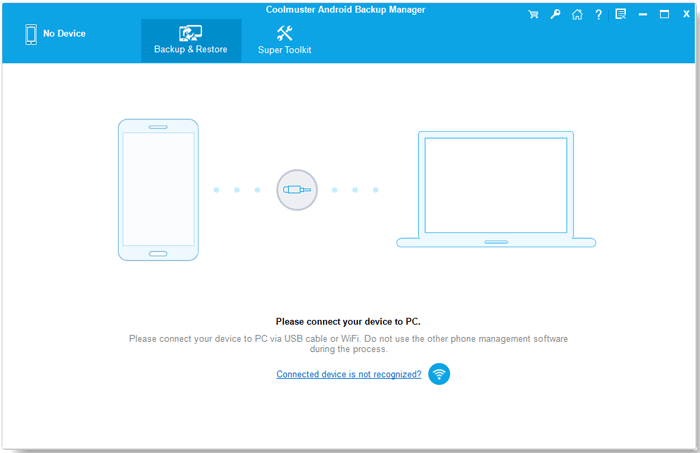
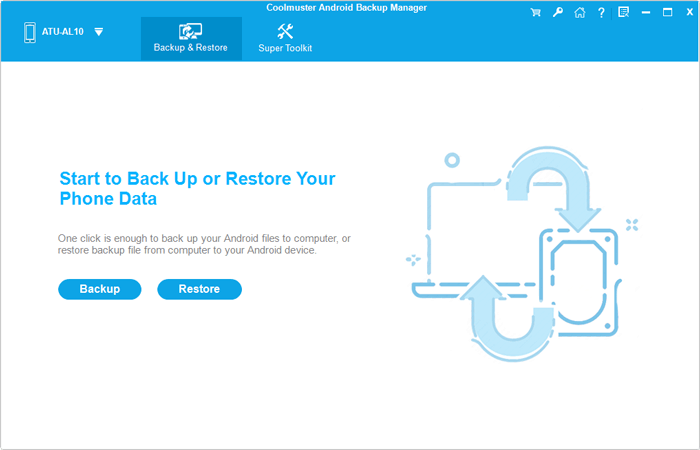
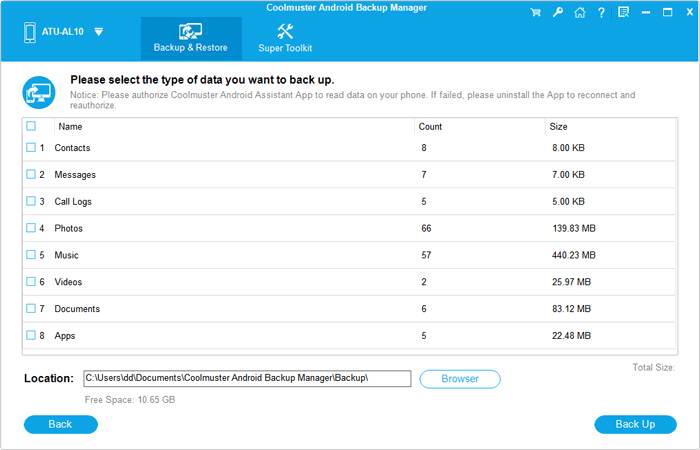
02 Once your device is recognized, click the "Backup" button on the main interface. Select the data types you want to back up, such as contacts, messages, photos, videos, or apps.
03 Click "Browser" to choose a destination folder on your computer for storing the backup. Click "Back Up" to start the process. Wait until the software finishes saving your selected Android data to the computer.
Video Guide:
If you only need to save photos, videos, music, or documents, you can copy them directly from your Android phone to a Windows PC using File Explorer. This method is free, requires no Google account or additional software, and works with most Android devices. However, it mainly supports accessible files and folders, not app data, text messages, or call logs.
1. Connect your Android phone to your PC using a USB cable.
2. Unlock your phone and tap the USB notification.
3. Select "File Transfer" or "Transferring files" as the USB connection mode.
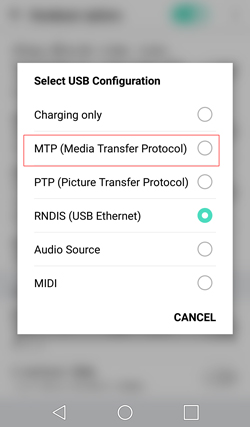
4. On your PC, open File Explorer and click "This PC".
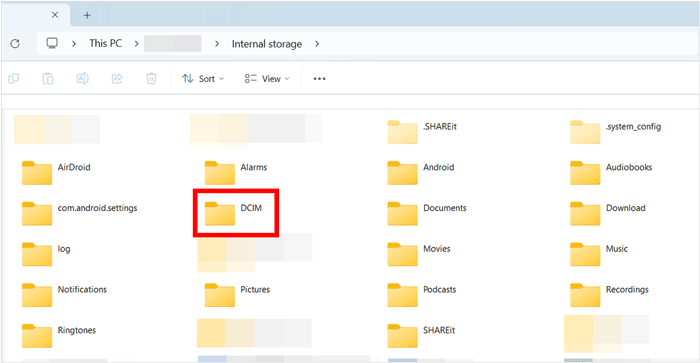
5. Double-click your Android device to access its internal storage.
6. Browse the folders, such as "DCIM", "Pictures", "Movies", "Music", and "Documents", to find the files you need.
7. Select the files or folders, right-click and choose "Copy", then paste them into a folder on your PC.
8. Once the transfer is complete, safely disconnect your Android phone.
If you don't want to store your Android data on a computer or in the cloud, an SD card or USB flash drive is another practical option. You can copy photos, videos, documents, music, and other accessible files directly to external storage without signing in to a Google account.
Option 1: Back Up Android Phone to an SD Card
If your Android phone has an SD card slot, you can use a memory card to store important files.
Option 2: Back Up Android Phone to a USB Flash Drive
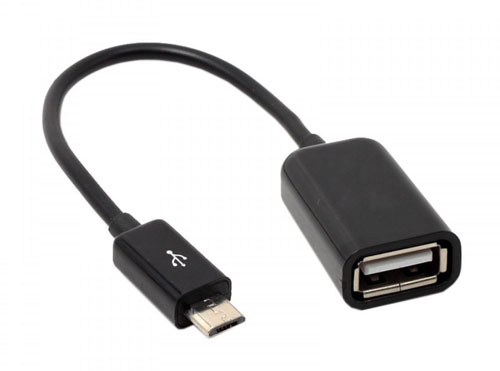
You can also use a USB flash drive to back up Android files. Your phone needs to support USB OTG, and you may need a compatible OTG adapter.
Note: These methods are useful for backing up personal files, but they generally don't save app data, SMS, call logs, or all system settings. Also, not every Android phone supports SD cards or USB OTG.
Many Android manufacturers offer their own backup tools, so you may not need a Google account to save your phone data. These tools usually let you back up files, settings, contacts, and other supported data to a computer or external storage. The available options depend on your phone's brand and model.
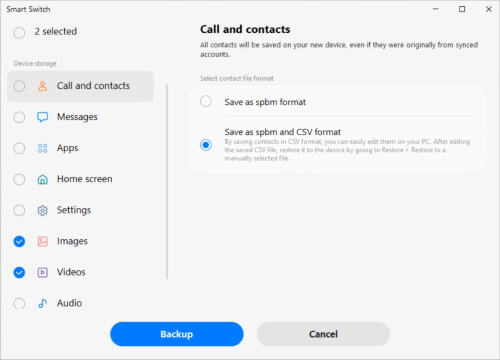
Option 1: Use Samsung Smart Switch
Samsung Smart Switch lets you back up supported Samsung phone data to a Windows PC or Mac.
Option 2: Use Your Phone Manufacturer's Backup Tool
Some Android brands also provide built-in or desktop backup utilities. For example, Xiaomi offers Mi Mover, while Huawei provides Phone Clone for transferring data between devices. Depending on the model and software version, you may also find local backup options in your phone's Settings app.
To check whether your phone supports local backup:
Keep in mind that these tools vary in what they can back up. Some focus mainly on transferring data to another phone rather than creating a complete backup. Check the supported data types before relying on them.
Q1: Can I back up my entire Android phone without a Google account?
Yes. You can back up many types of Android data without signing in to a Google account. Desktop tools like Coolmuster Android Backup Manager let you save supported data, including contacts, messages, photos, videos, and apps, to a computer. However, some system settings and app-specific data may require separate backup methods.
Q2: How do I back up Android contacts without a Google account?
You can export your contacts as a VCF file using your phone's Contacts app. Open "Contacts", go to "Settings" or "Manage contacts", find "Export", and save the file to your phone storage. You can then copy it to a computer or external drive for safekeeping.
Q3: Can I back up WhatsApp chats without a Google account?
Yes, but the available options depend on your WhatsApp version and Android device. You can use WhatsApp's built-in chat export feature to save individual conversations, including media if needed. Keep in mind that exported chats are for reference and cannot be imported directly back into WhatsApp as a complete chat history.
Q4: How can I back up Android app data without Google Drive?
Some apps provide their own backup or export options, allowing you to save data locally or transfer it to another device. However, copying an app's APK file does not necessarily save its internal data, login information, or settings. Check each app's backup options before switching phones or resetting your device.
Q5: Can I restore my Android phone from a local backup without a Google account?
Yes, provided your backup was created using a method that supports local restoration. For example, Coolmuster Android Backup Manager can restore supported data from a computer backup to an Android device. You can also manually copy compatible files from an SD card or USB drive back to your phone.
Q6: Is it safe to back up Android data to a computer?
Yes. Local backups are generally a good way to keep a separate copy of your important files without relying on cloud storage. To protect your privacy, store backups in a secure folder, use full-disk encryption or password protection where possible, and keep an additional copy on an external drive in case your computer fails.
Backing up your Android phone doesn't have to involve Google services. Whether you prefer a computer, an SD card, a USB drive, or a manufacturer-provided tool, there's a suitable option for your needs. If you want to save more than just photos and documents, Coolmuster Backup Manager is worth considering. Whichever method you choose, make a habit of checking your backup files so you know they're actually there when you need them.
Related Articles:
How to Back Up Android Phone Before Factory Reset? (8 Ways)
Google Backup and Restore: Everything You Need to Know





 Free Download for PC
 Free Download for Mac


