TL;DR:
Want to back up your iQOO phone to Mac? This guide introduces 5 practical methods:
iQOO is a smartphone brand under vivo, known for its strong performance, gaming capabilities, and competitive pricing. It has gained popularity among users who want powerful Android devices at a reasonable cost.
However, when it comes to backing up an iQOO phone to a Mac, many users find it less straightforward due to the lack of an official macOS management tool. Fortunately, there are still several effective ways to safely back up your data. In this guide, we'll walk you through 5 practical methods to back up iQOO to Mac with ease.
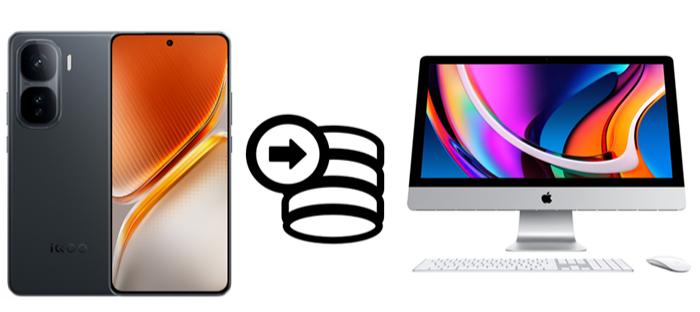
If you're looking for a professional, all-in-one solution to back up all types of iQOO data to Mac with minimal effort, Coolmuster Android Backup Manager is the ideal choice. This powerful tool supports one-click backup and restoration, covering a wide range of data types. It simplifies the backup process and allows you to save multiple types of data without hassle.
Key features of Coolmuster Android Backup Manager:
How to back up iQOO to Mac with 1 click?
01Download and install Android Backup Manager on your Mac, then open the program to enter its main interface.
02Connect your iQOO phone to the Mac using a USB cable, and follow the on-screen prompts to enable USB debugging so the software can detect your device successfully. Once recognized, you will see your device information displayed on the screen.
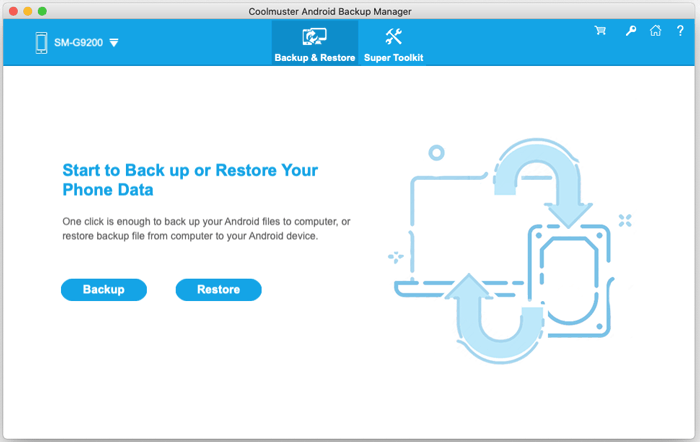
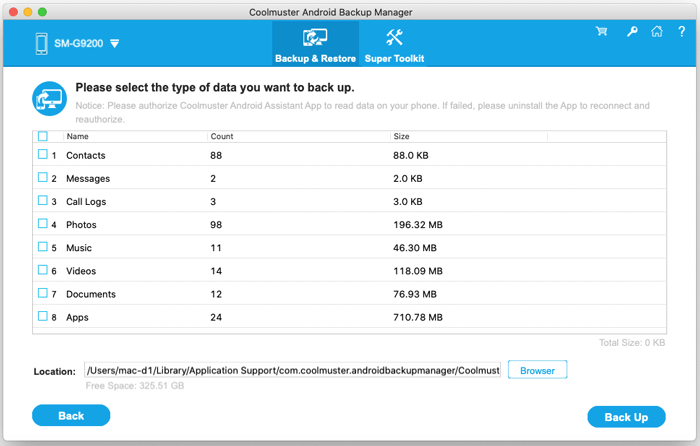
03Click the "Backup" option, choose the data types you want to save, then set a destination folder on your Mac. After that, click the "Back Up" button to start backing up your iQOO data.
To make things even clearer, you can watch the video tutorial below for a step-by-step visual guide.
If you prefer a free and straightforward solution, Android File Transfer is a practical choice for transferring files from your iQOO to your Mac. It allows you to access your phone's storage and manually copy data such as photos, videos, music, and documents.
However, this method only supports file-level backup and does not include contacts, messages, or app data. It also requires a USB connection and works through the MTP protocol.
Step-by-step guide:
Step 1. Download Android File Transfer from Google's official website and install it on your Mac. If it is already installed, make sure it's updated to the latest version.
Step 2. Connect your iQOO phone to the Mac using a USB cable. Unlock your phone, and when prompted, select "File Transfer (MTP)" mode.
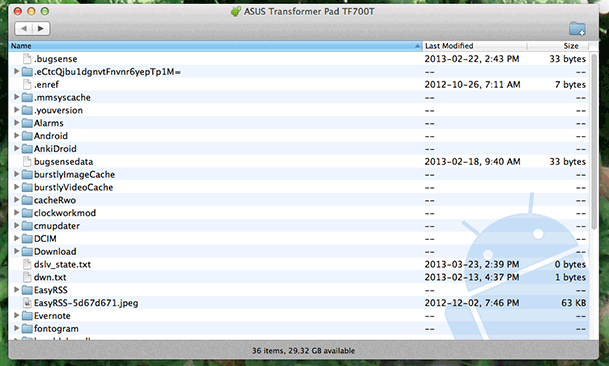
Step 3. The program should open automatically on your Mac. If it doesn't, you can manually launch it from the Applications folder. Once opened, you'll be able to view your device storage.
Step 4. Browse the folders on your iQOO and locate the files you want to back up, such as photos in the DCIM folder, music in the Music folder, or documents in the Download or Documents folder.
Step 5. Drag and drop the selected files or folders to a location on your Mac, such as the Desktop or Documents folder.
Step 6. After the transfer is complete, safely eject your device from your Mac before disconnecting the USB cable.
If you prefer a wireless solution, vivo Cloud is a built-in feature on iQOO devices that allows you to back up data to the cloud and access it from your Mac. This method is convenient and cable-free, but it depends on your internet connection and available cloud storage. Here is how it works:
Step 1. Open "Settings" on your iQOO phone and go to "Account & Sync" > "vivo/iQOO Cloud".
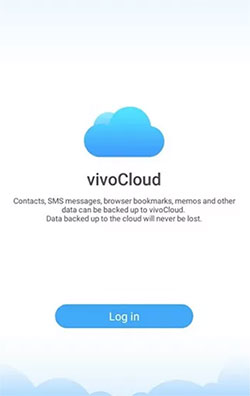
Step 2. Sign in with your vivo account, or create one if you don't already have one.
Step 3. Enable "Cloud Backup" and select the data types you want to back up, such as contacts, messages, and photos.
Step 4. Tap "Back Up Now" to upload your data to the cloud.
Step 5. On your Mac, open a browser and visit the vivo Cloud website, then log in with the same account.
Step 6. Choose the data you need and download it to your Mac.
Using a Google account is another easy way to back up your iQOO data without cables, especially if you already use Google services. This method is free and automatic, but it mainly backs up system data and may not include all file types, like photos, unless additional sync is enabled.
Here is the step-by-step guide of backup iQOO to Mac with a Google account:
Step 1. On your iQOO phone, go to "Settings" > "System" > "Backup".
Step 2. Turn on "Back up to Google Drive" and sign in to your Google account if needed.
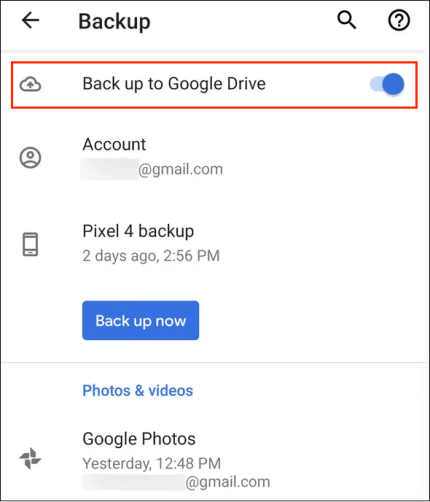
Step 3. Select the account you want to use and tap "Back up now" to start the process.
Step 4. Wait for the backup to complete while connected to Wi-Fi.
Step 5. On your Mac, open a browser and go to Google Drive, then sign in with the same account.
Step 6. Locate your backup and download the data you need to your Mac.
If you want to transfer data wirelessly without using cloud storage, EasyShare is a practical option developed by vivo. This method is fast and cable-free, but it is mainly suitable for transferring files rather than creating a full backup. Below is the step-by-step guide:
Step 1. Install and open EasyShare on your iQOO phone. If it's not pre-installed, download it from the app store.
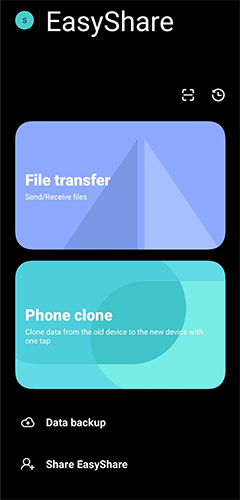
Step 2. On your Mac, open a browser and access the EasyShare web transfer page.
Step 3. Connect both your iQOO and Mac to the same Wi-Fi network.
Step 4. Use your phone to scan the QR code displayed on your Mac to establish a connection.
Step 5. Once connected, select the files you want to back up, such as photos, videos, or documents.
Step 6. Transfer the selected data to your Mac and save it to a local folder.
Each method for backing up your iQOO to Mac comes with its own advantages and limitations. Android File Transfer is a simple and free option, but it only supports basic file transfers and cannot back up important data like contacts or messages. vivo Cloud and Google account offer convenient wireless backups with automatic syncing, yet they rely heavily on internet speed and often come with limited storage or restricted data types. As for EasyShare, it provides a fast cable-free transfer experience, but it is mainly designed for file sharing rather than full device backup.
If you want a more complete and hassle-free solution, Coolmuster Android Backup Manager stands out as the best choice. It allows you to back up almost all types of data in one place and restore them easily when needed, making it especially suitable for users who prefer a more reliable and efficient backup experience.
Overall, the right method depends on your needs, but choosing a professional tool can save you time and ensure your data is fully protected.
Related Articles:
Back Up iQOO Apps Easily: 4 Proven Methods You Can Trust
How to Conduct iQOO Backup and Restore [4 Proven Methods]
Top 6 Methods to Sync IQOO to PC [A Comprehensive How-to Guide]
How to Edit iQOO Phone Contacts on Computer [4 Easy Methods]





 Free Download for Mac
 Free Download for PC


