iQOO smartphones, powered by Android, come with a wide range of apps for daily communication, work, entertainment, and more. Whether you're switching to a new iQOO device, upgrading the system, or preparing for unexpected data loss, knowing how to back up iQOO apps is essential.
In this guide, we'll introduce four reliable methods to back up iQOO apps, ranging from cloud-based solutions to a professional local backup tool, so you can choose the option that best fits your needs.
For iQOO users with global ROMs (or those who have set up Google services on Chinese ROMs), using a Google account is one of the most convenient cloud-based methods to back up apps and their data. This method leverages Google Drive to store app data for apps downloaded from Google Play, ensuring seamless restoration on new devices. Here's the step-by-step process:
Step 1. Go to "Settings" > "Google" > "Backup" and sign in to your Google account.
Step 2. Turn on "Back up to Google Drive" and make sure "Apps" is selected.
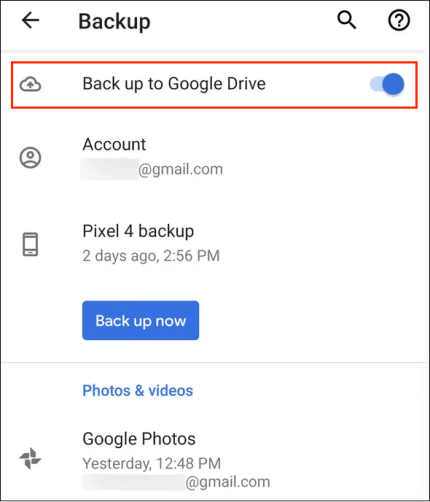
Step 3. Tap "Back up now" and wait for the process to finish.
As iQOO is a sub-brand of Vivo, it comes pre-installed with Vivo Cloud - an official cloud service designed specifically for Vivo and iQOO devices. This method is ideal for users who prefer official solutions, as it seamlessly integrates with the device's system. Vivo Cloud can back up app installation packages and partial app data, along with other important data like contacts, SMS, and system settings. Here is how it works:
Step 1. Open "Settings" > "Vivo Cloud" and sign in to your Vivo account.
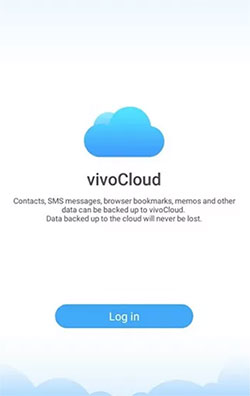
Step 2. Select "Device Cloud Backup" and enable "Apps".
Step 3. Tap "Back Up Now" to start the backup.
EasyShare (also known as Vivo Mutual Transfer) is an official Vivo tool designed for device-to-device data transfer. Instead of saving apps to cloud storage or a computer, this method backs up iQOO apps by transferring them directly from one phone to another. It is especially useful when upgrading to a new iQOO device, as it allows you to move app installation packages along with most app data locally, without relying on the internet or cloud services.
Step 1. Make sure EasyShare is installed on both iQOO phones. If not, download it from Google Play.
Step 2. Open EasyShare on both devices and choose the "File Transfer" mode.
Step 3. On the old iQOO phone, tap "Send", and on the new iQOO phone, tap "Receive".
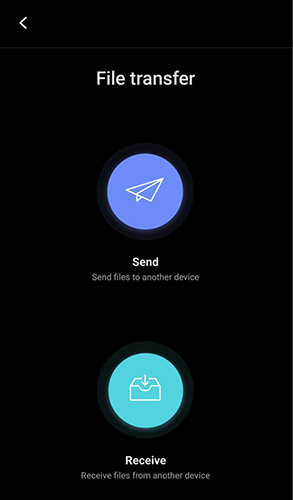
Step 4. Select "Apps" on the sending phone, choose the apps you want to back up, and tap "Send" to start the transfer.
While cloud services and phone-to-phone transfer tools are convenient, they all come with limitations, such as storage caps, incomplete app data support, or the need for another device. If you want a stable, long-term, and fully controllable way to back up iQOO apps, a professional desktop backup solution is the better choice. That's where Coolmuster Android Backup Manager comes in.
Coolmuster Android Backup Manager is a dedicated Android backup tool designed to help users back up and restore Android data with just one click. It allows you to save iQOO apps directly to your computer, without relying on cloud storage or internet connectivity, making it ideal for secure and repeated backups.
Key Features of Coolmuster Android Backup Manager
How to back up iQOO apps using Coolmuster Android Backup Manager?
01Download and install Coolmuster Android Backup Manager on your computer.
02Connect your iQOO phone to the computer using a USB cable or Wi-Fi connection and enable USB debugging when prompted.
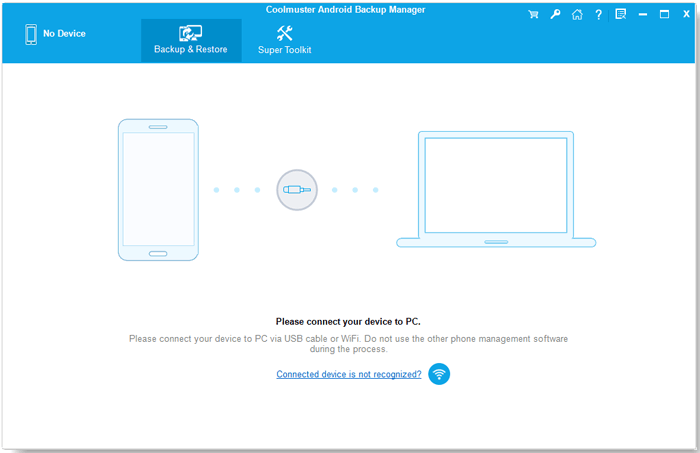
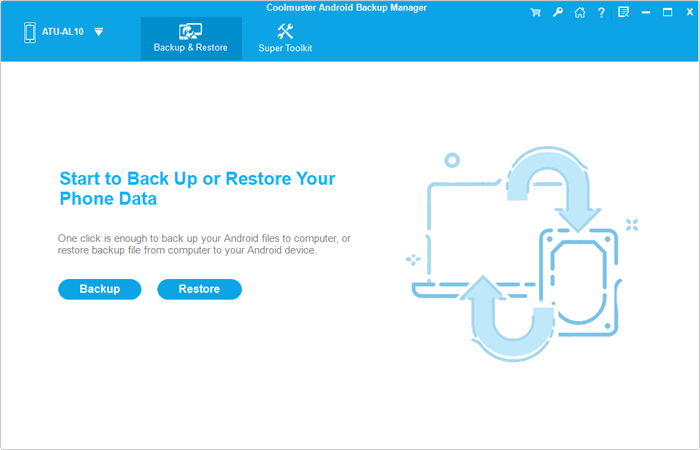
03Once connected, select "Backup" from the main interface.
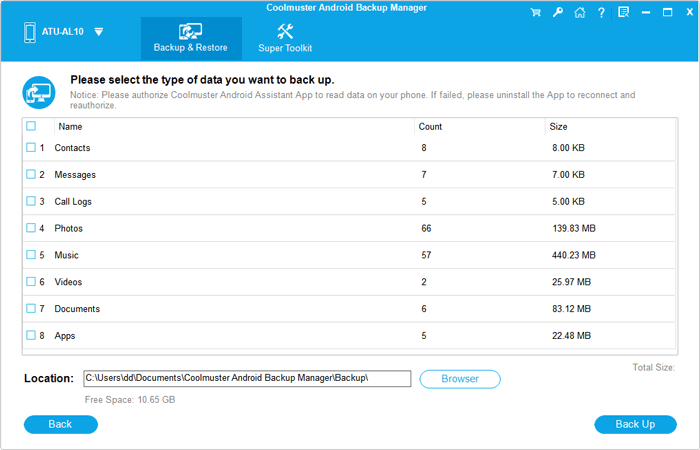
04Check "Apps" from the list of supported data types and click "Back Up" to start. All selected iQOO apps will be safely saved to your computer.
If you prefer a visual guide, you can also follow the step-by-step video tutorial to complete the backup process more easily.
There are several ways to back up iQOO apps, each suited to different scenarios. Google account and Vivo Cloud offer convenient cloud-based options for basic app backups, while EasyShare works well when transferring apps directly to a new iQOO phone. However, these methods often come with limitations such as storage restrictions, incomplete app data support, or reliance on another device.
If you're looking for a reliable, flexible, and long-term solution, Coolmuster Android Backup Manager stands out as the best choice. It allows you to back up iQOO apps to your computer with one click, without cloud limits or data loss, making it ideal for users who value control, security, and ease of use.
Related Articles:
How to Conduct iQOO Backup and Restore [4 Proven Methods]
Top 6 Methods to Sync IQOO to PC [A Comprehensive How-to Guide]
3 Easy Methods to Recover Deleted Music Files from iQOO Phone





 Free Download for PC
  Free Download for Mac


