When it comes to backing up Samsung apps, many users first think of manually saving APK files. While this method works to some extent, it often fails to preserve important app data, settings, and login information. Fortunately, Samsung devices offer more efficient and secure ways to back up apps without relying solely on APK files. In this guide, we'll explore three practical methods to back up Samsung apps, helping you choose the one that best fits your needs.
Many Samsung users ask, "Does Samsung Cloud back up apps?" The answer is yes. Samsung Cloud is the official cloud storage service designed specifically for Samsung device users, allowing you to back up and restore apps along with their supported app data. Since it is deeply integrated into Samsung devices, the backup process is simple and does not require any third-party tools.
How to back up Samsung apps using Samsung Cloud
Step 1. Make sure you are signed in to your Samsung account on your device. You can check this by going to "Settings" > "Samsung Account". If you don't have an account, you can create one for free.
Step 2. Open "Settings", then navigate to "Accounts and backup".
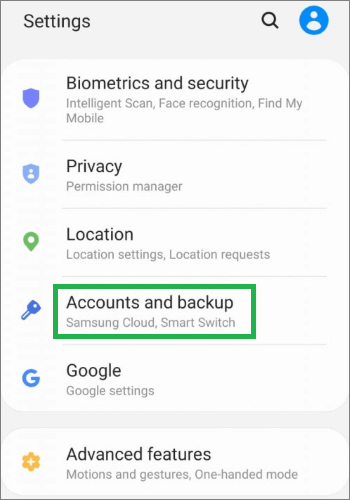
Step 3. Tap "Backup and restore", and select "Back up data" under the Samsung Cloud section.
Step 4. From the list of data types, check "Apps and App data". Keep in mind that some third-party apps may not support data backup due to developer restrictions.
Step 5. Tap "Back up now" to start backing up your Samsung apps to the cloud.
Note: Samsung Cloud offers a limited amount of free storage (usually 5GB). If your app backups exceed this limit, you may need to manage existing backups or purchase additional cloud storage.
Smart Switch is another official tool from Samsung, primarily designed for transferring data between Samsung devices, as well as between Android or iOS devices and Samsung phones. Besides data migration, it also allows you to back up Samsung apps and their app data to a computer or another Samsung device, making it a great choice for users who prefer local backups or are preparing to switch to a new phone.
Smart Switch supports two backup methods: using a USB cable to connect your Samsung phone to a computer, or wirelessly transferring data between two devices. In this section, we focus on the computer-based backup method, as it is more stable and better suited for backing up a large number of apps and data.
How to back up Samsung apps using Smart Switch (computer method)
Step 1. Download and install Samsung Smart Switch on your computer (Windows or macOS).
Step 2. Connect your Samsung phone to the computer using a USB cable. Unlock your phone and allow the connection when prompted.
Step 3. Launch Smart Switch on your computer. Once your device is recognized, click "Backup".
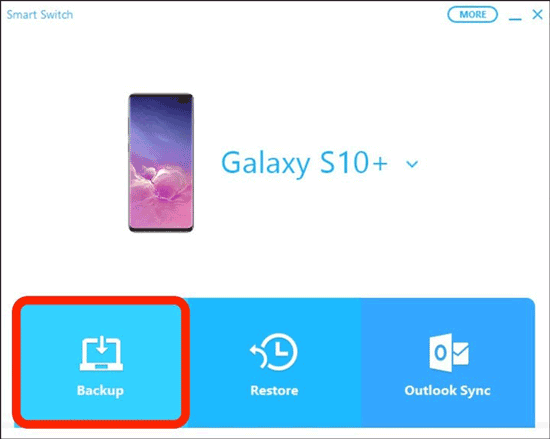
Step 4. Smart Switch will automatically select supported data types, including Apps and App data. You can review the backup items if needed.
Step 5. Click "Back up" and wait for the process to complete. The backup time depends on the number of apps and the amount of data stored on your device.
If you're looking for a more flexible and efficient way to back up Samsung apps, Coolmuster Android Backup Manager is a highly recommended solution. Compared with Samsung Cloud and Smart Switch, it focuses specifically on backup and restore, offering a cleaner interface and a true one-click experience, ideal for users who want full control over their data.
Unlike cloud-based backups, Coolmuster allows you to store app backups directly on your computer, avoiding storage limitations and giving you faster access to your data whenever you need it.
Key features of Android Backup Manager
How to back up Samsung apps using Android Backup Manager?
01Download and install Android Backup Manager on your computer.
02Connect your Samsung phone to the computer using a USB cable or Wi-Fi connection.
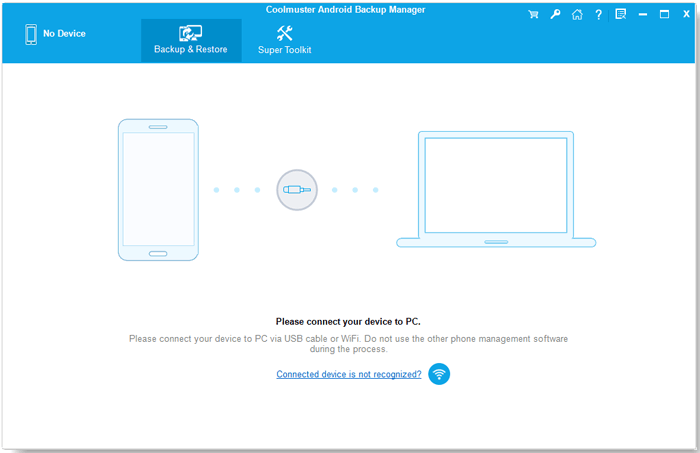
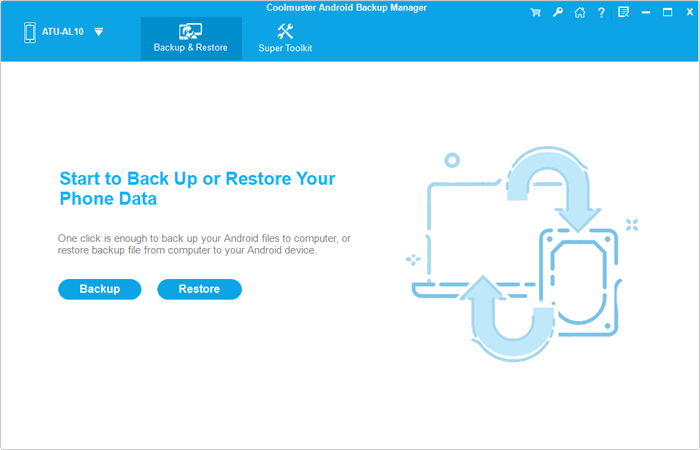
03After connection, select "Backup" from the main interface.
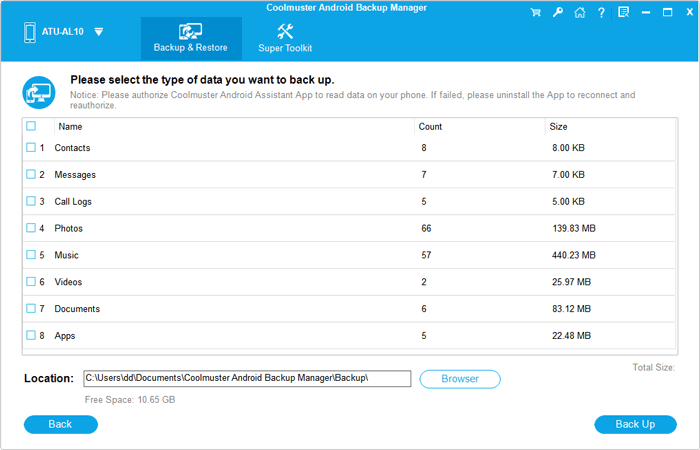
04Check "Apps" from the list of supported data types and click "Back Up" to start the process. All selected Samsung apps and their data will be saved to your computer.
If you'd prefer a step-by-step video demonstration, take a look at this tutorial:
Backing up Samsung apps is essential to avoid data loss and ensure a smooth device upgrade or recovery process. As shown above, each method has its own strengths depending on your needs.
Overall, if you're looking for a simple, stable, and highly efficient way to back up Samsung apps, Coolmuster Android Backup Manager is the best choice for long-term data protection and hassle-free restoration.
Related Articles:
2 Solutions to Backup and Restore Apps for Samsung
How to Transfer Apps from Samsung to Samsung [Fast Transfer]
How to Restore Samsung Backup to New Phone? A Comprehensive Guide





 Free Download for PC
  Free Download for Mac


