In the age of smartphones, accidentally deleting photos can be a common and frustrating issue. Fortunately, tools like DigDeep Image Recovery promise to help users restore their lost images with ease. This app, developed by GreatStuffApps, is a free solution for Android devices that specializes in recovering deleted photos. With its user-friendly interface, broad compatibility, and relatively high user ratings, DigDeep Image Recovery has gained popularity, amassing over 10 million downloads. In this DigDeep Image Recovery review, we will dive into its key features, limitations, and how it compares to other data recovery tools.
DigDeep Image Recovery positions itself as a lightweight photo recovery tool for Android, abandoning complex multi-functional designs and focusing on the core demand of "retrieving deleted photos". Its overall performance is balanced, with obvious advantages in ease of use and accessibility, while also having limitations that are hard to ignore.
The tool's features are highly targeted, all centered around efficient photo recovery, and have obvious advantages in compatibility and operation convenience:
* Support for Internal and External Storage
DigDeep Image Recovery can scan both the internal storage of your Android device and any external storage, such as SD cards, where deleted photos might be stored.
* Easy-to-Use Interface
The app has a clean, user-friendly interface, making it accessible for anyone looking to recover their photos without a steep learning curve.
* Fast and Reliable
Users have reported quick and effective scanning and recovery processes, even with large amounts of data. The app does a great job of restoring images without compromising quality.
* No Rooting Required
Unlike some other data recovery tools, DigDeep Image Recovery doesn't require root access, making it a safer and more accessible option for a wider range of Android users.
* Recovery of All Image Types
The app supports the recovery of various image formats, including JPG, JPEG, and PNG, which are the most common formats for Android photos.
* Recovers Images Deleted Before Installation
One standout feature of DigDeep Image Recovery is its ability to recover photos deleted before the app was installed, which adds a layer of convenience for users with older data loss issues.
While meeting basic photo recovery needs, DigDeep Image Recovery also exposes obvious shortcomings due to its positioning and free nature:
* Limited to Photos
The app only recovers images, meaning it cannot restore other types of data, such as videos, documents, or audio files. This makes it less versatile compared to other recovery solutions that can handle a broader range of file types.
* Scanning Issues
Some users have reported that the app occasionally displays images that haven't been deleted, likely due to scanning hidden folders on the device. This can lead to confusion when trying to identify and recover deleted photos.
* Lack of Encryption for Recovered Photos
Another drawback is the lack of data encryption for photos recovered through the app. For users concerned about privacy, especially when recovering sensitive images, this could be a security risk.
To better reflect the actual user experience of DigDeep Image Recovery, we have sorted out real user reviews from Google Play Store (the main distribution platform of the app), covering different rating levels and core feedback points. These reviews are all from verified users, with high authenticity:
"Great app - not all photos were restored, but the most I could hope for after 6000 deleted! Thanks!!!!"
"I remember using this app a few years ago to recover some 'permanently' deleted photos from my phone. It worked a little bit. Didn't get everything I was searching for (a cache clearing app deleted years' worth of older photos from my phone). But I used it today to get one video back that I deleted yesterday, and the app just sits on the loading page, so I can't even use it."
"I somehow accidentally Deleted ALL my phone camera photos. Saw this app was rated highly, so took a chance. Installed fast. Display of recovered photos was a little clunky, like in small packs, BUT every photo it found was just a Tap & restored instantly & perfectly to my Gallery. I'm not sure yet if it found/recovered all of them, still working on it."
The operation process of DigDeep Image Recovery is extremely simplified, and the whole process only takes four steps. Even novice users can complete it smoothly:
Step 1. Once installed, open DigDeep Image Recovery. The app will display a loading screen as it begins scanning your device's storage.

Step 2. The scan time will depend on the size of your device's storage. Wait for the app to finish scanning both the internal storage and any external SD card.
Step 3. After the scan is complete, the app will show you a list of folders containing deleted images. Each folder will have a list of photos that were deleted from that particular location on your device.
Step 4. Go through the folders and select the images you want to recover. Once you've chosen your photos, tap the "Restore" button.

Step 5. A pop-up message will inform you where the recovered photos are stored. You can access them from the folder specified or directly from your gallery app.
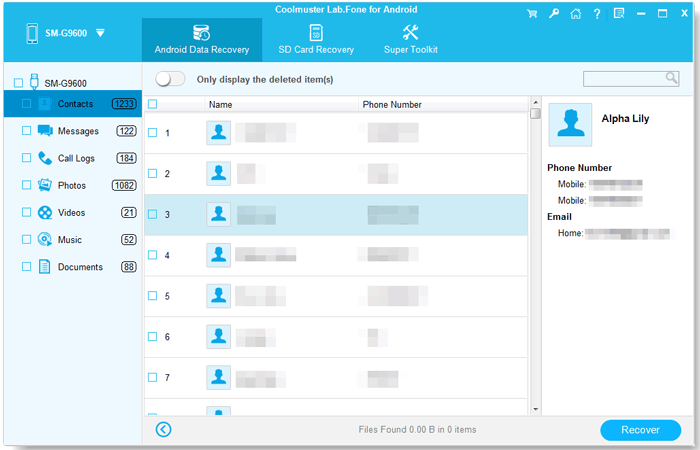
For users who need to recover multiple types of data or pursue higher recovery success rates, DigDeep Image Recovery's single function may not meet the demand. At this time, Coolmuster Lab.Fone for Android is a more comprehensive alternative. As a professional Android data recovery tool, it makes up for the limitations of DigDeep Image Recovery in many aspects. Unlike DigDeep, which focuses solely on images, Lab.Fone provides a more well-rounded recovery solution for Android users.
Key features of Coolmuster Lab.Fone for Android
Here's a step-by-step guide on how to recover your deleted files using Coolmuster Lab.Fone for Android:
01Download Coolmuster Lab.Fone for Android from the official website and install it on your computer.
02Connect your Android device to the computer using a USB cable. Ensure that USB debugging is enabled on your device.
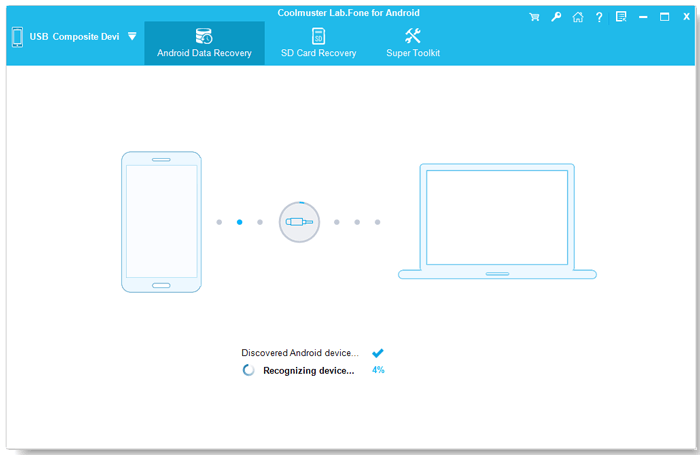
03After the program detects your device, you'll be prompted to select the file types you want to recover (photos, videos, contacts, messages, call logs, etc.). Click "Next" to proceed.
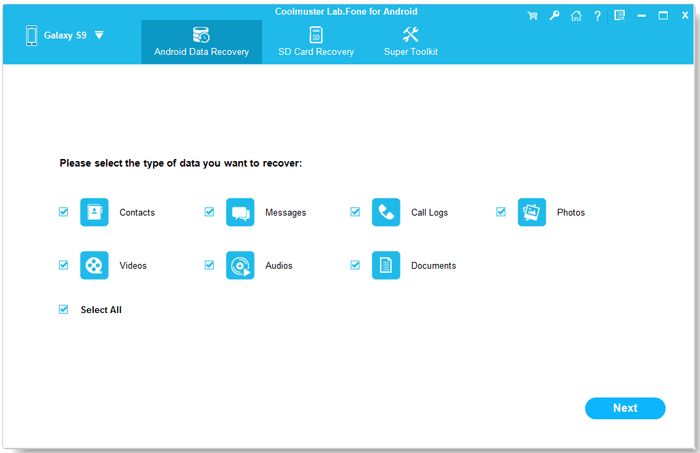
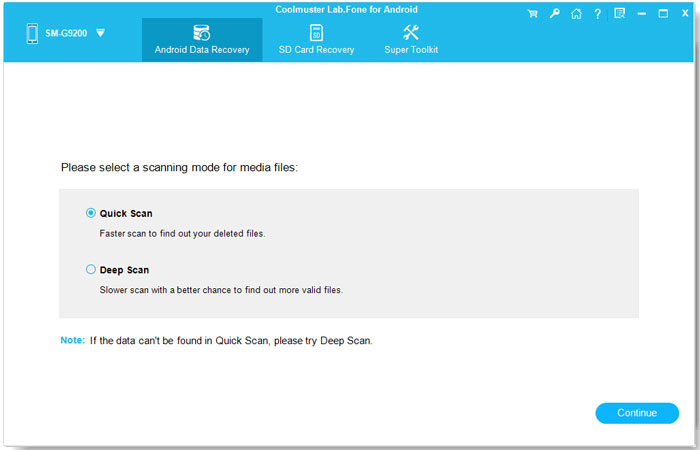
04You can choose between two scan modes:
Select the scan mode that fits your needs, then click "Continue" to start the scanning process.
05Once the scan is complete, the software will display a list of recoverable files. Preview the files and select the ones you want to recover.
Click the "Recover" button, and you will be prompted to choose a location on your computer to save the recovered files.
For a more visual guide, here's a video tutorial that walks you through the process of recovering deleted files from your Android device using Coolmuster Lab.Fone for Android:
1. Is the DiskDigger Image Recovery app safe?
Yes, DigDeep Image Recovery is safe to use. However, as with any data recovery app, it's essential to download it from trusted sources like the Google Play Store to avoid potential security risks.
2. Does DiskDigger Image Recovery run on iPhone?
No, DigDeep Image Recovery is designed specifically for Android devices and does not work on iOS.
3. How long does it take to recover photos using DigDeep Image Recovery?
The time it takes to recover deleted photos depends on your device's storage and the number of images you're attempting to recover. On average, the app takes a few minutes to scan and recover photos from the device's internal memory or SD card.
DigDeep Image Recovery is a "practical tool for specific scenarios" - it excels in offering free, simple, and root-free photo recovery on Android devices, making it a great choice for ordinary users who accidentally delete photos and need a quick recovery solution. However, if your needs are more complex, such as recovering videos, documents, or other types of data, or if you're looking for higher recovery success rates and better privacy security, it's recommended to choose professional tools like Coolmuster Lab.Fone for Android.
Regardless of which tool you choose, the most important thing to remember is: once you notice data loss, stop writing new data to the device immediately, as this is key to improving the chances of a successful recovery.
Related Articles:
How to Recover Thumbnail Pictures on Android with/without Backup
Can Hackers Recover Deleted Photos on Android? [Answer & Tips]
How to Recover Permanently Deleted Photos from Google Photos? [3 Ways]
How to Recover Deleted Photos from SD Card on Android Phone? [Fixed]







 Free Download for PC
  Free Download for Mac


