After a Samsung phone is exposed to water, common problems include failure to power on, a blank or unresponsive screen, touch malfunction, or the system getting stuck in a reboot loop. Compared with the device itself, what most users care about more is whether the important data stored on the phone can still be recovered, such as photos, videos, contacts, and text messages.
The good news is that even if a water-damaged Samsung phone no longer works properly, data recovery is still possible as long as the internal storage chip has not been completely damaged. This article will systematically explain how to recover data from a water-damaged Samsung phone from three perspectives: software-based extraction, cloud backups, and external storage solutions.
When a Samsung phone becomes water damaged and cannot power on, gets stuck on the boot screen, or shows a black, unresponsive display, conventional recovery methods often fail. In such cases, Broken Android Data Extraction is the most targeted and effective solution.
Broken Android Data Extraction is a specialized data recovery tool designed for Android devices affected by system crashes, screen damage, or water damage. It can bypass an unbootable system and directly access the phone's internal storage to extract data.
Key features of Broken Android Data Extraction include:
How to recover data from a water-damaged Samsung phone?
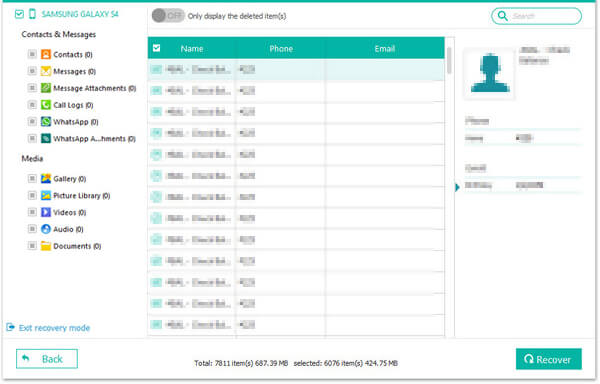
01First, download and install the software on your computer. After launching it, select "Broken Android Data Extraction". Then, connect your Samsung phone to the computer using a USB cable.
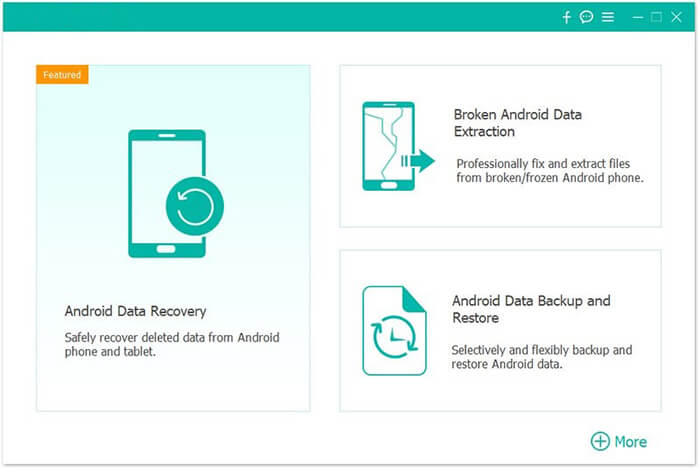
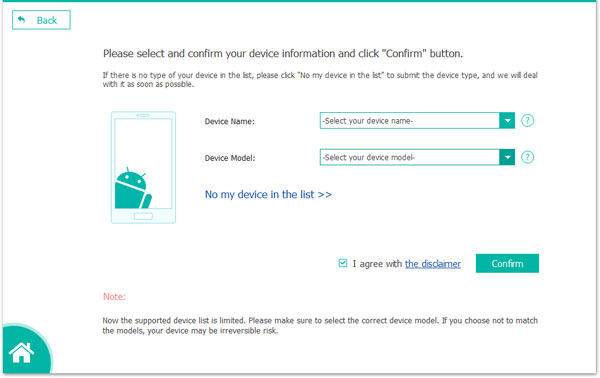
02Next, choose the appropriate repair option and click "Start". Enter the exact model name and number of your phone. If you are not sure about the model, you can use the built-in detection feature and then click "Confirm".
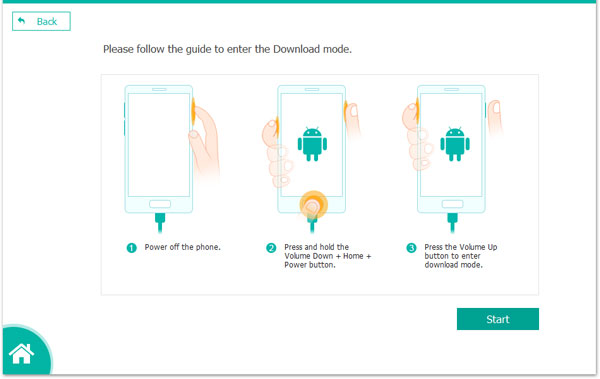
03Follow the on-screen instructions to put your Samsung device into Download Mode. Once the phone is detected, the software will scan the internal storage and prepare the data for recovery.
04Finally, preview the available files and select the items you want to retrieve. Click "Recover" to safely save all selected data to your computer from the Samsung phone that is no longer functioning properly.
If Samsung Cloud automatic backup was enabled on your Samsung phone before it was exposed to water, data recovery becomes much easier and does not depend on whether the original device is still usable.
How to recover data from water damaged Samsung with Samsung Cloud?
Step 1. On another phone or a computer, go to the Samsung Cloud website and sign in with the same Samsung account you used on the damaged device.
Step 2. After logging in, you will see a list of previous backup records. You can select the most recent backup to restore.
To restore to a new Samsung phone, you can also select "Restore from Samsung Cloud" during the initial setup of the new device to complete the restoration process.
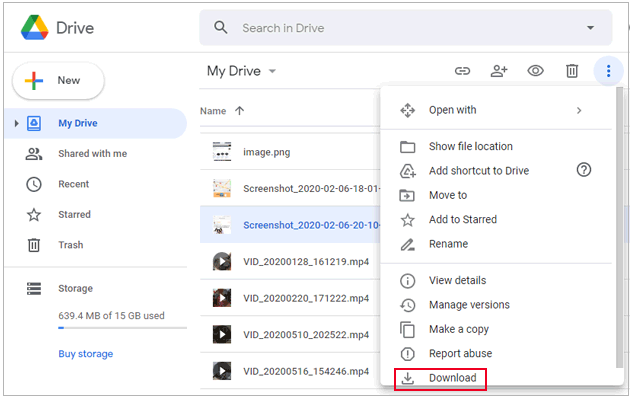
A Google account is one of the most basic and reliable ways to keep Android data synchronized. Even if a Samsung phone is completely damaged and cannot be used anymore, you can still recover important data as long as the Google account linked to the device is available.
This option is suitable if you have a new Samsung phone or the original device has been repaired and can be turned on.
Step 1. Turn on the new or repaired Android device and connect it to a stable Wi-Fi network.
Step 2. During the initial setup process, sign in with the same Google account that was used on the water-damaged Samsung phone.
Step 3. When prompted, select "Restore from cloud backup". A list of available backups will appear.
Step 4. Choose the most recent backup and wait for the system to begin restoring data automatically.
Step 5. Once the process is complete, contacts, calendar events, Gmail messages, supported app data, and photos or videos backed up to Google Photos will be synced to the device.
If you only want to view or download your data without using a phone, you can access it directly from a computer.
Step 1. Open a web browser on your computer and sign in to your Google account.
Step 2. Go to Google Contacts to view, export, or download your saved contacts.
Step 3. Visit Google Photos to browse, select, and download backed-up photos and videos to your computer.
If your Samsung phone supports a microSD card and you stored photos, videos, or documents on it before the water damage occurred, this is one of the easiest and highest-success recovery methods.
Unlike internal storage, an SD card is physically separated from the phone's main circuitry, which means it is much less likely to be damaged by water - as long as it is properly dried. Even if the Samsung phone itself is no longer repairable, the SD card may still remain fully functional.
Step-by-step operation of restoring data from the SD card:
Step 1. Ensure the phone is powered off and completely dry before carefully removing the SD card.
Step 2. Insert it into an SD card reader and connect it to a Windows or Mac computer. Wait a few seconds for the system to recognize the card.
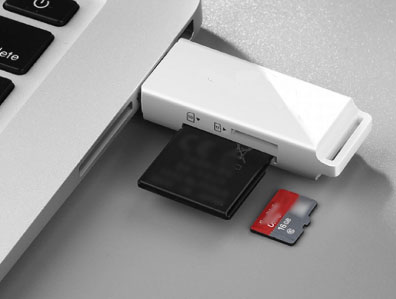
Step 3. If the SD card is detected normally, open File Explorer on Windows or Finder on macOS. Browse the contents of the card, select the files you want to recover, and copy them to your computer or an external storage device.
If the computer fails to recognize the SD card or reports it as corrupted, you can use a reliable SD card recovery tool like Coolmuster Lab.Fone for Android, to scan the card. Select the SD card as the scan target, perform a deep scan, preview the recoverable files, and save the recovered data to your computer instead of back to the SD card.
Recovering data from a water-damaged Samsung phone is not impossible - the key factors are the condition of the device and whether backups were made beforehand. Here's a quick guide to choosing the right method:
If you have any questions, feel free to leave a comment below and join the discussion with us.
Related Articles:
How to Recover Data from Water Damaged Android Phone in Every Way
4 Effective Ways to Recover Data from Samsung Phone That Won't Turn On







 Free Download for PC

 Download for Mac

