Music is an indispensable part of our daily lives, and many HONOR phone users store a large number of favorite music files on their devices. However, accidental deletion, system crashes, wrong operations, or device malfunctions may lead to the loss of these precious music files. The good news is that you don't have to panic when facing such a situation; there are multiple reliable ways to recover deleted music files from HONOR phones. Whether you have backed up your data in advance or not, this article will provide you with detailed and operable solutions. Let's explore these methods one by one.
The Recycle Bin feature on HONOR phones is the simplest and most direct way to recover recently deleted files, including music. It temporarily stores deleted files for a certain period (usually 30 days), giving users a chance to retrieve them. This method is suitable for users who have not emptied the Recycle Bin and the deletion time is within the retention period.
Step 1. Open the File Manager app on your HONOR phone.
Step 2. Tap the "Menu" icon (three vertical dots) in the upper-right corner.
Step 3. Select "Recycle Bin" from the options.
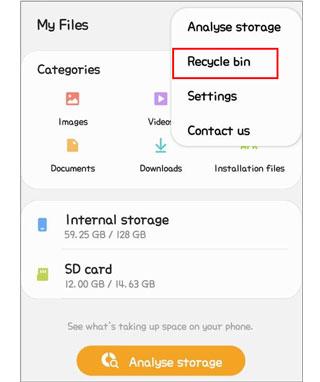
Step 4. Browse through the deleted items to find your music files.
Step 5. Select the music files you want to recover and tap "Restore".
HONOR is a subsidiary of Huawei, and most HONOR phones are pre-installed with Huawei Cloud services. If you have enabled Huawei Cloud backup before the music files were deleted, you can easily restore the deleted music by syncing the backup. This method requires you to have logged in to your Huawei ID and enabled the relevant backup function in advance.
Step 1. Open the Settings app on your HONOR phone.
Step 2. Scroll down and tap on Huawei ID.
Step 3. Select "Cloud" to access your Huawei Cloud data.
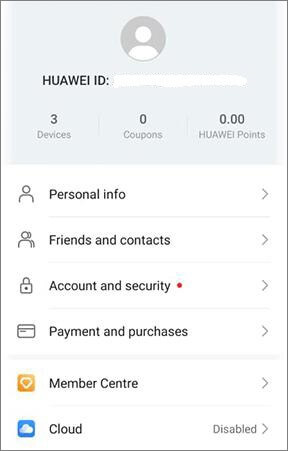
Step 4. Tap "Restore" and choose the backup that contains your deleted music files.
Step 5. Follow the prompts to restore the music files to your phone.
HiSuite is an official PC software launched by Huawei for managing and backing up data on Huawei and HONOR phones. If you have used HiSuite to back up your HONOR phone's data (including music) to your computer before, you can use HiSuite to restore the deleted music files. This method is suitable for users who have a computer and have made a HiSuite backup.
Step 1. First, download and install the latest version of HiSuite on your Windows or Mac computer. You can download it from the official Huawei website.
Step 2. Connect your HONOR phone to the computer via USB cable.
Step 3. Launch HiSuite and click on "Restore".
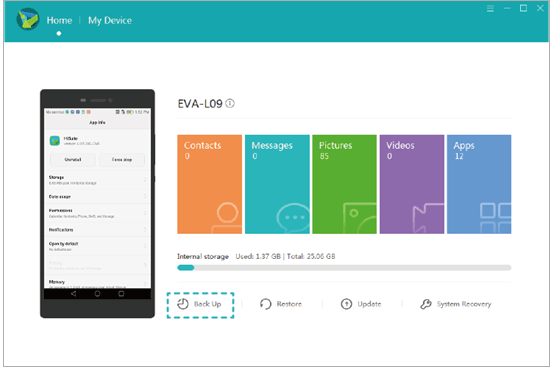
Step 4. Select the backup that contains your deleted music files.
Step 5. Choose the files you want to recover and click "Restore".
If you are used to using Google services, you may have backed up your HONOR phone's music files to Google Drive. Google Drive provides 15GB of free storage space for each user, which can be used to back up various types of files. If you have enabled Google Drive backup for your music files, you can recover them through the Google Drive app on your phone or the web version on your computer.
Step-by-Step Guide (via Phone App):
Step 1. Open the Google Drive app on your HONOR phone. If you don't have it installed, you can download it from the Google Play Store.
Step 2. Log in with your Google account that you used to back up the music files.
Step 3. In the Google Drive app, tap the "Files" tab at the bottom to view all the backed-up files.
Step 4. Use the search bar at the top to search for the music files you want to recover (you can enter the file name or use keywords like "music" "audio").
Step 5. Find the target music file, long-press it to select it. If you want to select multiple files, long-press one and then tap the others.
Step 6. Tap the three-dot menu icon at the top right corner, then select "Download" from the drop-down menu. The selected music files will be downloaded to your HONOR phone's local storage.
Step-by-Step Guide (via Computer Web Version):
Step 1. Open a browser on your computer and visit the Google Drive official website.
Step 2. Log in with your Google account.
Step 3. In the Google Drive interface, use the search bar to find the music files you need to recover.
Step 4. Select the target files, then right-click and select "Download". The files will be downloaded to your computer.
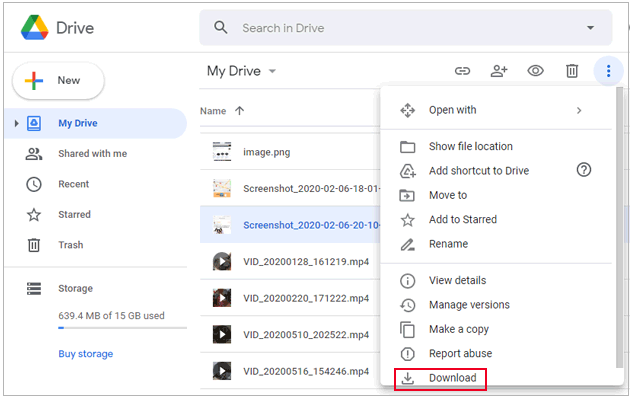
Step 5. Connect your HONOR phone to the computer via USB cable, transfer the downloaded music files to your phone's local storage (such as the "Music" folder).
If none of the above methods work or if you didn't back up your data, don't worry. You can use a professional Android data recovery tool - Coolmuster Lab.Fone for Android. This tool can directly scan your HONOR phone's internal storage and SD card (if any) to recover deleted music files without backup.
Key Features of Coolmuster Lab.Fone for Android:
Option 1: Recover Deleted Music Files from HONOR Phone's Internal Storage
01Download and install Coolmuster Lab.Fone for Android on your computer (Windows or Mac).
02Connect your HONOR phone to the computer using a USB cable and enable USB Debugging on your phone.
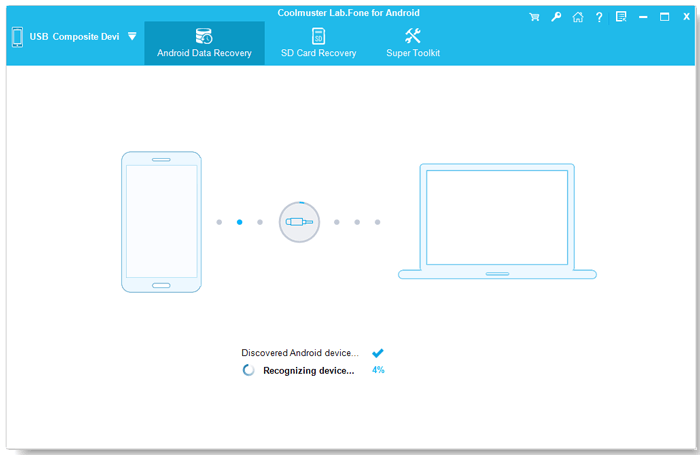
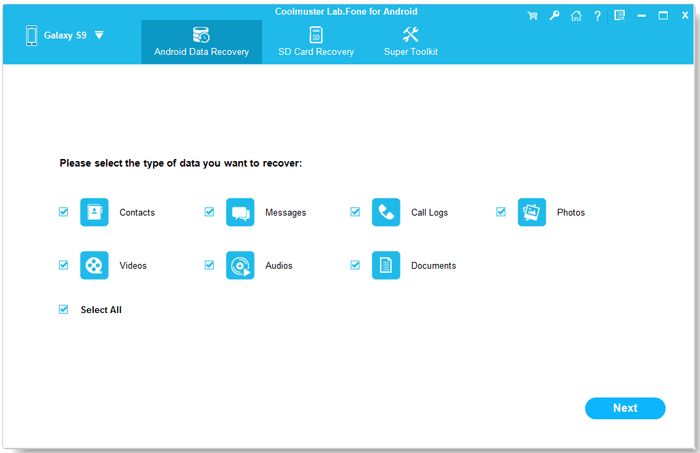
03Once the software detects your device, select the "Audio" option to focus the scan on music files.
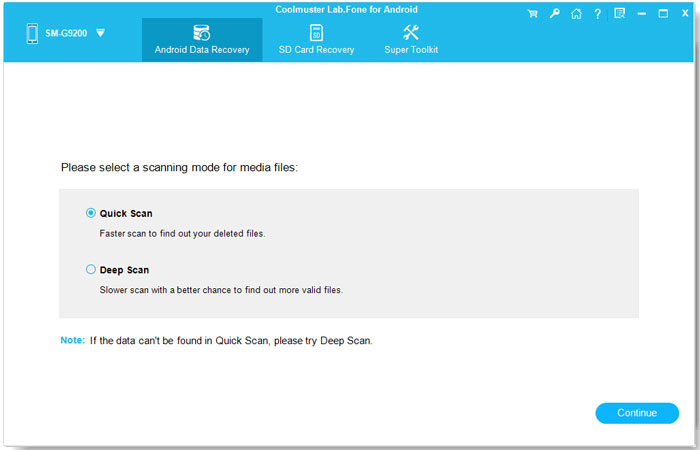
04You can then choose to perform a Quick Scan for a faster recovery or a Deep Scan for a more thorough search. Click "Continue" to begin scanning your HONOR phone's internal storage for deleted music files.
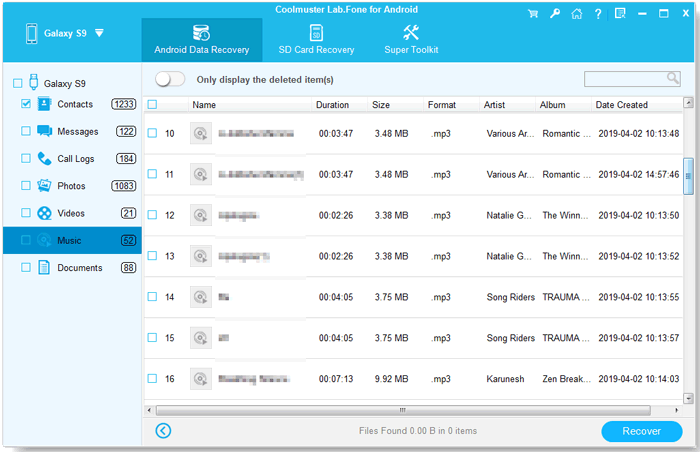
05After the scan completes, all found music files will be displayed in the software interface. You can preview the files to confirm their content. Select the music files you wish to recover and click "Recover" to restore them to your computer.
Video Guide
Option 2: Recover Deleted Music Files from SD Card
If your music files were stored on an SD card, you can use the same software to recover them:
01Remove the SD card from your HONOR phone and insert it into your computer using a card reader.
02Open Coolmuster Lab.Fone for Android and select the "SD Card Recovery" option.
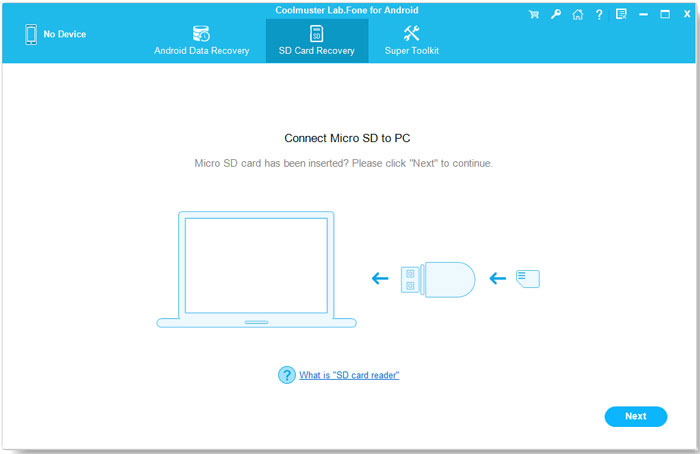
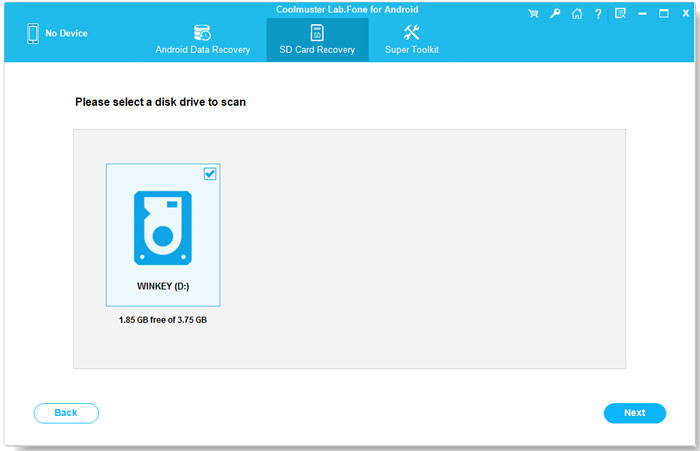
03Click "Next", and the software will detect the SD card. Select the SD card drive and click "Next" to begin scanning for deleted music files.
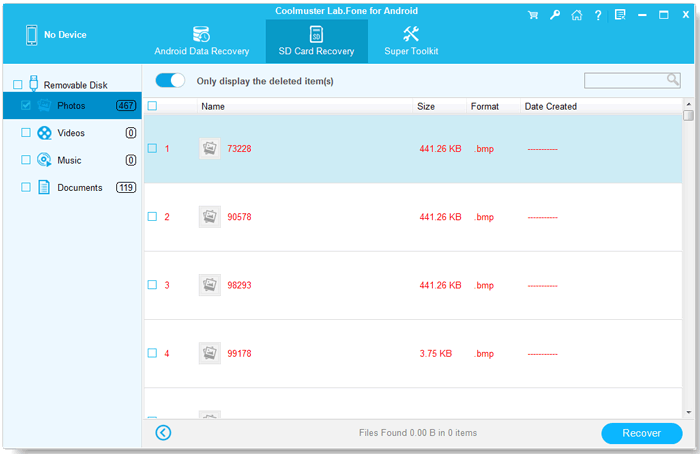
04After the scan is complete, preview the found music files. Select the ones you want to recover and click "Recover" to save them to your computer.
Video Guide
Recovering deleted music files from your HONOR phone can be easy with the right tools. Whether you use the Recycle Bin, Huawei Cloud, HiSuite, or Google Drive, these methods provide effective ways to restore your lost files. However, for a more reliable and thorough recovery process, we highly recommend using Coolmuster Lab.Fone for Android, a powerful tool that ensures you can recover your music files with ease and precision.
Related Articles:
How to Recover Deleted Files from HONOR [6 Effective Methods]
How to Conduct HONOR Backup and Restore with 4 Effective Ways
How to Recover Deleted Files from Huawei with/without Backup
How to Retrieve Deleted Contacts on HONOR Phone: 4 Proven Ways







 Free Download for PC
  Free Download for Mac


