Music is an indispensable part of our daily life, and losing cherished music files from your Redmi phone can be frustrating. Whether the deletion was accidental, due to a system glitch, or for other reasons, there are feasible solutions to retrieve your lost music. This article will walk you through 4 practical methods to recover deleted music files from a Redmi phone, covering built-in features, cloud services, and a professional recovery tool, so you can choose the one that suits your situation best.
If you've deleted music files recently, your first step should be to check the Recycle Bin on your Redmi phone. Many Android phones, including Redmi devices, feature a Recycle Bin where deleted files are temporarily stored before they are permanently erased. Here's how you can recover deleted music files:
Step 1. Open the File Manager app on your phone.
Step 2. Look for a folder or section named "Recycle Bin" or "Recently Deleted".
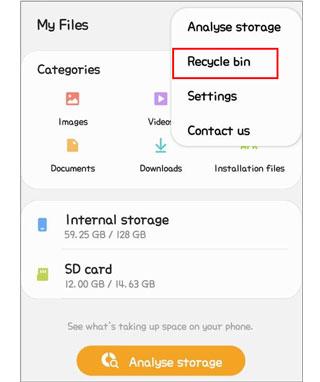
Step 3. Find the deleted music files and select them.
Step 4. Tap the "Restore" or "Recover" option to restore the files back to their original location.
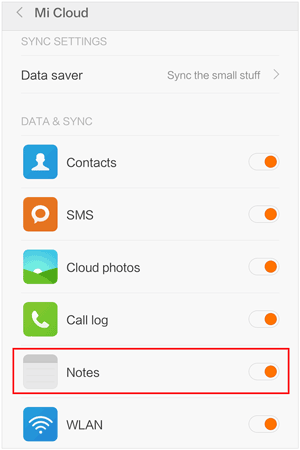
Mi Cloud is a cloud service provided by Xiaomi for syncing and backing up files. If you have enabled Mi Cloud backup on your Redmi phone, your deleted music files may still be recoverable from the cloud. Follow these steps to restore your music:
Step 1. Go to Settings on your Redmi phone.
Step 2. Scroll down and tap on "Mi Account".
Step 3. Tap on "Mi Cloud" and log in with your Mi account credentials.
Step 4. Under the Backup section, you'll see different types of files that have been backed up, such as contacts, photos, videos, and music.
Step 5. Find the "Music" section and check if your deleted files are there.
Step 6. If available, tap the "Restore" button to download the music files back to your phone.
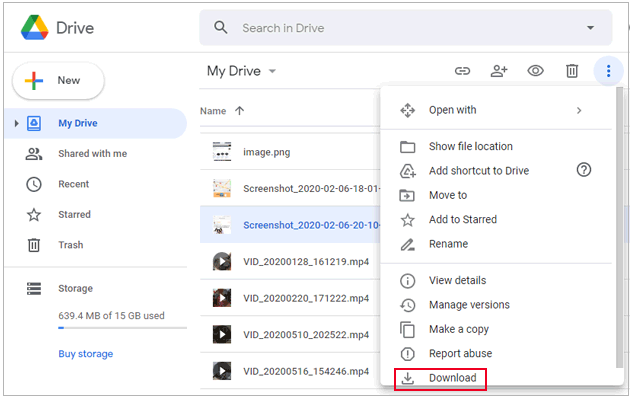
Redmi phones are pre-installed with Google services, and if you have previously synced or backed up your music files to Google Drive, you can recover them directly on your phone. Here's the step-by-step process:
Step 1. Open the Google Drive app on your Redmi phone.
Step 2. Log in to your Google account.
Step 3. Use the Search bar in Google Drive to look for the music files that may have been backed up.
Step 4. If you find the deleted music files, tap and long-press them.
Step 5. Click the "Download" icon to restore the files back to your phone.
If the above methods didn't work or if your files were permanently deleted, you can turn to professional data recovery software like Coolmuster Lab.Fone for Android. This software can help recover deleted files directly from your phone's internal storage or SD card.
Key features of Coolmuster Lab.Fone for Android
Option 1. Recover Redmi Deleted Music Files from the Android Phone's Internal Storage
01Download and install Coolmuster Lab.Fone for Android on your Windows or Mac computer. Launch the software after installation.
02Connect your Redmi phone to the computer using a USB cable. On your phone, enable USB Debugging.
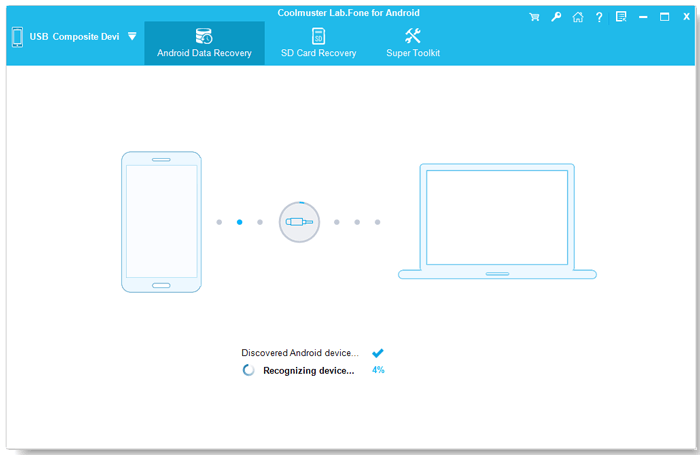
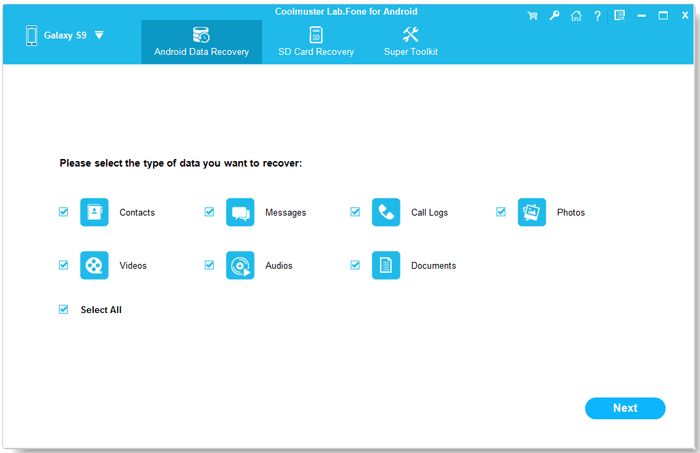
03Once the software detects your phone, select the "Audio" option from the list of data types (this will focus the scan on music files, saving time).
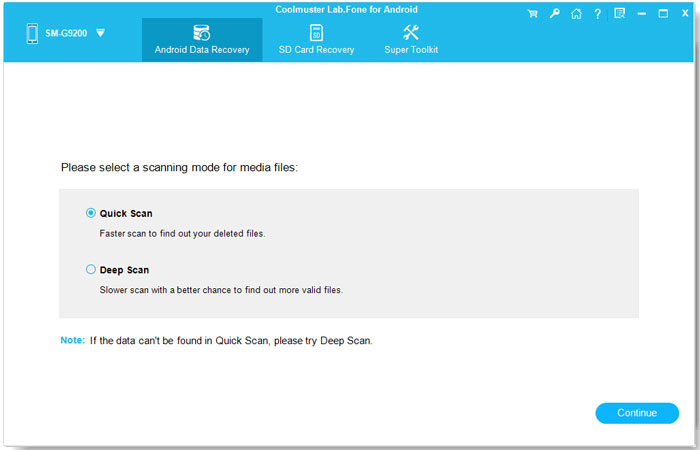
04Choose Quick Scan first (faster) or Deep Scan (more thorough). Click "Continue" to start scanning your phone's internal storage for deleted music files.
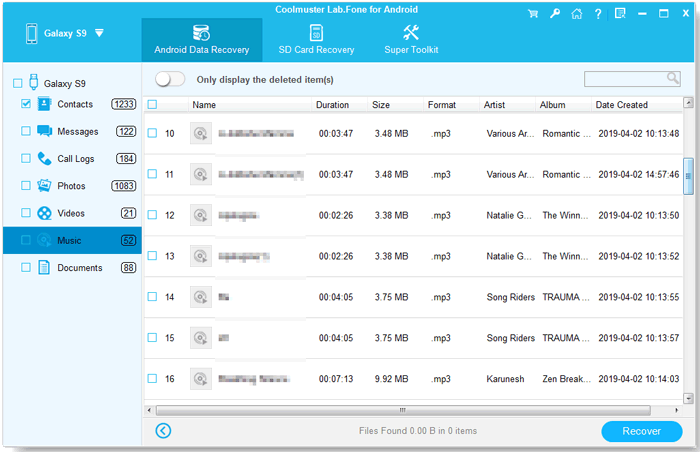
05After the scan is complete, all found audio files will be displayed on the software interface. You can preview the music files (play them to confirm) and select the ones you want to recover. Then, click the "Recover" button to start the recovery process.
For a more detailed walkthrough, check out the video tutorial below.
Option 2. Recover Redmi Deleted Music Files from the SD Card
If your music files were stored on an SD card, you can use the same software to recover them:
01Remove the SD card from your Redmi phone and insert it into your computer using a card reader.
02Open Coolmuster Lab.Fone for Android and select the "SD Card Recovery" option.
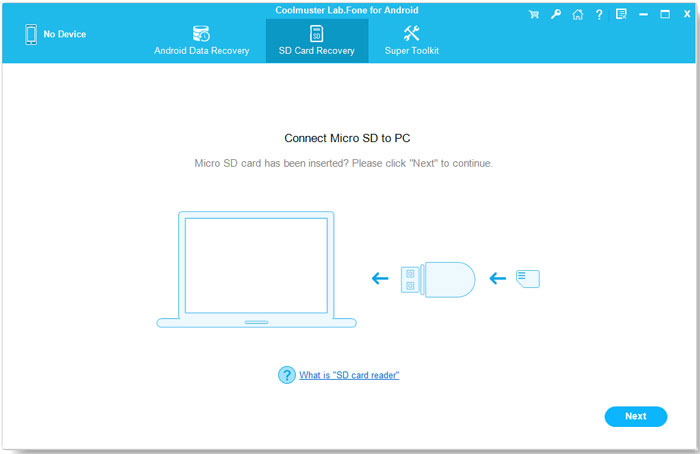
03Hit the "Next" button, and the software will detect the SD card. Select the targeted SD card drive and press "Next" to begin scanning it for deleted music files.
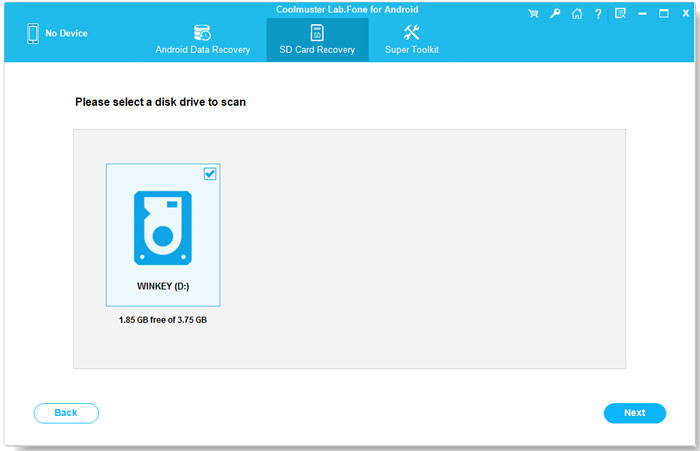
04After scanning, preview the found music files, select the ones you need, and click "Recover" to save them to your computer.
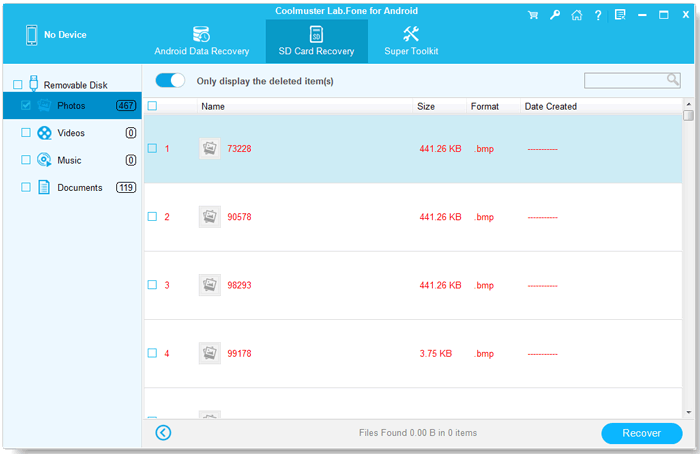
Then, you can insert the SD card back into your Redmi phone and transfer the recovered files to the SD card or internal storage.
Watch the video tutorial for a step-by-step guide on how to do this easily.
Losing music files from your Redmi phone doesn't mean they are gone forever. Whether you use the Recycle Bin, Mi Cloud, Google Drive, or professional recovery software like Coolmuster Lab.Fone for Android, there's a good chance you can retrieve your lost files. Always make sure to back up your important files regularly to avoid future data loss.
For a hassle-free recovery experience, Coolmuster Lab.Fone for Android is a reliable solution that works for both internal storage and SD cards. Try it out and restore your deleted music files effortlessly.
Related Articles:
How to Recover Deleted Files from Mi Phone in 5 Pragmatic Methods?
How to Recover Deleted Files from Redmi: 4 Simple Methods
Xiaomi Data Recovery Software: How to Recover Deleted Data from Mi Phone
How to Retrieve Deleted Text Messages on Redmi [3 Simple Methods]







 Free Download for PC
  Free Download for Mac


