Losing precious photos on your HONOR phone can be frustrating, whether the images were deleted accidentally, lost after a system update, or removed during storage cleanup. Fortunately, deleted photos are not always gone forever. HONOR devices provide several built-in recovery options, and there are also professional recovery tools that can help retrieve permanently deleted pictures.
In this guide, we will show you how to recover deleted photos from HONOR using 6 effective methods. Whether your photos are stored in the Gallery app, Huawei Cloud, Google Photos, or an SD card, you can find a suitable solution here.
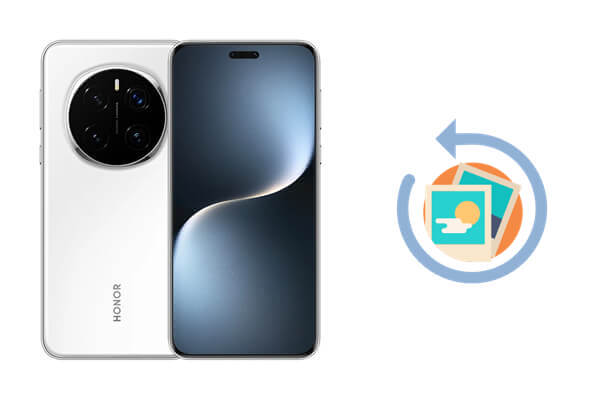
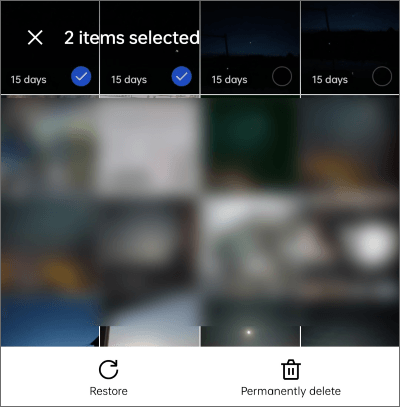
The Gallery app on HONOR phones comes with a built-in Recently Deleted folder, which is usually the fastest and easiest way to recover deleted photos from HONOR devices. When you delete photos or videos from the gallery, they are temporarily stored in this folder for up to 30 days before being permanently erased. During this period, you can restore the deleted photos to their original albums without using any backup or third-party software.
However, if the photos have already been manually removed from the Recently Deleted folder, they may become permanently unrecoverable unless you have a backup available.
Step-by-step guide:
Step 1. Unlock your HONOR phone and open the Gallery app.
Step 2. Scroll down the screen and tap the "Recently Deleted" album.
Step 3. Browse the deleted photos and videos stored there, then select the images you want to restore.
Step 4. Tap the "Restore" button at the bottom of the screen. Wait a few seconds, and the selected photos will automatically return to their original albums in the gallery.
Besides the Gallery Recently Deleted folder, HONOR phones also provide a separate Trash folder inside the Files app. Some downloaded images, screenshots, social media pictures, and third-party app photos may not appear in the gallery trash but can still be found in the Files app Trash folder.
If you are trying to recover deleted non-camera photos from a HONOR phone, this method is worth trying. Here is how it works:
Step 1. Open the default Files app on your HONOR device.
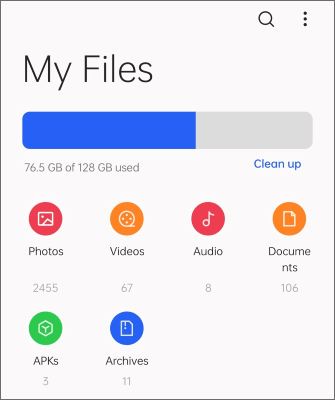
Step 2. Tap the "Me", "More", or menu option at the bottom of the screen.
Step 3. Locate and open the "Trash" folder.
Step 4. Browse all deleted files stored there. You can filter image files to quickly find the deleted photos you need.
Step 5. Long press the target photos and tap "Restore".
Step 6. After the restoration is complete, the photos will return to their original storage location and become visible in the gallery again.
Note: Similar to the Gallery trash, files stored in the Files app Trash folder are usually retained for a limited time only.
Many HONOR phones support Huawei Cloud services. If you previously enabled cloud gallery synchronization on your device, you may be able to recover deleted photos from HONOR through Huawei Cloud backup.
Compared with the local Recently Deleted folder, Huawei Cloud offers a more flexible recovery option because your backed-up photos may still remain in cloud storage even after they disappear from local storage. This method is especially useful for recovering photos deleted a long time ago.
Follow the step-by-step guide:
Step 1. Open Settings on your HONOR phone.
Step 2. Tap your Huawei/HONOR account and enter the "Cloud" section.
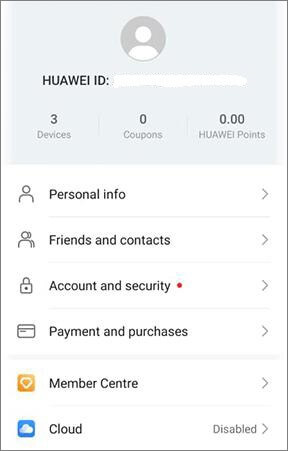
Step 3. Select "Gallery" and confirm that cloud synchronization was previously enabled.
Step 4. Open the cloud gallery and browse your synced albums to find the deleted photos.
Step 5. Select the target photos and tap "Download" or "Restore to device". Wait for the synchronization process to finish. The recovered photos will then appear in your local gallery.
HiSuite is the official device management software for HONOR and Huawei phones. It allows users to back up and restore photos, videos, contacts, messages, and other important data on a computer. (Huawei HiSuite review for you.)
If you previously created a backup with HiSuite, you can restore deleted HONOR photos directly from the backup file. Since HiSuite is an official tool, the restoration process is generally stable and secure. Here is how it works:
Step 1. Download and install the latest version of HiSuite on your Windows or Mac computer.
Step 2. Connect your HONOR phone to the computer using a USB cable.
Step 3. Enable USB debugging, HDB, or File Transfer mode on your device if prompted.
Step 4. Launch HiSuite and wait for the software to recognize your HONOR phone.
Step 5. Click the "Restore" option on the main interface.
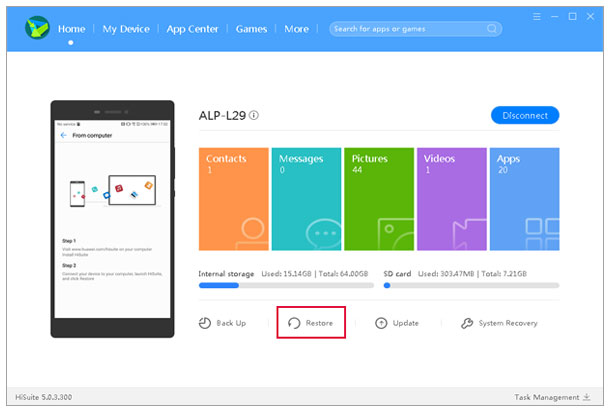
Step 6. Choose the backup file that contains your deleted photos.
Step 7. Select the "Gallery/Photos" category and uncheck other unnecessary data types.
Step 8. Click "Start Restore" and wait for the restoration process to complete.
After the process finishes, the deleted photos will be restored to your HONOR phone automatically.
For HONOR phones that support Google services, Google Photos provides two effective ways to recover deleted photos from HONOR devices. If your photos were backed up before deletion, you can either restore them from the Trash folder or re-download backed-up photos from the Google cloud library.
Compared with the local gallery trash, Google Photos offers a longer recovery period and cloud synchronization support, making it one of the most reliable backup solutions for accidental photo loss.
Step 1. Open the Google Photos app on your HONOR phone and sign in to your Google account.
Step 2. Tap "Library" or "Collections" at the bottom.
Step 3. Open the "Trash" folder.
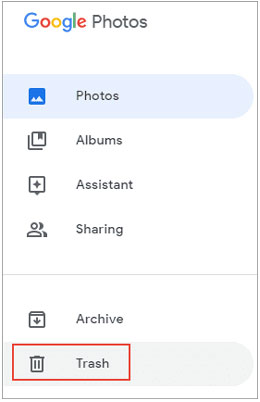
Step 4. Select the deleted photos you want to recover.
Step 5. Tap "Restore" to return the photos to your gallery and cloud library.
Note: Deleted photos are usually kept in the Trash folder for up to 60 days.
If the photos were deleted only from local storage but still exist in your Google Photos cloud backup, you can download them back to your HONOR phone.
Step 1. Open the Google Photos app.
Step 2. Browse your cloud photo library and locate the photos you want to recover.
Step 3. Tap the target photo to open it.
Step 4. Tap the three-dot icon in the upper-right corner.
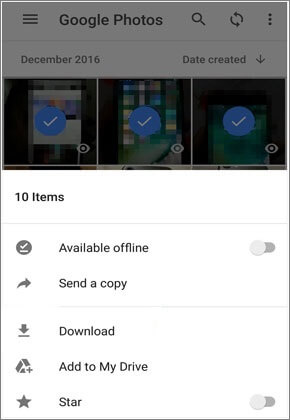
Step 5. Select "Download" or "Save to device". Wait for the download to finish, and the photo will be restored to your HONOR phone storage.
If none of the previous methods work or your deleted photos are not available in any backup or trash folder, a professional recovery tool becomes the most effective solution. Coolmuster Lab.Fone for Android is designed to scan HONOR devices directly and help users recover deleted photos and other lost data without requiring any backup.
This tool is especially useful when photos have been permanently deleted from the system, as it performs deep-level scanning on both internal storage and SD cards to locate recoverable files.
Key advantages of Coolmuster Lab.Fone for Android:
Steps to recover deleted photos from HONOR:
01Download and install Coolmuster Lab.Fone for Android on your computer (Windows or Mac).
02Connect your HONOR phone to the computer using a USB cable, then enable USB debugging mode when prompted.
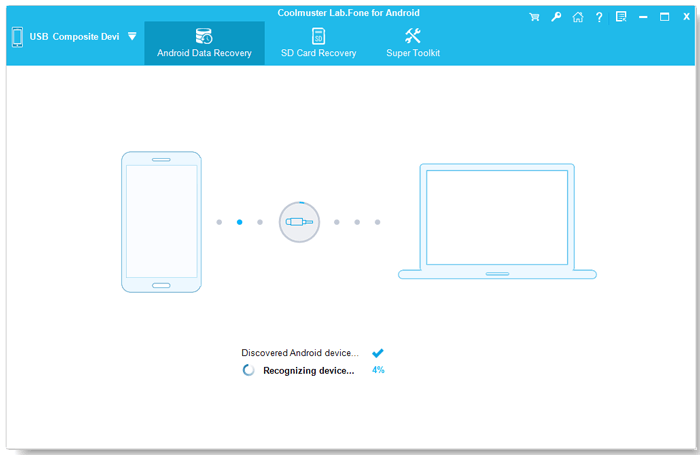
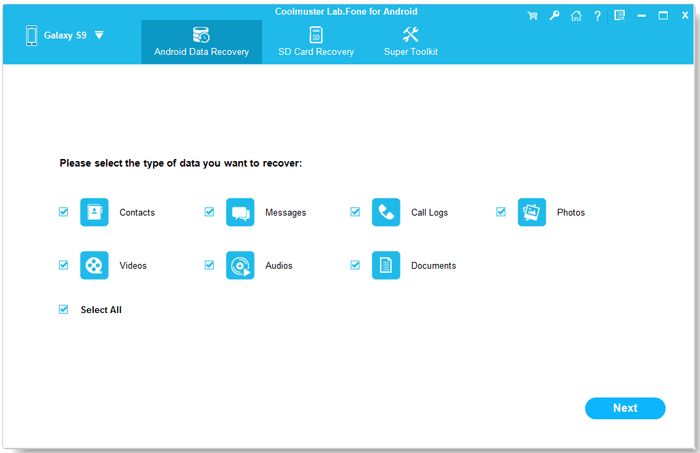
03Once your device is detected, select the file types you want to recover, such as "Photos", then click "Next" to start scanning the device for deleted data.
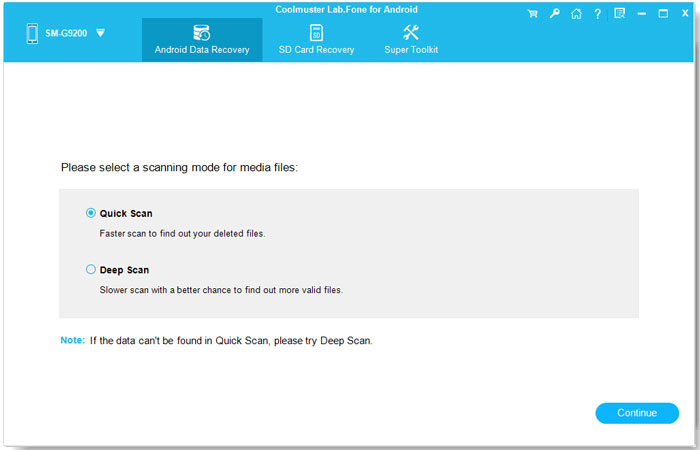
04Choose a scanning mode according to your situation. You can select "Quick Scan" for faster results or "Deep Scan" for a more thorough search. (Root access may be required for deep scanning of all data.)
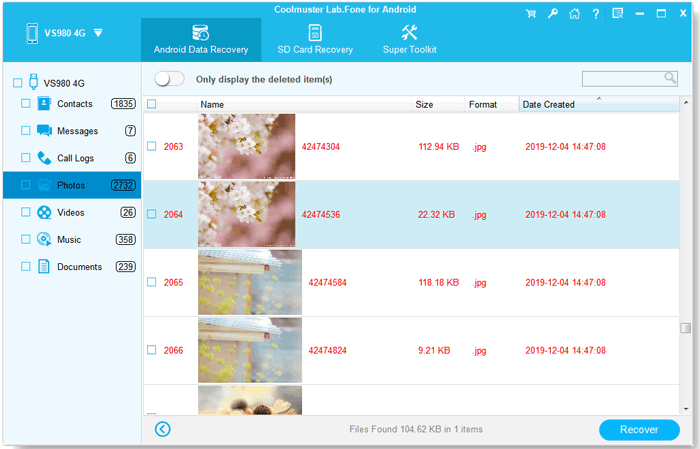
05After the scan is completed, preview the recoverable photos, select the ones you want, and click the "Recover" button to save them to your computer.
If you want to see how the recovery process works in real time, you can also watch a step-by-step video tutorial for better understanding.
Overall, there are several effective ways to recover deleted photos from HONOR, depending on where your data was stored and whether any backup was enabled. In most cases, you can first check the Gallery Recently Deleted folder, the Files app Trash, or cloud services such as Huawei Cloud and Google Photos. If you have previously created a backup on your computer, HiSuite is also a reliable option to restore lost photos directly from backup files.
If none of these methods work and your deleted photos are no longer available in any backup or trash folder, a professional solution becomes necessary. In this situation, Coolmuster Lab.Fone for Android provides a deeper scan of your HONOR device and increases the chances of recovering permanently deleted photos safely.
Related Articles:
How to Recover Deleted Files from HONOR [6 Effective Methods]
How to Perform HONOR SD Card Recovery with/without Backup
How to Conduct HONOR Backup and Restore with 4 Effective Ways
4 Easy Ways to Recover Photos after Factory Reset on Android Phone (New Approaches)







 Free Download for PC
  Free Download for Mac


