TL;DR:
Deleted photos on your POCO phone aren't always gone forever. This guide covers four effective recovery methods:
Accidentally deleting important photos on your POCO phone can be frustrating. Whether you removed pictures while freeing up storage, lost images after a system update, or found your photos missing due to unexpected errors, the good news is that deleted photos are often recoverable. Most POCO devices running MIUI or HyperOS include built-in recovery options, and advanced recovery tools can help retrieve photos even in more challenging situations.
In this guide, you'll learn how to recover deleted photos on POCO phones using four proven methods. We'll cover restoring images from the Gallery Recycle Bin, Mi Cloud, Google Photos backups, and a professional Android recovery tool. Whether your photos were recently deleted or permanently removed without a backup, you'll find a suitable solution to recover your lost pictures.
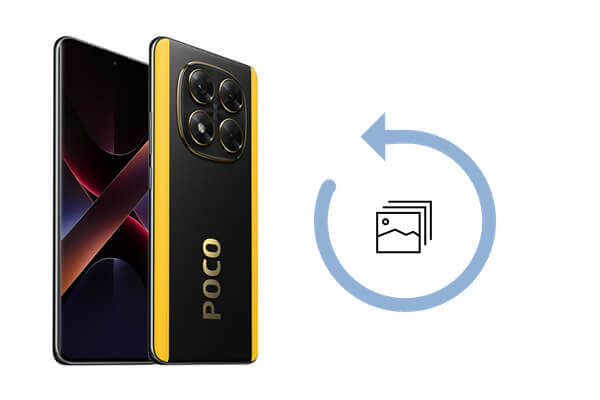
When photos are deleted from the Gallery app on a POCO phone, they are usually moved to the Recycle Bin (also called Trash) instead of being permanently erased immediately. As long as the photos haven't exceeded the retention period, you can easily restore them.
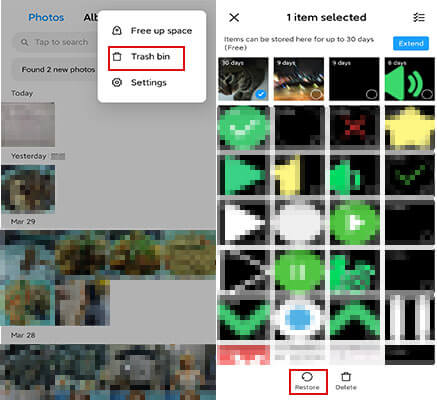
Steps to recover deleted photos from the POCO Recycle Bin:
Step 1. Open the Gallery app on your POCO phone.
Step 2. Tap the Albums tab at the bottom.
Step 3. Scroll down and select "Trash" or "Recycle Bin".
Step 4. Browse the deleted photos and find the images you want to restore.
Step 5. Select the photos.
Step 6. Tap "Restore" to return them to their original album.
Pros
Cons
If you have enabled Mi Cloud synchronization before the photos were deleted, you may be able to restore them from your cloud backup.
Mi Cloud automatically syncs photos and videos to your Xiaomi account, providing an additional layer of protection against accidental deletion.
Steps to restore deleted POCO photos from Mi Cloud:
Step 1. Open Settings on your POCO device.
Step 2. Tap your Mi Account.
Step 3. Select "Xiaomi Cloud".
Step 4. Choose "Gallery" and verify that cloud syncing is enabled.
Step 5. Visit the Mi Cloud website using a browser and sign in with your Mi account.
Step 6. Open the "Gallery" section.
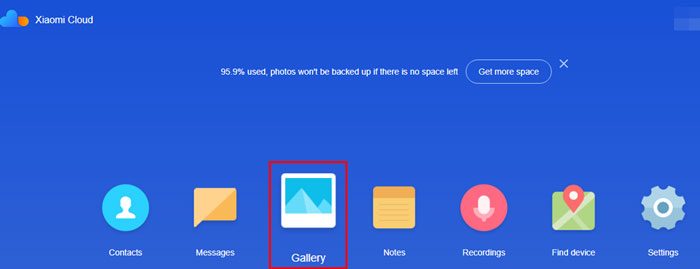
Step 7. Locate the deleted photos.
Step 8. Download or restore the photos to your device.
Pros
Cons
Many POCO users use Google Photos to automatically back up their pictures. If backup and sync were enabled before deletion, Google Photos may help you recover lost images.
Additionally, deleted photos remain in the Google Photos Trash folder for up to 60 days before permanent removal. (Google Photos backup stuck?)
Follow these steps to recover photos from Google Photos Trash:
Step 1. Open the Google Photos app.
Step 2. Tap "Library".
Step 3. Select "Trash" or "Bin".
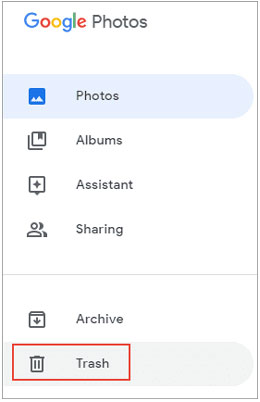
Step 4. Find the deleted photos you want to recover.
Step 5. Press and hold the photos.
Step 6. Tap "Restore". The selected photos will be returned to your Google Photos library and your device gallery.
Pros
Cons
If your deleted POCO photos have expired in the local recycle bin, no Mi Cloud or Google Photos backup is available. At this time, the professional Android data recovery tool - Coolmuster Lab.Fone for Android - is the most effective solution. This tool can deeply scan the residual data of the POCO phone storage, retrieve permanently deleted photos without any backups, and support previewing photos before recovery to ensure accuracy.
Key advantages of Coolmuster Lab.Fone for Android:
How to recover deleted photos from POCO using Coolmuster Lab.Fone for Android?
01Download and install Coolmuster Lab.Fone for Android on your computer. Launch the program and connect your POCO phone using a USB cable.
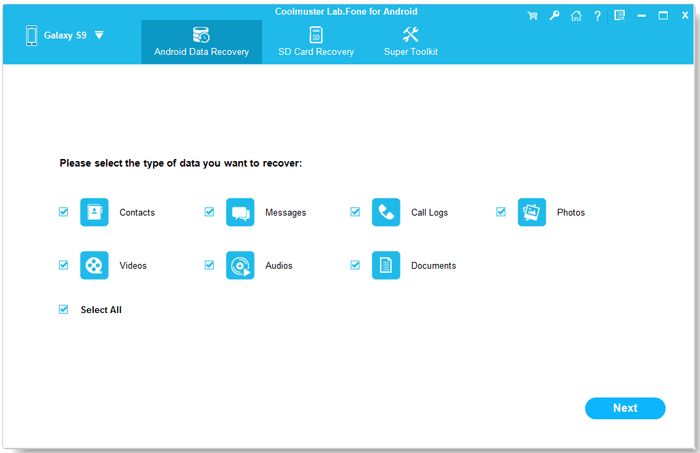
02Enable USB debugging on your POCO device when prompted. Once the software recognizes the phone, select "Photos" and click "Next".
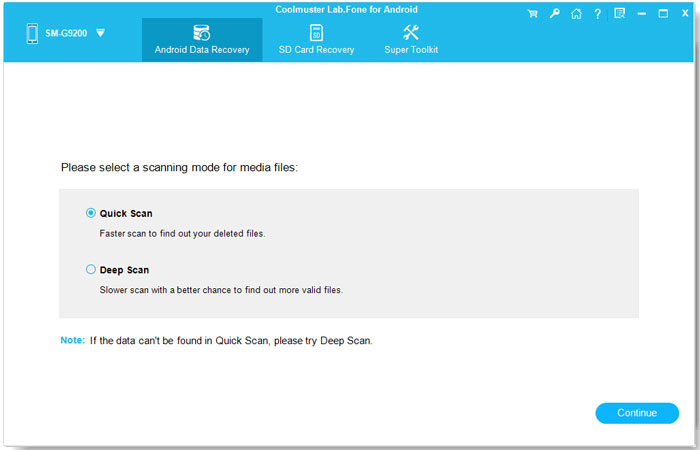
03Choose either "Quick Scan" or "Deep Scan" based on your recovery needs and start the scanning process.
04After scanning, click "Photos" from the left panel. Preview the recoverable images and select the photos you want to restore.
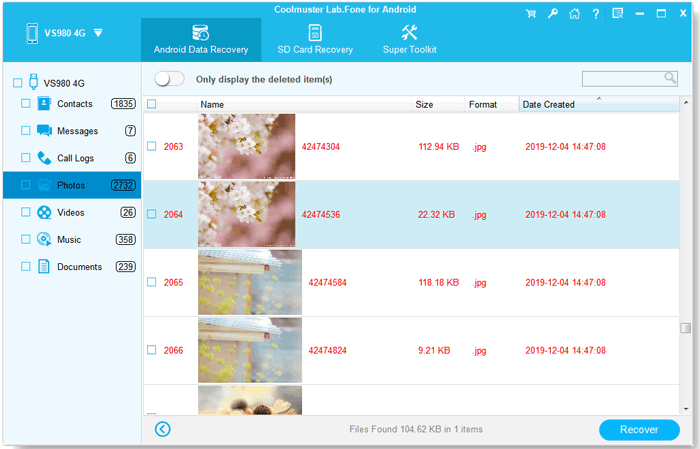
05Click "Recover" and choose a location on your computer to save the recovered photos.
For a more intuitive walkthrough, you can also follow the video tutorial below to recover deleted photos from your POCO phone using Coolmuster Lab.Fone for Android.
Pros
Cons
Losing photos on a POCO phone doesn't necessarily mean they are gone forever. You should first check the Recycle Bin because it's the quickest and easiest recovery option. If that doesn't work, Mi Cloud and Google Photos can help restore images from previously created backups.
For permanently deleted photos that are no longer available in backups, Coolmuster Lab.Fone for Android offers a more comprehensive recovery solution. It can scan your device for lost images and help you retrieve valuable memories that might otherwise be unrecoverable.
Choose the method that best fits your situation and act as soon as possible, as new data may overwrite deleted photos and reduce the chances of successful recovery.
Related Articles:
How to Recover Deleted Files from POCO with 4 Easy Solutions
How to Recover Deleted Music Files from POCO Phone with Ease
How to Restore Deleted Contacts on POCO with/without Backup
How to Retrieve Deleted Text Messages on POCO | 4 Proven Solutions







 Free Download for PC
  Free Download for Mac


