Losing an important Word document on your Samsung phone can be frustrating, especially if it contains work files, school assignments, or business contracts. Whether the file was accidentally deleted, removed after a system update, or closed without saving, there are still several ways you can try to recover it.
In this guide, we will walk you through 5 effective methods to recover Word document on Samsung devices, including built-in recovery options and professional Android data recovery software.
The simplest and first method to try is checking the Recycle Bin (or Trash) on your Samsung device. Most Samsung file managers and office apps (like Microsoft Word for Android) have a Recycle Bin feature that temporarily stores deleted files for a certain period (usually 30 days), giving you a chance to restore them before they are permanently erased.
Step 1. Open the My Files app on your Samsung device (pre-installed on all Samsung phones/tablets).
Step 2. Tap the "Menu" icon (three vertical dots) in the top-right corner and select "Recycle Bin" from the dropdown menu.
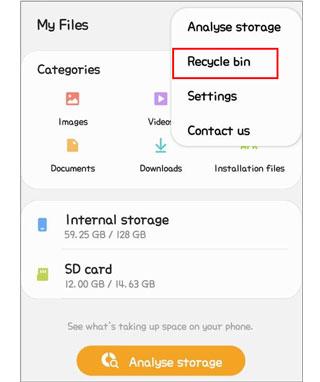
Step 3. In the Recycle Bin, scroll through the list of deleted files to find your lost Word document. You can use the search bar at the top to type the document name for faster locating.
Step 4. Long-press the Word document you want to recover, then tap the "Restore" button (usually an arrow pointing up or "Restore" text) at the bottom of the screen.
The document will be restored to its original location (e.g., "Internal Storage" > "Documents", or the folder where it was deleted from).
Note: If you deleted the Word document directly from the Microsoft Word app, open the Word app, go to Recent, tap the three dots next to the missing document, and check if there's a "Restore" option. Some versions of Word for Android also have a built-in Trash folder.
Samsung Cloud is a built-in cloud storage service for Samsung devices that automatically backs up various data, including documents, if you have enabled the backup feature. If you previously backed up your Word documents to Samsung Cloud, you can easily restore them to your device or access them via a web browser. However, Samsung Cloud only has a 1GB file size limit for individual backups.
Step 1. Open the Settings app on your Samsung device.
Step 2. Scroll down and tap "Accounts and backup" (or directly tap your Samsung account name at the top of the Settings screen).
Step 3. Select "Samsung Cloud" from the options.
Step 4. Tap "Restore data" (you may need to tap "Back up data" first to confirm your backup history).
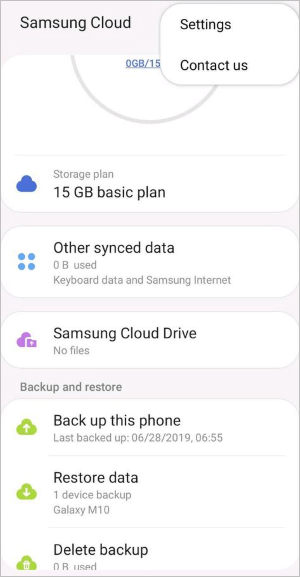
Step 5. Select the device from which you want to restore the Word document (if you have multiple devices linked to your Samsung account).
Step 6. Scroll down and check the box next to Documents (or "Word documents" if listed separately).
Step 7. Tap "Restore" at the bottom of the screen, then wait for the process to complete. Your backed-up Word documents will be restored to your device's default Documents folder.
You can also via web browser:
Step 1. Open a web browser on your computer and go to the Samsung Cloud website.
Step 2. Sign in with your Samsung account credentials (the same one used on your Samsung device).
Step 3. Once logged in, click on "Documents" to view all Word documents backed up to Samsung Cloud.
Step 4. Select the document you want to recover, click the "Download" button, and save it to your computer. You can then transfer it back to your Samsung device via USB or Bluetooth.
If you saved your Word document to Dropbox, the platform keeps deleted files in the Deleted Files section for a limited period. You can also use the Version History feature if the file was overwritten.
Here is the step-by-step guide:
Step 1. Open the Dropbox app on your Samsung phone.
Step 2. Tap the "Files" tab and navigate to the folder where the document was stored.
Step 3. If the file is missing, go to the "Deleted Files" section.
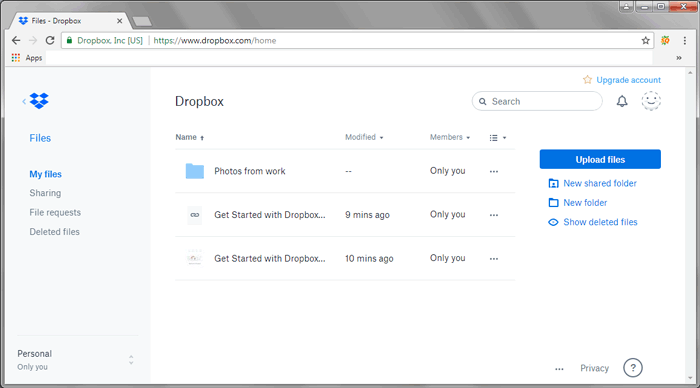
Step 4. Locate your Word document and tap the three-dot icon beside it.
Step 5. Select "Restore" to recover the file.
If the file was modified instead of deleted, open it, tap the menu icon, and choose "Version History" to revert to an earlier version.
Google Drive is another popular cloud storage service that integrates seamlessly with Samsung devices (most Samsung phones come with Google Drive pre-installed). If you saved your Word document to Google Drive, or if you enabled automatic backup of documents to Google Drive, you can recover lost or deleted files easily.
Step 1. Launch the Google Drive app on your Samsung phone.
Step 2. Tap the three-line menu icon in the upper-left corner.
Step 3. Select "Trash" from the side menu.
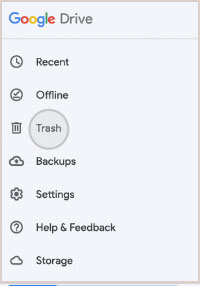
Step 4. Find the deleted Word document in the list.
Step 5. Tap the three-dot icon next to the file and choose "Restore".
If you need to recover a previous version, open the file in Drive, tap the menu icon, and select "Manage Versions" to restore an earlier copy.
If you cannot find your Word document in the Recycle Bin or any cloud backup, it may have been permanently deleted from your Samsung device. In this situation, a professional Android data recovery tool like Coolmuster Lab.Fone for Android can help you recover files directly from internal storage or an SD card without overwriting existing data.
This software performs a deep scan on your Samsung phone and allows you to preview recoverable files before restoring them, which greatly improves accuracy and efficiency.
Key features of Coolmuster Lab.Fone for Android
Steps to recover Word document on Samsung:
01Download, install, and run Coolmuster Lab.Fone for Android on your computer.
02Enable USB debugging on your Samsung device, then connect it to the computer using a USB cable. The program will automatically detect your phone once the connection is established.
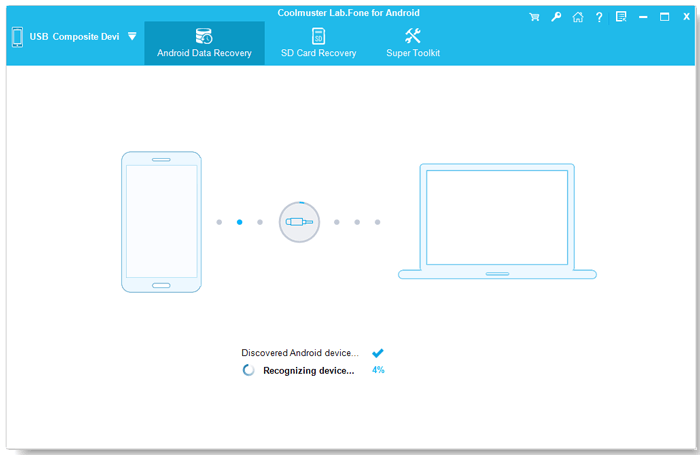
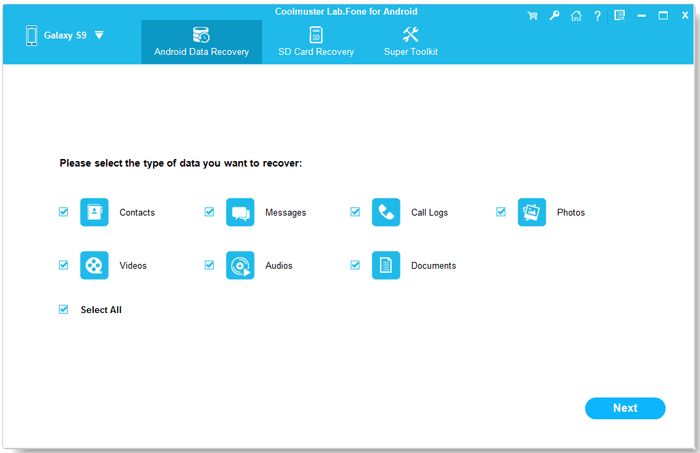
03After your device is recognized, all recoverable file types will appear on the main interface. Select the file categories you want to retrieve, including Documents, and then click the "Next" button to proceed with scanning.
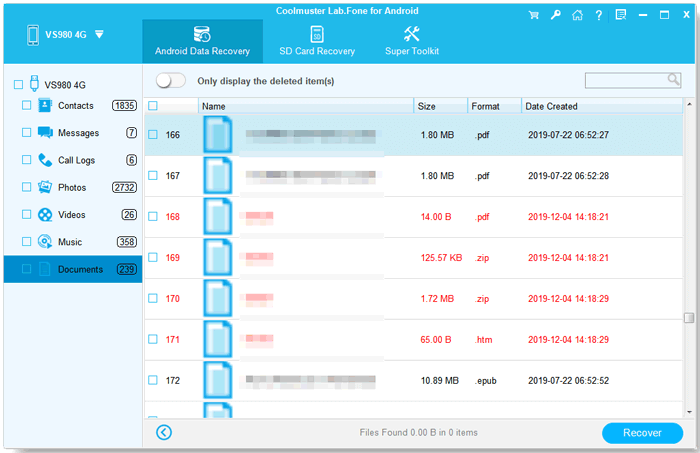
04When the scan is complete, preview the found Word documents and select the ones you wish to recover. Finally, click the "Recover" button to restore the selected files and choose a location on your computer to save them.
If you prefer a more visual walkthrough, you can also follow the detailed video tutorial below to complete the Word document recovery process more easily.
By following the methods outlined above, you have a strong chance of recovering lost or deleted Word documents on your Samsung device. Checking the Recycle Bin or cloud backups like Samsung Cloud, Dropbox, and Google Drive should always be your first step, as these solutions are quick and free when backup is available.
If no backup can be found, using professional recovery software such as Coolmuster Lab.Fone for Android becomes the most reliable option. It can deeply scan your Samsung phone and retrieve deleted Word files from internal storage or an SD card. Remember, the sooner you start the recovery process, the higher your chances of successfully restoring your important documents.
Related Articles:
How to Recover Data from Lost Samsung Phone [100% Successful]
A Guide to Samsung Trash Folder: Where Is It and How to Recover
How to Recover Deleted Files on Android Without Computer [Updated]
How to Recover Deleted Files from Samsung Tablet with/Without Backup







 Free Download for PC
  Free Download for Mac


