TL;DR:
A Samsung phone stuck on a white screen can often be fixed with the right troubleshooting steps. This guide covers how to identify possible causes and try different solutions, including restarting your device, adjusting display settings, repairing the Android system, performing a factory reset, or seeking professional help.
"I've had the white death screen on my Galaxy S20 Plus the past few days. How do I fix it? I've tried soft rebooting it, but it didn't do anything. It randomly went back to normal for a few minutes, but then the white screen returned. I plan on upgrading my phone after I get this resolved. Anybody have any tips or suggestions that would be great?"
- From Samsung Community
Have you ever turned on your Samsung phone only to find the screen completely white and unresponsive? This issue, known as the Samsung white screen of death, can prevent you from accessing apps, messages, or important data. In some cases, the phone may still receive notifications or respond to buttons, while the display remains unusable.
This guide explains what causes the Samsung white screen of death and walks you through practical solutions, from basic troubleshooting steps to advanced system repair options.
The Samsung white screen of death can happen due to problems with either the software or hardware. Identifying the possible cause can help you choose the right troubleshooting method.
1. Temporary System Glitches
Temporary Android errors or system crashes may cause your Samsung phone to freeze and display a white screen. This can happen after running multiple apps, installing updates, or encountering unexpected system errors.
2. Software Issues
Outdated software, failed updates, corrupted system files, or incompatible apps may interfere with normal system operations and cause display problems.
3. Display or Hardware Problems
A damaged screen, loose display connection, water damage, or other hardware failures can also result in a persistent white screen, especially after physical damage.
Before taking your Samsung phone to a repair center, there are several troubleshooting methods you can try. Start with simple solutions that do not affect your data, such as restarting your device or checking display settings. If the problem is caused by deeper software issues, you can move on to advanced options like clearing the cache partition, repairing the system, or performing a factory reset.
A force restart is the first solution you should try when your Samsung phone suddenly turns white and becomes unresponsive. It helps refresh the system and close frozen processes without deleting any personal data. If the issue is caused by a temporary system crash, your phone may return to normal after a restart.
Step 1. Press and hold the "Power" button and the "Volume Down" button at the same time.
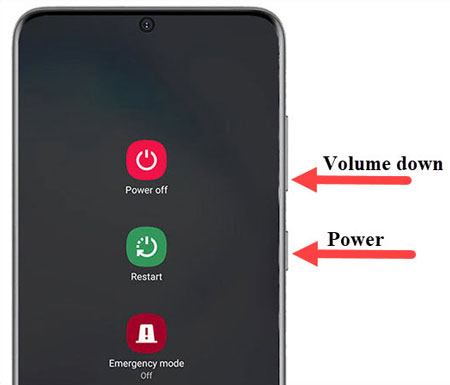
Step 2. Keep holding both buttons for around 10 - 20 seconds.
Step 3. Release the buttons when the Samsung logo appears.
Step 4. Wait for the device to restart.
Sometimes, the white screen issue is related to display configurations rather than a serious system problem. Features such as Eye Comfort Shield, color adjustments, or accessibility settings may affect how colors appear on the screen. Resetting these settings can help restore normal display behavior.
Try these steps:
Step 1. Open "Settings" on your Samsung phone.
Step 2. Tap "Display".
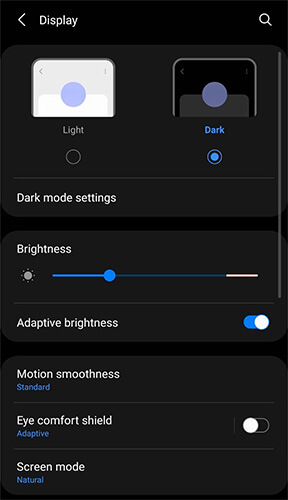
Step 3. Turn off features such as:
Step 4. Restore display settings to their default values.
Software bugs are another possible reason why a Samsung phone may experience display issues. Samsung regularly releases updates to improve system stability and fix known problems. Checking for available updates can help resolve white screen issues caused by outdated software.
Step 1. Open "Settings" > "System".
Step 2. Go to "System update".
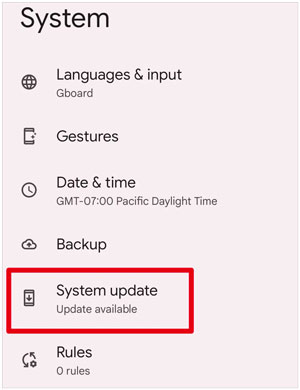
Step 3. Tap "Download and install".
Step 4. Install any available updates.
Keeping your Samsung phone updated can also prevent future compatibility and stability problems.
If the white screen appears after installing a new app or update, a third-party application may be interfering with the Android system. Safe Mode allows your Samsung phone to run with only essential system apps, helping you determine whether an installed app is causing the problem.
Step 1. Press and hold the "Power" button.
Step 2. Touch and hold "Power off".
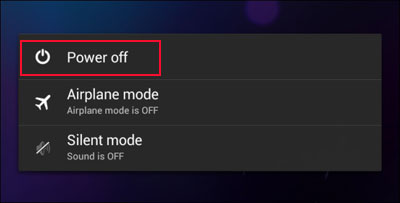
Step 3. Tap "Safe mode" when it appears.
Step 4. Check whether the screen works normally.
If the white screen disappears in Safe Mode, uninstall recently installed or suspicious apps and restart your phone normally.
Cached system files help your phone run faster, but corrupted cache data can sometimes cause startup problems, freezing, or display errors. Clearing the cache partition removes temporary system files while keeping your personal data safe.
Step 1. Turn off your Samsung phone.
Step 2. Enter "Recovery Mode" by pressing the required button combination.
Step 3. Select "Wipe cache partition".
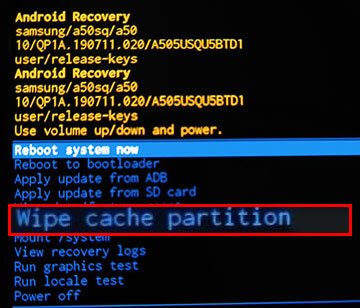
Step 4. Confirm the action and restart your device.
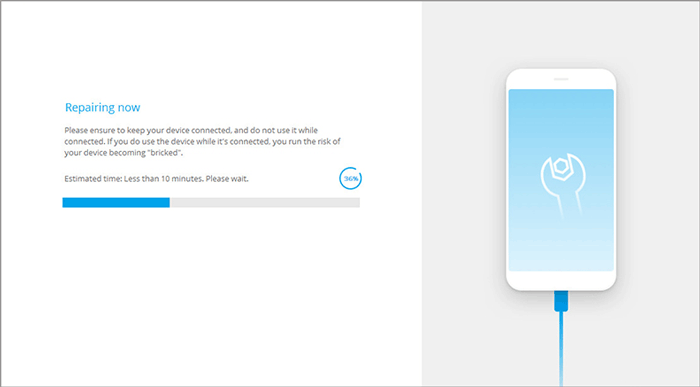
When the previous troubleshooting methods fail, the Samsung white screen of death may be caused by deeper Android system problems, such as corrupted system files, failed updates, or system crashes. In this case, using a professional Android repair tool like Android Repair can help fix software-related issues without requiring complicated manual troubleshooting.
Key features of Android Repair:
How to use Android Repair to fix Samsung white screen of death?
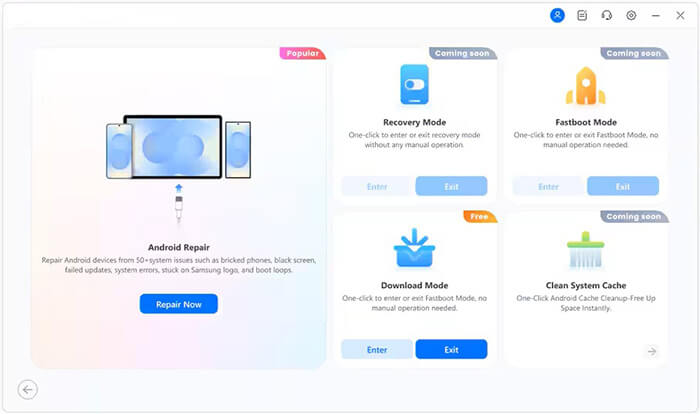
01Open Android Repair on your computer and select "System Repair" from the available options. Then, choose "Android Repair" to begin the repair process.
02Connect your Samsung phone to the computer with a USB cable. After your device is recognized, click "Repair Now" to continue.
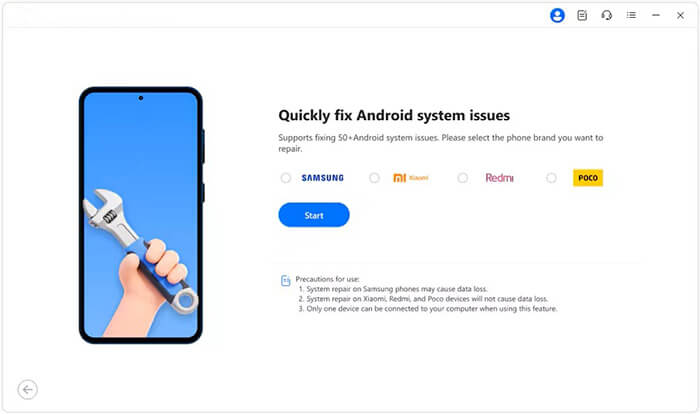
03Enter the required device details, such as your Samsung phone model, region, and carrier information, if prompted. Click "Start" after confirming the information.
04Follow the instructions displayed on the screen to boot your Samsung device into Download Mode or Odin Mode.
05Wait while the program obtains the matching firmware package and performs the system repair. Once the process is finished, restart your Samsung phone to check whether the white screen problem has been fixed.
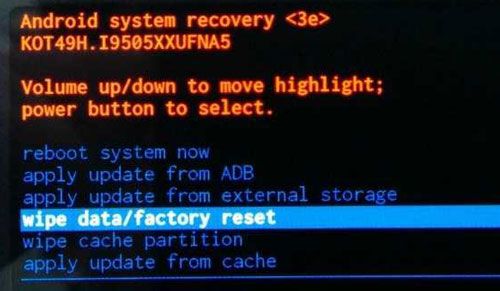
A factory reset can remove serious software problems by restoring your Samsung phone to its original state. However, this method should only be considered after trying other solutions because it permanently deletes apps, settings, and personal files stored on the device. If you do not want to lose important data, make sure to back up your phone before performing a factory reset.
Step 1. Turn off your Samsung phone.
Step 2. Enter "Recovery Mode".
Step 3. Select "Wipe data/factory reset".
Step 4. Confirm the reset operation.
Step 5. Restart your device after the process finishes.
If your Samsung phone still displays a white screen after completing all software troubleshooting steps, the problem may be caused by damaged hardware components. This is especially likely if the issue appeared after a fall, liquid exposure, or physical impact.
Professional repair may be required for problems such as:
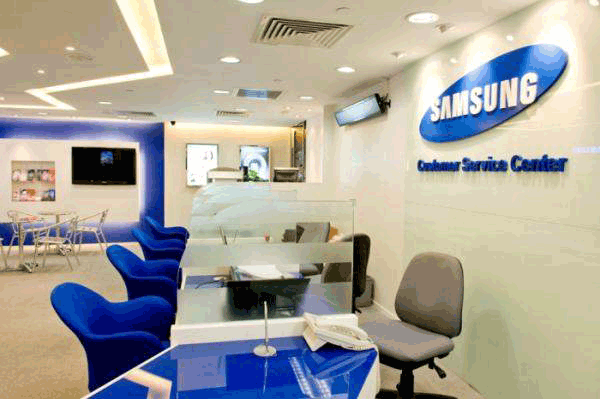
A Samsung authorized service center can diagnose the device and provide the appropriate repair solution.
The Samsung white screen of death can happen due to temporary system errors, software problems, or hardware damage. Before seeking professional help, try simple fixes such as performing a force restart, checking display settings, updating software, and clearing the cache partition.
For more serious software-related failures, Android Repair provides a convenient way to repair Android system problems before choosing a factory reset. However, if the white screen continues after all troubleshooting methods, professional hardware inspection may be the best option to restore your Samsung phone.
Related Articles:
8 Ways to Fix Android Tablet White Screen of Death in 2026
Samsung Tablet Frozen? Causes and Proven Fixes You Should Try







 Free Download for PC

 Download for Mac

