LG no longer release new mobile phones, so many LG users want to transfer files from their LG phones to their computers for backup. After switching to a new smartphone, they can restore the data to the new phones without any hassle. If you also want to transfer files from LG to PC or vice versa, read this guide.

Of course you can directly connect your LG phone to computer cable and copy all readable files from phone to computer. However, as you know, not all data types can be directly accessible and transferred, like contacts, messages, etc. In this case, you need a professional Android data transfer software - Coolmuster Android Assistant. With it, you can transfer your contacts, videos, photos, call logs, text messages, and more at once.
Key features of Coolmuster Android Assistant:
Before you know how to transfer photos from LG phone to computer, you need to acquire how to download data from LG phone to computer. Here are the steps, let me take Windows OS for an example.
If you do not install Coolmuster Android Assistant, you can go to download it first.


Launch the software, and connect your LG phone to the computer with a USB cable. Then you need to enable debugging on your LG phone by following the on-screen guide. When debugging query pops up, just choose "Allow".
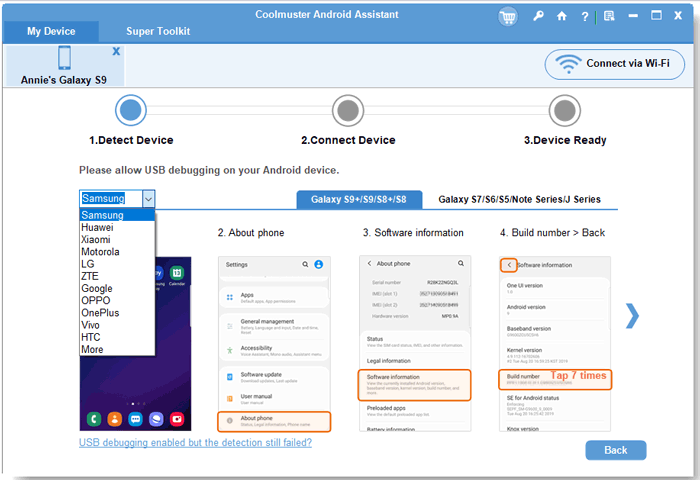
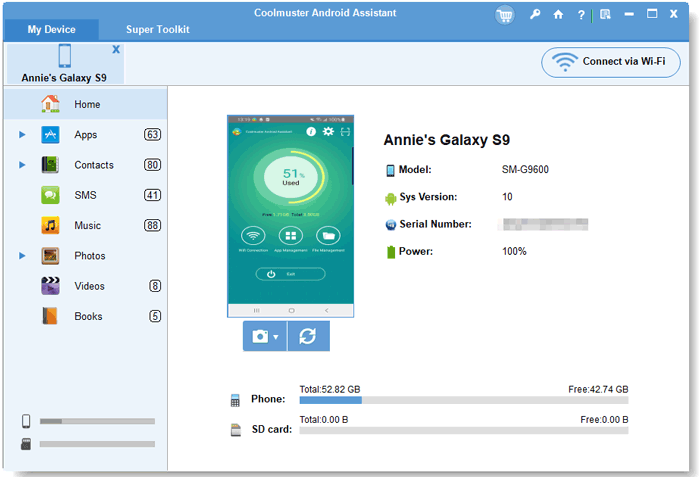
Once connected, you can preview your LG data on the interface by category.
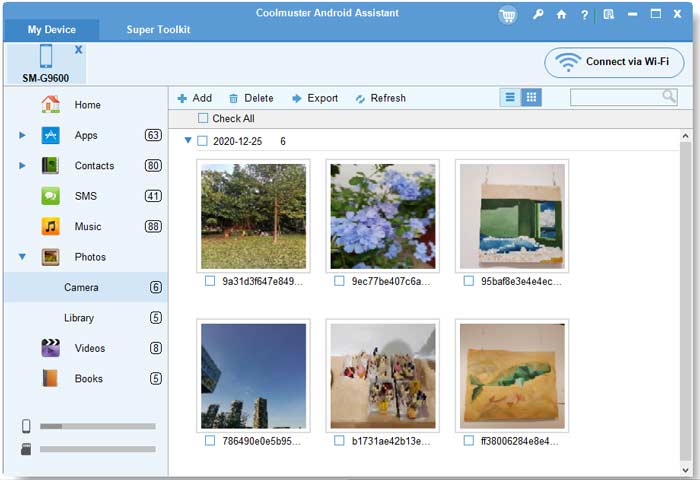
Choose a file type, and select the data you want. Then click "Export" to save the data to your computer.
Read more: Want to conduct LG file transfer to another LG phone? Here are 6 Solutions on How to Transfer Data from LG to LG.
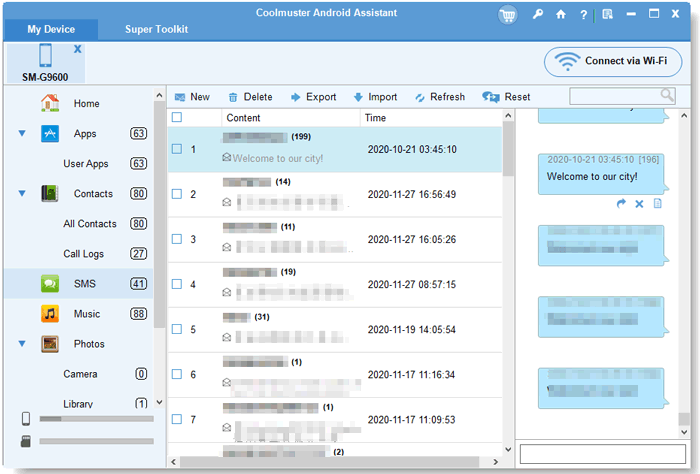
You also need to connect your LG phone to a computer and the steps are shown above. After successful connection, you can see all your LG phone files on the computer. Click "Import" on the upside position, choose in your computer the files you want to transfer and confirm, then files will be successfully imported to your LG phone.
Besides the above methods, we will also introduce other ways to realize LG file transfer to PC.
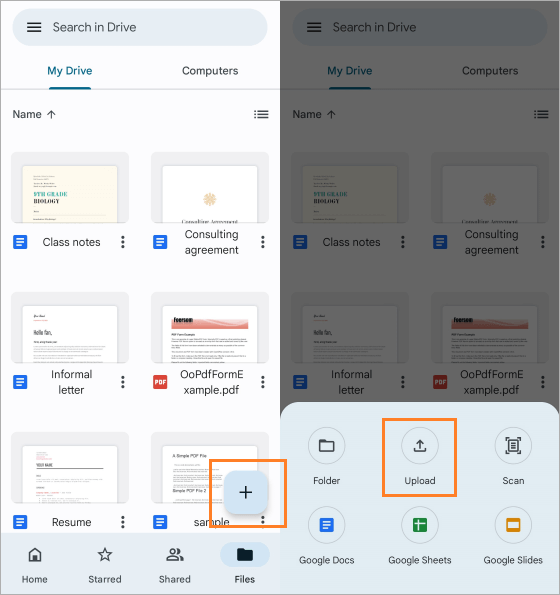
In this way, you need to register a Google Drive account first.
1. Sign in your Google Drive account in the app or in Google Drive's website page.
2. Find Upload button.
3. Select in your phone which LG file to be transferred to PC.
4. Save and upload.
5. Log into your Google Drive account on your computer and download.
You can also realize LG file transfer with Dropbox.
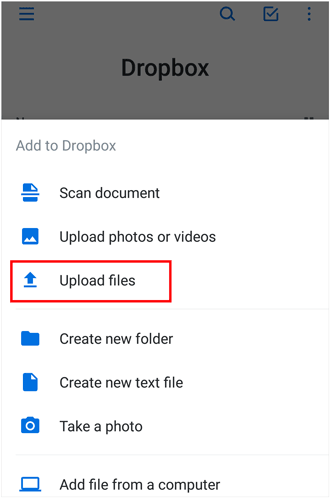
1. Download Dropbox from your App Store on your LG phone.
2. Launch Dropbox and sign in.
3. Find Add button and tap "Upload files".
4. Choose and transfer LG files.
5. Log into Dropbox account on your PC and download.
There are always some precious photos or music you would like to reappreciate or backup on other devices, here are some tips.
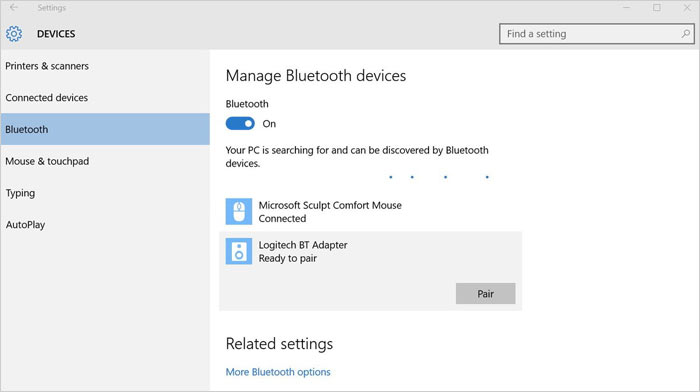
Bluetooth is an essential function for almost all phones and some of newly produced computers. By using bluetooth, transferring LG files to computer is just as easy as transferring photos from LG to computer with Coolmuster Android Assistant.
1. Find a Windows 10 computer, go to: Start > Setting > Device > Bluetooth > Manage Bluetooth Devices > Turn On the button.
2. More Bluetooth Option > Alert me when a new bluetooth device wants to connect > OK.
3. Open Bluetooth on your LG phone and begin to pair with.
4. After two devices have been successfully paired, choose photos on LG phone and share via bluetooth.
5. Click "Accept Files" on your computer and receive files.
6. Successfully transferred LG phone photos to computer.
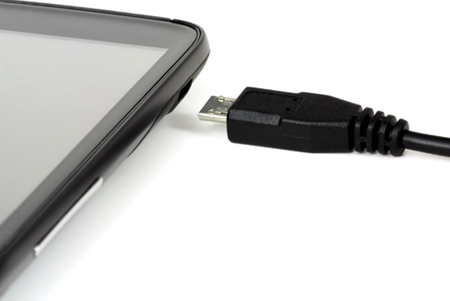
1. Connect your LG to PC by inserting a USB cable.
2. Slide down your screen and choose connection.
3. Click Other USB Option and Transfer Files.
4. Go to My Computer to find your LG device and double click.
5. Find your music files on your computer, choose your desired ones and copy or drag into your LG device.
That's all about how to transfer music from PC to LG. This method is also suitable for higher phone types above LG to transfer LG files.
Transferring LG files to computer is also very convenient by using the mouse if you have both devices on hand.
1. Connect LG phone to computer via a LG phone cable.
2. Choose USB debugging mode immediately on your phone, usually select MTP or File Transfer.
3. Double click your LG device in My Computer.
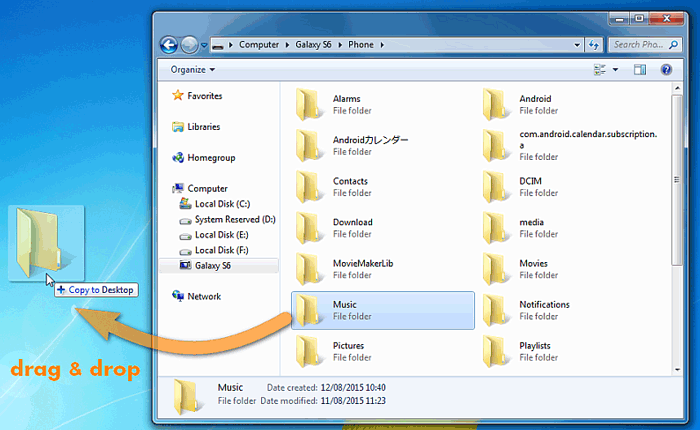
4. Find targeted file,click it and drag the mouse, then release or drop it on the computer desk or other storage path.
5. Successfully transferred LG files to PC.
There are numerous ways to realize LG file transfer to PC, but the most efficient and effective option is Coolmuster Android Assistant. Since other options either require you to have a third-party account or at least to make sure both your LG phone and computer support bluetooth function.
Yes, transferring LG files via USB cable or dragging mouse is simple, however, remember that not all data or hidden files can be directly readable by a computer. Thus, owning the Coolmuster Android Assistant is a factual optimal choice. It is safe, time-saving, powerful, easy-to-operate and requires nothing but connecting LG phone with your computer.
Of course, you can try all ways above. And you can also tell us more your own economic ways to transfer LG files to PC or leave a comment about your user's demand on this app. We will appreciate it.
Related Articles:
LG to Samsung Transfer: How to Transfer Data from LG to Samsung
How to Fix LG Phone Stuck in Boot Loop [5 Tips Provided]
Top 2 Buzzworthy Samsung to LG Transfer Approaches
How to Retrieve Deleted Text Messages on Android (5 Methods Introduced)







 Download for PC
 Download for Mac

