TL;DR:
Transferring files from PC to Pixel can be done in several ways depending on your needs, including:
"Got my first Android phone (Google Pixel 9 Pro) and need some help here as a Windows 10 user. I have a large collection of videos and music on my PC that I need to transfer to my Google Pixel phone."
- From Microsoft Community
Google Pixel phones are known for their clean Android experience and powerful features, but moving files between a Pixel device and a computer is still a common need. Whether you want to copy photos, videos, documents, music, or other data, choosing the right transfer method can save time and prevent unnecessary steps.
There are several ways to transfer files from PC to Pixel, including using a USB cable, wireless sharing tools, cloud storage, and professional Android management software. Each method works differently depending on file size, transfer speed, and whether you need additional file management features. This guide introduces five practical ways to help you move files from your PC to Pixel easily.
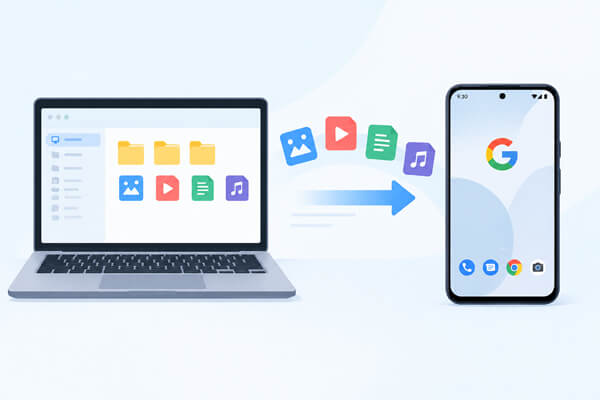
When you need to transfer more than just basic media files, a dedicated Android management tool can provide a more complete solution. Coolmuster Android Assistant allows you to manage and move various types of Android content between your PC and Pixel phone in one place.
Unlike regular file transfer methods that mainly focus on folders and common files, this tool lets you access different categories of Android data directly. It is especially useful when you want to transfer selected items, create backups, or manage phone content from a larger computer screen.
Key features of Android Assistant
Steps to transfer files from PC to Pixel with Android Assistant:
01Install and open Android Assistant on your PC.
02Connect your Pixel phone with a USB cable or Wi-Fi. For a USB cable, follow the instructions to enable USB debugging so the software can recognize your device.
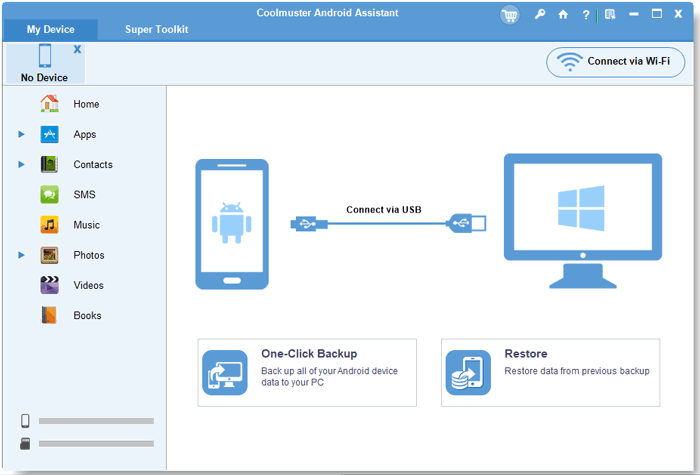
03After your Pixel is successfully connected, the main interface will display different data categories. Select the category where the files you want to transfer are stored.
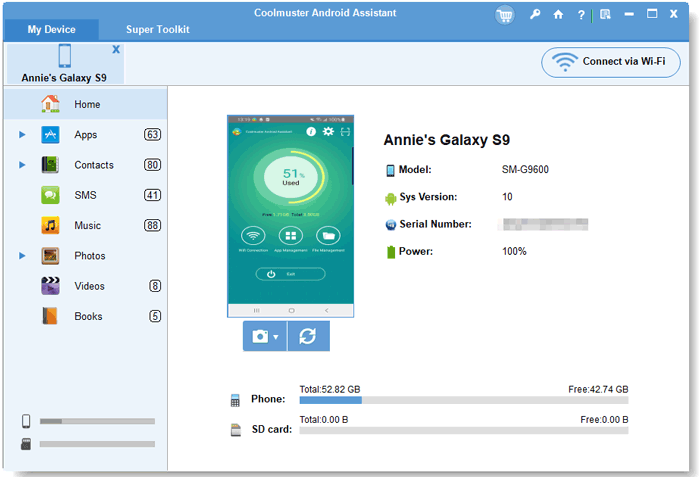
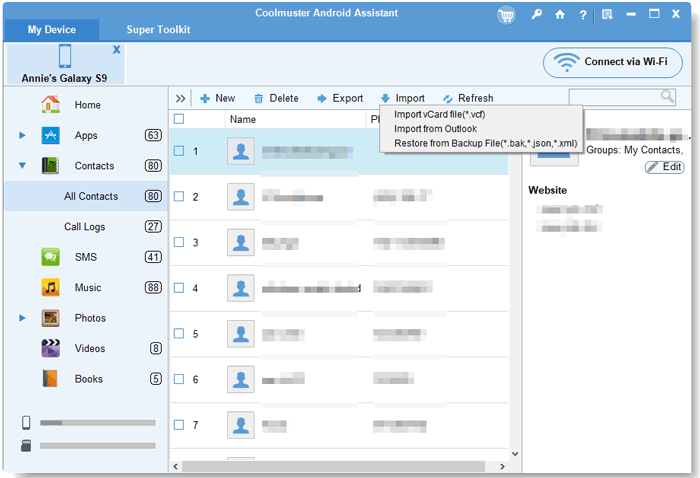
04Click the "Import" option within the selected category and browse the files saved on your computer. Select the desired items and transfer them to your Pixel phone.
For a visual walkthrough, you can also watch the video tutorial below.
Using a USB cable is one of the simplest ways to transfer files from a PC to a Pixel phone. Since it does not require extra software or an internet connection, it is a practical option when you need to quickly move common files such as photos, videos, and documents.
However, this method mainly gives you access to the phone's storage folders. Compared with Coolmuster Android Assistant, which can manage various Android data categories, USB file transfer supports a more limited range of file types and does not provide advanced management features.
How to transfer files from PC to Pixel via USB?
Step 1. Plug your Pixel phone into your computer using a working USB data cable. Unlock your phone and tap the USB connection notification.
Step 2. Choose "File transfer / Android Auto" from the USB preferences. Your PC will then be able to access your Pixel storage.
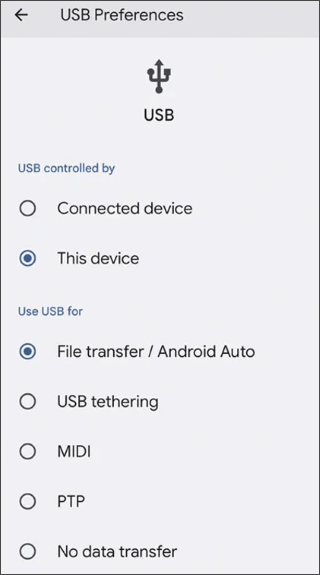
Step 3. Open File Explorer on your computer and select your Pixel device. Find the target folder, then copy and paste the files you want to transfer.
Step 4. Once the process is complete, open the related folder or app on your Pixel to check whether the files have been successfully moved.
Quick Share provides a convenient wireless way to send files between a Windows PC and a Pixel phone. It works well when you want to transfer photos, videos, or documents without connecting a cable. (Quick Share not working?)
Since Quick Share uses wireless connections, it is more flexible than USB transfer. However, the transfer speed may vary depending on the network environment and file size. Here is how it works:
Step 1. Install Quick Share for Windows on your computer. Turn on Bluetooth and Wi-Fi on both your PC and Pixel phone.
Step 2. Open Quick Share and choose the files you want to transfer from your computer.
Step 3. Find your Pixel phone from the available devices list and send the transfer request.
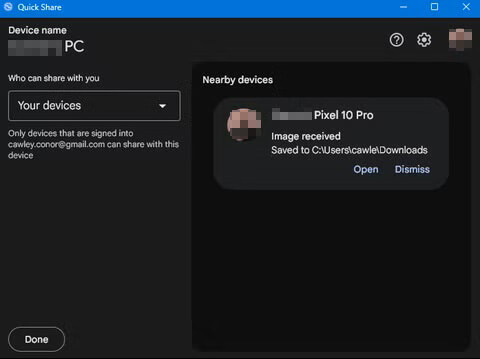
Step 4. Confirm the request on your phone. The selected files will be transferred wirelessly.
Google Drive is another useful option when you want to transfer files without connecting your PC and Pixel directly. By uploading files to cloud storage, you can access them from your phone anytime with the same Google account.
This method is suitable for documents, photos, and other files that do not need to be transferred immediately. However, large files may take longer depending on your upload and download speeds.
Transfer files from PC to Pixel wirelessly:
Step 1. Open Google Drive in your browser and click "New" > "File upload" to select the files you want to transfer from your computer.
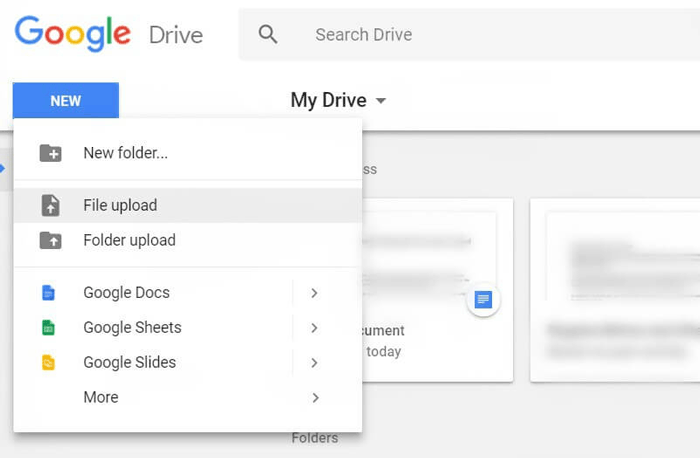
Step 2. Open the Google Drive app on your Pixel and tap "Sign in" to log in with the same Google account used on your PC.
Step 3. Find the uploaded files in Google Drive, tap the three-dot menu next to the file, and select "Download" to save them to your Pixel for offline access.
Bluetooth is a built-in wireless feature available on most computers and Android phones. It can help transfer files when you do not have a USB cable or internet connection available.
Although Bluetooth is easy to use, it usually provides slower transfer speeds compared with USB or Quick Share. Therefore, it is better suited for smaller files rather than large videos or folders.
Follow these steps to achieve PC to Pixel file transfer using Bluetooth:
Step 1. Open "Settings" on your Pixel and PC, turn on "Bluetooth", and select "Pair" or "Connect" to complete the connection between the two devices.
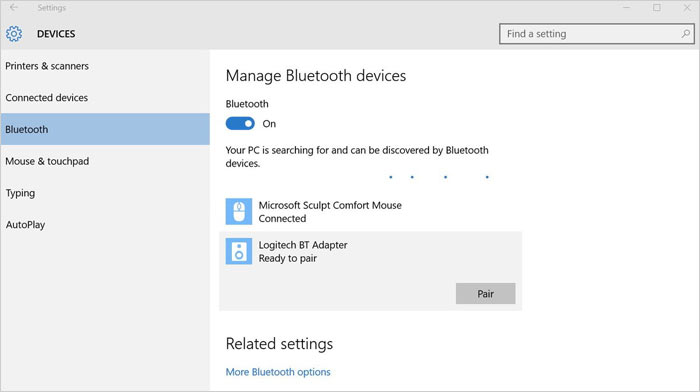
Step 2. On your PC, select the files you want to send, right-click them, choose "Send to" > "Bluetooth device", and select your Pixel phone.
Step 3. Tap "Accept" when the transfer request appears on your Pixel. Wait until the file transfer is completed, then open the received files from the Bluetooth folder.
There are multiple ways to transfer files from PC to Pixel, and the best choice depends on the type and amount of data you want to move. USB cables and Quick Share are suitable for quick transfers, while Google Drive and Bluetooth provide convenient wireless alternatives.
If you need to transfer different types of Android data or manage Pixel files more efficiently, Coolmuster Android Assistant offers a more comprehensive way to organize and move content between your computer and phone. By choosing the right method, you can transfer files to your Pixel with less effort and better control.
Related Articles:
How to Transfer Data to Pixel [Support both Android and iPhone]
[Solved] How to Add Music to Google Pixel from a PC?
5 Practical Solutions on Google Pixel Backup [A How-to Guide]
4 Tested Solutions to Successfully Restore Pixel from Backup





 Free Download for PC
  Free Download for Mac


