"Quick Share" is a handy feature on Android devices, particularly Samsung phones, designed to make file transfers between devices fast and easy. However, like many tech features, it's not always foolproof. If you've encountered issues with Quick Share not working, whether it's a connection failure, slow transfer speeds, or compatibility problems, don't worry.
This guide covers the common reasons why Quick Share might not be functioning as expected, along with actionable troubleshooting steps to help you resolve the issue. If all else fails, we'll also introduce a reliable alternative to keep your data transfers running smoothly.
There could be several reasons why Quick Share isn't functioning properly on your device. Some of the most common causes include:
Understanding the underlying reasons will guide you in troubleshooting effectively.
Now that you know the common causes, let's walk through the step-by-step fixes to resolve Quick Share issues.
The first and most common fix is ensuring Quick Share is set to be visible to other devices. If it's hidden, other devices won't detect it, making sharing impossible. Here's how to check:
Step 1. Swipe down from the top of your screen to open the Quick Panel.
Step 2. Long-press the "Quick Share" icon to open its settings (on some devices, this may be labeled "Nearby Share").
Step 3. Look for the "Device Visibility" option.
Step 4. Select "All Nearby Devices" (or "Everyone") instead of "Hidden" or "Only My Devices".
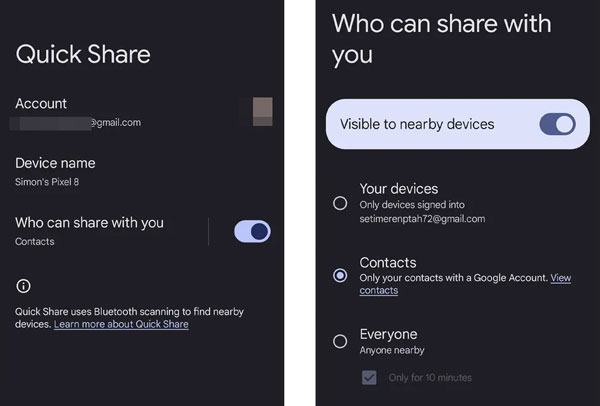
Step 5. Repeat this step on the receiving device, both devices need to be visible to connect.
Quick Share depends on three core services: Wi-Fi (for fast data transfer via Wi-Fi Direct), Bluetooth (for device discovery and initial pairing), and Location (to find nearby devices). If any of these are disabled on either device, Quick Share will not work. Here's how to enable them:
Step 1. Open the Quick Panel (swipe down from the top of the screen) on both devices.
Step 2. Tap the Wi-Fi, Bluetooth, and Location icons to enable them (ensure they're highlighted, not grayed out).
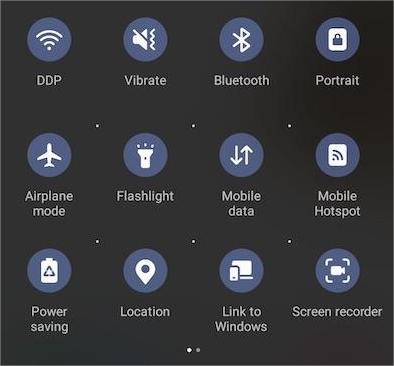
Note: On Windows PCs, ensure Wi-Fi and Bluetooth are enabled, and the network profile is set to "Private" (Quick Share doesn't work with public networks).
Quick Share uses short-range wireless technologies, so distance is a key factor. If devices are too far apart (more than 10 meters/30 feet), the connection will be weak or non-existent. Here's what to do:
Bring the two devices within 1 - 2 meters (3 - 6 feet) of each other, this ensures a strong Bluetooth and Wi-Fi Direct signal.
Remove any obstacles between the devices (e.g., walls, thick cases, or other electronic devices) that could interfere with the wireless signal.
Avoid sharing in crowded areas with multiple wireless devices (e.g., coffee shops, offices), as signal interference can disrupt Quick Share.
Battery Saver mode is designed to extend battery life by limiting background processes, and it often disables non-essential features like Quick Share. If Battery Saver is enabled on either device, it may prevent Quick Share from working. Here's how to disable it:
Step 1. Open your device's "Settings" app.
Step 2. Navigate to "Battery" or "Battery and Device Care" (on Samsung devices).
Step 3. Look for "Battery Saver" or "Power Saving Mode".
Step 4. Toggle the switch to "Off".
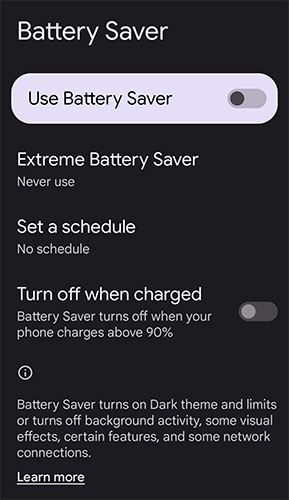
Step 5. Repeat this on the receiving device, both devices should have Battery Saver disabled during sharing.
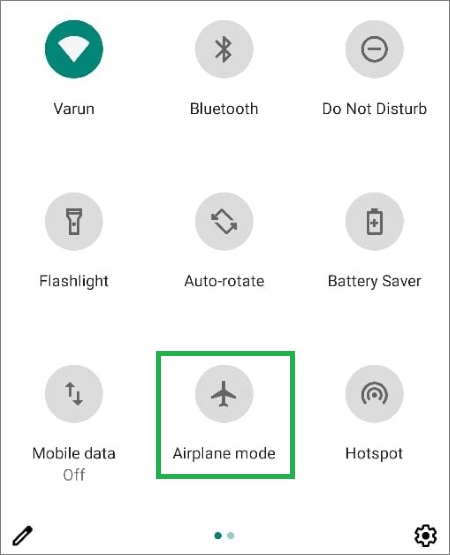
Airplane Mode disables all wireless connections (Wi-Fi, Bluetooth, cellular), and sometimes a quick toggle of Airplane Mode can refresh your device's wireless settings, fixing glitches that cause Quick Share to fail. Here's how to do it:
Step 1. Swipe down from the top of your screen to open the Quick Panel.
Step 2. Tap the "Airplane Mode" icon to enable it (the icon will turn blue or highlight).
Step 3. Wait 10 - 15 seconds to ensure all wireless connections are fully disabled.
Step 4. Tap the "Airplane Mode" icon again to disable it.
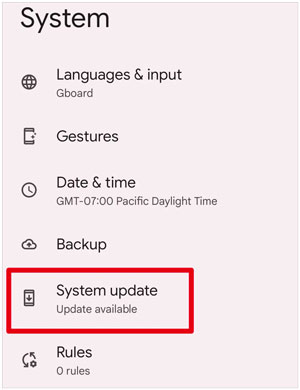
Quick Share has specific software requirements: for Android devices, you need at least Android 6.0 (Marshmallow) for basic compatibility, but full features (like high-speed Wi-Fi Direct transfer) require Android 10 (Q OS) or higher, along with One UI 2.1+ for Samsung devices. For Windows PCs, you need Windows 10 2004 or later, with updated Bluetooth and Wi-Fi drivers. Here's how to check your Android version:
Step 1. Open "Settings" on your Android device.
Step 2. Scroll down and tap "About Phone" or "About Device".
Step 3. Look for "Android Version" or "Software Version".
Step 4. To update your Android version: Go to "Settings" > "System" > "System Update" and tap "Check for Updates". Install any available updates and restart your device.
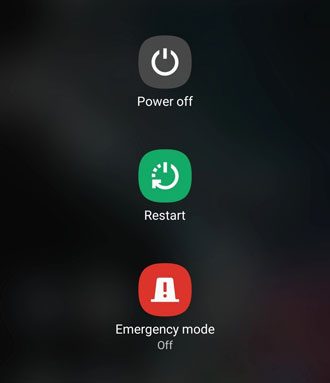
A simple restart can fix a wide range of software glitches, including those that cause Quick Share to malfunction. Restarting your device closes background apps, resets wireless connections, and clears temporary cache files that may be causing issues. Here's how to restart most Android devices:
Step 1. Press and hold the "Power" button (and "Volume Down" button on some devices) until the power menu appears.
Step 2. Tap "Restart" or "Reboot". Wait for your device to restart completely (this may take 1 - 2 minutes).
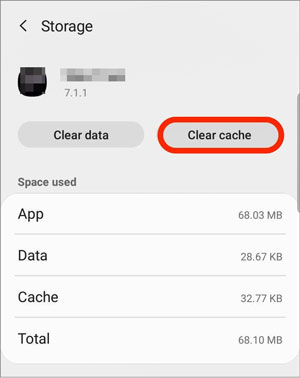
Corrupted cache files for the Quick Share app (or Nearby Share) can cause the feature to crash or fail to connect. Clearing the cache deletes these temporary files without deleting your personal data (e.g., photos, documents). Here's how to clear the cache:
Step 1. Open "Settings" on your Android device.
Step 2. Navigate to "Apps" or "Applications".
Step 3. Tap "See All Apps" (if needed) and scroll down to find "Quick Share" or "Nearby Share".
Step 4. Tap "Storage" or "Storage & Cache".
Step 5. Tap "Clear cache" (do NOT tap "Clear Data", as this will reset the app and delete your settings).
Step 6. Repeat this on the receiving device.
For Windows PCs, you can clear network sharing cache by opening Command Prompt (Win + R, type "cmd"), entering "net use * /del" to delete all shared connections, and restarting your PC.
If all other fixes fail, resetting your network settings may resolve deeper issues with Wi-Fi, Bluetooth, and Location, all of which are critical for Quick Share. Note that this will reset your Wi-Fi passwords, Bluetooth pairings, and network preferences, so you'll need to re-connect to Wi-Fi and re-pair Bluetooth devices afterward. Here's how to reset network settings:
Step 1. Open "Settings" on your Android device.
Step 2. Navigate to "System" > "Reset" or "General Management" > "Reset".
Step 3. Tap "Reset Network Settings" (this may be labeled "Reset Wi-Fi, Mobile & Bluetooth").
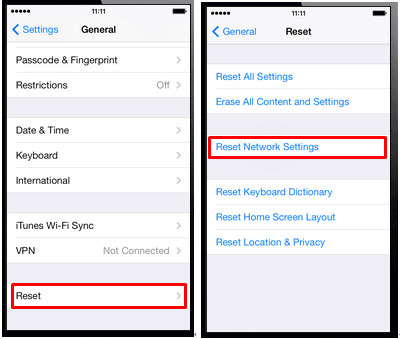
Step 4. Confirm the reset (you may need to enter your PIN or password).
Step 5. Once the reset is complete, restart your device.
For Windows PCs, reset network settings by going to "Settings" > "Network & Internet" > "Advanced Network Settings" > "Network Reset" and following the prompts.
If you've tried all the troubleshooting steps above and Quick Share still isn't working, there's no need to worry. You can use Coolmuster Mobile Transfer as a reliable alternative to move your data between devices without the hassles.
Coolmuster Mobile Transfer lets you transfer contacts, photos, videos, music, and other important files between Android and iOS devices, between two Android devices, or between iOS devices. It's an intuitive and user-friendly tool designed to make the file transfer process quick and easy, without losing any data.
Here will show you how you can use it to transfer data between two Android devices:
01Download and install Coolmuster Mobile Transfer on your computer from the official website. Launch the software after installation.
02Use USB cables to connect both Android devices to the computer. Ensure both devices have USB debugging enabled.
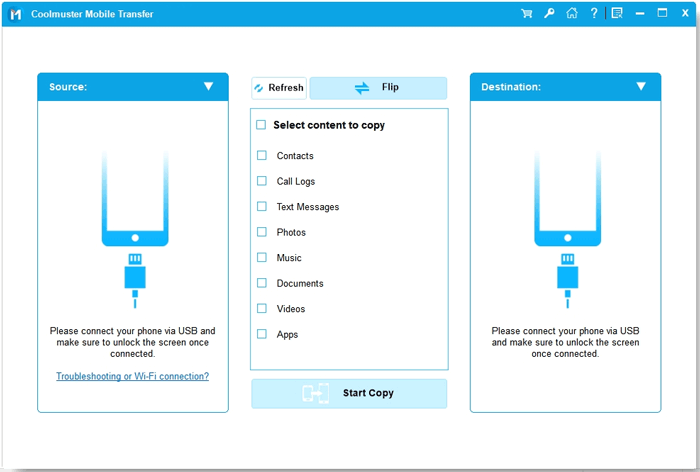
03The software will automatically detect both devices. The source device (from which you'll transfer data) will be shown on the left, and the destination device (where data will be transferred to) will appear on the right. Make sure to select the correct devices.
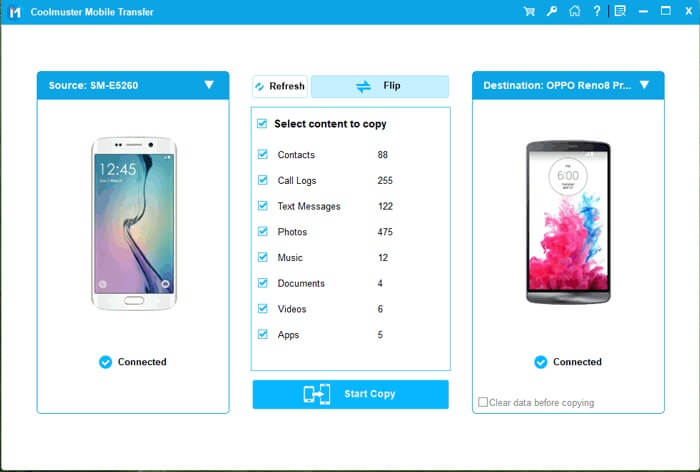
04You will now see a list of data types that can be transferred (e.g., contacts, messages, photos, videos, apps). Select the data you want to transfer by ticking the corresponding boxes.
Click on the "Start Copy" button to begin the transfer. The software will initiate the data transfer, and all selected files will be moved to the destination device.
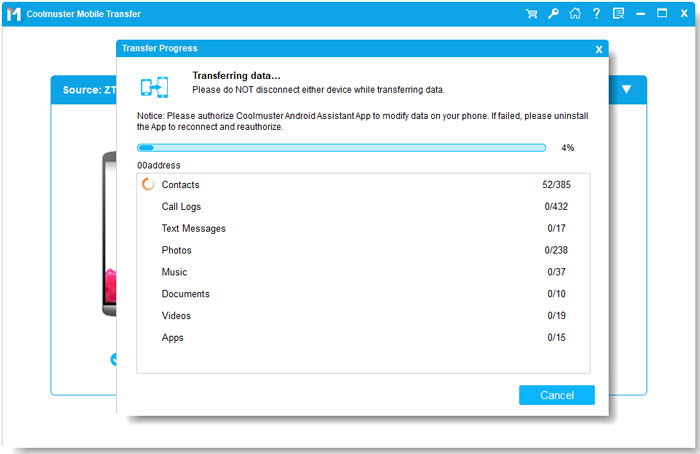
For a more intuitive guide, check out the video tutorial below:
While Quick Share is a great feature for quickly transferring files between devices, issues can arise for various reasons. By following the troubleshooting steps outlined above, you should be able to resolve most problems and get Quick Share working again. However, if the issue persists, Coolmuster Mobile Transfer is an excellent alternative that ensures smooth, hassle-free data transfer across devices. Try it out, and keep your files moving effortlessly.
Related Articles:
How to Transfer Data from Android to Android Wirelessly in 7 Methods
5 Easy Methods to Transfer Files between Android Devices via Wi-Fi
Practical Guide: Can You Use Nearby Share from Android to iPhone?







 Free Download for PC
  Free Download for Mac


