"So I'm using Redmi for 4-5 months. Recently, when I restarted my phone, this Redmi always stuck at the MI logo. I thought this was a time thing, then I tried restarting it again like multiple times, still having the same problem. The way I fix it is usually to enter the safe mode, then turn off the device again and restart it. Is there any way to fix this problem without actually factory resetting the device?"
- From Reddit
There's nothing more frustrating than pressing the power button of your Xiaomi or Redmi phone only to watch it freeze on the iconic Mi logo. This common issue, often called a "boot loop" or "stuck boot", can strike suddenly, whether you're updating the system, installing an app, or just turning on your phone. The good news is that most cases stem from solvable software problems, and you can resolve them with step-by-step troubleshooting.
In this guide, we'll break down the root causes of Xiaomi/Redmi being stuck on the Mi logo, and walk you through reliable fixes to get your phone back to normal.
Before diving into fixes, it's helpful to understand what triggers the issue. The Mi logo appears during the boot process when your phone loads the operating system (MIUI). If this process is interrupted, the phone freezes or loops on the logo. Here are the most common culprits:
We've organized the fixes by difficulty and data risk. Start with the first method (no data loss) and work your way down only if needed. Always back up data when possible, though some fixes require erasing local files.
A forced restart is the quickest way to resolve temporary boot glitches. It resets your phone's memory and helps exit the stuck boot loop without losing any data. Here are two common button combinations for force restarting your Xiaomi/Redmi phone:
Basic Force Restart:
Press and hold the "Power" button for 10 - 15 seconds. Release it when the phone shuts down and restarts. If the phone boots normally, the glitch is fixed.
Power + Volume Up Combo:
If the first method doesn't work, try holding both the "Power" button and the "Volume Up" button simultaneously for 10–15 seconds. Keep holding them until the Mi logo reappears, then release. This method is particularly effective for resolving issues caused by interrupted updates or system freezes.
Corrupted cache files (temporary system files) are a common cause of boot issues. Clearing the cache in Recovery Mode will delete these files without affecting your photos, apps, or messages. Follow these steps:
Step 1. Ensure the phone is completely shut down. If it's stuck on the logo, use the forced restart method to turn it off first.
Step 2. Press and hold both the "Power" button and the "Volume Up" button until the Mi logo appears. Release the "Power" button but continue holding the "Volume Up" button until the MIUI Recovery menu appears.
Step 3. Use the "Volume" buttons to navigate to "Wipe cache partition".
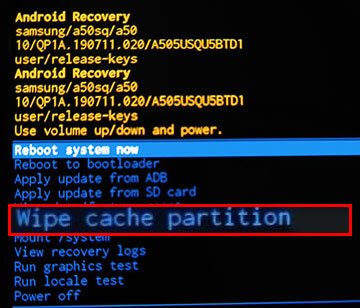
Step 4. Press the "Power" button to confirm. Wait for 1 - 2 minutes for the process to complete.
Step 5. Select "Reboot System Now" to restart the phone. Your device should now boot up normally.
If clearing the cache didn't solve the problem, you can use a dedicated Android repair tool to fix the issue. Android Repair is an easy-to-use software that can fix most Android system problems, including boot loops and phones stuck on the Mi logo.
Key features of Android Repair:
Steps to use Android Repair to fix Xiaomi/Redmi stuck on the Mi logo:
01Open Android Repair on your computer and connect your Xiaomi phone via USB. Select "System Repair", choose "Android" as your device type, then click "Android Repair" > "Repair Now" to begin.
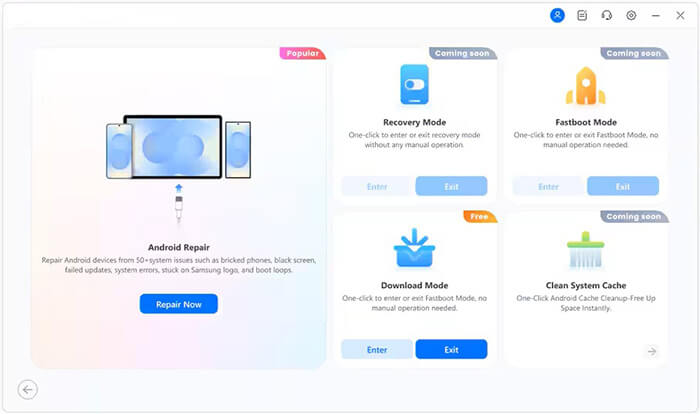
02When prompted, select Xiaomi or Redmi as your device brand, then click "Start". This ensures Android Repair scans the correct firmware and device-specific repair options.
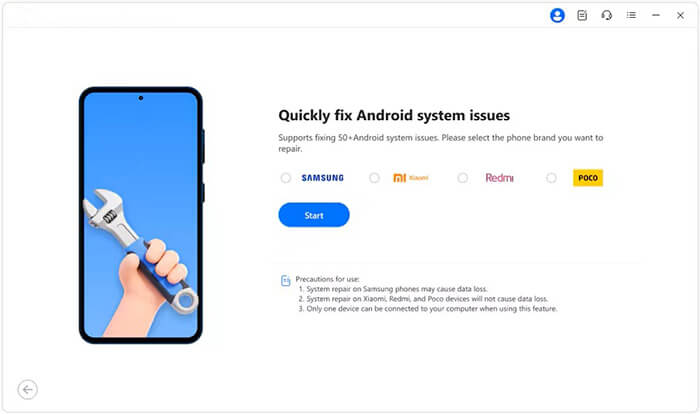
03Android Repair will detect the correct firmware for your phone, automatically download and prepare the firmware, and then display the details. Once confirmed, click "Fix Now" to start the system repair.
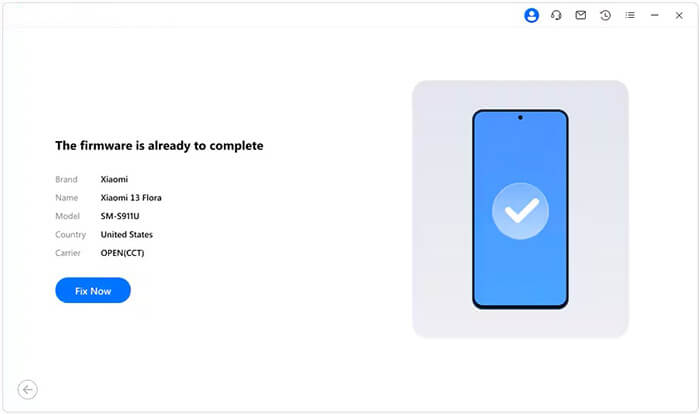
04Android Repair will run the system repair and show real-time progress. Do not disconnect your phone. Once complete, you'll see a success message, and your device will reboot with the system fully repaired.
For persistent issues such as failed custom ROM installations or severe system corruption, flashing the official MIUI firmware via Fastboot Mode can help. This will replace the entire operating system with a fresh, official version. Here is how it works:
Step 1. On a Windows PC, install Mi Flash Tool (available from Xiaomi's official website) and the Xiaomi USB Driver. Download the official Fastboot ROM for your Redmi model from Xiaomi's firmware repository.
Step 2. Power off your phone. Hold the "Power" button and the "Volume Down" button simultaneously until you see the "FASTBOOT" screen.
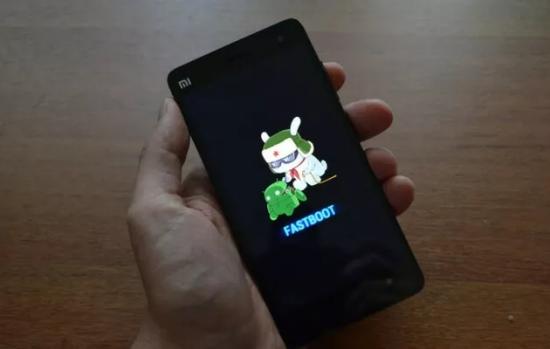
Step 3. Connect your phone to the PC using a USB cable. Ensure that Mi Flash Tool detects your device (it will display your phone's serial number).
Step 4. In Mi Flash Tool, click "Select" and choose the folder where you extracted the Fastboot ROM (ensure the folder path contains no Chinese characters or spaces).
Step 5. Click "Flash" to start the process. Wait 5 - 10 minutes, do not disconnect the USB cable until you see a "Success" message on the screen.
The phone will automatically restart. The first boot may take a few minutes, but once it finishes, your system will be fully restored.
1. Will factory resetting my Xiaomi phone fix the issue?
Factory resetting your phone will not revert the device to its original factory firmware version, but it will reset all other settings, apps, and data. If the issue is caused by a bug in the current operating system (OS), a factory reset may not help. However, if the problem is related to something other than the OS, such as an app conflict or settings issue, performing a factory reset may resolve the Mi logo issue and allow your phone to boot normally.
2. How do I prevent Xiaomi stuck on the Mi logo screen?
To prevent this issue, make sure your phone's software is up to date, and avoid interrupting updates. Regularly clear the cache and avoid installing problematic apps or third-party software that could cause system conflicts.
A Xiaomi/Redmi stuck on the Mi logo is a common frustration, but it's rarely a death sentence for your phone. In 90% of cases, a simple forced restart or cache clear will fix the issue. For more complex problems, tools like Android Repair or Fastboot flashing are reliable. If all else fails, Xiaomi's service centers can handle hardware repairs. By following the steps in this guide, you'll have your Xiaomi/Redmi up and running in no time.
Related Articles:
Resolving Connectivity Problems: Mi Phone Not Connecting to PC
Viable Strategies for Successful Xiaomi Broken Screen Data Recovery
How to Fix Android Boot Loop with Top 8 Solutions [Updated in 2025]







 Free Download for PC

 Download for Mac

