"My Xiaomi touchscreen stops responding sometimes, and I have to lock/unlock the phone to make it work again. What's the issue?"
- From Quora
Xiaomi phones and tablets are known for their strong performance and affordable pricing, but some users may encounter an annoying issue where the touch screen suddenly stops responding. Whether the screen reacts slowly, registers ghost touches, or doesn't respond at all, a malfunctioning touch screen can make the device nearly unusable. The good news is that in most cases, this problem can be fixed without replacing the screen. In this guide, we'll walk you through the common causes and proven solutions to fix a Xiaomi touch screen that's not working.
Before jumping into fixes, understanding the root causes can help you choose the right solution and avoid repeating the problem. The causes of Xiaomi touch screen not working can be divided into three main categories: software glitches, hardware issues, and external factors.
* Software-Related Causes
Temporary system freezes due to app conflicts, outdated MIUI versions, corrupted system cache, or improper software updates. These issues usually don't require hardware repair and can be fixed with simple software tweaks.
* Hardware-Related Causes
Physical damage to the touch screen (e.g., cracks, scratches from drops or impacts), water or liquid damage, loose internal touch screen cables, faulty touch screen digitizer, or a damaged battery (unstable voltage can affect touch function). These issues often require professional repair or part replacement.
* External Factors
Dirty or wet screen surface (oil, dirt, water stains block touch signals), non-original screen protectors or thick phone cases (interfere with touch sensitivity), unstable charging (third-party chargers with incorrect voltage), or extreme temperatures (too hot or too cold can damage the touch screen's performance).
We've sorted the solutions from the simplest (no data loss) to the most advanced (may require data backup). Start with the first few solutions, as most touch screen issues are caused by temporary glitches or external factors.
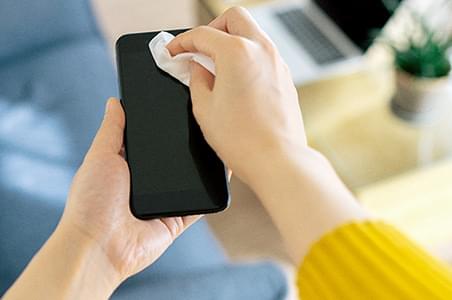
The most common reason for unresponsive touch is a dirty or wet screen. Follow these steps to clean it properly:
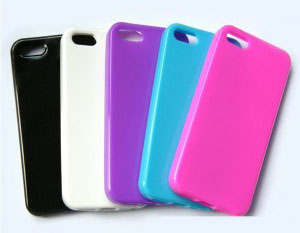
Non-original screen protectors (especially thick, low-quality ones) or thick phone cases can interfere with the touch screen's sensitivity, leading to unresponsive touch. Here's what to do:
Sometimes, the touch screen becomes unresponsive due to a temporary system freeze. This is a minor glitch that can be fixed with a simple lock/unlock operation:
If the screen is completely unresponsive (you can't lock/unlock it) or the system is frozen, a force restart can resolve temporary software glitches. The method varies slightly by Xiaomi model, but the general steps are:
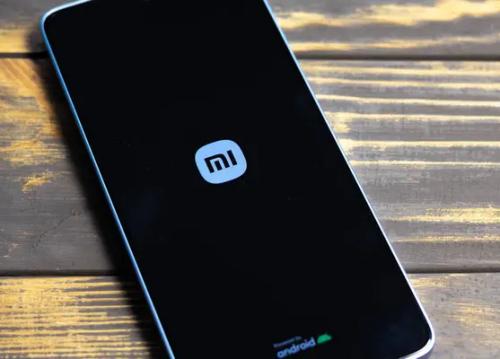
For most Xiaomi phones/tablets: Press and hold the "Power" button for 10-15 seconds, until the Xiaomi (Mi) logo appears on the screen. Release the button once the logo shows; your device will restart automatically.
For some models with a removable battery (rare now): If force restart fails, remove the battery (if possible), wait for 30 seconds, reinsert the battery, and press the "Power" button to turn on the device.
If the device still doesn't restart: Let the battery drain completely (leave it unused until it shuts down on its own), then connect it to the original charger and charge for at least 30 minutes. After charging, press the Power button to turn it on and test the touch screen.
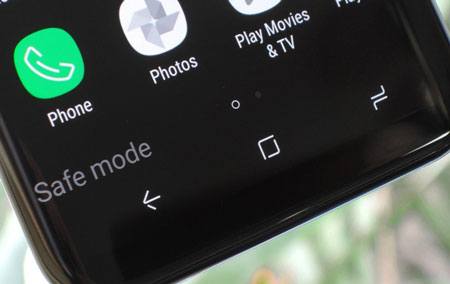
If the touch screen works normally in Safe Mode but malfunctions in normal mode, the issue is caused by a problematic third-party app (e.g., an app with bugs or conflicts). Safe Mode disables all third-party apps, allowing you to identify and uninstall the faulty app. Here's how to enter Safe Mode:
If software corruption or system issues are the root cause of your unresponsive Xiaomi touch screen, using a professional Android system repair tool like Android Repair can help fix the problem efficiently. This tool is designed to repair common Android system issues without causing data loss.
Key features of Android Repair:
Follow these step-by-step instructions to fix the Xiaomi system problem:
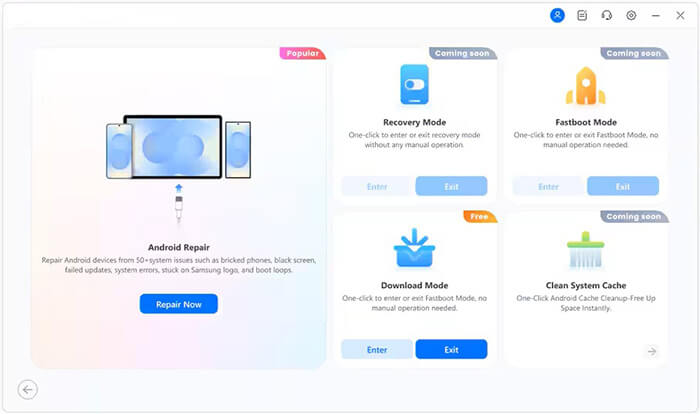
01On your computer, open Android Repair and connect your Xiaomi phone or tablet using a USB cable. Select "System Repair" > "Android" > "Android Repair" > "Repair Now" to start the repair process.
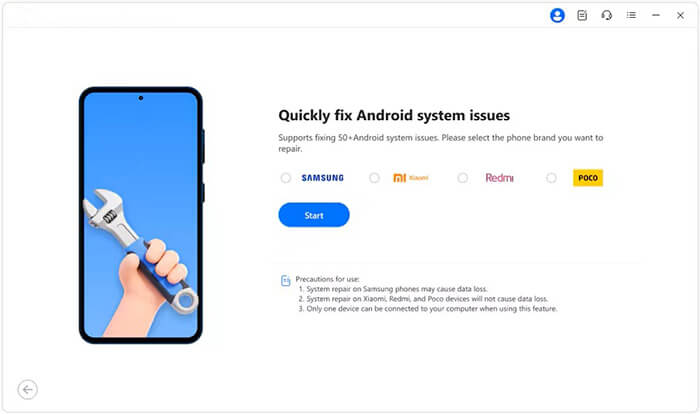
02On the next screen, select your device brand Xiaomi and click "Start" so the program can identify compatible firmware and repair options.
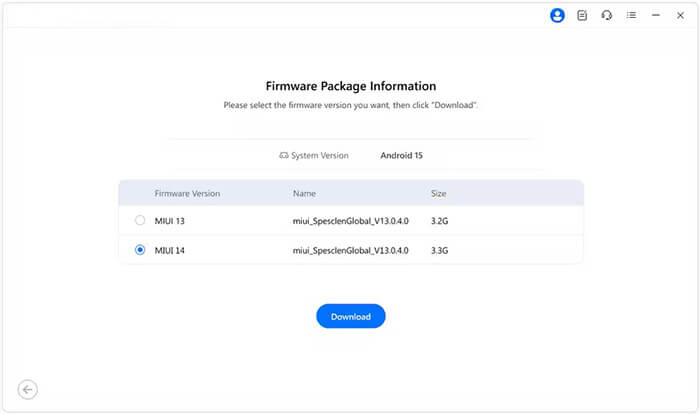
03Android Repair will automatically detect firmware packages that match your device model and system version. Review the available options, select the correct firmware, and click "Download" to proceed.
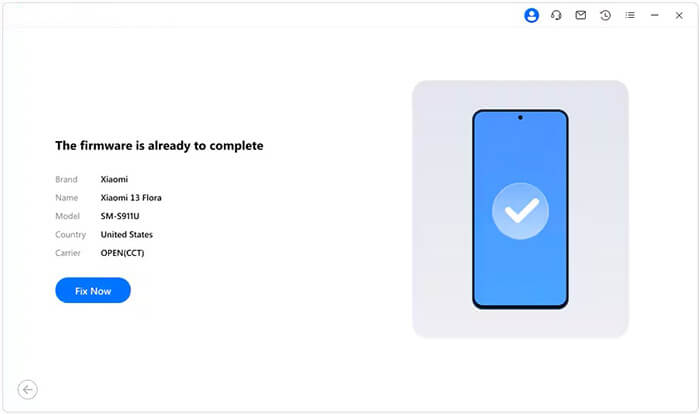
04While the firmware is being downloaded and prepared, the tool will display real-time progress. After extraction, it will enter the repair interface and show detailed device and firmware information. Confirm all details and click "Fix Now" to begin fixing the system.
If all the above solutions fail, a factory reset may be necessary. This will erase all data (apps, photos, messages, settings) on your device and restore it to its original factory state, fixing deep-seated software issues. Please back up your data first. Here's how to factory reset Xiaomi:
Step 1. Turn off your Xiaomi device completely.
Step 2. Press and hold the "Power" button + "Volume Up" button at the same time. Release the "Power" button once the Xiaomi logo appears, but keep holding the "Volume Up" button until you enter "Recovery Mode".
Step 3. In Recovery Mode, use the "Volume Up/Down" buttons to navigate (touch screen is unresponsive here) and the "Power" button to confirm.
Step 4. Select "wipe data/factory reset" from the menu, then choose "Wipe All Data".
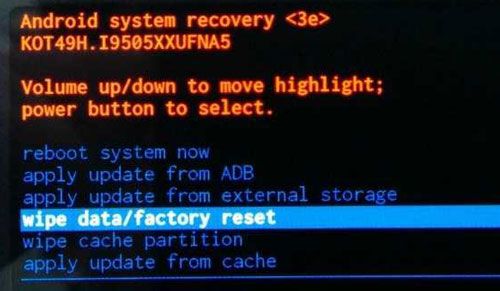
Step 5. Confirm the operation, your device will erase all data and reset to factory settings. After completion, select "Reboot System Now" to restart the device.
If none of the above solutions work, the touch screen issue is probably caused by hardware damage (e.g., faulty digitizer, loose cables, water damage). In this case, you need to contact Xiaomi's official customer service for professional repair. Here's how to get help:
* Official Website Support
Visit Xiaomi's official support website, select your region, and navigate to the "Contact Us" page. You can chat with online support, submit a repair request, or find nearby service centers.
* Phone Support
Call Xiaomi's global customer service hotline (check the official website for the number in your region) to describe the issue and get guidance. If your device is under warranty, the repair may be free (excluding physical damage).
* Authorized Service Centers
Bring your Xiaomi device to an authorized service center (you can find the location on the official website). The technicians will diagnose the hardware issue and repair or replace the faulty parts (e.g., touch screen digitizer, cables).
If your device is still under warranty (usually 1 year from the purchase date), avoid repairing it at unauthorized shops; this will void the warranty. Provide your purchase receipt and warranty card when contacting customer service for free repair (if applicable).
If your Xiaomi touch screen is not responding, there are several methods to try, from simple solutions like cleaning the screen and restarting the device, to more advanced fixes such as repairing the system. Android Repair is an excellent solution for addressing system-related issues that may be causing the touch screen problem. If all else fails, you can consider performing a factory reset or contacting Xiaomi customer support for further assistance. With the right approach, your device will be back to normal in no time.
Related Articles:
Xiaomi/Redmi Stuck on Mi Logo: Causes and Proven Fixes
How to Fix Android Touch Screen Not Working - Can't Unlock Issue In Minutes? (15 Tips)
Viable Strategies for Successful Xiaomi Broken Screen Data Recovery
How to Access Phone with Broken Screen [Touchable or Untouchable]




 Free Download for PC


