When your SanDisk SD card runs out of space, experiences file corruption, shows a write protection message, or you're preparing to sell or reuse it, completely erasing the data is the most direct and effective solution. So, how do you properly erase a SanDisk SD card? You've come to the right place. This article will guide you through 5 common and practical methods for erasing a SanDisk SD card on both Windows and Mac devices.
If you're using a Windows computer, there are several ways to erase a SanDisk SD card. Below, we'll explain four effective ways to erase a SanDisk Micro SD card on a PC.
If your goal is to completely erase data and prevent any form of recovery, a simple format will not be enough. In this case, it is recommended to use a professional data erasure tool, such as Coolmuster Data Erasure. It supports multiple data overwrites on devices like SD cards, USB drives, external hard drives, etc., ensuring that the data cannot be recovered. This tool is ideal for use before selling, giving away, or handling sensitive information.
The core features of Coolmuster Data Erasure:
How do I completely erase a SanDisk SD card using Coolmuster Data Erasure?
01Insert the SanDisk SD card into your computer using a card reader. Next, install and open the data wipe software on your PC.
02Select "Drive Wiper", choose an erasing level ("Quick Erase" or "Deep Erase"), and then select your SanDisk memory.
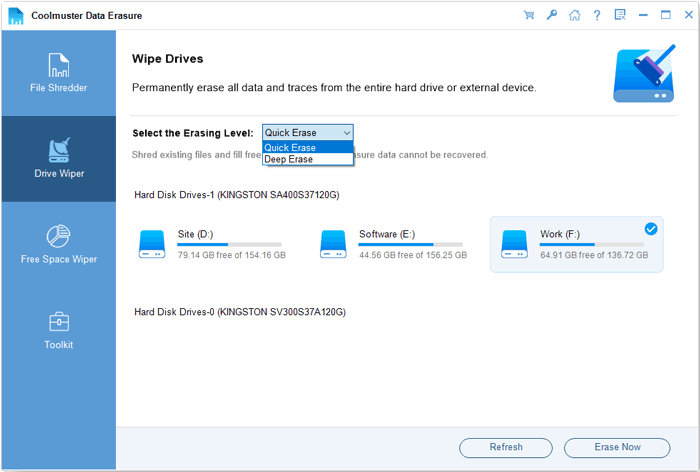
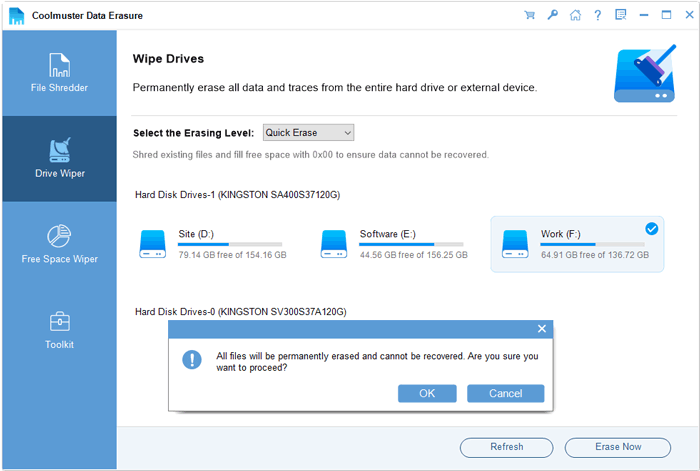
03Click "Erase Now" and confirm by selecting "OK" to begin erasing your SD card. All data will be permanently wiped.
Video Tutorial:
If you simply want to clear storage space or reuse the SD card, Windows File Explorer provides a quick and easy way to format it. However, keep in mind that quick formatting does not securely erase data.
To format a SanDisk SD card using Windows File Explorer, follow the steps below:
Step 1. Insert the SD card and open File Explorer by pressing "Win + E".
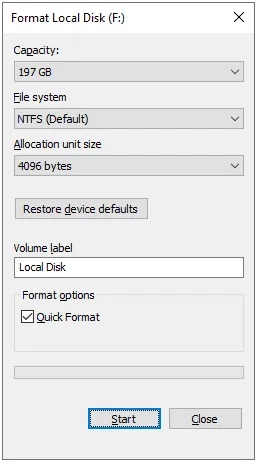
Step 2. Right-click on the SanDisk SD card drive under "This PC" and select "Format..." from the menu.
Step 3. Choose the File System (FAT32 for cards 32GB or smaller, exFAT for 64GB and larger). To perform a "Deep Format", uncheck "Quick Format", then click "Start" to begin.
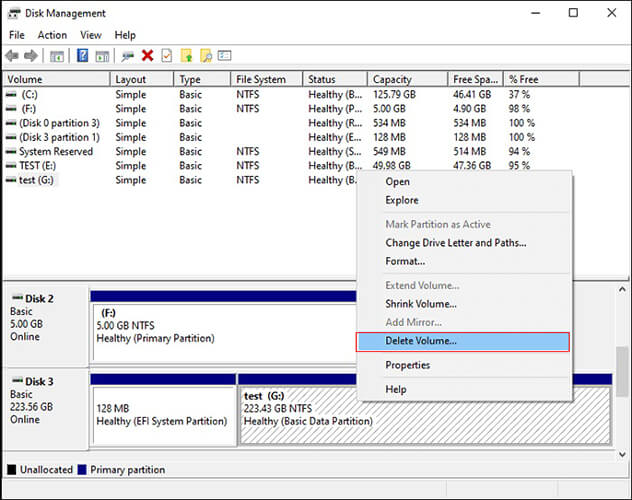
Sometimes, the SD card may not display correctly in File Explorer, or it may show as RAW format or unallocated. In such cases, you can use the built-in Disk Management tool in Windows to format the SanDisk SD card.
Here is how to do it:
Step 1. Insert the SanDisk SD card into the card reader and connect it to your computer.
Step 2. Right-click on "This PC" and select "Manage". Then, choose "Disk Management".
Step 3. Find your SanDisk SD card, right-click on it, and select "Format".
Step 4. Follow the wizard to assign a drive letter and select the file system.
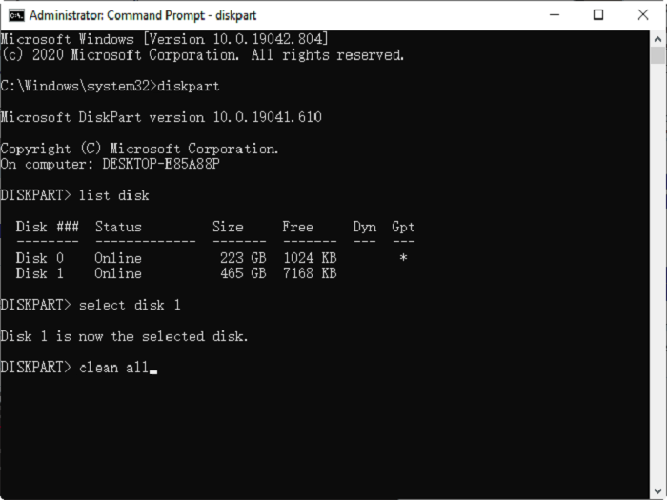
For advanced users, you can use the DiskPart tool via Command Prompt for a thorough wipe. However, this method carries higher risks, and incorrect actions may result in data loss on other disks.
Here are the steps:
Step 1. Type "cmd" in the Windows Search bar, right-click on "Command Prompt", and select "Run as Administrator".
Step 2. Then, type "diskpart" and press "Enter".
Step 3. Next, type "list disk" to identify your SD card's disk number.
Step 4. Enter "select disk X" (replace X with your SD card's number).
Step 5. Finally, type "clean all" to write zeros to every sector on the card, permanently erasing all data.
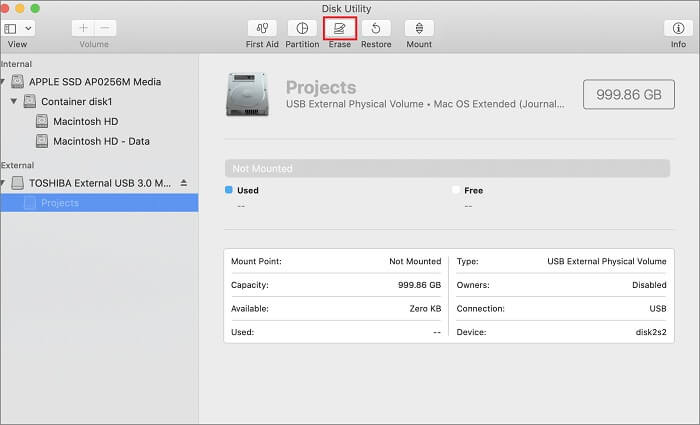
If you're using a Mac, you can use the built-in tool — Disk Utility — to erase or format your SanDisk SD card. This tool has an intuitive interface and is easy to use, making it perfect for Mac users to manage their disks.
Here is how to do it:
Step 1. Insert the SanDisk SD card into your Mac.
Step 2. Open "Applications" → "Utilities" → Launch "Disk Utility".
Step 3. Select your SanDisk SD card on the left-hand side, then click "Erase" at the top.
Step 4. Choose the format (e.g., exFAT, MS-DOS (FAT)), and then click "Erase" to confirm.
Note: For a more secure erase, click "Security Options" (available on some macOS versions) and select the number of overwrite passes.
This is a complete guide on how to erase a SanDisk SD card on both Windows and Mac. If you are dealing with sensitive data, company files, or preparing to sell your device, it is strongly recommended to use a professional data erasure tool. Compared to the built-in formatting options, Coolmuster Data Erasure offers a higher level of data overwriting, making it safer and more reliable.
Related Articles:
[Solved] How to Erase SD Card on Windows/Mac/Android/Camera?
Reset Toshiba External Hard Drive: Step-by-Step Guide for Beginners
How to Clear a Pen Drive on Windows and Mac? Solved in 4 Safe Ways
[Step-by-Step Guide] 5 Reliable Ways to Erase SSD Disk on Windows







 Free Download for PC


