A factory reset is a common solution for fixing device glitches, improving performance, or safeguarding privacy before selling or donating a device. One of the most frequent questions users ask about this process is: "How long does a factory reset take?" Unfortunately, there's no one-size-fits-all answer. The duration of a factory reset varies widely depending on factors such as the device type (Android, iPhone, Windows PC, or Mac), the amount of stored data, hardware specifications, and the method used.
This guide will help demystify the process by exploring how long a factory reset typically takes across different devices, explaining why resets sometimes take longer than expected, offering tips to speed up the process, and providing step-by-step instructions to help you execute a reset with ease and avoid unnecessary delays.
The time it takes to perform a factory reset can vary greatly depending on the type of device. Here's a quick breakdown of what you can expect:
Factory resetting an Android phone generally takes 10-30 minutes. The process may take longer if the device has a large amount of data or apps installed. Older Android phones may also take a little longer due to slower processing speeds.
On iPhones, the reset process typically takes 10-20 minutes. Since iPhones tend to be more optimized in terms of system performance, the reset process is usually quicker than on Android phones. However, restoring apps and data from iCloud can take additional time.
A factory reset on a computer can take anywhere from 30 minutes to several hours, depending on the system's data size and its health. For example, a fresh system with minimal data may reset in 30 minutes, while a system loaded with files and apps could take a few hours.
If your factory reset is taking significantly longer than the typical timeframe outlined above (e.g., over 2 hours for a mobile device or 6 hours for a computer), it's likely due to one or more of the following factors. Understanding these can help you troubleshoot and avoid delays in future resets:
Devices with more storage or large files take longer to erase. Phones or computers with many photos, apps, and files will take more time to delete them.
If the device's software is corrupted or has underlying issues, the reset process may be slower than usual. Devices in poor health may take longer to restore to their factory settings.
Older devices with slower processors or limited RAM may take longer to complete the reset. Modern devices generally perform faster resets due to improved hardware.
If your device is overloaded with data (apps, photos, videos, etc.), the reset process will take longer as the system has to erase everything.
Now that you know what might be causing your factory reset to take longer, let's look at how you can speed things up. With a few simple steps and the right tools, you can significantly reduce the time it takes to reset your device:
Before initiating the factory reset, manually delete apps, photos, and other files you no longer need. This reduces the amount of data the system needs to erase.
Some devices allow you to disable system animations, which can speed up the process. This is particularly helpful on Android devices.
If you're looking for a quicker, more thorough reset, third-party tools like Coolmuster Data Erasure can help. This tool not only wipes your data faster but also ensures that it's completely unrecoverable, which is particularly important if you're planning to sell or recycle your device.
Key Features of Data Erasure:
How to speed up a factory reset with Data Erasure?
01Download and install Data Erasure on your Windows computer. Launch the program and go to the "Drive Wiper" tab.
02Select your desired erasure level. For maximum security and faster results, choose "Deep Erase", which overwrites the data three times. Then, select the hard drive you want to wipe.
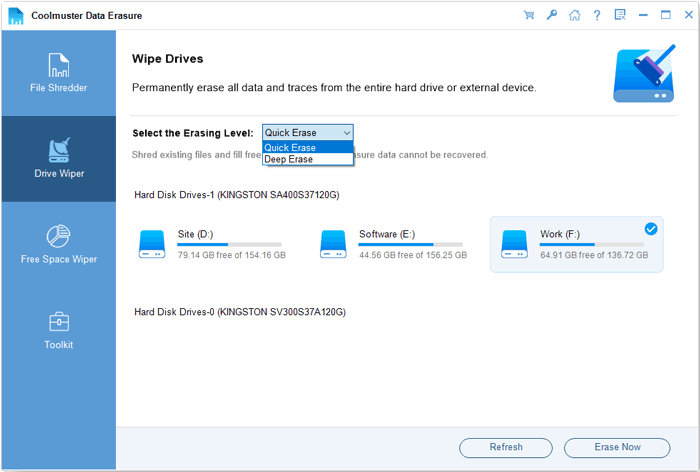
03Click "Erase Now", confirm by clicking "OK", and the software will begin permanently erasing all data from the selected drive. Once the process is complete, the factory reset will be finished.
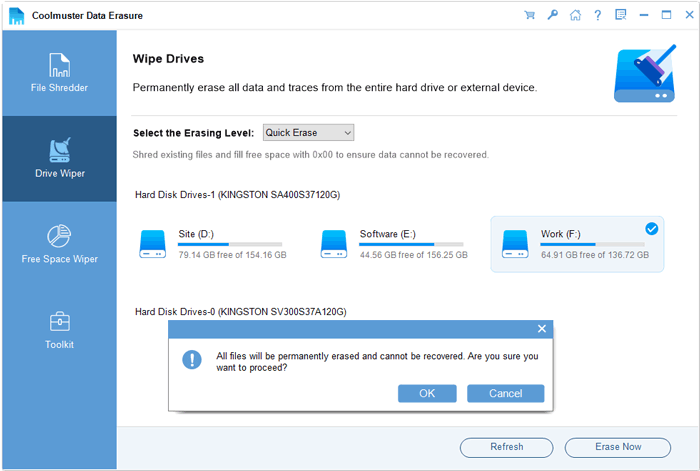
To help you through this process with ease, check out our video tutorial for a detailed, step-by-step guide.
If you're using an Android or iPhone, tools like Coolmuster Android Eraser and Coolmuster iOS Eraser allow you to directly perform a factory reset, helping you speed up the process while securely erasing all your data.
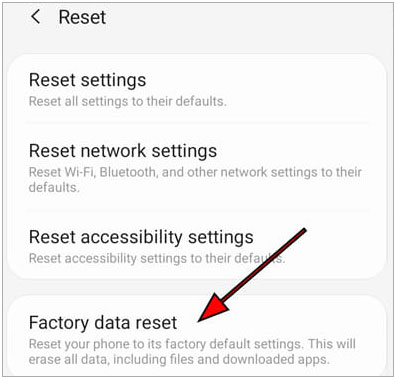
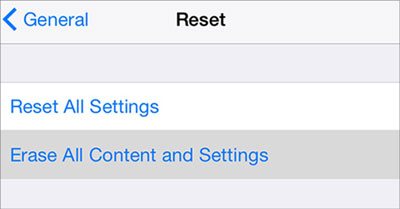
Now that you know how to speed up the reset process, let's take a look at how to perform a factory reset directly from the settings on various devices. While this method is effective, keep in mind that it might take longer depending on the device and the amount of data stored. Here's how to do it on some common devices:

1. Can I recover my data after a factory reset?
Generally, once a factory reset is completed, all data is permanently erased, especially if you've used a professional erasure tool like Coolmuster Data Erasure. Therefore, if you want to recover your data, it's important to back it up before performing the factory reset.
2. What happens if my phone gets stuck during a factory reset?
If your phone gets stuck during a factory reset, don't panic. Start by forcing a restart of the device. On most Android and iOS devices, you can do this by holding the power button for several seconds until the phone restarts. If the reset process still doesn't complete, you may need to boot the phone into recovery mode and attempt the reset again. In some cases, using a system repair tool may help fix any issues and allow the reset to proceed.
So, how long does a factory reset take? While the time required can vary depending on the device, the amount of data, and the method used, it's clear that understanding these factors can help you better manage your expectations. Whether you're resetting an Android phone, iPhone, or computer, the process typically ranges from a few minutes to several hours.
By using tools like Coolmuster Data Erasure, you can speed up the reset process while ensuring your data is securely erased. Remember, always back up your important files before initiating a factory reset to prevent data loss. With the right preparation and tools, you can make the reset process smoother and more efficient.
Related Articles:
How Long Does It Take to Restore an iPhone: Everything You Should Know
4 Best Methods to Factory Reset iPhone without Password/Passcode







 Free Download for PC


