TL;DR: Deleted files can still be recovered because regular deletion only removes file records instead of permanently erasing data. This guide explains how to prevent deleted file recovery by using Coolmuster Data Erasure to shred files, wipe drives, and clean free space on Windows, along with built-in methods for Windows and Mac. Learn how to permanently delete files and protect your private data from recovery.
Deleted files are not always gone forever. When you delete a file and empty the Recycle Bin, the data may still remain on your hard drive and can be recovered with professional recovery tools. This can put your personal information, private photos, and sensitive documents at risk. So, why are deleted files still recoverable, and how to prevent deleted file recovery?
In this guide, we will show you effective ways to permanently delete files on Windows and Mac, ensuring your deleted data cannot be recovered.

Many users believe that emptying the Recycle Bin permanently deletes files. However, most operating systems only remove file records and mark the storage space as available. Until new data overwrites that space, the original files may still be recoverable with data recovery tools.
Common recoverable data includes:
To truly prevent deleted file recovery, you need a more secure data erasure method.
If you are wondering how to prevent recovery of deleted files in Windows, using a professional data erasure tool is one of the safest and easiest solutions. Unlike normal deletion, data erasure software permanently removes files by overwriting the storage space where the data exists, making recovery tools unable to retrieve the original information.
Coolmuster Data Erasure is designed to help Windows users securely erase private data. It provides multiple deletion methods, including File Shredder, Drive Wiper, and Free Space Wiper. Whether you want to permanently delete individual files, wipe an entire drive before selling your computer, or remove traces of previously deleted files, this tool can meet different data protection needs.
Key features of Coolmuster Data Erasure:
Download this tool on your Windows PC and follow the steps below to prevent deleted file recovery on Windows.
The File Shredder feature is suitable when you only need to permanently delete specific files or folders. It is ideal for removing sensitive files such as personal documents, passwords, private photos, or confidential work files.
Steps to use File Shredder:
01Open the tool on your computer and select the "File Shredder" feature from the left-side menu.
02Click "Add File" to import the files you want to permanently delete, or choose "Add Folder" to shred an entire folder.
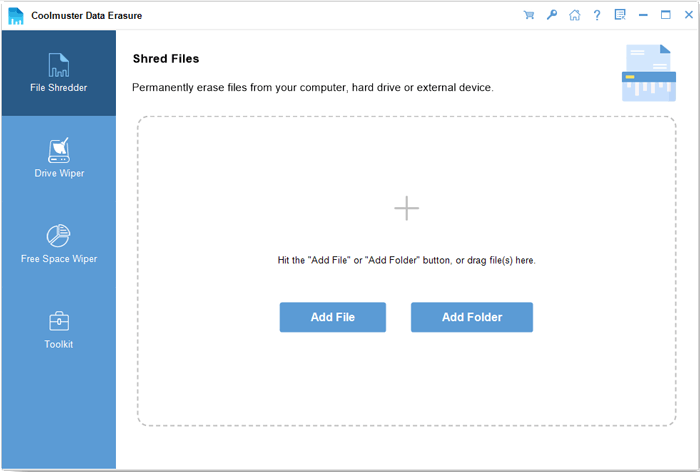
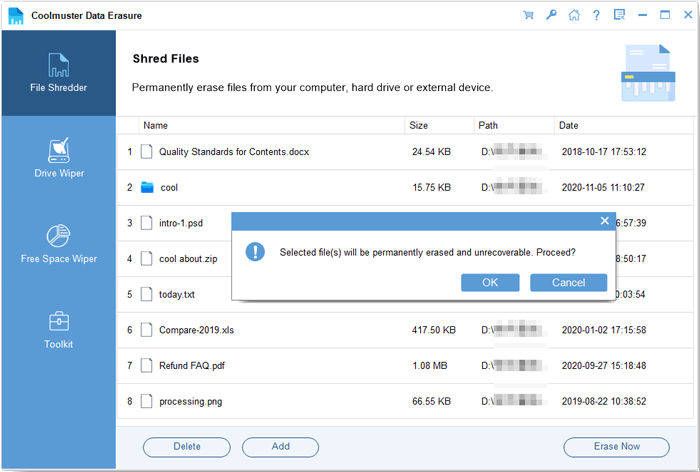
03After selecting the files, click "Erase Now" and confirm the operation by clicking "OK" in the pop-up window. The selected files will be securely erased and cannot be recovered with data recovery software.
If you plan to sell, donate, or recycle your computer, deleting individual files is not enough. Other deleted files, browser data, and personal information may still exist on the drive. Drive Wiper helps you completely clean a hard drive or partition by overwriting existing data. It is a practical solution for users who want to know how to make sure deleted files cannot be recovered before giving away a storage device.
Steps to wipe a drive permanently:
01Open the software and select "Drive Wiper" from the main interface. Choose the local drive or external storage device that contains the files you want to delete. Please note that this process will permanently erase all data on the selected drive, including files, applications, and documents.
02Select an erasing method based on your needs: "Quick Erase" for a fast wipe or "Deep Erase" for a more secure deletion. The Deep Erase mode follows the US DoD 5220.22-M(E) standard and overwrites data multiple times to prevent recovery.
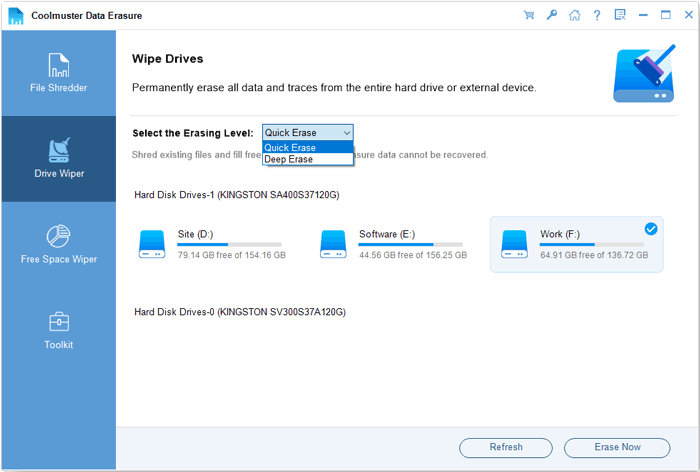
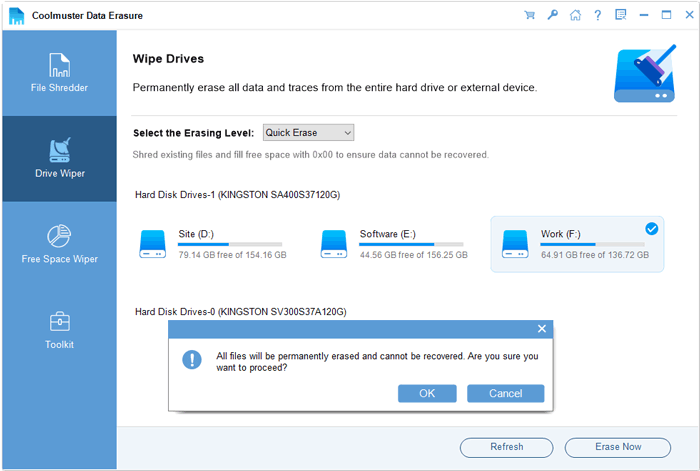
03Click "Erase Now" and confirm by selecting "OK" to begin securely wiping the drive.
Deleting files does not always remove all traces of them. The unused space on your hard drive may still contain fragments of previously deleted files. Free Space Wiper is designed to clean this leftover data without affecting your existing files. This method is especially useful if you have already deleted files but want to make sure they cannot be recovered.
Steps to wipe free space:
01Open the software on your computer and select the "Free Space Wiper" tab. Choose the drive where the deleted files were previously stored, then select your preferred erasure level.
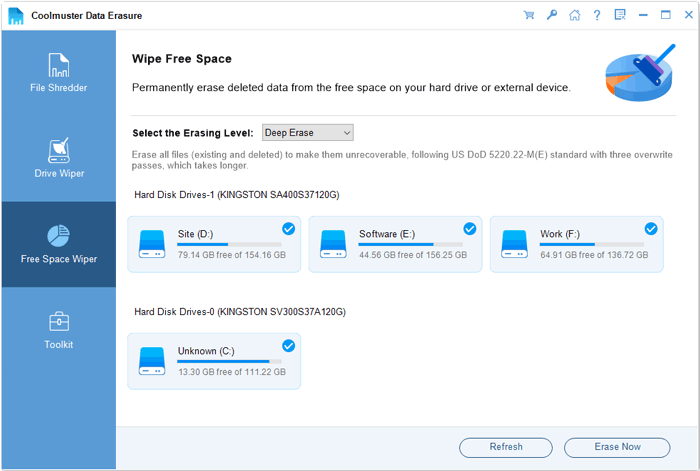
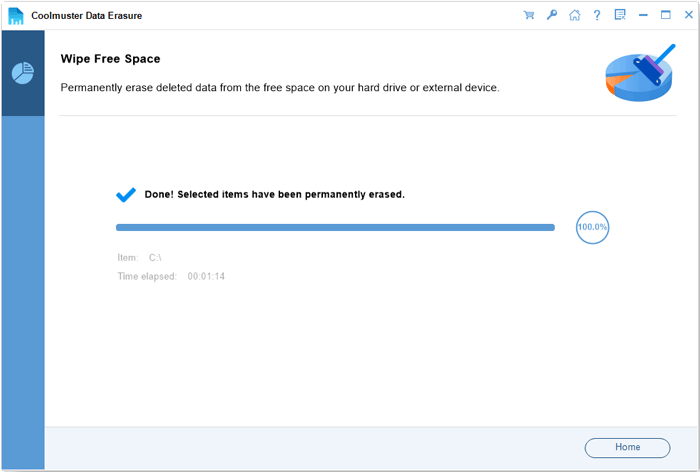
02Click "Erase Now" and confirm the action by selecting "OK" to start wiping the free space. The deleted data will be permanently overwritten, making it impossible for recovery tools to restore.
Video Tutorial:
For users who do not want to install third-party software, Windows provides a built-in command called Cipher. This tool can help overwrite free disk space and reduce the possibility of recovering deleted files. However, it is important to understand that Cipher does not directly delete selected files. Instead, it removes the remaining traces of previously deleted files by filling unused disk space with new data. Therefore, it is mainly useful after you have already deleted files. If you are searching for how to permanently delete files on PC without recovery, Cipher is a free method worth trying.
Here is how to prevent deleted file recovery via Cipher:
Step 1. Press "Windows" + "R" to open the Run dialog box.
Step 2. Type "cmd" and choose "Run as administrator".
Step 3. Type "cipher /w:C:" and press "Enter". Replace "C:" with the drive letter where you want to wipe free space.
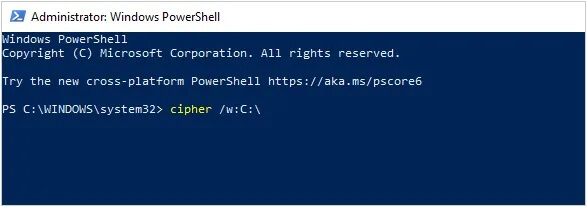
Step 4. Wait for the process to complete. Windows will overwrite the unused disk space with zeros, ones, and random data to remove traces of previously deleted files.
Step 5. Once the command finishes, close Command Prompt. The deleted files from the free space will be much harder to recover with data recovery software.
Mac users can use the built-in Disk Utility tool to securely erase storage devices. By selecting secure erase options, macOS can overwrite stored data and make recovery much more difficult.
Here is how to prevent recovery of deleted files on a Mac:
Step 1. Open "Disk Utility" from "Applications" > "Utilities", or search for it with "Command" + "Space".
Step 2. Select the disk or partition you want to erase from the left sidebar.
Step 3. Click the "Erase" button at the top of the window.
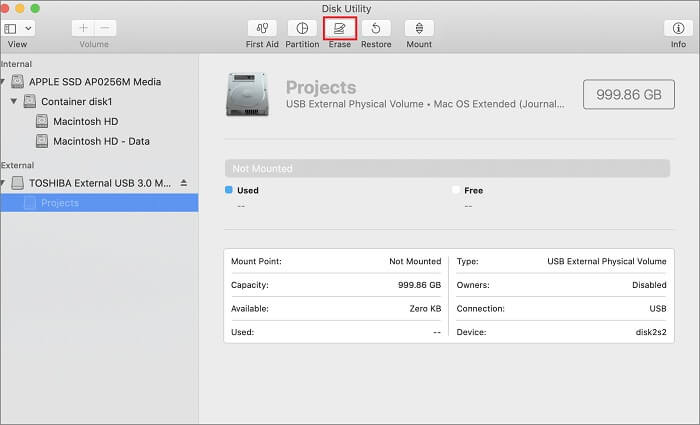
Step 4. Choose the disk name and format, then open "Security Options" to select the erase level.
Step 5. Adjust the slider to choose the number of overwrite passes. More passes provide more secure data removal.
Step 6. Click "OK", then select "Erase" to start the secure deletion process.
Step 7. Wait until the process finishes. The selected data will be permanently erased and cannot be recovered.
If the hard drive contains highly sensitive data, software-based erasure may not meet the highest security requirements. Physical destruction is the most thorough method to ensure that data cannot be recovered.
Common methods include:
Physical destruction is typically used by government agencies, businesses, and users handling highly confidential information.
However, this method makes the hard drive completely unusable, so it is not suitable for regular file deletion needs.
Knowing how to prevent deleted file recovery is important if you want to protect personal privacy and sensitive information. Simply deleting files or emptying the Recycle Bin does not guarantee that your data is gone forever because deleted files may still be recovered.
For most Windows users, Coolmuster Data Erasure is a reliable and user-friendly choice. With powerful features like file shredding, drive wiping, and free space cleaning, it helps permanently delete files and effectively prevents deleted data from being recovered.
Related Articles:
How to Permanently Delete Word Documents on Windows & Mac?
6 SD Card Format Tools for Windows & Mac: Step-by-Step Guide
How to Wipe a Laptop: Complete Step-by-Step Guide for Windows & Mac
Step-by-Step Guide to Erase Data from Sony XQD Card Permanently






 Free Download for PC


