TL;DR:
To convert HEIC photos into JPG or PNG, Aiseesoft HEIC Converter offers a simple desktop solution, while Coolmuster HEIC Converter provides another option for batch processing.
HEIC photos may look perfectly fine on your iPhone, but things can get frustrating when you try to open them on a Windows PC or share them with someone using an unsupported device. Aiseesoft HEIC Converter aims to solve this compatibility issue by turning HEIC images into more accessible formats. But does it work as expected, and is it worth paying for? In this review, we'll look at its key features, conversion process, pros and cons, and pricing, then introduce an alternative worth considering.
Aiseesoft HEIC Converter is a desktop tool that converts HEIC images into more widely supported formats, including JPG, JPEG, and PNG. It works on Windows and Mac, making it easier to open, share, and use iPhone photos on different devices. Its main features include:
Aiseesoft HEIC Converter makes it easy to convert HEIC photos into JPG or PNG on Windows and Mac. You can import multiple images, choose an output format, and customize the destination folder in just a few steps. Here's how:
Step 1: Download Aiseesoft HEIC Converter safely from the buttons below and install it on your computer. You can also turn to its official website.
Step 2: Launch the program and click "Add HEIC" to select your images. You can also drag and drop HEIC files directly into the interface.

Step 3: Select the photos you want to convert, then choose "JPG/JPEG" or "PNG" as the output format. You can also enable "Keep Exif Data" to preserve the original photo information. Choose a destination folder where you want to save the converted images.
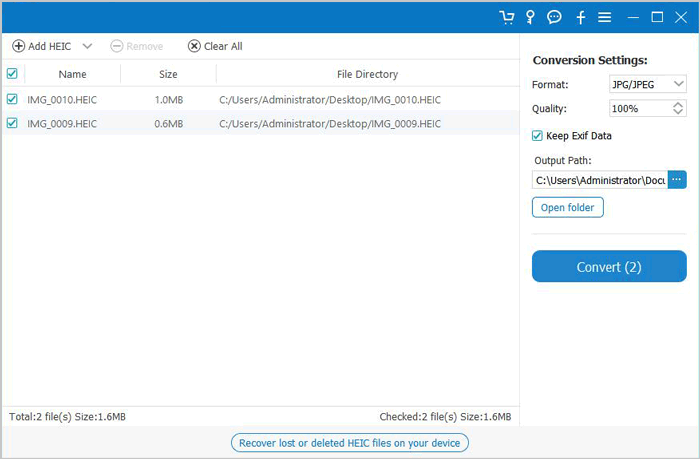
Step 4: Click "Convert" to begin. Once the process finishes, click "Open folder" to locate and view your converted JPG or PNG photos.

Aiseesoft HEIC Converter does a good job of handling basic HEIC conversion. Its simple interface, batch processing, and adjustable output quality make it convenient for users who regularly work with iPhone photos. However, it is mainly a format conversion tool, so it may not meet everyone's needs. Here are its main advantages and drawbacks.
Pros:
Cons:
If Aiseesoft HEIC Converter doesn't quite meet your needs, Coolmuster HEIC Converter is another option worth considering. It offers a straightforward way to convert HEIC photos into JPG, JPEG, or PNG without complicated settings. You can add individual images or entire folders, preview photos before conversion, and process multiple files in one go. It also lets you adjust output quality and preserve EXIF information, making it a practical choice for users who regularly handle large collections of iPhone photos.
Key Features of Coolmuster HEIC Converter:
How to Convert HEIC to JPG/PNG with Coolmuster HEIC Converter:
01 Download and install Coolmuster HEIC Converter on your computer. Launch the program after installation.
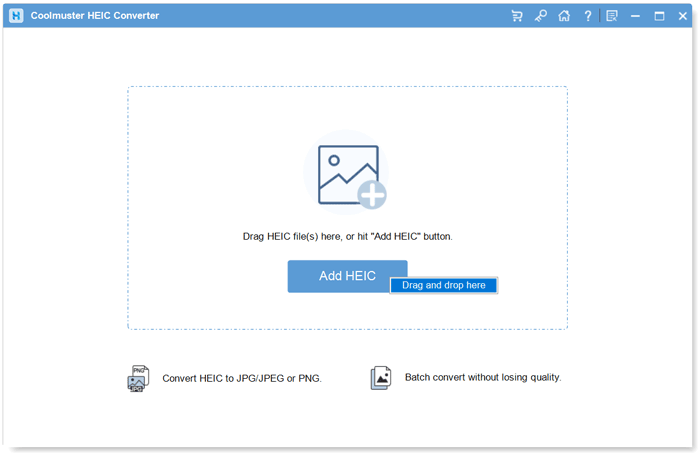
02 Click "Add HEIC" to browse and import your photos. Alternatively, drag and drop HEIC files into the program window.
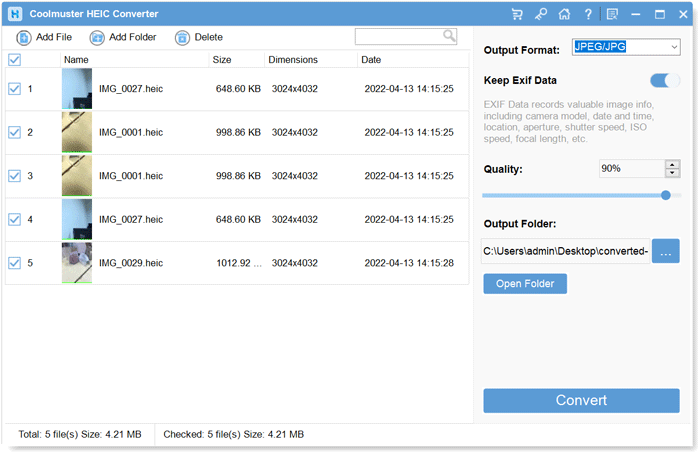
03 Choose the HEIC images you want to convert, then select "JPEG/JPG" or "PNG" under "Output Format". Enable "Keep Exif Data" if you want to retain the original photo information. You can also adjust the "Quality" setting.
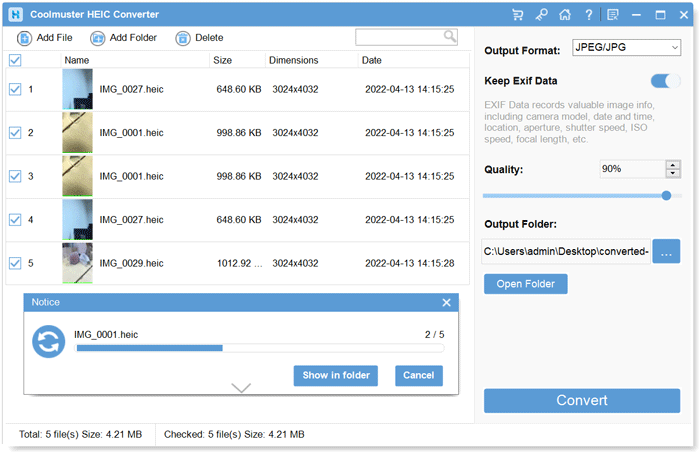
04 Specify where you want to save the converted images on your computer. Click "Convert" to start the process. Once completed, open the destination folder to check your JPG or PNG images.
Video Guide:
Looking to convert HEIC to JPG online quickly and without losing quality? Here are the 5 best tools you can't miss. Please check it out.
Q1. Is Aiseesoft HEIC Converter free?
Aiseesoft HEIC Converter offers a free trial, but it comes with limitations. You can convert up to 10 HEIC files for free. If you need to process more photos, you'll have to purchase a license. Aiseesoft also provides a separate free online HEIC converter for users who don't want to install desktop software.
Q2. How much does Aiseesoft HEIC Converter cost?
Aiseesoft offers several licensing options, including a monthly plan, a lifetime license, and a multi-user license. Its listed promotional prices include $6.20 for one month, $24.96 for a lifetime license for one computer, and $39.96 for a multi-user license. Prices may vary depending on the region and current promotions, so check the official purchase page before ordering.
Q3. Does Aiseesoft HEIC Converter reduce image quality?
Aiseesoft allows you to adjust the output image quality before conversion. Choosing a higher quality setting can help preserve more visual details. However, converting HEIC to JPG may involve some compression because JPG is a lossy format. If image quality matters, use a high quality setting and compare the converted photos with the originals.
Q4. Is Aiseesoft HEIC Converter safe to use?
Generally, yes. Aiseesoft is an established software provider, and its official website offers the HEIC Converter for download. To avoid potentially modified installers or unwanted bundled software, download the program directly from Aiseesoft's official website. You can also scan the installation file with your antivirus software before running it.
Q5. Is Aiseesoft HEIC Converter worth buying?
Aiseesoft HEIC Converter is worth considering if you frequently convert HEIC photos and want a simple desktop tool with batch processing, adjustable image quality, and EXIF preservation. However, if you only need to convert a few pictures occasionally, its free trial or online converter may be sufficient. If you're looking for another desktop option, Coolmuster HEIC Converter is also worth trying.
Aiseesoft HEIC Converter is a convenient option for turning iPhone photos into formats that are easier to open and share. Its batch conversion and adjustable quality settings cover the needs of most everyday users, although the free trial is limited. If you want to compare another desktop solution before making a decision, Coolmuster HEIC Converter is worth a look. Try both options and see which one fits your photo conversion habits better.
Related Articles:
5 Methods to Print HEIC Photos on Windows & Mac
A Complete Review for iMazing HEIC Converter





 Free Download for PC
 Free Download for Mac


