TL;DR: Want to know how to transfer videos from an iPhone to an SD card? This guide covers 4 easy methods with or without a computer, including using an SD card adapter, Coolmuster iOS Assistant, Windows File Explorer, and the Photos app. Learn how to quickly move, back up, and manage iPhone videos to free up storage space and keep your files safe.
Wondering how to transfer videos from iPhone to SD card but don't know where to start? Whether you want to free up iPhone storage, back up your precious videos, or easily view and edit them on other devices, transferring videos from iPhone to an SD card is a very practical solution. In this article, we will introduce 4 methods for transferring videos from an iPhone to an SD card. Choose the method that works best for you and move your videos in just a few minutes.
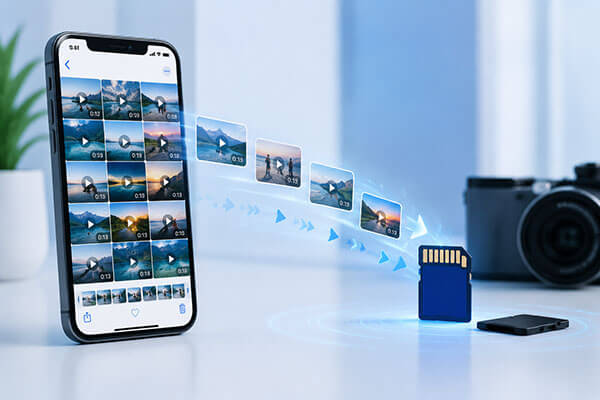
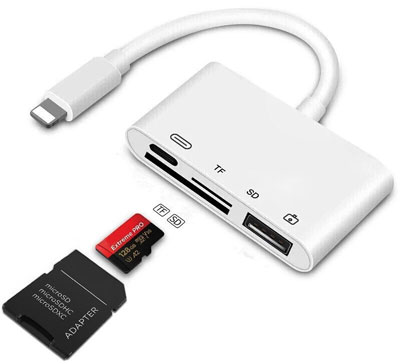
If you want to transfer videos from an iPhone to an SD card without a computer, the easiest solution is to use an SD card adapter. Many users ask, "Can I connect an SD card to an iPhone?" The answer is yes. With a compatible Lightning or USB-C SD card reader, you can connect an SD card directly to your iPhone and move videos through the built-in Photos and Files apps.
Here is how to transfer videos from an iPhone to an SD card with an adapter:
Step 1. Insert your SD card into an SD card reader or SD card adapter, then connect it to your iPhone's Lightning or USB-C port.
Step 2. Unlock your iPhone and wait for it to detect the connected SD card.
Step 3. Open the Photos app, tap "Select", and choose the videos you want to transfer.
Step 4. Tap the "Share" button and select "Save to Files" from the available options.
Step 5. Choose your connected SD card as the destination, select a folder, and tap "Save" to start transferring the videos.
Step 6. Open the Files app to check the SD card and confirm that your iPhone videos have been transferred successfully.
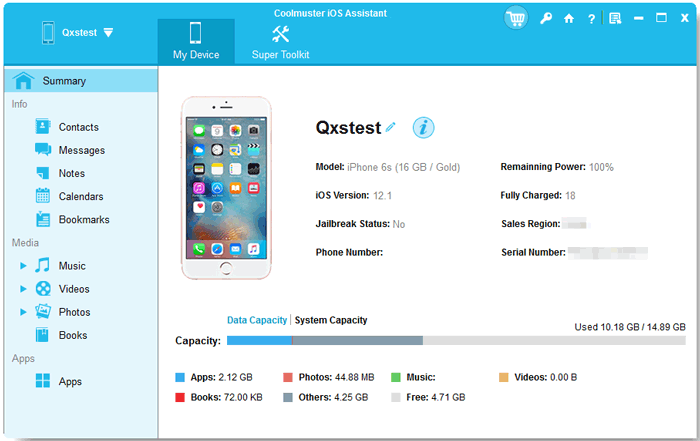
Using a computer is a reliable way to transfer iPhone videos to an SD card, especially when moving many files or creating a backup. Simply export videos from your iPhone to the computer, then copy them to the SD card.
Coolmuster iOS Assistant is a professional iPhone data management tool that makes it easier to transfer videos from an iPhone to an SD card. It allows you to export videos from your iPhone to a computer quickly, then move them to an SD card for backup or storage.
Unlike manual transfer methods, it provides a simple interface to preview, select, and manage iPhone videos in batches. Besides videos, it also supports transferring photos, contacts, messages, and other iOS data, making it a convenient solution for users who need to organize and move large amounts of iPhone content.
The highlights of Coolmuster iOS Assistant:
How do I transfer my videos to my SD card? Follow the steps below:
01Install and launch iOS Assistant on your computer. Connect your iPhone to the computer using a USB cable and tap "Trust" on your iPhone if prompted.
02Then, insert your SD card into the computer through an SD card reader. Once your iPhone is detected, the software will display your device information on the main interface.
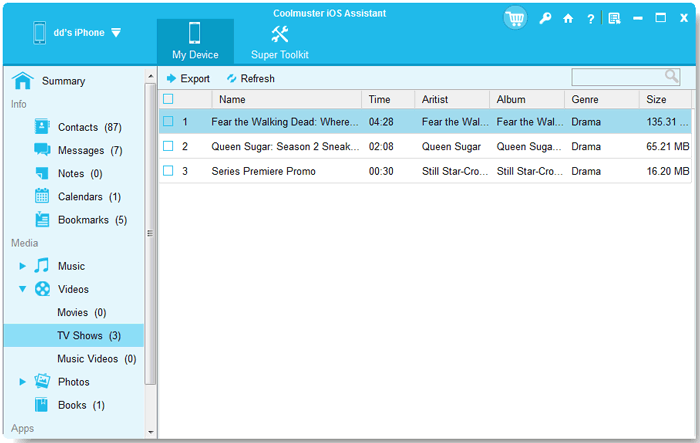
03Select "Videos" from the left sidebar to view all videos stored on your iPhone. Choose the videos you want to transfer, click the "Export" button, and select your SD card as the destination folder to move the videos from your iPhone to the SD card.
Video Tutorial:
If you don't want to install third-party software, you can also use the built-in Windows File Explorer. This method requires no additional tools and is suitable for users who only want to quickly copy iPhone videos. However, keep in mind that Windows can usually only access exportable photos and videos on an iPhone through the DCIM folder, and this method works best when transferring a small number of videos.
Here is how to transfer pictures and videos from an iPhone to an SD card with File Explorer:
Step 1. Connect your iPhone to your Windows PC using a USB cable, unlock your iPhone, and tap "Trust" when prompted.
Step 2. Open File Explorer on your computer and go to "Apple iPhone" > "Internal Storage" > "DCIM" to access your iPhone videos.
Step 3. Select the videos you want to transfer and copy them from your iPhone to a folder on your computer.
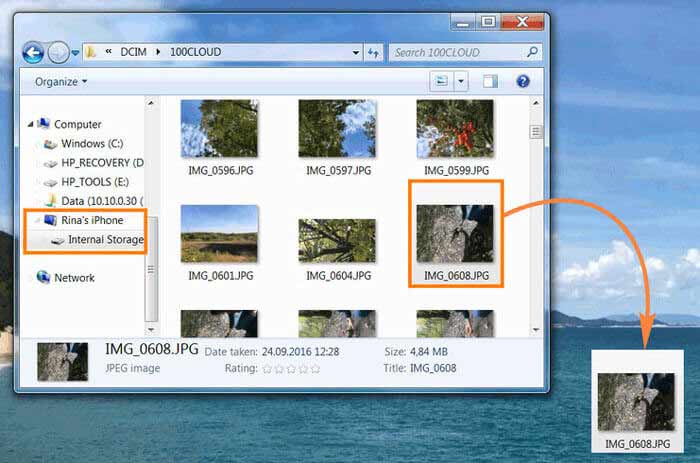
Step 4. Insert your SD card into the computer, open the SD card drive, and choose a destination folder.
Step 5. Paste the copied videos into the SD card folder to complete the transfer from iPhone to SD card.
For Mac users, the built-in Photos app provides a simple way to import videos from an iPhone. After importing the videos into the Mac Photos library, you can export them to a folder on your Mac and then copy them to an SD card.
Here is how to transfer videos from an iPhone to an SD card using the Photos app on a Mac:
Step 1. Connect your iPhone to your Mac using a USB cable, unlock your iPhone, and tap "Trust" if prompted.
Step 2. Open the Photos app on your Mac, select your iPhone under "Devices", and choose the videos you want to transfer.
Step 3. Click "Import Selected" to import the videos from your iPhone to your Mac Photos library.
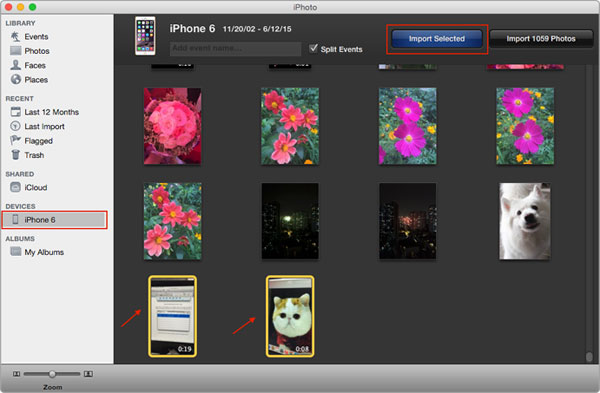
Step 4. Select the imported videos in the Photos app, click "File" > "Export", and save them to a folder on your Mac.
Step 5. Insert your SD card into your Mac using an SD card slot or card reader, then open the SD card folder in Finder.
Step 6. Drag and drop the exported videos from your Mac folder to the SD card to complete the transfer.
Transferring videos from iPhone to an SD card is easier than you might think, and the best method depends on your needs. If you want to transfer videos without a computer, using an SD card adapter allows you to move files directly from your iPhone. For users who prefer a computer-based solution, Windows File Explorer and the Photos app provide free ways to import and copy videos, while Coolmuster iOS Assistant offers a more efficient option for managing and transferring large numbers of iPhone videos.
With its simple interface and powerful data management features, Coolmuster iOS Assistant is especially recommended for users who frequently need to back up iPhone videos, free up storage space, or transfer photos and videos from iPhone to SD card quickly and securely.
Related Articles:
How to Import Videos from SD Card to iPhone with/without a Computer?
How to Transfer Photos from iPad to SD Card in 4 Useful Ways
How to Transfer Videos from iPhone to USB Stick with or without a Computer?
How to Transfer Photos from iPhone to External Hard Drive: 7 Best Ways







 Free Download for PC
  Free Download for Mac


