Are you looking to transfer videos from your SD card to your iPhone? Whether you want to free up space on your SD card or enjoy your videos on the go, transferring them to your iPhone can be done easily. In this guide, we'll explore various methods for how to import videos from SD card to iPhone. Let's get started.

Transferring videos from an SD card to your iPhone is easy when you have a computer at your disposal. Whether you're on a Windows PC or a Mac, the iOS Transfer software streamlines the process, allowing you to move videos from your SD card to your iPhone without needing any adapters. You can either transfer all your videos at once or select specific ones, depending on what you need. The entire process is fast and user-friendly. In addition to video transfers, iOS Transfer lets you manage other types of files, such as photos, music, contacts, and messages, between your iPhone and computer.
Main features of iOS Transfer:
* Easily import videos from SD card to iPhone.
* Sync data effortlessly across Apple devices, iTunes, and computers.
* Support a wide range of data, including photos, music, contacts, text messages, videos, notes, calendars, call logs, and more.
* Directly manage and organize your iOS data on your computer.
* Compatible with most iPhone models, including the latest iPhone 17 series and iOS 26.
How do I get videos from my SD card to my iPhone? Follow the steps below:
01Connect your iPhone to the computer via USB cable. Insert the SD card into the card reader and plug it into the computer.
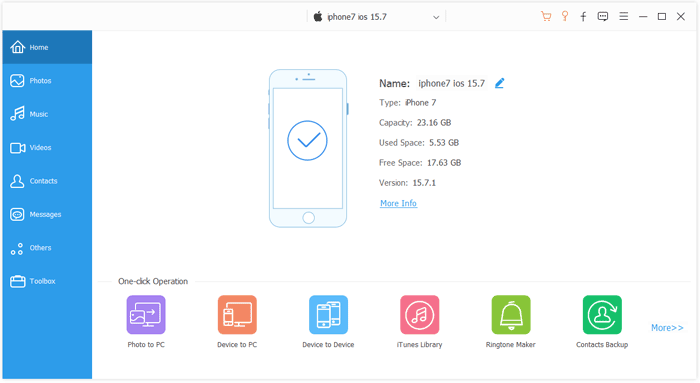
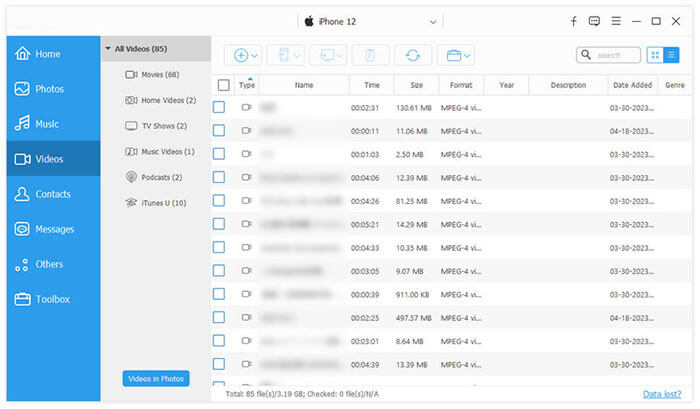
02In the left menu of the tool, select the "Videos" option. Then, click "Add" to choose the photos you want to transfer from the SD card to your iPhone. Once you've selected your videos, click "Open" to start the transfer, and the videos will automatically be moved from the SD card to your iPhone.
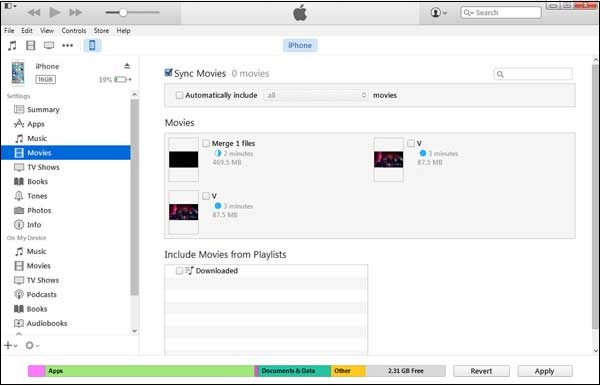
iTunes, Apple's official syncing tool, can also be used to transfer videos from an SD card to your iPhone. You can copy videos from your SD card to your computer, then sync them to your iPhone or iPad using iTunes. However, be aware that syncing with iTunes may erase existing data, especially if you're using a different iTunes library. Additionally, transferring videos that aren't supported by Apple to your iPhone or iPad via iTunes can be challenging.
Here's how to import videos from SD card to iPhone using iTunes:
Step 1. Insert your SD card into the card reader and connect it to your computer. Copy the videos you want to transfer to your computer.
Step 2. Connect your iPhone to the computer via USB cable and open iTunes. In the upper left corner, click "File" > "Add Files to Library". Select the video files on your computer and add them to the iTunes library.
Step 3. Click the iPhone icon in iTunes and select "Movies" from the left sidebar. Check "Sync Movies" and click "Apply". iTunes will sync the videos to your iPhone.
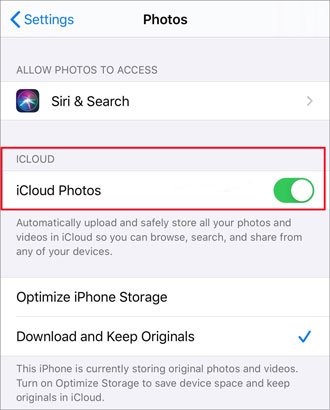
iCloud offers a cable-free way to transfer videos from an SD card to your iPhone. Simply upload the videos to iCloud from your computer, and they'll automatically show up on your iPhone as long as iCloud Photos is enabled. Keep in mind, though, that this method requires a reliable internet connection and sufficient iCloud storage. (iCloud storage full?)
Here is how to transfer videos from SD card to iPhone via iCloud:
Step 1. Insert your SD card into your computer.
Step 2. Sign in to iCloud.com using your Apple ID.
Step 3. Tap "Photos" and click the "Upload" icon.
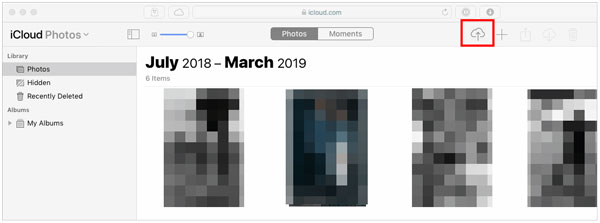
Step 4. Select the videos you want to import from the SD card. Wait for the upload to finish.
Step 5. On your iPhone, go to "Settings" > [Your Name] > "iCloud" > "Photos" and enable "iCloud Photos". The uploaded videos will automatically appear in your Photos app.
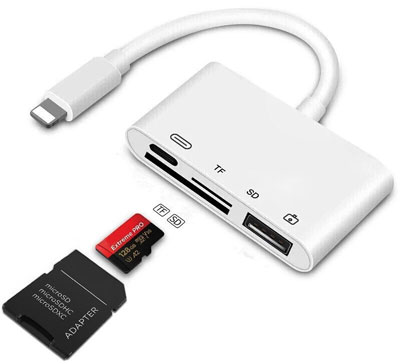
For users who prefer not to use a computer, an SD card adapter is also a convenient option. Apple offers the Lightning to SD Card Camera Reader, which allows you to import videos directly from an SD card to your iPhone.
Here is how to import videos from SD card to iPhone without a computer:
Step 1. Insert the SD card into Apple's Lightning to SD Card Camera Reader, then plug the adapter into your iPhone's Lightning port.
Step 2. Once the adapter is connected, your iPhone will automatically open the Photos app and prompt you to import the content from the SD card.
Step 3. In the import window that appears, select the videos you want to transfer and tap "Import All" or choose specific videos to import.
Step 4. After the import is complete, you can find the videos in the Photos app.
Now you know how to import videos from SD card to iPhone using multiple methods. Each method offers unique benefits depending on your preferences and requirements. If you want a fast, stable, and beginner-friendly solution, iOS Transfer is highly recommended. It offers smooth video import, supports batch transfer, and avoids the complicated steps that often come with traditional syncing tools. With its intuitive interface and powerful compatibility, it provides a seamless way to move your videos onto your iPhone without hassle. If you're looking for a convenient and time-saving option, this tool is definitely worth trying.
Choose the one that best fits your needs and enjoy seamless video access on your iPhone!
Related Articles:
[Ultimate Guide] How to Transfer Photos from SD Card to iPhone?
How to Transfer Photos from Digital Camera to iPhone - Top 5 Ways
How to Import Photos from SD Card to Mac: A Step-by-Step Guide
How to Transfer Photos from iPhone to SD Card - 6 Methods in 2025







 Free Download for PC
  Free Download for Mac


