"In my app: Safari, the Clear History button is grayed-out and I can't delete the browsing history."
- from Apple Community
After updating to iOS 26, many iPhone users report a frustrating issue: unable to clear history in Safari. The problem usually appears when the "Clear History and Website Data" option is grayed out, unresponsive, or simply does nothing when tapped. Safari history not only relates to privacy and security but also affects webpage loading speed and browsing experience.
This article will systematically analyze the causes of the issue of being unable to clear Safari history after the iOS 26 update and provide 9 solutions, ranging from basic troubleshooting to in-depth fixes, to help restore Safari's normal functionality step by step.
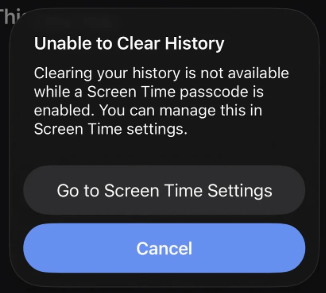
There are several reasons why Safari is not clearing history after updating to iOS 26. Here are some of the most common ones:
If you're unable to clear history after the iOS 26 update, don't worry. Here are some easy troubleshooting steps to help resolve the issue and restore the "Clear History" option.
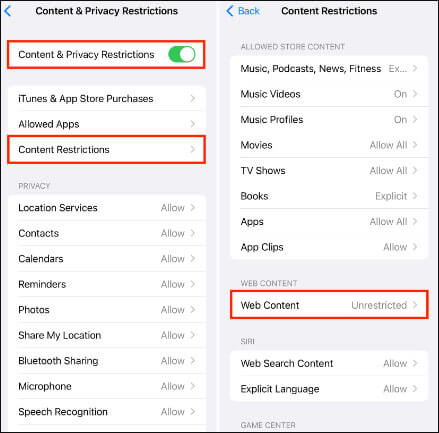
If you can't clear Safari history on iPhone after the iOS 26 update, it could be due to Screen Time limiting web access, which causes the "Clear History and Website Data" option to be grayed out. Follow these steps to fix it:
Step 1. Open "Settings" and tap "Screen Time". Enter your Screen Time passcode if prompted.
Step 2. Tap "Content & Privacy Restrictions". You can either turn off the toggle to disable restrictions completely or proceed with the next step.
Step 3. Tap "Content Restrictions" > "Web Content" > select "Unrestricted Access".
Step 4. Go back to "Settings" > "Safari". The "Clear History and Website Data" option should now appear in blue and be clickable.
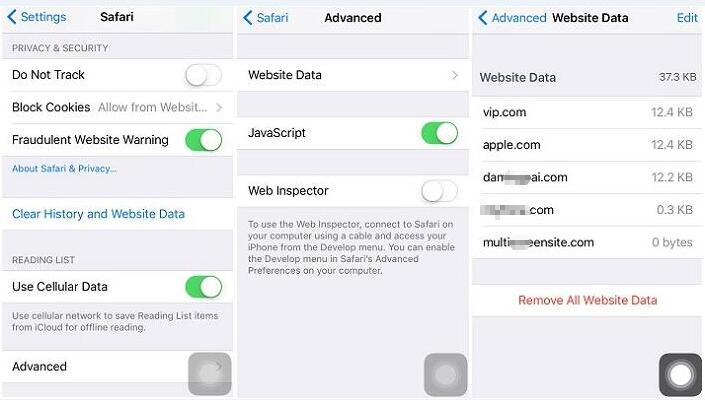
When the regular "Clear History" function fails, Safari's advanced settings offer a way to bypass system restrictions and directly remove website data.
Here is how to do it:
Step 1. Open the "Settings" app on your iPhone.
Step 2. Tap on "Safari", then scroll down and select "Advanced".
Step 3. Tap on "Website Data" to view a list of all the websites that have stored data on your device.
Step 4. Scroll to the bottom and tap "Remove All Website Data". Confirm your choice.
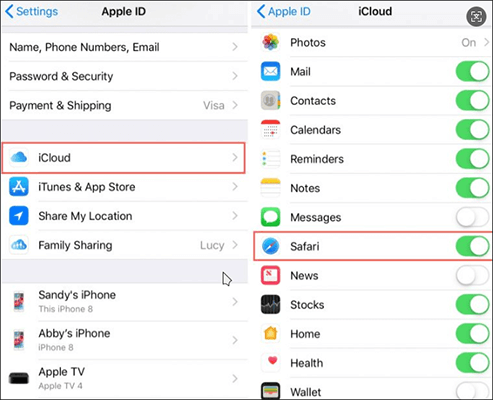
If you're still unable to clear history, it might be time to check your iCloud sync settings. When you use iCloud, it syncs your bookmarks, reading list, and browsing history across all your Apple devices. While this usually doesn't cause issues, iCloud sync can sometimes result in items reappearing in your iPhone or iPad's browsing history.
To disable it, follow the steps below:
Step 1. Go to "Settings" and tap on your "Apple ID" at the top.
Step 2. Select "iCloud".
Step 3. Tap "Show All" under "Apps Using iCloud".
Step 4. Find "Safari" in the list and toggle the switch off.
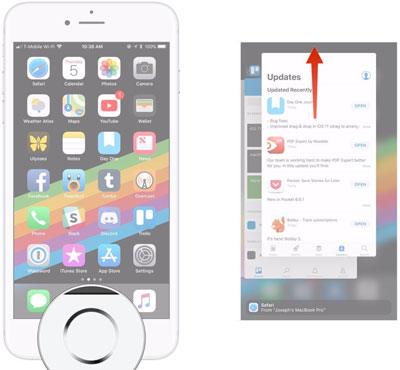
When you're unable to clear history after the iOS 26 update, the issue may not be with the settings themselves but with how Safari or the Settings app is running in the background. Force quitting completely closes the apps, allowing them to reload fresh when reopened and apply any changes you've made.
Here are the steps:
Step 1. Double-press the "Home" button (or swipe up from the bottom of the screen on iPhone without a Home button) to open the app switcher.
Step 2. Swipe up on the Safari and Settings app previews to close them.
Step 3. Relaunch the Settings app and try clearing the history again.
Sometimes, after an iOS update, there may be minor bugs in the system that cause functionality issues. Restarting the device can refresh the system status.
Here are the steps:

If the "unable to clear history" issue in Safari is caused by a system bug in iOS 26, Apple typically fixes it in a subsequent update.
To update iOS, follow the steps below:
Step 1. Go to "Settings" > "General" > "Software Update" to check if a newer version is available. (iPhone won't update?)
Step 2. If an update is available, simply tap the "Update Now" button to download and install the latest version.

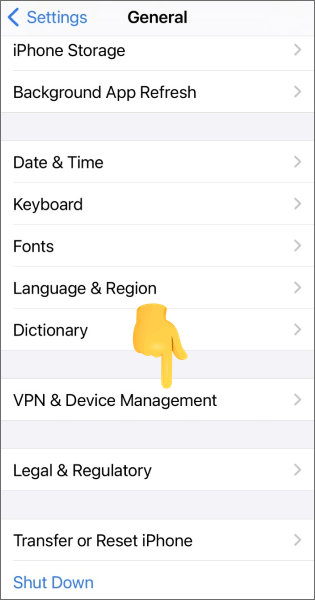
If your iPhone is managed by your company or school, the MDM configuration profile may restrict Safari settings, including the ability to delete history.
To fix Safari not clearing history, follow the steps below:
Step 1. Open "Settings" > "General" > "VPN & Device Management".
Step 2. Check if a profile is installed. If so, it may be preventing you from clearing history.
Step 3. You may need to remove the profile or ask your organization to adjust the settings.
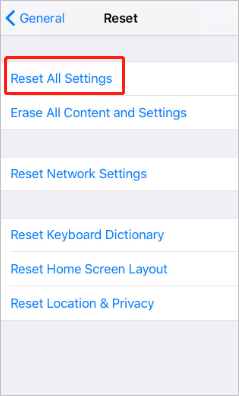
If you're still unable to clear browsing history in Safari, it could be due to a system settings issue preventing Safari from clearing the history. You can try resetting all settings. This will not delete your personal data, but it will restore your personalized settings to their default values.
Here is how to do it:
Step 1. Open the "Settings" app on your iPhone and tap "General".
Step 2. Scroll down to the bottom and select "Transfer or Reset iPhone".
Step 3. Tap "Reset" and choose "Reset All Settings" from the menu. Enter your iPhone's passcode when prompted and follow the on-screen instructions.
If none of the above methods work, the issue is likely at the iOS 26 system level. In this case, using a professional system repair tool is the most direct and safest solution. iOS System Recovery can fix issues like "unable to clear history in Safari", system lag, and functional anomalies, all without data loss. Even beginners can easily use it.
What can iOS System Recovery do for you?
* Fix unable to clear history after iOS 26 update without losing data.
* Fix a variety of iOS issues such as iPhone stuck on the Apple logo, stuck in headphone mode, water damage, screen problems (black, red, blue, or white screens of death), freezing, or being disabled after multiple failed unlock attempts.
* Choose between Standard Mode (no data loss) or Advanced Mode for more thorough repairs.
* Easily upgrade or downgrade to a compatible iOS version.
* High success rate with no data loss.
* Fully compatible with the iPhone 17 series and iOS 26.
Here is how to fix can't clear Safari history on iPhone using iOS System Recovery:
01Launch the program and connect your iPhone via USB. On the main interface, click on "More Tools" and select "iOS System Recovery".

02Click "Start", and the program will automatically detect potential issues like the red screen of death, unresponsive screen, iTunes Error 21, iPhone Error 2009, and more.

03Confirm your iPhone's model. If everything looks correct, click "Repair". If not, select the correct model and then click "Repair" to start fixing the issue.

If you're unable to clear Safari history after the iOS 26 update, you can follow the methods provided in this article to fix the issue. However, if the problem persists or keeps recurring, it strongly suggests there may be a system-level issue. In this case, iOS System Recovery is the most reliable solution, allowing you to safely and efficiently fix Safari and other iOS issues without data loss.
Related Articles:
How to Recover Deleted History Safari on iPhone with/without Backup
How to View Safari History on iPhone - Tips and Tricks Revealed
12 Tips to Fix the Safari Not Loading Websites in iOS 26 Issue
How to Delete Recent on iPhone with Simple Steps? [Can't Miss]




 Free Download for PC
  Free Download for Mac


