TL;DR: If you're looking to recover contacts after factory reset iPhone, don't worry—your contacts may not be permanently lost.
To prevent future data loss, it's recommended to back up your iPhone regularly.
Accidentally performed a factory reset on your iPhone and suddenly realized your entire contact list is gone? You're not alone—and the panic that follows is real. Losing hundreds of important phone numbers, from family and friends to work and business contacts, can feel like everything has been wiped out in seconds.
The good news is that a factory reset doesn't always mean your contacts are permanently lost. If you're searching for how to recover contacts after factory reset iPhone, you're in the right place. This guide is designed to help you quickly restore your lost contacts step by step.
Yes, you can still recover contacts after a factory reset on your iPhone, as long as a backup is available.
While a factory reset erases all data on the device, your contacts are often not permanently gone. They may still exist in an iCloud backup, or in an iTunes/Finder backup stored on your computer. If you previously backed up your iPhone, restoring that backup can quickly bring back your lost contacts.
And even if you don't have a recent backup, there are still iPhone data recovery tools that may help you retrieve deleted contacts without a backup in some cases.
Next, we'll walk you through several proven methods to recover contacts after a factory reset on iPhone.
If you previously enabled Contacts syncing with iCloud, you can easily restore your contacts after a factory reset using iCloud.com. Here is how to do it:
Step 1. Open a browser on your computer and go to iCloud.com, then sign in with your Apple ID and password.
Step 2. Click on "Settings". Scroll down to the "Advanced" section.
Step 3. Select "Restore Contacts" to view available archived versions of your contact list.
Step 4. Select the desired contact archive, then click "Restore" next to it.
Step 5. Confirm your action by clicking "Restore" again in the pop-up window. Wait for iCloud to complete the process.
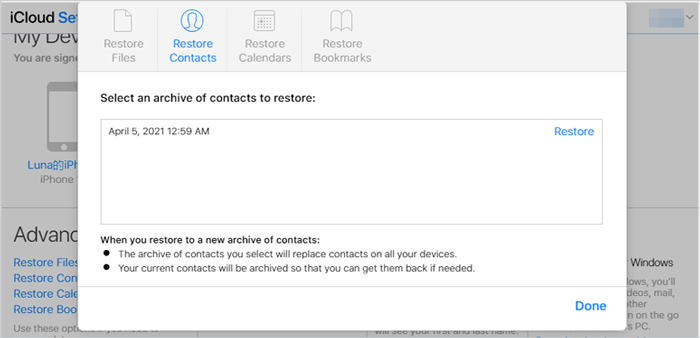
Once finished, your restored contacts will automatically sync back to your iPhone, and you can check them in your Contacts app.
If you previously enabled a full backup, you can recover your contacts by restoring the entire device.
Here is how to recover my contacts after factory reset iPhone from iCloud backup:
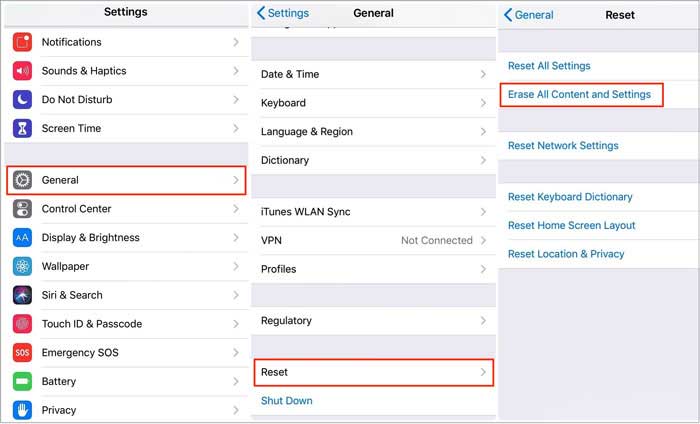
Step 1. Open your iPhone and go to "Settings", then tap "General", select "Transfer or Reset iPhone", and choose "Erase All Content and Settings".
Step 2. After the device restarts, follow the on-screen instructions to set up your iPhone, including selecting your language and connecting to a Wi-Fi network.
Step 3. Sign in with your Apple ID when prompted during setup.
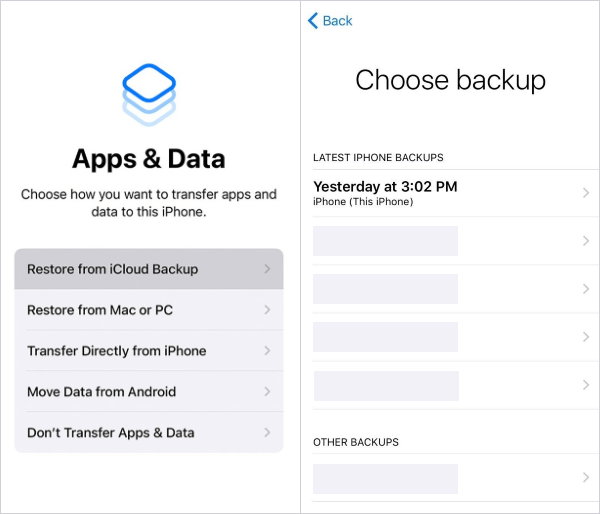
Step 4. On the "Apps & Data" screen, choose "Restore from iCloud Backup".
Step 5. Select the most recent backup file available.
Step 6. Wait for the restoration process to complete, and your data, including contacts, will be restored to your iPhone.
If you have previously backed up your iPhone data using a computer, you can use iTunes or Finder to restore your contacts. Please note that restoring via iTunes will replace all current data on your device with the contents of the backup.
Here is how to recover contacts after factory reset iPhone from an iTunes backup:
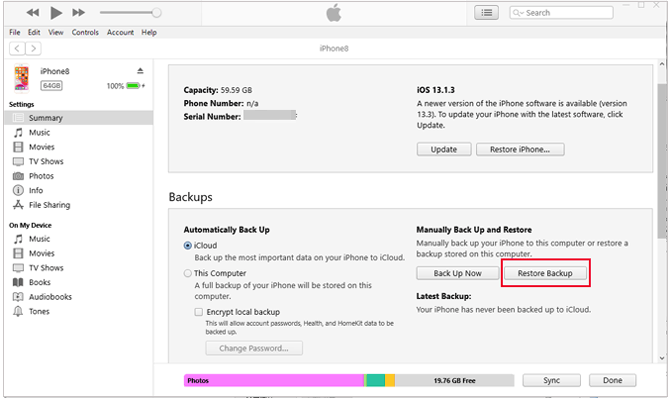
Step 1. Connect your iPhone to your PC and open iTunes.
Step 2. Click the device icon in the upper-left corner of the iTunes window.
Step 3. In the "Backups" section, select "Restore Backup".
Step 4. Choose the relevant backup file and click "Restore" to begin the process. If your backup is encrypted, enter the password when prompted.
How do I get my contacts back after factory reset without backup? If you don't have an iCloud or iTunes backup, you still have a chance to recover your contacts using a professional tool like Coolmuster iPhone Data Recovery. It can directly scan your device and available backups to safely retrieve lost contacts. In addition to contacts, it also supports recovering photos, videos, messages, call logs, notes, WhatsApp chat history, voice memos, and more.
Moreover, compared with Apple's official methods, it allows you to selectively restore contacts from iTunes or iCloud backups instead of restoring the entire backup.
What can Coolmuster iPhone Data Recovery do for you?
How do I get my contacts back after factory reset without backup? Follow the steps below:
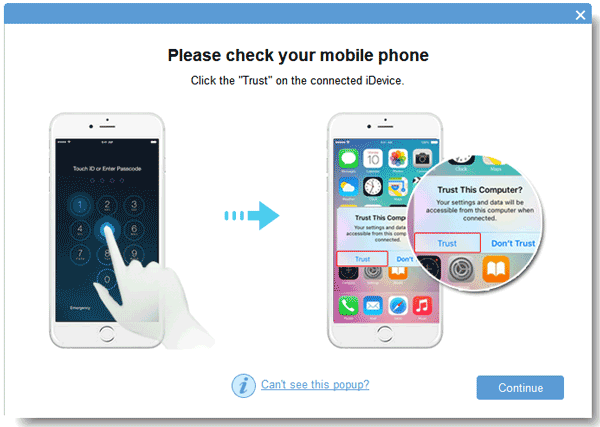
01After downloading and installing the program on your computer, launch it from the desktop. Then connect your iOS device to the computer using a USB cable. The software should automatically detect your device; if prompted, tap "Trust" on your iPhone to allow access.
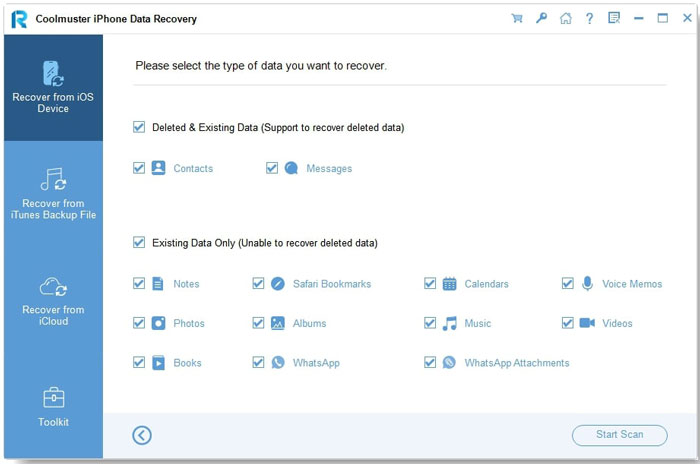
02Once connected, choose "Contacts" from the interface and click "Start Scan" to begin.
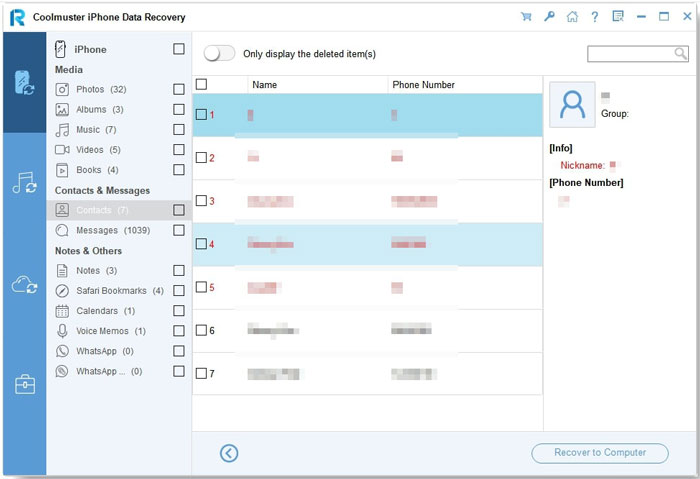
03After the scan is complete, you can preview the detected files in detail. Finally, click "Recover to Computer" to restore the deleted contacts from your iPhone to your computer.
Video Tutorial:
You can recover contacts after a factory reset on your iPhone using several effective methods, depending on your situation. Among them, Coolmuster iPhone Data Recovery is an excellent choice. It supports recovering contacts from iOS devices, iTunes backups, and iCloud backups, allows you to preview data before recovery, and lets you restore only the contacts you need—making it one of the most convenient ways to recover contacts after a factory reset on iPhone.
To prevent future data loss, it's strongly recommended to regularly back up your iPhone, so your important contacts remain safe and easily recoverable at any time.
Related Articles:
How to Recover Data After Factory Reset iPhone? Solved in 3 Ways
iPhone Deleted Contacts Randomly? Solved in 7 Effective Ways
[Solved] How to Recover Contacts/SMS from iPhone with No iCloud Backup?
How to Restore Contacts from iCloud? - 4 Easy and Effective Ways






 Free Download for PC
  Free Download for Mac


