When the message "iPhone is disabled, connect to iTunes" appears on your iPhone screen, many people's first reaction is to worry that all their data is gone. In fact, that's not necessarily the case. As long as it's handled properly, there is still a chance to recover important data.
This article focuses on how to recover data from iPhone disabled connect to iTunes. It provides a detailed explanation of several feasible methods, along with step-by-step instructions, to help you recover your data as much as possible.
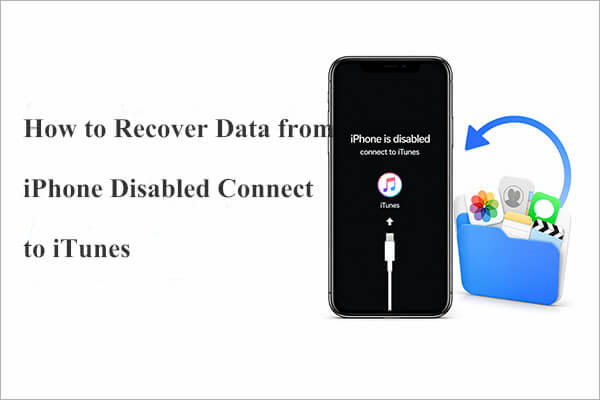
If you enter the wrong passcode on your iPhone too many times (more than ten attempts), a message will appear saying "iPhone is disabled, connect to iTunes". Here's what happens step by step:
When attempting to unlock a disabled iPhone using iTunes, the process may fail if the device has not been previously synced with iTunes. It can also fail if the iPhone is not connected to the internet. To resolve this issue, you may need to use an iPhone unlocking tool to perform a factory reset. After the reset, you can set up the device as new or restore it from a backup.
Even if your iPhone is disabled, your data is not always gone. Depending on whether you have backups, there are different ways to recover data from iPhone disabled connect to iTunes safely.
Below are two reliable methods you can follow step by step.
If your iPhone becomes locked or shows a "disabled" message, fixing it often means risking the loss of your data, especially anything that wasn't backed up. However, there are tools that claim to help recover data even in these situations, including files that were never saved to iTunes or iCloud. One such option is Coolmuster iPhone Data Recovery, a data recovery program designed to retrieve various types of data from an iPhone, including that which is damaged or disabled.
Key features of Coolmuster iPhone Data Recovery:
Here is how to recover data from iPhone disabled connect to iTunes using iPhone Data Recovery:
01Download and install this iPhone data recovery tool on your computer. Launch the program, and you'll see three recovery options: "Recover from iOS Device", "Recover from iTunes Backup File", and "Recover from iCloud". To retrieve data directly from your iPhone, select "Recover from iOS Device" and connect your iPhone to the computer using a USB cable.
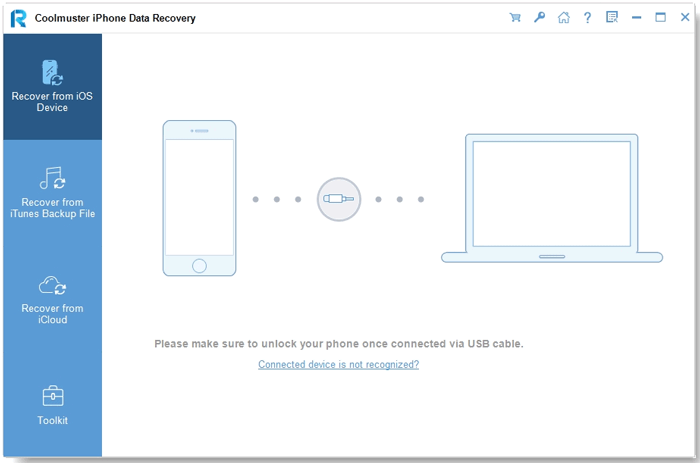
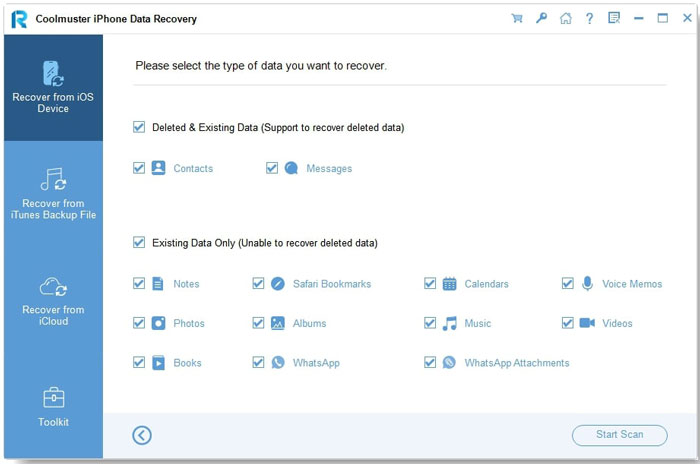
02Once the device is recognized, the software will scan it and display the detected files. Choose the type of data you want to recover, then click "Start Scan" to proceed.
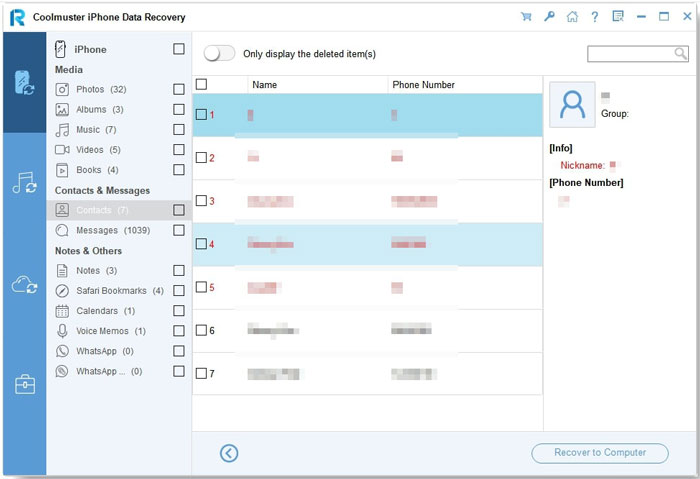
03After the scan is complete, preview the results and select the files you need. Click "Recover to Computer", pick a destination folder, and your data will be saved there in just a few moments.
Video Tutorial:
If your iPhone is disabled and cannot connect to a computer, you can still use iCloud to restore your data, provided that you backed it up before the device was locked. However, it's important to note that this method is essentially an "overwrite restore", meaning the current data on the device will be erased first, and then the backup will be restored. Therefore, you should verify the backup's date and contents before proceeding.
Here is how to recover data from iPhone disabled connect to iTunes from iCloud backup:
Step 1. Ensure your iPhone is connected to Wi-Fi or a cellular network. Next, visit iCloud.com and sign in with your Apple ID and password.
Step 2. Open "Find My iPhone" and select your disabled iPhone from the device list.
Step 3. Click "Erase iPhone" to remove all data on the device, including the passcode.
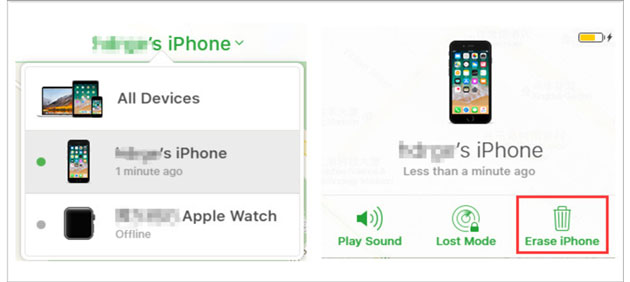
Step 4. Wait for the erase process to complete, then turn on your iPhone and begin the setup process.
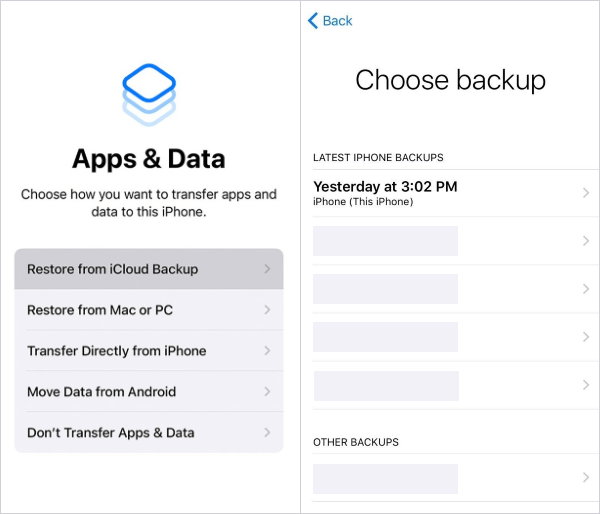
Step 5. Follow the on-screen instructions until you reach the "Apps & Data" screen.
Step 6. Tap "Restore from iCloud Backup" and sign in with your Apple ID.
Step 7. Choose the most relevant backup (check the date and size) and start the restoration.
Step 8. Keep your iPhone connected to Wi-Fi and wait for the data to download and restore completely.
How do you fix a phone that says iPhone is disabled connect to iTunes? There are several quick and effective ways to resolve the issue.
If these methods don't work, you can explore more solutions in this guide: 4 Solutions: How to Fix iPhone Is Disabled Connect to iTunes Issue
That's all about how to recover data from iPhone disabled connect to iTunes. The most reliable and user-friendly solution is Coolmuster iPhone Data Recovery. It offers three recovery modes, allowing you to retrieve your data whether your iPhone has a backup or not, and regardless of the device's condition. Download it now and give it a try!
Related Articles:
[3 Ways] How to Back Up A Locked/Disabled iPhone without Passcode?
2 Effective Ways to Restore iPhone Without Backup Password
[100% Work] How to Fix "Attempting Data Recovery" on iPhone?
Fix Unavailable iPhone Without Losing Data: Step-by-Step Tutorial







 Free Download for PC
  Free Download for Mac


