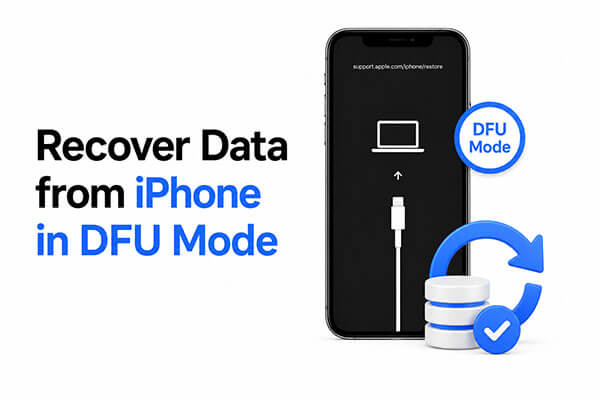
When your iPhone gets stuck on the Apple logo, enters a boot loop, or fails during an iOS update, you may need to put the device into DFU mode to repair the system. However, after entering DFU mode, the device may fail to start normally, and it can even lead to data loss. As a result, many people search for how to recover data from an iPhone in DFU mode.
This article will provide a detailed guide on three methods to recover iPhone data from DFU mode, helping you retrieve important files such as photos, contacts, WeChat chats, messages, and more.
If you are looking for the easiest and safest way to recover data from an iPhone in DFU mode, using a professional iPhone data recovery tool is highly recommended. Coolmuster iPhone Data Recovery is a reliable iOS recovery program designed to help users recover deleted or lost data from iPhone, iTunes backups, and iCloud backups.
Even if the device is in DFU mode, as long as the computer can still recognize it or a backup file exists, there is a chance to recover the lost data. Compared with official methods, this tool offers selective recovery, meaning you can preview and recover only the files you actually need instead of restoring the entire backup.
Key features of Coolmuster iPhone Data Recovery:
Here is how to recover deleted files from an iPhone in DFU mode with iPhone Data Recovery:
01Download and install this iPhone data recovery tool on your computer. Open the program, and you'll see three recovery options: "Recover from iOS Device", "Recover from iTunes Backup File", and "Recover from iCloud". To recover data directly from your iPhone, choose "Recover from iOS Device" and connect your iPhone to the computer via a USB cable.
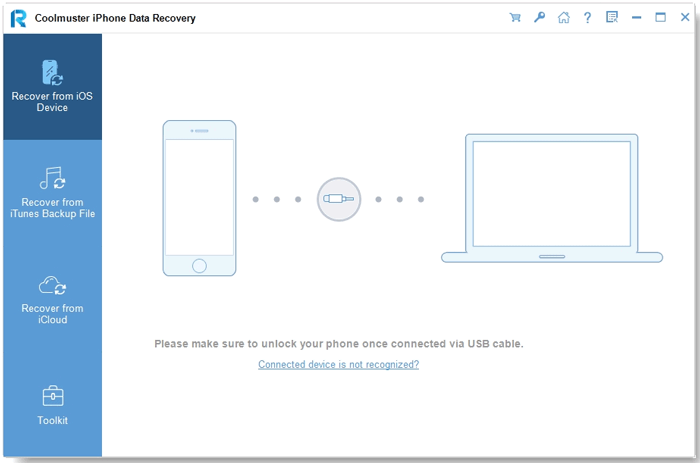
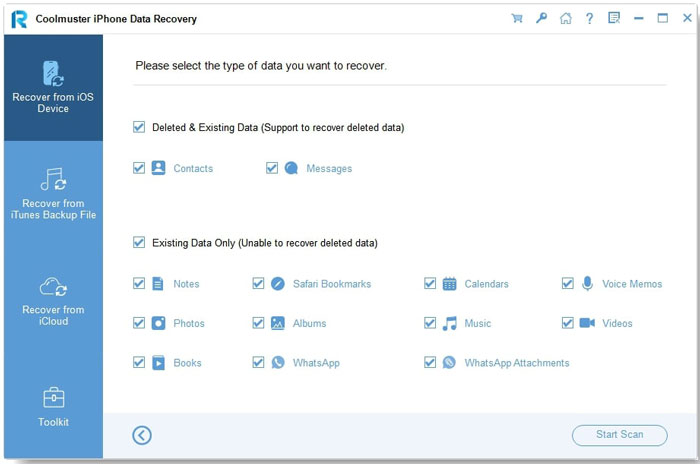
02Once your device is recognized, the software will scan it and display the detected files. Select the types of data you want to recover, then click "Start Scan" to begin.
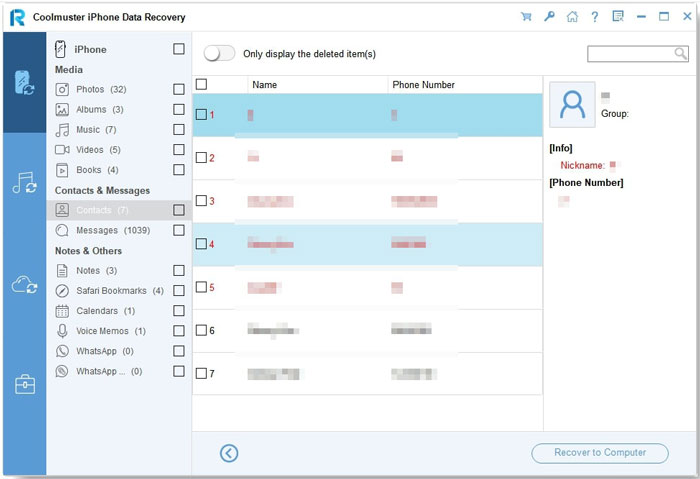
03When the scan finishes, preview the results and select the files you need. Click "Recover to Computer", choose a destination folder, and your data will be saved in just a few moments.
Video Tutorial:
If you previously enabled iCloud Backup on your iPhone, you can recover iPhone data from DFU mode by restoring an iCloud backup. This method works well if your device has already been reset or restored after entering DFU mode.
However, it is important to understand that restoring from iCloud will erase the current content on your device before downloading the backup data. Therefore, if you have new unsaved files, you should back them up first. Additionally, the restore process may take some time depending on your internet speed and backup size.
How to recover an iPhone in DFU mode? Follow the steps below:
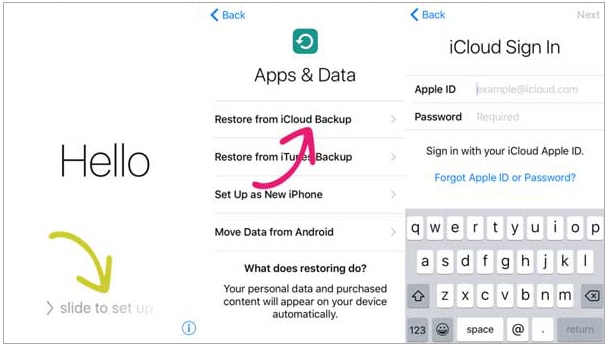
Step 1. Turn on your iPhone and follow the on-screen setup instructions.
Note: If your iPhone has been set up, go to "Settings" > "General" > "Reset" > "Erase All Content and Settings" to erase it first.
Step 2. On the "Apps & Data" screen, choose "Restore from iCloud Backup" and sign in with your Apple ID.
Step 3. Select the latest backup and wait for the restore to complete.
If you have previously backed up your iPhone on a computer, you can also restore data using iTunes (Windows/macOS Mojave and earlier) or Finder (macOS Catalina and later). However, iTunes restoration has notable limitations, such as no data preview, no selective recovery, and it will overwrite the current content on your device. Therefore, it's recommended to confirm that the backup contains the data you need before restoring.
Here is how to recover iPhone data from DFU mode using iTunes:
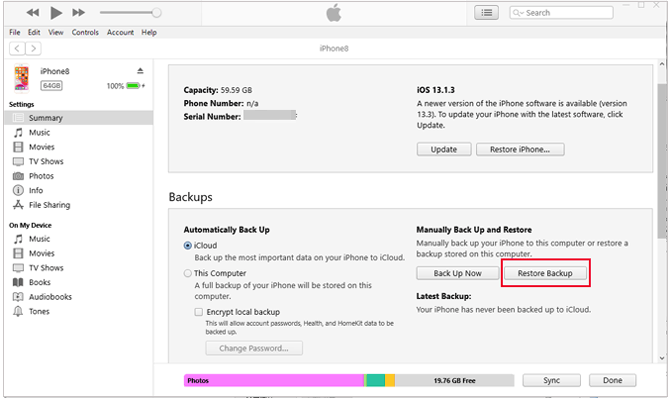
Step 1. Open iTunes and connect your iPhone to the computer.
Step 2. Click the iPhone icon to select your device.
Step 3. Click the "Restore Backup" button and choose the backup containing the data you want to recover.
Step 4. Click "Restore" to recover your lost iPhone data.
Sometimes users accidentally enter DFU mode and cannot exit it. In other cases, the iPhone may get stuck in DFU mode after a failed update or restore attempt. In such situations, using a professional iOS repair tool can help you exit DFU mode without losing data. iOS System Recovery is a powerful iOS repair program that can fix various system problems while keeping your data intact.
Key features of iOS System Recovery:
Here is how to use iOS System Recovery to exit DFU mode on iPhone without data loss:
01Download and launch the tool on your computer, then connect your iPhone via a USB cable. From the welcome screen, go to the "iOS System Recovery" section.

02The software will automatically detect your iPhone stuck in recovery mode. Once detected, click "Start" to proceed. Then choose the repair mode and click "Confirm" to continue.

03Verify your iPhone's details, then click "Repair" to begin fixing the issue. When the process is complete, your iPhone will restart and exit DFU mode successfully.

In summary, recovering data from an iPhone in DFU mode is entirely possible with the right approach. Using Coolmuster iPhone Data Recovery provides the safest and most flexible option, allowing selective restoration from iOS devices, iTunes, or iCloud backups without overwriting existing data. For users who also need to fix system issues or exit DFU mode safely, iOS System Recovery is a reliable complement.
Related Articles:
[Solved] How to Recover Data from iPhone Disabled Connect to iTunes?
6 Easy Ways to Fix iPhone Stuck on Restore Screen [Proven Tips]
3 Proven Ways to Recover Data from iPhone That Won't Turn On (with Troubleshooting)
[100% Work] How to Fix "Attempting Data Recovery" on iPhone?







 Free Download for PC
  Free Download for Mac


