"I am trying to delete a Music playlist from my iPhone (v.16.1.2). The only option that I can see is to "Remove from Library", which I do not want to do. I am using Music v.1.2.5.7. Thank you for your help."
- from Apple Community
Creating playlists on your iPhone or iPad makes it easy to organize songs for different moods and occasions. However, over time, you may end up with too many unnecessary or outdated playlists cluttering your music library. If you want a cleaner and more organized music experience, learning how to delete playlists on iPhone is essential. This post tells you how to delete playlists on iPhone/iPad in three simple ways.
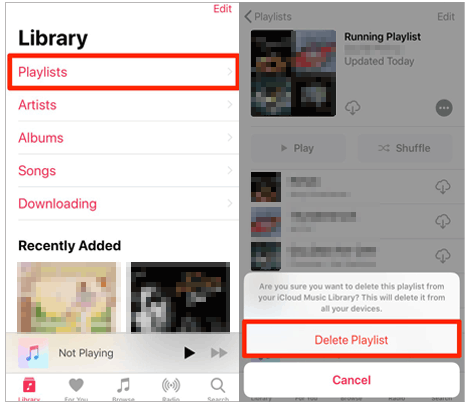
Apple Music is the default music app on iPhone and iPad, and it allows you to create, manage, and delete playlists directly from your device. This method is straightforward and doesn't require a computer, making it the most convenient option for everyday use. However, this way only enables you to delete one playlist at a time.
Here is how to delete playlists on Apple Music on iPhone/iPad:
Step 1. Open the Music app on your iPhone or iPad.
Step 2. Tap "Library" at the bottom of the screen.
Step 3. Select "Playlists" to view all playlists stored on your device.
Step 4. Find the playlist you want to delete, touch and hold the playlist, then select "Delete from Library". Alternatively, open the playlist, tap the "More" button, and choose "Delete from Library".
Step 5. Confirm by tapping "Delete Playlist" again.
Of course, you can delete the unwanted playlists from the Music application one by one. However, this way will get tedious when you need to remove multiple unwanted playlists from your iPhone/iPad. So, is there any easy way to help you do that?
Yes, you can try iPhone Assistant. iPhone Assistant is one of the best iOS data managers to transfer and manage photos, music, ringtones, playlists, movies, contacts, text messages, Safari, calendars, and more files from iPhone/iPad/iPod to a computer. You can use it to delete playlists, make ringtones and transfer playlists on a computer directly.
Key features of iPhone Assistant:
* Delete playlists from iPhone/iPad and export playlists from iPhone/iPad to computer or another iOS device in one click.
* Transfer iDevice photos, music, iTunes U, Podcasts, ringtones, audiobooks, voice memos, playlists, movies, TV shows, music videos, contacts, text messages, Kik, Line, WhatsApp, Viber, Messenger, calendars, Safari, call logs, and more files on a computer without hassle.
* Support transfer files from iOS to computer, iOS to iOS, computer to iOS, iTunes to computer, and iTunes to iOS transfer.
* Organize photos, create music playlists, convert music format automatically, add ringtones to iPhone, and make ringtones from your favorite music.
* View and sync your iTunes library to your iPhone or PC.
* Widely compatible with iOS 6.0 and higher versions (iOS 26 included), such as iPhone 17/16/15/14 Pro/14/13 Pro/13/12 Pro/12/11/X, etc.
How do I delete a playlist on iPhone/iPad in 1 Click? Follow the steps:
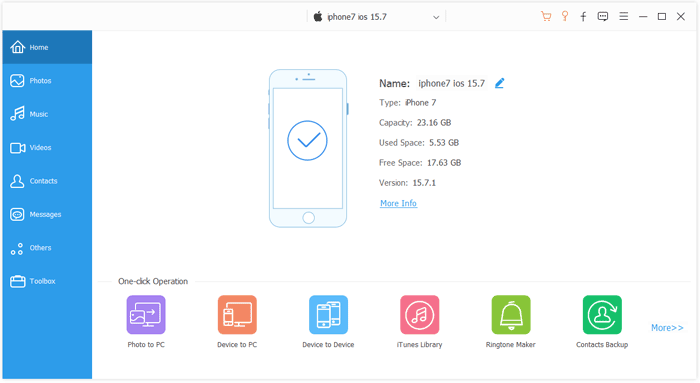
01Install iPhone Assistant on your computer and connect your iPhone to your computer via a USB cable. Wait for the software to detect your device.
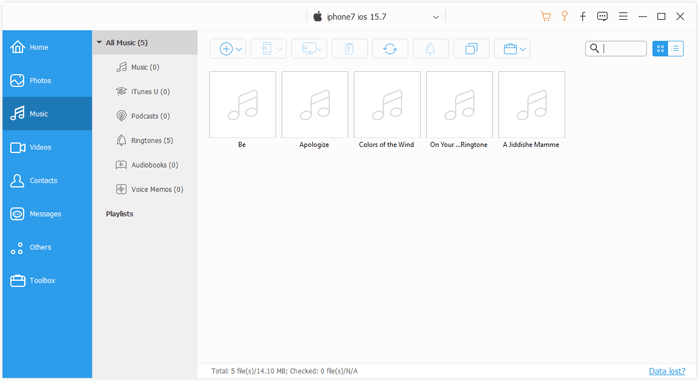
02Click "Music" from the left panel, select one playlist album under the sub-folder "Playlists", and check the playlists you want to remove from your device. Then, tap the "Recycle Bin" icon on the top menu to remove playlists from your iPhone/iPad.
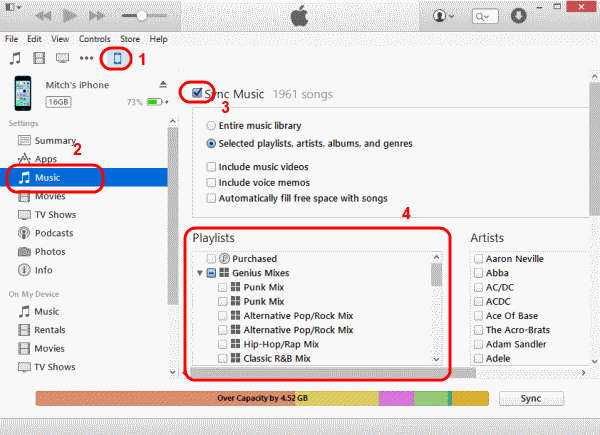
iTunes allows you to search for songs and manage music and data on your iPhone/iPad, including deleting playlists. However, if automatic syncing is enabled, your iPhone/iPad will sync with iTunes as soon as it's connected to your computer. This may affect your playlists, so use caution when deleting them through iTunes. Before deleting playlists, ensure that you have the latest version of iTunes installed.
Here is how to delete playlists on iPhone/iPad from iTunes:
Step 1. Connect your iPhone/iPad to a computer with a USB cable, and iTunes will automatically open on your computer. If it doesn't, you can manually launch it.
Step 2. Click the iPhone/iPad icon in iTunes' interface, choose "Music" in the left panel, and check "Sync Music".
Step 3. Choose "Selected playlists, artists, albums, and genres" and tick the playlists you want to keep on your iPhone.
Step 4. Finally, hit the "Sync" button at the bottom right corner. After syncing, the playlists you don't want will be removed from your iPhone.
Q1. Why can't I delete a playlist from iTunes?
Ensure you have a stable internet connection. If so, try turning off the Sync Library feature on your device and attempting to delete the playlist again.
Q2. How to delete a playlist on YouTube?
Open the YouTube app on your phone, go to "Library" > select a playlist > tap the "menu" icon > choose "Delete Playlist" > confirm by tapping "OK".
Q3. How to delete playlists on Spotify?
How to delete playlists on iPhone/iPad? With the help of the three easy methods in this article, you will remove unwanted playlists from your iPhone without difficulty. From the above description, you can easily find that only the iPhone Assistant can help you remove playlists on the iPhone easily and safely. Besides, you can also manage and transfer playlists and other iPhone files on a computer in one click. Therefore, I highly recommend that you try iPhone Assistant to delete playlists and manage your iPhone data.
If you find this guide helpful, please share it with your friends.
Related Articles:
How to Delete Music from iPhone But Not iTunes? Solved in 4 Easy Ways
Top 2 Ways to Transfer Playlists from iPhone to iTunes (And Vice Versa)
How to Transfer iTunes Playlist from Computer to iPhone in 3 Ways
Music Disappeared from iPhone Unwittingly? Try 8 Fixes Here!







 Free Download for PC
  Free Download for Mac


