If you're planning to sell, give away, or reset your iPhone, you'll usually need to enter your iCloud password to disable Find My iPhone before erasing the device. But what if you've forgotten your iCloud password? Don't worry; you're not stuck. In this guide, we'll show you four effective ways to erase iPhone without iCloud password, whether or not you have access to a computer. Each method is simple, safe, and easy to follow.
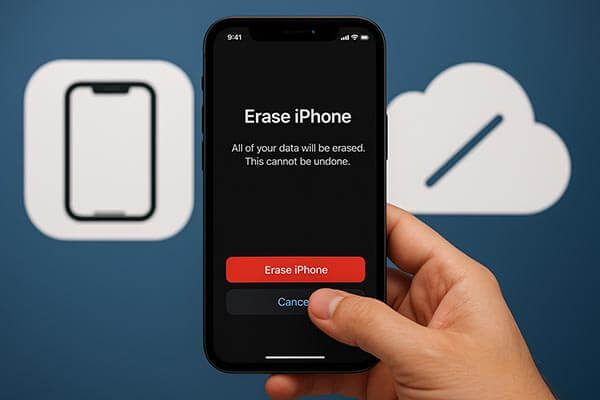
The most reliable way to erase an iPhone without an iCloud password is by using iPhone Unlocker. This professional iPhone unlocking tool helps remove Apple ID and iCloud accounts from your device without requiring the password. It's especially useful if you've forgotten your Apple ID credentials or bought a second-hand iPhone that's still linked to another account.
Key features of iPhone Unlocker:
* Erase iPhone without iCloud password effortlessly.
* Easily remove Apple ID, Touch ID, and Face ID from your iPhone in just a few minutes.
* Unlock your iPhone, iPad, or iPod without the need for a passcode.
* Effortlessly bypass all types of screen locks on iPhone, iPad, and iPod touch without a password.
* Instantly remove MDM restrictions and profiles from your device.
* Fully compatible with all iPhone models and iOS versions, including iPhone 17 and iOS 26.
How do I erase my iPhone if I forgot my iCloud password? Follow the steps below:
01Open iPhone Unlocker on your computer and select "Unlock Apple ID".
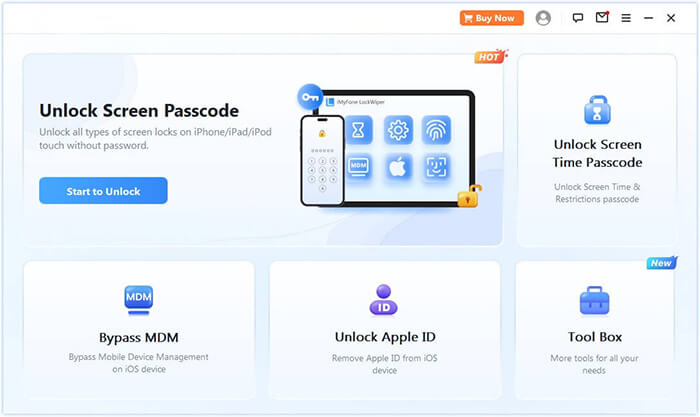
02Connect your iPhone, iPad, or iPod to the computer and click "Start to Unlock".
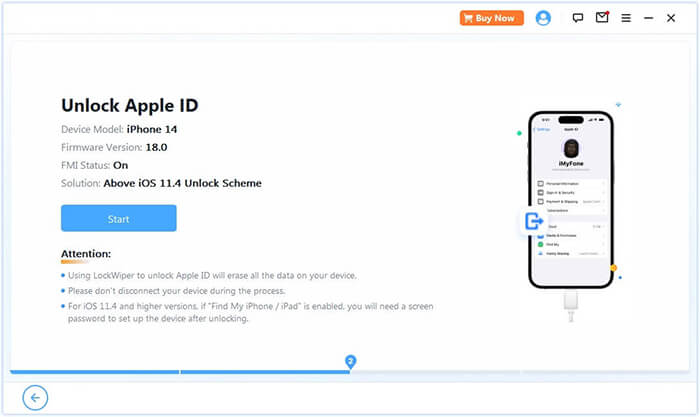
03If Find My is off, the tool will begin removing the Apple ID immediately. If Find My iPhone is enabled, go to "Settings" > "General" > "Reset" > "Reset All Settings" on the device to turn it off, then restart the process.
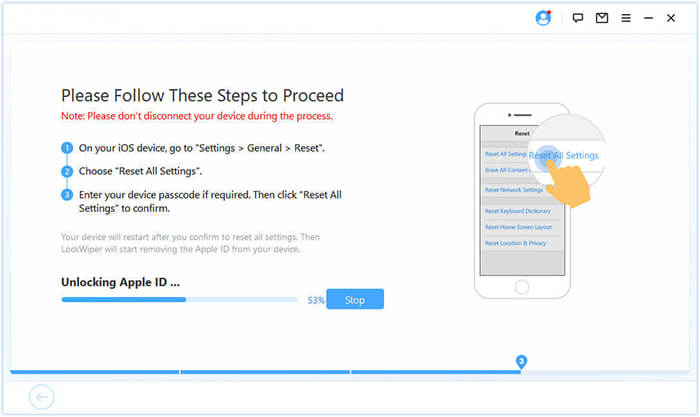
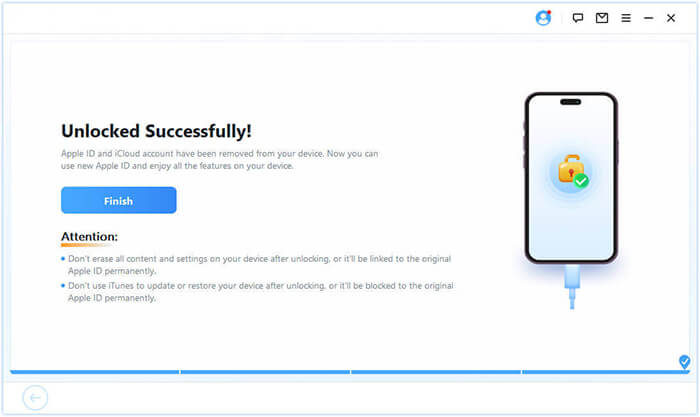
04Wait briefly while the software completes the procedure ; your Apple ID will be unlocked successfully.
If you've synced your iPhone with iTunes, you can use recovery mode to factory reset it without needing the iCloud password. However, if Find My iPhone is enabled, your device will be stuck on the iCloud activation lock screen after the reset, as you'll need the iCloud password to complete the setup.
Here is how to reset iPhone without iCloud password with iTunes:
Step 1. Install and open the latest version of iTunes (for Windows) or Finder (for macOS Catalina and above) on your computer.
Step 2. Connect your iPhone to the computer using a USB cable.
Step 3. Put your iPhone into recovery mode:
Step 4. On the computer, select the "Restore" option when the "Restore" or "Update" screen appears.
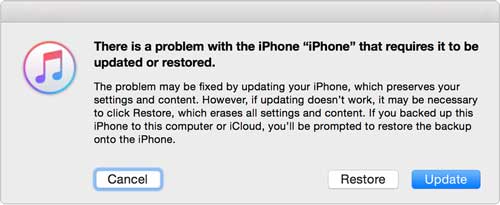
Step 5. Wait for the system to download the firmware and automatically erase all data.
If you can still access your iPhone and Find My iPhone is turned off, you can perform a factory reset directly from the Settings app without needing iTunes or iCloud. This is the simplest way to erase iPhone without iCloud password when you don't have a computer nearby.
Here is how to factory reset iPhone without iCloud password or computer:
Step 1. Open the "Settings" app on your iPhone.
Step 2. Tap "General", then scroll down and select "Transfer or Reset iPhone".
Step 3. Tap "Erase All Content and Settings". (iPhone won't erase?)
Step 4. Enter your screen passcode if prompted.
Step 5. Tap "Continue", and the iPhone will automatically erase all data and return to factory defaults.

If you purchased a used device and the previous owner is willing to take on the task, as long as the Find My feature is enabled, you can remotely ask them to perform a factory reset on your iPhone.
Here is how to erase an iPhone without iCloud password remotely with iCloud.com:
Step 1. Visit iCloud.com and sign in with your Apple ID and password.
Step 2. Click on the "Find My iPhone" icon in the menu.
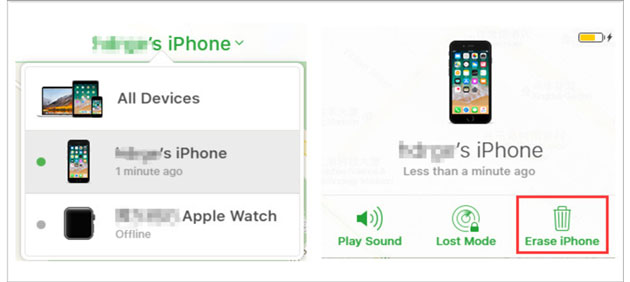
Step 3. Expand the "All Devices" list and select your iPhone.
Step 4. Click on "Erase iPhone" to reset it remotely.
If you've forgotten your iCloud password, you don't need to panic. You can still erase your iPhone without iCloud password using one of the methods above. Among all options, iPhone Unlocker stands out as the safest, fastest, and most efficient way to completely reset your iPhone and regain full control over your device.
Related Articles:
How to Erase iPhone Without Passcode in 5 Simple Ways? (Step-by-Step)
How to Factory Reset iPhone Without Computer? Solved in 2 Easy Ways
How to Delete iCloud Account Without Password? Solved in 5 Ways
How to Turn Off Find My iPhone/iPad with/without a Password?






 Free Download for PC
  Free Download for Mac


