"Every song on my iPhone 12 Pro has somehow become duplicated. Some dupes have the same artwork, some do (no apparent rhyme or reason). Oddly, this is on my phone only. These duplicates do not exist in my iTunes library. Is there an easy way to clear this up, or will I have to remove all music from my phone, then sync the entire library back (hopefully w/ no dupes)?"
- from Apple Community
As users spend more time listening to music on their iPhone, many encounter a frustrating issue: a large number of duplicate songs appear on the device. These duplicate tracks not only take up valuable storage space but also clutter the music library, negatively impacting the listening experience. So, how can you remove duplicate songs on your iPhone? This article will detail several common and effective methods for deleting duplicate songs.
Before you start deleting duplicate songs, understanding the causes can help prevent the problem from happening again. Common reasons include:
Knowing these causes will help you avoid creating duplicate songs again after cleaning them up.
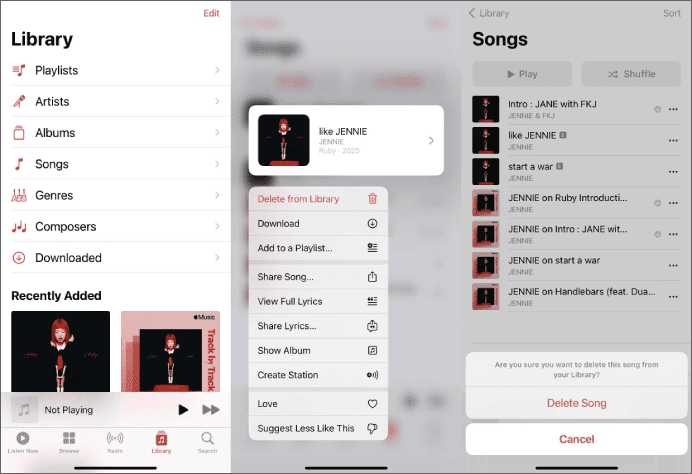
If the number of duplicate songs is small, the most straightforward way to remove duplicate songs on iPhone is directly through the Apple Music app. This is the simplest method, but it is less efficient and best suited for situations where there are only a few duplicate tracks.
Here is how to remove duplicate songs from Apple Music:
Step 1. Open the Music app and tap "Library" at the bottom of the screen.
Step 2. Locate the album or playlist that contains the duplicate songs.
Step 3. Press and hold the duplicate track you want to remove.
Step 4. Tap "Delete from Library" from the menu that appears.
Step 5. When prompted, confirm by tapping "Delete Song".
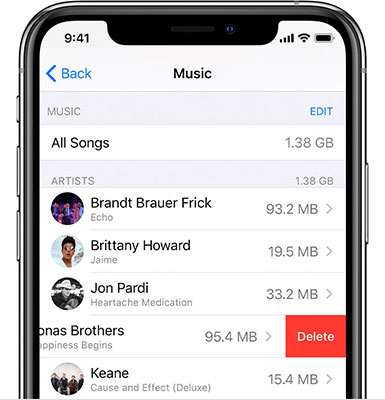
If you need to delete multiple duplicate songs from the same artist on your iPhone, using the Settings app is a much easier option. The process is simple and straightforward. Just follow the steps below:
Step 1. Open the "Settings" app on your iPhone and tap "General".
Step 2. Select "iPhone Storage".
Step 3. Scroll down and tap "Music" from the list of apps.
Step 4. To remove all songs and start fresh, tap the "Remove" option next to "All Songs". To delete duplicate songs by artist, tap the "Remove" option next to the artist containing the duplicate tracks.
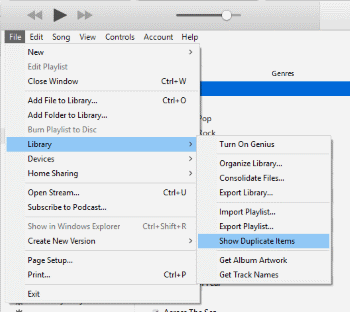
iTunes includes a built-in feature that lets you view and remove duplicate songs from your iPhone. All you need to do is connect your iPhone to a computer and manage it through iTunes. It's that simple. Follow the steps below to delete duplicate songs on iPhone using iTunes:
Step 1. Open iTunes on your computer and connect your iPhone using a USB cable.
Step 2. Under the "On My Device" section, click "Music".
Step 3. From the top menu bar, click "File".
Step 4. Select Library, then choose "Show Duplicate Items".
Step 5. A list of duplicate songs on your iPhone will appear. Hold down the "Control" key and click the tracks you want to remove.
Step 6. Click "Delete from Library" to delete the selected duplicate songs.
iPhone Music Manager is a tool designed to manage various types of data on your iPhone, such as photos, videos, music, contacts, and more. It offers an intuitive music management interface, making it ideal for deleting duplicate songs on your iPhone. In addition, it allows you to transfer music between your computer and iPhone. You can even use it to delete all music at once!
Key features of iPhone Music Manager:
How do I remove duplicate songs from my iPhone? Follow the steps below:
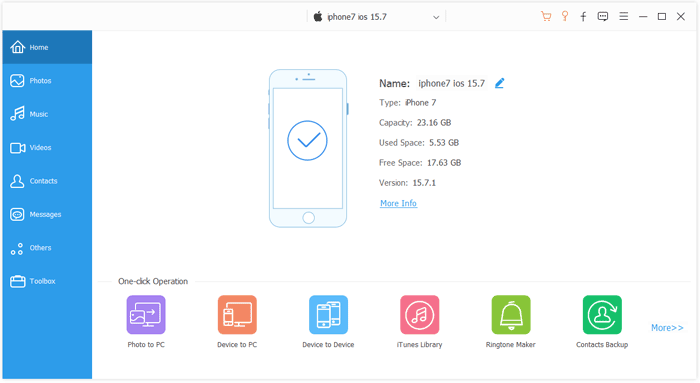
01Download and install iPhone Music Manager on your computer, then connect your iPhone and launch the program. Wait for it to recognize your device.
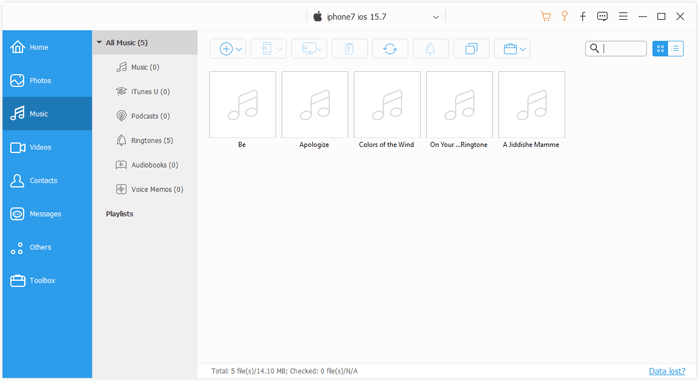
02Go to "Music" to see all the songs on your iPhone. Preview and select the duplicate songs you want to remove, then click "Delete" and confirm.
That's all about how to remove duplicate songs on iPhone. In most cases, deleting duplicates directly through the Apple Music app or the Settings app is the simplest option. However, if you have trouble locating duplicate tracks in the list, you can use iTunes to get the job done. In addition, iPhone Music Manager is also a great choice. It not only simplifies music management and helps you keep your iPhone music library clean and organized with minimal effort, but also allows you to manage other types of data as well.
Related Articles:
How to Delete Music from iPhone But Not iTunes? Solved in 4 Easy Ways
How to Delete Music from iPhone in Minutes: Step-by-Step Guide
How to Delete Ringtones from iPhone with/without iTunes?
[Full Guide] How to Delete Playlists on iPhone/iPad in 3 Easy Ways







 Free Download for PC
  Free Download for Mac


