"Hi everyone, I'm having issues using Xiaomi Mi Mover to clone my old Xiaomi Note 9 data to Xiaomi 13 Pro. Any idea on fixing this? Or at least some other tool which would do the same?"
- From Reddit
Mi Mover is an official data migration app developed by Xiaomi Inc., designed to wirelessly transfer files, contacts, photos, apps, and more from old Android or iOS devices to new Xiaomi, Redmi, or POCO phones via a direct Wi-Fi hotspot connection.
While it's a convenient tool with over 100 million downloads worldwide, many users encounter issues where Mi Mover fails to work, turning a simple device upgrade into a frustrating experience. This article will break down why Mi Mover is not working and how to fix it, along with a reliable alternative.
Mi Mover not working can stem from a variety of factors, ranging from simple connection issues to system-level limitations. Understanding these causes can help you quickly identify and apply the right fix.
The most common reasons include:
In addition, several other factors may also cause Mi Mover to fail:
Fortunately, most Mi Mover issues can be fixed with simple adjustments. Here are 9 proven solutions you can follow to get it working smoothly again.
Mi Mover relies on a stable Wi-Fi connection to transfer data, so unstable networks often lead to connection failures or interrupted transfers.
First, make sure both devices are connected to the same Wi-Fi network and avoid using public Wi-Fi, which is usually unreliable. If you are using the app's built-in hotspot, open Mi Mover on the sender device, enable the hotspot, and reconnect the receiving device to it.
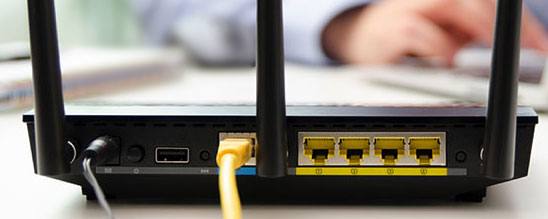
Next, disable any VPNs or network-heavy background apps that may consume bandwidth and interfere with the connection. If the issue persists, restart your router to refresh the network and improve stability.
Temporary glitches in the system or the app itself can cause Mi Mover to stop working properly, and a simple restart often resolves these issues.
Close the Mi Mover app on both devices first, then power them off completely and wait for about 30 seconds to 1 minute to ensure a full reset. After turning them back on, reopen Mi Mover and try the transfer again.
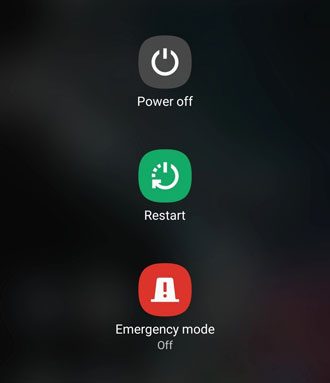
This method helps clear temporary bugs, reset network connections, and restore normal app functionality.
Mi Mover requires access to storage, contacts, photos, and other data to complete the transfer. If these permissions are not granted, the app may fail to detect or move data.
To fix this, go to "Settings" > "Apps" > "Mi Mover" > "Permissions" on your device, and make sure all required permissions, such as Storage, Contacts, and Media, are enabled.
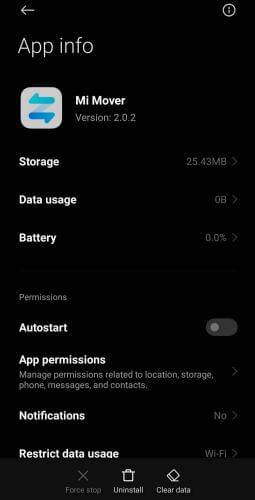
On iOS devices, open the "Settings" app, find "Mi Mover", and allow access to the necessary data. Once permissions are granted, restart the app and try the transfer again.
Mi Mover uses Wi-Fi Direct and Bluetooth to establish a connection, so distance plays an important role in connection stability.
Keep both devices within about 30 cm (1 foot) of each other during the transfer to maintain a strong signal. Avoid placing obstacles such as walls, metal objects, or other electronic devices between them, as these can interfere with the connection.
Also, make sure both devices remain unlocked during the process, since locking the screen may pause the app or interrupt the transfer.
Outdated app versions or corrupted installation files can cause Mi Mover to malfunction or fail during transfer.
Step 1. Open the Google Play Store (or App Store on iOS), search for "Mi Mover", and install any available updates.
Step 2. If the issue remains, uninstall Mi Mover from both devices, restart the devices, and reinstall the app from the official store.
Some Xiaomi devices come with Mi Mover pre-installed. In this case, you can try disabling and re-enabling the app or updating it through a trusted source if updates are not available in the store.
Battery saver mode and background restrictions can limit Mi Mover's ability to run continuously, which may interrupt the transfer process.
Step 1. Go to "Settings" > "Battery" and turn off "Battery Saver" on both devices.
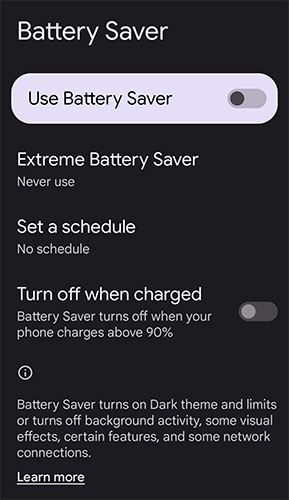
Step 2. Then, navigate to "Settings" > "Apps" > "Mi Mover" > "Battery" and set it to "No restrictions" or allow background activity.
This ensures that Mi Mover can run without being stopped by the system during the transfer.
Corrupted cache or app data can lead to crashes, slow performance, or connection failures in Mi Mover.
Step 1. Go to "Settings" > "Apps" > "Mi Mover" > "Storage" on your Android device.
Step 2. Tap "Clear cache" and then "Clear data".
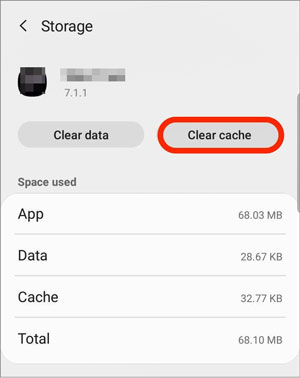
On iOS, since there is no direct option to clear cache, you can uninstall and reinstall the app to achieve the same result.
Keep in mind that clearing app data will reset the app settings, so you may need to grant permissions again and set up the transfer from scratch.
Trying to transfer a large amount of data at once can overwhelm Mi Mover and cause it to freeze or fail.
Start by removing unnecessary files, such as duplicate photos or large videos, to reduce the total data size. Then transfer your data in batches, for example, move contacts and call logs first, followed by photos and videos, and finally apps and app data.
This approach reduces the load on both devices and improves the overall stability of the transfer process.
Mi Mover is mainly designed for transferring data to Xiaomi, Redmi, or POCO devices, so compatibility limitations may arise when using other brands.
Make sure the receiving device is a Xiaomi device running MIUI or HyperOS, as full functionality depends on it. The sending device can be an Android (5.0 or above) or iOS device, but some data types may not be fully supported on iOS due to system restrictions.
Additionally, differences in system versions or ROM types (such as global ROM vs. custom ROM) may also affect compatibility and prevent successful transfers. If your devices are not fully compatible, using an alternative transfer tool may be a better option.
If you've tried all the fixes above and Mi Mover still isn't working properly, especially when transferring large files or switching between different brands, it's worth considering a more stable and flexible solution.
Coolmuster Mobile Transfer is a powerful desktop tool that allows you to move data between phones with a much higher success rate, making it an ideal alternative when Mi Mover fails.
Key features of Coolmuster Mobile Transfer:
How to use the Mi Mover alternative to transfer data? (Example: Samsung to Xiaomi)
01Install and launch Coolmuster Mobile Transfer on your computer, then connect both your Samsung and Xiaomi phones using USB cables.
02Once the program detects both devices, they will appear on the screen as "Source" and "Destination". If they are placed incorrectly, simply click the "Flip" button to switch their positions.
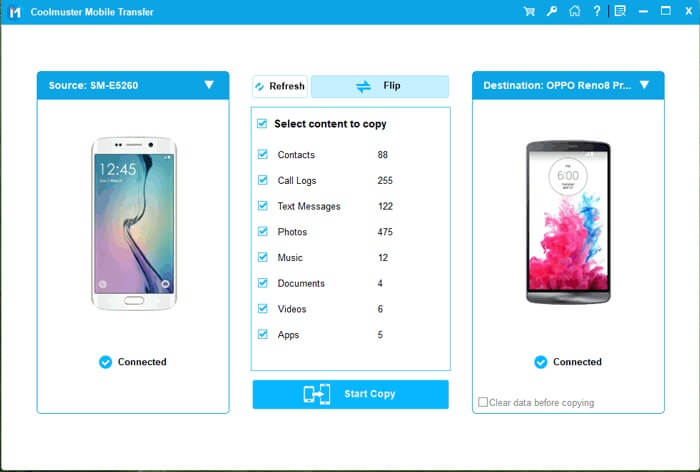
03Select the types of data you want to transfer from the available list, such as contacts, messages, photos, or videos, and click the "Start Copy" button to begin the transfer process.
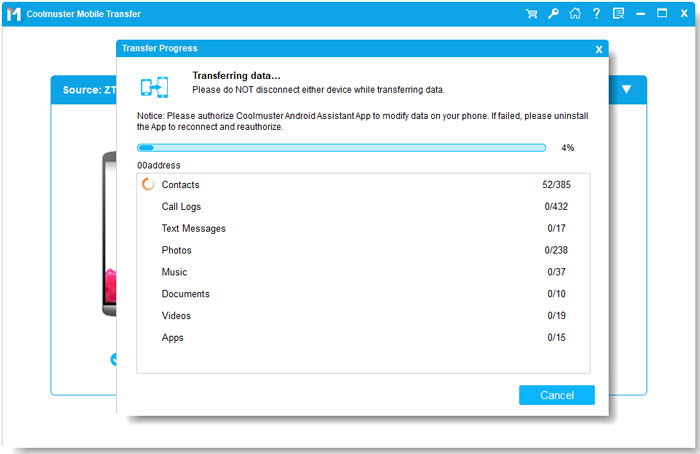
If you prefer a more visual guide, you can follow the step-by-step video tutorial below to see how the entire process works in real time.
While Mi Mover is convenient for basic transfers, it doesn't always perform reliably in every situation. By applying the fixes above, you can resolve the most common issues of Mi Mover not working. However, if you're looking for a smoother and more dependable experience, especially for large or cross-platform transfers, using a professional tool like Coolmuster Mobile Transfer is often the better choice.
Related Articles:
How to Transfer Data from Mi to Mi in 5 Possible Ways (Proven Tips)
How to Transfer Contacts from Redmi to Redmi with 5 Easy Ways
How to Transfer iPhone Data to Xiaomi: iPhone to Xiaomi Transfer in 5 Ways







 Free Download for PC
  Free Download for Mac


