If you're switching from an iQOO phone to an iPhone or simply want to share videos between the two devices, you may quickly realize that it's not as easy as expected. iQOO runs on Android, while iPhone uses iOS, and the two systems are not fully compatible when it comes to file sharing, especially large video files. That's why many users search for how to send video from iQOO to iPhone without losing quality or running into transfer errors.
In this guide, we'll walk you through six practical and effective methods, no matter whether you're pursuing speed, graphics quality, or prefer not to install third-party software, you can find a suitable solution.
If you want to transfer videos from your iQOO to your iPhone in one go without any loss, using a professional mobile data management tool is the most reliable method. Phone Transfer is such a tool. It is specifically designed for data transfer between Android and iOS devices, allowing you to bypass system restrictions and transfer video files directly between iQOO and iPhone, avoiding issues like compression and format loss.
Main features of Phone Transfer:
How do I transfer videos from your iQOO to your iPhone? Just follow the steps below:
01Download, install, and open Phone Transfer on your computer. Connect both your iPhone and iQOO devices using USB cables.
02The tool will automatically detect your devices and show their details on the interface. Ensure that your source phone is listed at the top center; if not, click the drop-down menu to select it as the source.
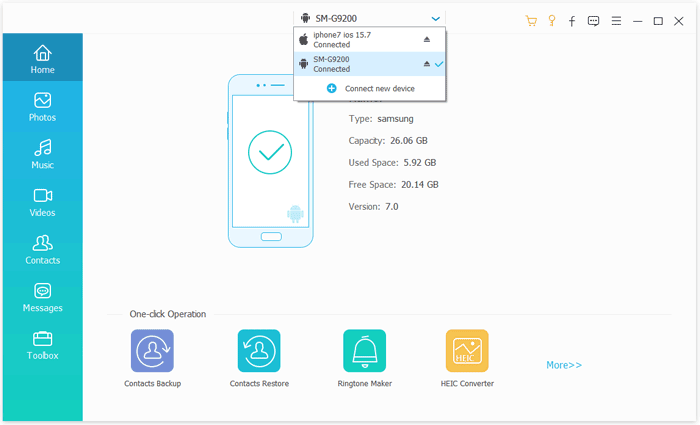
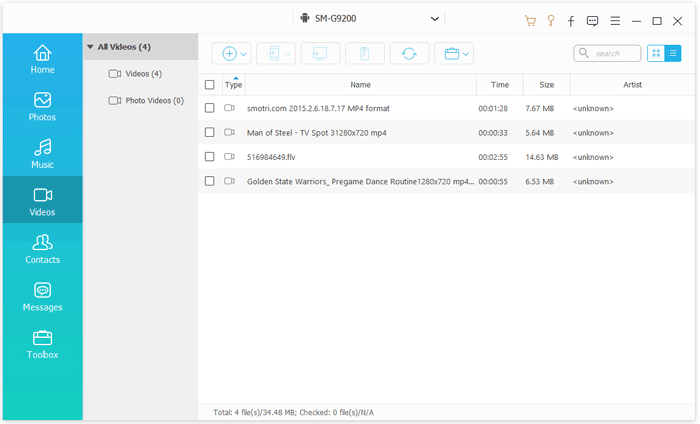
03Then, select the "Videos" option to proceed. Choose the video you wish to transfer, click "Export to Device", and the selected video will be instantly copied from your iQOO to your iPhone.
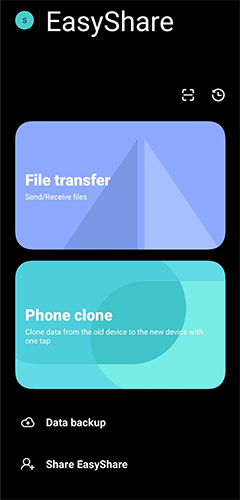
EasyShare is a file transfer tool pre-installed on vivo/iQOO phones, supporting direct wireless video transfer from iQOO (Android) to iPhone via Wi-Fi Direct, without the need for a network.
Here is how to send videos from iQOO to iPhone via EasyShare:
Step 1. Install EasyShare on both devices: Download from the Google Play Store on iQOO (pre-installed or search for it) and from the App Store on iPhone. Ensure both devices are on the same Wi-Fi network.
Step 2. Open EasyShare on both devices. On iQOO, tap "Send" or "Phone Clone" > "Old Phone". On iPhone, tap "Receive" or "Phone Clone" > "New Phone". Choose connection method: either scan the QR code from iQOO with your iPhone or detect the iQOO device directly.
Step 3. After connecting, select "Videos" on iQOO, check the videos you want to transfer, then tap "Send" and wait for the transfer to finish.
Step 4. Once done, the videos will appear in the Photos app on your iPhone for viewing.
Move to iOS is Apple's official app for helping Android users switch to iPhone. It allows you to transfer data, such as photos and videos, wirelessly from iQOO to iPhone during the initial setup process. However, this method only works when the iPhone is brand new or has been reset to factory settings.
Here is how to move videos from iQOO to iPhone with Move to iOS:
Step 1. Connect both devices to the same Wi-Fi network. On your iPhone, go to "Settings" > "General" > "Reset" and choose "Erase All Content and Settings" if you're setting up the phone from scratch.
Step 2. Install Move to iOS on your iQOO from the Google Play Store.
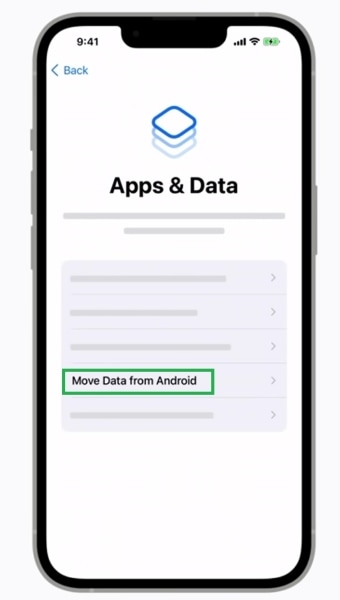
Step 3. On your iPhone, start the setup and select "Move Data from Android" when you reach the "Apps & Data" screen.
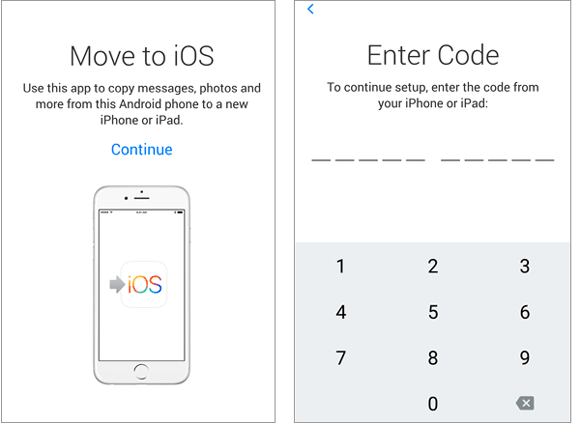
Step 4. Open Move to iOS on your iQOO, then tap "Next".
Step 5. Enter the 6-10 digit code that appears on your iPhone into your iQOO.
Step 6. Select the video and other data you want to transfer, then tap "Next".
Step 7. Wait for the transfer to complete.
Step 8. Once finished, complete the setup on your iPhone, and the video will be in the Photos app.
iTunes can also be used as a bridge to move videos from iQOO to iPhone. This method involves copying videos to a computer first and then syncing them to the iPhone via iTunes. While it's not the fastest solution, it can be useful if you already rely on iTunes to manage your iPhone content.
Here is how to copy videos from iQOO to iPhone using iTunes:
Step 1. Download and install iTunes on your computer if you don't have it. Open iTunes.
Step 2. Connect your iQOO to the computer via USB, then select File Transfer (MTP) mode. Open File Explorer (Windows) or Finder (Mac), find your iQOO's storage, go to the video folder, and copy the videos to your computer.
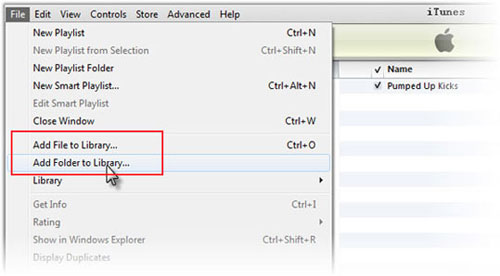
Step 3. Launch iTunes on your computer. Click "File" in the top-left corner, then select "Add File to Library" or "Add Folder to Library". Choose the folder where you saved the videos from iQOO, and click "Open" to import them into your iTunes library.
Step 4. Connect your iPhone to the computer using a USB cable. In iTunes, click the device icon (iPhone) in the top-left corner.
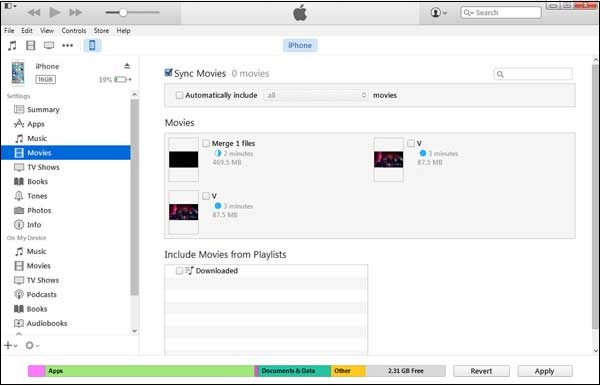
Step 5. Go to the Movies tab and check "Sync Movies", select the videos you want to sync, then click "Apply".
Step 6. Wait for the sync to complete, then disconnect your iPhone. You can find the videos in the TV app (for movies) or Photos app (for video clips).
If you prefer a wireless solution, cloud storage services like Dropbox can help you sync videos between iQOO and iPhone. As long as both devices are logged into the same account, accessing videos is easy. This method is best for small video files and users with a stable internet connection.
Here is how to download videos from iQOO to iPhone via Dropbox:
Step 1. Install Dropbox on both devices from the Google Play Store (iQOO) and App Store (iPhone). Log in with the same account, or create one if you don't have it.
Step 2. Open Dropbox on your iQOO, tap the "+" icon, choose "Upload photos or videos", grant access to storage, select videos, and tap "Upload". Wait for the upload to finish.
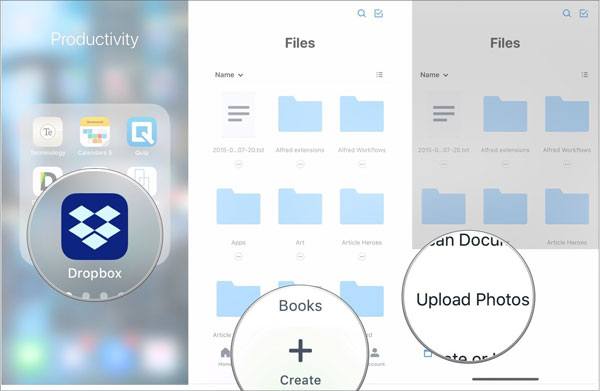
Step 3. Open Dropbox on your iPhone, go to the folder where the videos were uploaded, tap the "…" next to each video, select "Export", then "Save Video" to download it to your iPhone's Photos app.
Email is one of the simplest ways to send videos from iQOO to iPhone, without the need for extra tools, but it also comes with strict attachment size limits. This makes it suitable only for short or low-resolution videos.
Here is how to share videos from iQOO to iPhone through email:
Step 1. Open the Gallery or File Manager on your iQOO and locate the video you want to send.
Step 2. Tap on the video to open it, then select the "Share" option.
Step 3. Choose "Email" from the sharing options.
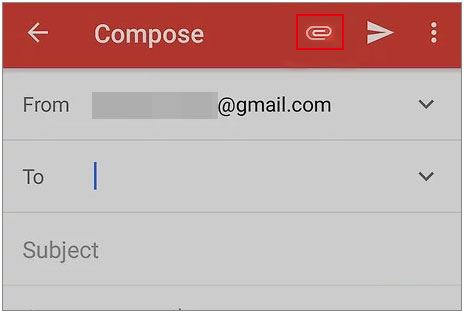
Step 4. Enter your email address in the recipient field, add a subject, and attach the video.
Step 5. Send the email and wait for it to be delivered.
Step 6. Open your email app on your iPhone, find the email you sent to yourself, and download the video attachment.
Step 7. The video will be saved to your iPhone's Photos or Files app, depending on your settings.
That's all about how to send video from iQOO to iPhone. Different methods are suitable for different scenarios. If you prioritize fast transfer speed, ease of use, lossless video quality, and want to migrate a large number of videos at once, Phone Transfer is undoubtedly the most recommended solution. It not only supports direct video transfer between iQOO and iPhone, but also manages photos, music, and contacts, making it a more efficient and reliable choice for cross-system data transfer.
Related Articles:
How to Send Video from iPhone to iQOO? [Completed Guide]
7 Best iQOO EasyShare Alternatives for Fast and Easy Data Transfer
[Solved] How to Transfer Music from iQOO to iPhone Quickly and Easily?







 Free Download for PC
  Free Download for Mac


