In the era of seamless digital connectivity, file transfer apps have become an indispensable part of our daily lives, whether we need to send a large video to a friend, share work documents with colleagues, or transfer photos between devices. Among the numerous options available, ShareMe (formerly known as Mi Drop) stands out as a popular choice, especially among Xiaomi ecosystem users. But is it really worth your time? This comprehensive ShareMe review will break down everything you need to know about ShareMe, from its core features to its drawbacks, helping you make an informed decision.
ShareMe is a free and efficient file transfer app designed to quickly share files between phones. Below are some of the key features of ShareMe:
* Fast File Transfer
ShareMe uses Wi-Fi Direct technology for file transfers, with speeds up to 20MB/s, much faster than traditional Bluetooth transfers.
* No Internet Connection Required
With Wi-Fi Direct, ShareMe allows file transfers without relying on mobile data or a Wi-Fi network, making it perfect for situations where there is no internet access.
* Supports Various File Types
ShareMe can transfer a wide range of file types, including photos, videos, documents, and even apps, without any major format restrictions.
* Batch Transfers
Users can send multiple files or entire folders at once, saving time compared to sending files one by one.
* User-Friendly Interface
ShareMe features a clean and intuitive interface, making it easy for users of all skill levels to start transferring files with just a few taps.
* Cross-Device Compatibility
While ShareMe is primarily designed for Android-to-Android transfers, it also supports sharing files between Android and other devices, although iOS compatibility may be limited.
ShareMe offers a free version that allows users to transfer files without any cost. However, there are limitations, such as file size restrictions and slower transfer speeds. Users who want to enjoy an ad-free experience, faster transfer speeds, and the ability to send larger files can upgrade to the premium version. The premium subscription costs about $10 through an in-app purchase, unlocking features like:
While the free version offers basic functionality, the premium version enhances the user experience with its extra features.
While ShareMe offers many benefits, it also has some limitations and areas for improvement. Let's take a closer look at the pros and cons of using this app.
| Pros | Cons |
| Fast File Transfers: Up to 20MB/s with Wi-Fi Direct. | Paid Version for Full Features: Some features, like unlimited file transfers and faster speeds, are only available with the premium version. |
| No Internet Required: Works offline using Wi-Fi Direct, saving mobile data. | iOS Compatibility Issues: iPhone and iPad users may encounter file type incompatibility. |
| Supports Various File Types: Transfer photos, videos, documents, apps, and more. | Security Risks with Wi-Fi: Like any Wi-Fi-based transfer, there are potential security risks, especially on public networks. |
| User-Friendly Interface: Simple and easy to use, suitable for all user levels. | Invasive Ads: The free version is ad-supported, which can be intrusive during use. |
| Cross-Device Transfer: Compatible with Android and other devices. | Limited Functionality: Lacks advanced features like file management, encryption, or cloud storage that other apps might offer. |
Using ShareMe is relatively straightforward, but it's important to ensure that the app is installed on both the sending and receiving devices first. Here's a step-by-step guide to transferring files between two mobile phones (taking Android devices as an example):
Step 1. Install the ShareMe app on both the sending and receiving devices. Xiaomi, Redmi, and POCO devices may come pre-installed with ShareMe, while other Android devices can download it from the Google Play Store. Ensure that the devices are running Android 4.4 or higher.
Step 2. Launch ShareMe on both devices. Make sure Wi-Fi and Bluetooth are enabled, and location services are turned on for both devices. This ensures smoother device discovery. The devices should also be within the effective Wi-Fi range for a stable connection.
Step 3. On the receiving device, tap the "Receive" button. The device will start scanning for nearby devices and display a QR code to facilitate quick pairing.
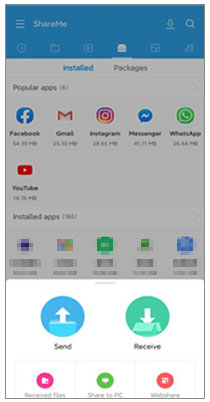
Step 4. On the sending device, tap the "Send" button. You will see a list of file categories (images, videos, documents, etc.). Select the files you wish to transfer by checking the appropriate boxes next to them.
Step 5. After selecting the files, tap the "SEND" button on the sending device. The app will search for nearby devices that are in receiving mode. Wait for the receiving device to appear in the list and tap to connect.
Step 6. Once the devices are successfully paired, the file transfer will begin automatically. Wait for the transfer to complete. The progress will be shown on both devices.
While ShareMe has its advantages, its limitations (such as iOS compatibility issues and the paywall for full features) may lead some users to look for alternatives. One notable alternative is Coolmuster Mobile Transfer. Coolmuster Mobile Transfer is a professional file transfer tool that supports cross-platform transfer between phones.
Key Features of Coolmuster Mobile Transfer:
User Guide:
01Download and install the software on your computer. You can get it directly from the official website.
02Use USB cables to connect your source device and destination device to your computer.
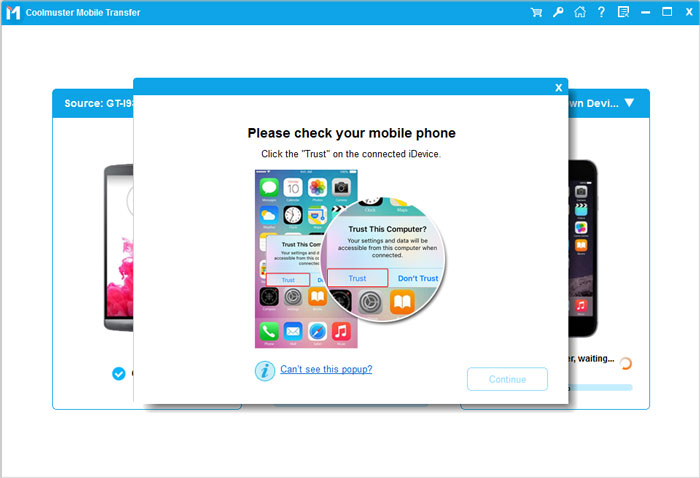
03Once connected, the software will automatically detect both devices and display them as "Source" and "Destination" on the main interface. If the positions are swapped, click the "Flip" button to switch them.
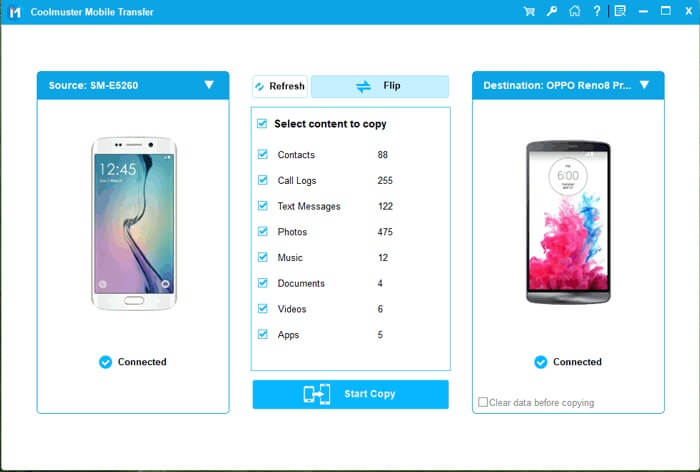
04Choose the types of data you wish to transfer (contacts, photos, messages, etc.), then click "Start Copy" to begin the transfer.
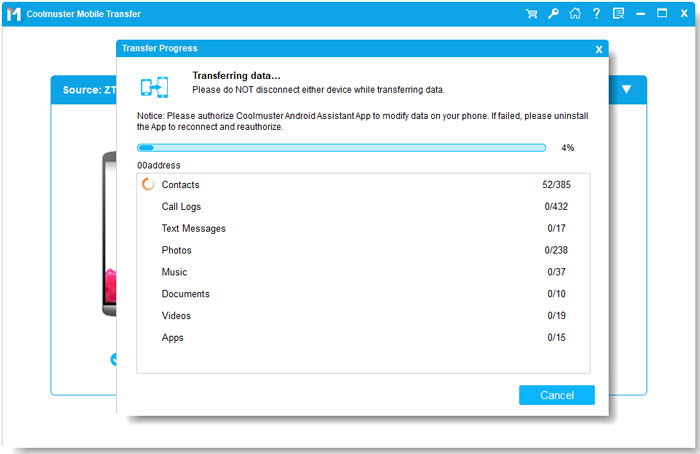
After completing the steps, your data will be successfully transferred to the destination device without hassle. For a more visual step-by-step guide, watch the video tutorial below.
1. Is the ShareMe app safe?
Yes, ShareMe is generally safe to use, but like with any Wi-Fi-based transfer app, it's important to be cautious about transferring files over unsecured networks. Always ensure that you're using a trusted Wi-Fi connection for enhanced security.
2. Is ShareMe better than Bluetooth?
In many cases, ShareMe is a much faster and more convenient option than Bluetooth for file transfers. While Bluetooth can be slow and limited in range, ShareMe uses Wi-Fi Direct for faster transfer speeds (up to 20MB/s), and you don't need to pair devices manually. However, Bluetooth may still be more practical in environments where Wi-Fi is not available.
In conclusion, ShareMe offers a simple and efficient way to transfer files between Android devices without the need for an internet connection. It's a solid option for quick, no-fuss file sharing, especially for users looking for an easy-to-use, free solution. However, if you're seeking more advanced features, cross-platform compatibility, or higher-speed transfers, Coolmuster Mobile Transfer might be the better choice. With its broad compatibility, multiple transfer modes, and secure, fast transfers, it provides a more versatile and reliable experience.
No matter which tool you choose, both apps offer powerful solutions to meet your file transfer needs, ensuring your data moves quickly and safely between devices.
Related Articles:
Unveiling the Top 9 Wi-Fi Transfer Apps: A Comprehensive Review
How to Transfer Data from Samsung to Xiaomi with 6 Top Methods
How to Transfer Data from Huawei to Xiaomi Phone Easily? (New Data)
How to Transfer Data from Mi to Mi in 5 Possible Ways (Proven Tips)







 Free Download for PC
  Free Download for Mac


