When switching from an Android phone to an iPhone, one of the most important pieces of data is your contacts. Normally, you can use Move to iOS during the initial setup of your new iPhone to transfer data. However, if you've already completed the setup, many users find that this method is no longer available.
So, can you transfer contacts from Android to iPhone after setup? How do you transfer contacts from Android to iPhone after setup? You've come to the right place. This article will introduce several common and practical methods to help you quickly transfer your contacts after setup.
If you want the fastest and most reliable way to transfer contacts from Android to iPhone after setup, using a professional data transfer tool is highly recommended. Coolmuster Mobile Transfer is designed to move data directly between smartphones, including Android and iOS devices, without requiring a factory reset or complicated settings.
Compared with manual methods, this solution is especially useful when you have a large number of contacts to migrate. It allows you to transfer all contacts in just one click while keeping your data intact. In addition, the software supports both Windows and Mac and offers a simple interface that even beginners can use easily.
Main features of Coolmuster Mobile Transfer:
Here is how to transfer all contacts from Android to iPhone after setup:
01Launch Mobile Transfer on your computer and connect both your Android and iPhone using USB cables, making sure to trust the computer on both devices.
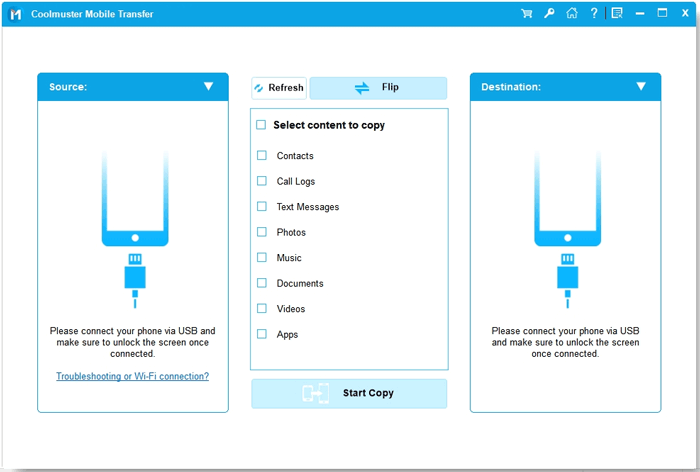
02Check that your Android is set as the source device; if it's not, click "Flip" to switch the positions.
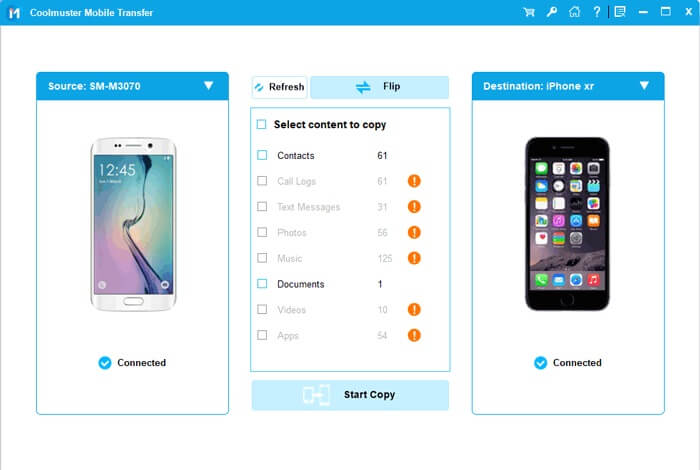
03Select the category you want to transfer (e.g., Contacts), then click the "Start Copy" button to begin the transfer.
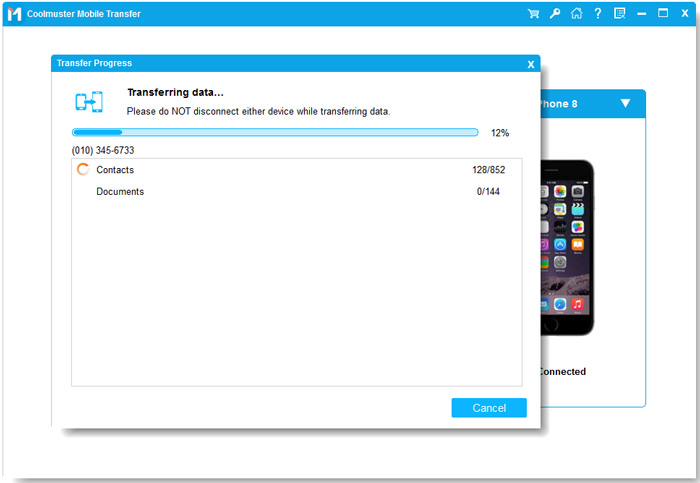
Here's the video guide (about 2 minutes):
If your Android phone has Google Contacts sync enabled, the easiest method is to log in to the same Google account on your iPhone. This way, your contacts will automatically sync to the iPhone without the need for manual export or import. The biggest advantage of this method is that it doesn't require a computer; simply logging into the same Google account will sync your contacts.
Here is how to transfer contacts from Android to iPhone after setup without SIM via a Google Account:
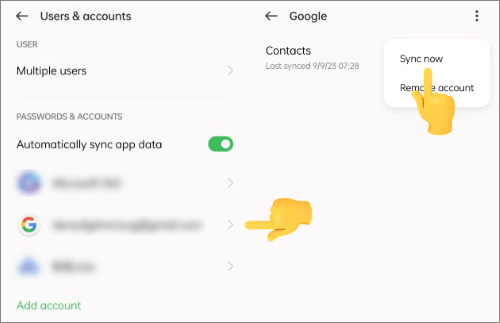
Step 1. Open "Settings" on your Android phone.
Step 2. Tap "Accounts" or "Google", then select your Google account.
Step 3. Find "Contacts Sync", turn on the toggle, and tap "Sync Now".
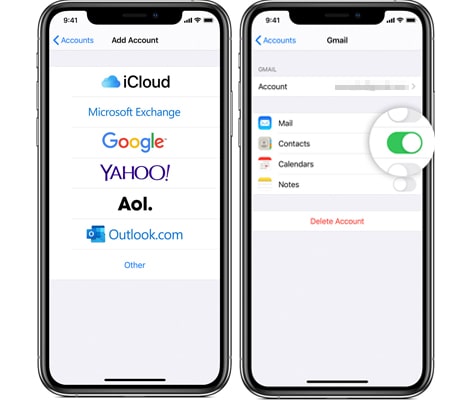
Step 4. Open "Settings" on your iPhone, then tap "Mail".
Step 5. Tap "Accounts", then "Add Account", select "Google", and sign in with the same account. Enable the "Contacts" option, and your Google contacts will sync automatically to the iPhone.
Exporting contacts as a VCF file (vCard file) is another effective way to transfer contacts from Android to iPhone after setup. A VCF file can store multiple contact details, including names, phone numbers, and email addresses, making it a convenient format for contact migration. This method works by exporting contacts from Android into a VCF file and then importing that file on the iPhone. It is a practical option if you prefer a manual solution without installing additional tools.
Here is how to transfer contacts from Android to iPhone after initial setup using a VCF file:
Step 1. Open the Contacts app on your Android phone.
Step 2. Tap the "Menu" or "Settings" option.
Step 3. Select "Import/Export" and choose "Export to .vcf file".
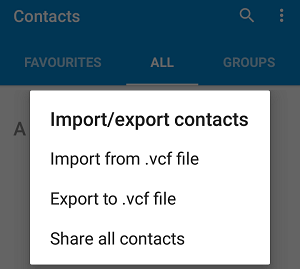
Step 4. A VCF file with your contacts will be created.
Step 5. Send the VCF file to your iPhone via email, cloud storage, or messaging apps.
Step 6. Open it on your iPhone, tap "Add All Contacts", and choose where to save them. The contacts will be imported into your iPhone's address book.
If your Android contacts are stored on the SIM card, you can also transfer contacts via the SIM card. This method is more traditional, but it's still very useful when there is no internet or computer available. However, it's important to note that storing contacts on the SIM card has certain limitations, such as a limited number of contacts and the inability to save profile pictures or complete information. Therefore, this method is better suited for situations with fewer contacts.
Here is how to move contacts from Android to iPhone after setup via SIM card:
Step 1. Open the Contacts app on your Android phone.
Step 2. Go to "Settings" or "Manage Contacts".
Step 3. Choose "Import/Export" and select "Export to SIM card".
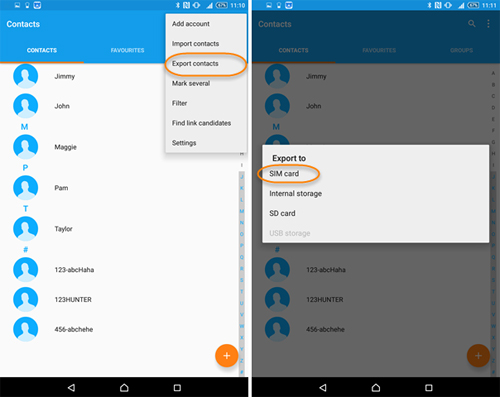
Step 4. Wait for the export process to complete.
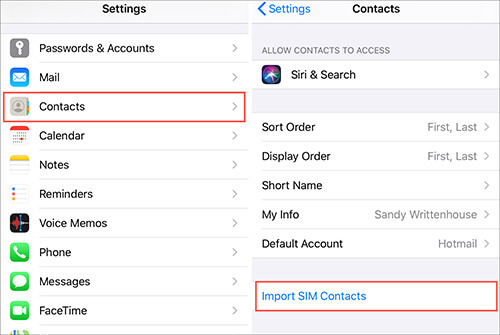
Step 5. Insert the SIM card into your iPhone, open "Settings", tap "Contacts," and select "Import SIM Contacts". Wait for the contacts to be imported.
Even if you have already finished setting up your iPhone, there are still several ways to transfer contacts from Android to iPhone after setup. However, if you want the most efficient and hassle-free solution, Coolmuster Mobile Transfer is highly recommended. It allows you to transfer all contacts from Android to iPhone after setup in just one click, without complicated steps or data loss, making it one of the easiest ways to move contacts when switching devices.
Related Articles:
How to Transfer Data from Android to iPhone After Setup in 7 Proven Methods
How to Transfer Contacts from Samsung to iPhone [6 Proven Methods]
Best App to Transfer Data from Android to iPhone [Latest Update as of 2026]







 Free Download for PC
  Free Download for Mac


