With the close ecological connection between OPPO and realme (both supporting ColorOS/realme UI), data transfer between the two devices has become more convenient. Whether you need to migrate all data when switching to a new realme phone or simply share individual files, there are corresponding reliable solutions.
This article will detail 5 feasible methods to transfer data from OPPO to realme, including professional third-party tools, official built-in functions, and universal wireless transmission methods, helping you choose the most suitable way according to your needs.
When transferring a large amount of data from OPPO to realme, many users hope to find a solution that is both fast and stable, without worrying about data loss or complicated operations. At this time, a professional mobile data transfer tool can well meet such needs.
Among them, Coolmuster Mobile Transfer is quite popular among users due to its one-click transfer feature, high speed, and wide compatibility. It supports direct data transfer between OPPO and realme without relying on the network, and can retain the original quality of data without loss. It is especially suitable for users who need to transfer large volumes of data in batches.
Key features of Coolmuster Mobile Transfer:
Detailed operation steps to transfer data from OPPO to realme with Mobile Transfer:
01Download and install Mobile Transfer on your computer (supports both Windows and Mac systems). After installation, launch the software.
02Connect both your OPPO (old device) and realme (new device) to the computer via USB cables. Follow the on-screen prompts to enable USB debugging on the two phones to ensure the software can successfully detect the devices.
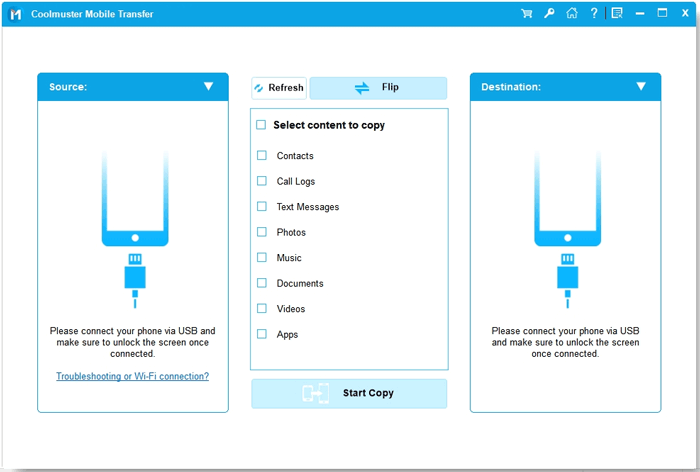
03After successful detection, the software will automatically identify the two devices. Ensure OPPO is set as the "Source Device" and realme as the "Destination Device". If the positions are reversed, click the "Flip" button to switch.
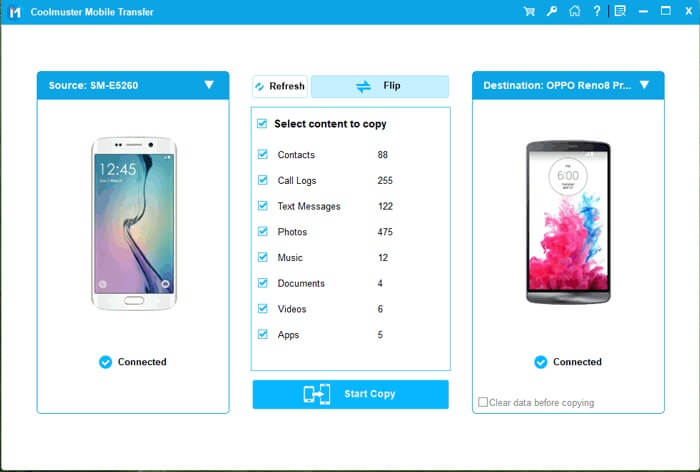
04On the software interface, check the data types you need to transfer. You can select a single type or multiple types at the same time. After confirming the selection, click the "Start Copy" button to start the data transfer.
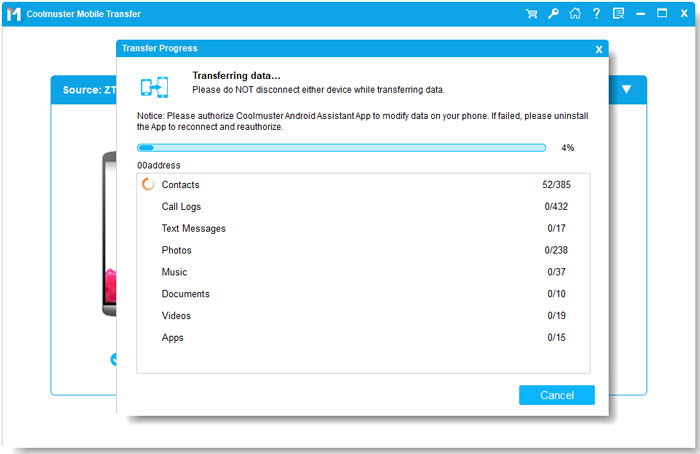
Below is a short video guide (about 2 minutes) that shows how to use this product step by step.
Clone Phone is the official data migration tool launched by OPPO, which is also fully compatible with realme devices. This tool uses a direct Wi-Fi hotspot connection, does not consume mobile data, and has the advantages of simple operation and comprehensive data coverage. It is the first choice for most users to migrate all data when switching to a new realme phone.
Steps to transfer data from OPPO to realme via Clone Phone:
Step 1. On the realme phone, open the Clone Phone app and select "This is a new phone", then choose "OPPO/realme/OnePlus" device. A QR code will appear on the screen.
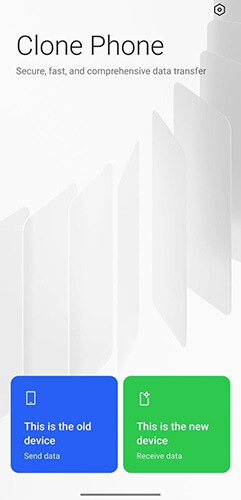
Step 2. On the OPPO phone, open Clone Phone, tap "This is an old phone", and use the camera to scan the QR code shown on the realme device to establish a connection between the two phones.
Step 3. After the connection is successful, select the data you want to transfer, such as contacts, messages, photos, videos, and apps, or simply choose "Full Migration".
Step 4. Tap "Start Transfer" and keep both phones close to each other with sufficient battery power until the process is completed and the transfer is finished.
For users who often use Google services, using a Google account to sync data from OPPO to realme is a convenient wireless method. This method relies on Google's cloud backup function, which can automatically sync core data such as contacts, calendars, photos, and device settings between the two devices. It is suitable for users who only need to migrate key data rather than all files. Here is how it works:
Step 1. On the OPPO phone, go to "Settings" > "Accounts" > "Google", sign in to your Google account, and make sure options such as Contacts, Calendar, App data, and Google Drive backup are enabled so your data can be synced to the cloud.
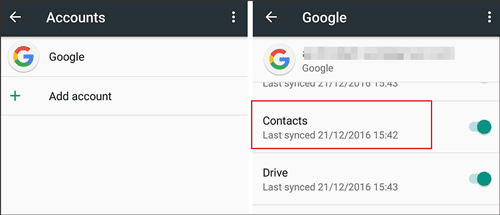
Step 2. Wait until the synchronization is completed, then turn on the realme phone and sign in with the same Google account during setup or from the account settings.
Step 3. On the realme device, enable data synchronization and choose to restore data from the Google backup, after which your contacts, calendar, and supported app data will be automatically downloaded to the new phone.
Cloud storage services such as Google Drive, Dropbox, and OneDrive provide a convenient way to transfer files between different Android phones without using cables or direct connections. This method is especially useful for moving photos, videos, documents, and other personal files when you have a stable internet connection, since everything is uploaded from the OPPO phone and then downloaded to the realme device.
Guide on transferring data from OPPO to realme using a cloud service:
Step 1. On the OPPO phone, open a cloud storage app such as Google Drive, Dropbox, or OneDrive, sign in to your account, and upload the photos, videos, documents, or other files you want to transfer.
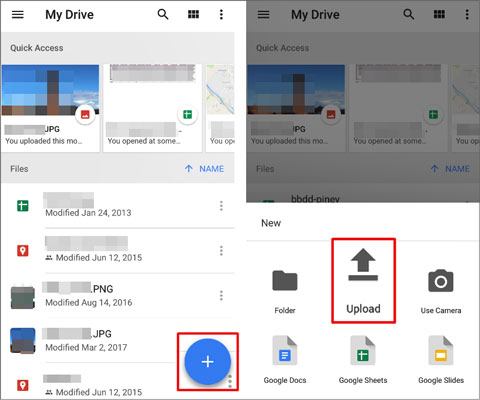
Step 2. Wait until all selected files are fully uploaded to the cloud, then open the same cloud service app on the realme phone and log in with the same account.
Step 3. On the realme device, locate the uploaded files in the cloud and download them to the phone's local storage so they are available offline.
Bluetooth offers a simple wireless way to transfer small amounts of data between two nearby phones without relying on the internet or cables. It is suitable for sending contacts, photos, music, and other small files when you only need to move a limited amount of data from OPPO to realme.
Here are the steps to transfer data from OPPO to realme via Bluetooth
Step 1. Turn on Bluetooth on both the OPPO and realme phones, then pair the two devices by selecting the realme phone from the list of available Bluetooth devices on the OPPO phone.
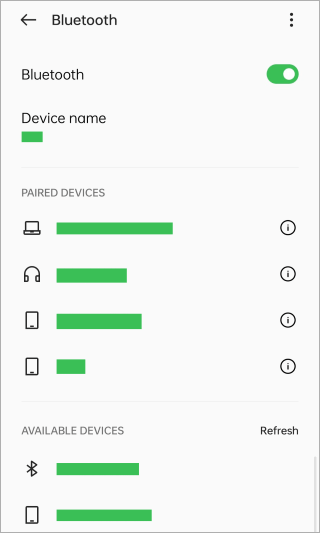
Step 2. On the OPPO phone, open the file, photo, or contact you want to send, tap the "Share" option, and choose "Bluetooth" as the sharing method.
Step 3. Select the realme phone as the receiving device, then accept the transfer request on the realme phone to start receiving the data.
Step 4. Wait until the transfer is completed and make sure the files are successfully saved on the realme device.
There are multiple ways to transfer data from an OPPO phone to a realme device, each with its own advantages depending on your needs. For fast and complete transfers, especially when moving contacts, messages, photos, videos, apps, and call logs, Coolmuster Mobile Transfer offers a stable and efficient solution that works directly via computer without relying on the cloud or wireless networks.
If you prefer a wireless method without a computer, Clone Phone provides an official solution to move data quickly between OPPO and realme devices. For those who only need to transfer specific items like contacts or documents, Google account synchronization, cloud services, or Bluetooth can be convenient alternatives. By understanding these options and choosing the method that fits your situation, you can safely and smoothly move all your important data from OPPO to realme without losing anything, making the transition to your new device effortless.
Related Articles:
How to Transfer Data from Samsung to Realme Handily [6 Options]
How to Transfer Data from Redmi to realme [5 Workable Methods]
realme Data Recovery: A Comprehensive Guide with 5 Solutions
Top 5 Ways on OPPO to OPPO Data Transfer: Making Moves in Minutes







 Free Download for PC
  Free Download for Mac


