TL;DR:
You can transfer text messages from Huawei to iPhone using Phone Transfer or Apple's Move to iOS, depending on whether your iPhone is already set up.
Switching from a Huawei phone to an iPhone involves more than moving photos and contacts. Your text messages may contain important conversations, delivery details, or information you don't want to lose. Unfortunately, transferring SMS between Android and iOS isn't as straightforward as copying files.
The good news is that you don't have to leave your old messages behind. Whether you prefer a dedicated phone transfer tool or Apple's built-in migration app, this guide walks you through two practical ways to transfer text messages from Huawei to iPhone.
Phone Transfer is a phone to phone data transfer tool designed to move data between Android and iOS devices. It supports transferring text messages from Huawei to iPhone directly through a computer, without relying on cloud backups or a Wi-Fi connection. You can also select specific data types to transfer instead of moving everything at once. Besides SMS messages, it supports contacts, calendars, photos, videos, apps, and other phone data.
Key Features of Phone Transfer:
How to Transfer Text Messages from Huawei to iPhone with Phone Transfer:
01 Download and install Phone Transfer on your computer. Launch the program and select "Transfer Other Data" from the main interface. Connect your Huawei phone and iPhone to the computer using USB cables.
Make sure Huawei is set as the source device and iPhone as the destination device. You can click the Switch button to adjust them.
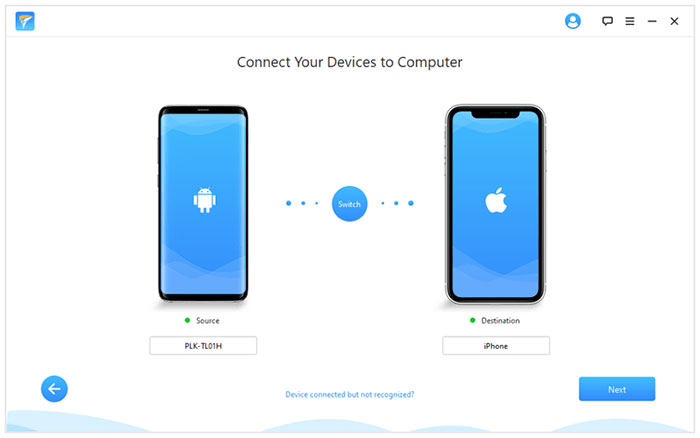
02 Once the connection is complete, view the available data on your Huawei phone. Select "Text Messages" and any other data you want to move.
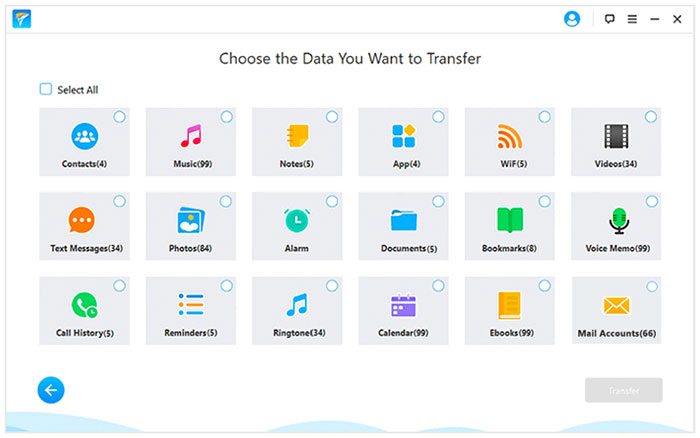
03 Click "Transfer" to start moving the selected messages to your iPhone. Keep both devices connected throughout the process.
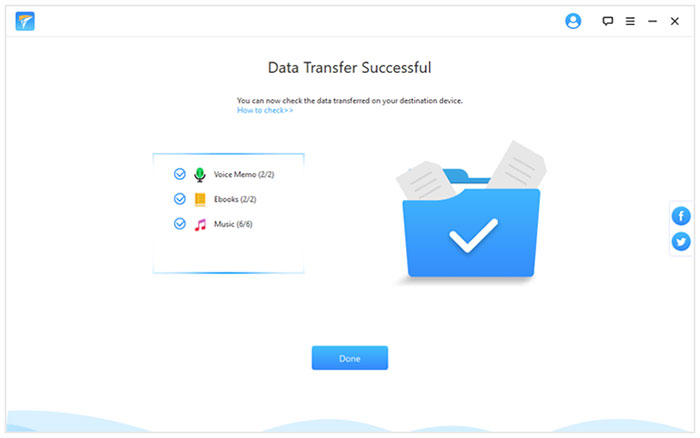
Wait for the transfer to finish, then open the Messages app on your iPhone to check the transferred conversations.
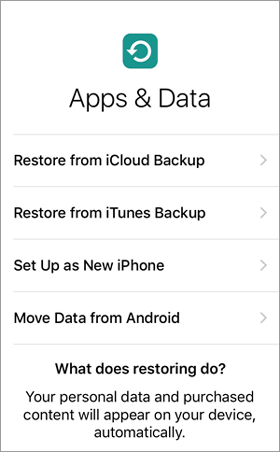
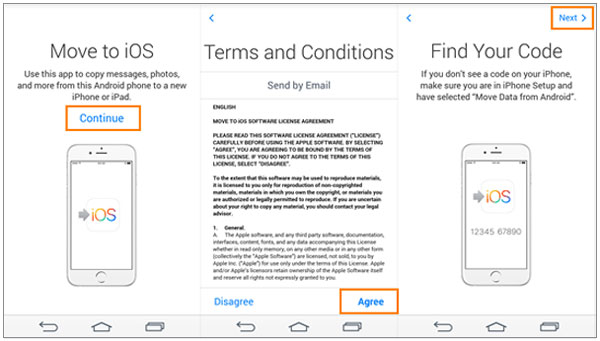
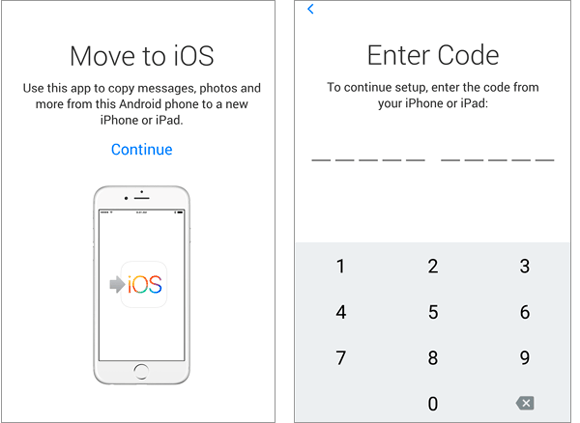
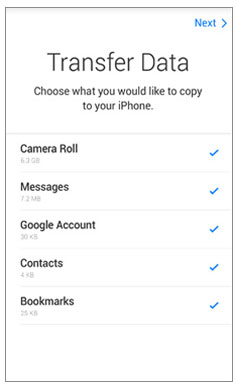
Move to iOS is Apple's official app for switching from Android to iPhone. It lets you transfer text messages, contacts, photos, videos, and other data wirelessly without a computer. However, this method only works when setting up a new iPhone or after resetting it to factory settings. If your iPhone is already set up, you'll need to erase it before starting the transfer. (Move to iOS Not Working?)
How to transfer text messages from Huawei to iPhone with Move to iOS:
Q1: Can I transfer text messages from Huawei to iPhone without losing the original messages?
Yes. Most phone transfer tools are designed to copy messages rather than move them exclusively. Your original SMS conversations should remain on your Huawei phone after a successful transfer. However, it's best to check both devices before deleting anything.
Q2: Can I transfer Huawei text messages to iPhone after setting it up?
Yes. Some third-party transfer tools, such as iMyFone iTransor Pro, can transfer messages without requiring you to reset your iPhone. Apple's Move to iOS, on the other hand, requires you to erase an already configured iPhone and start the setup process again.
Q3: Will my text message attachments transfer from Huawei to iPhone?
It depends on the transfer tool and the message format. Some tools support SMS and MMS attachments, while others may only transfer message text. If you have important photos or videos in your conversations, check their compatibility before starting.
Q4: Can I transfer WhatsApp messages from Huawei to iPhone using the same method?
Not necessarily. Regular SMS and WhatsApp conversations are stored differently. To move WhatsApp chats, you'll need a tool or migration method that specifically supports WhatsApp data transfer. Check whether it preserves chat history and media files. (Learn the details about How to Transfer WhatsApp from Huawei to iPhone.)
Q5: What should I do if my Huawei messages don't appear on my iPhone after transferring?
First, make sure the transfer process finished successfully and check whether you selected "Messages" before starting. Restart both phones and open the Messages app again. If some conversations are still missing, check the transfer tool's compatibility requirements and repeat the process if necessary.
Moving your text messages from Huawei to iPhone doesn't have to be a complicated process. Phone Transfer is a convenient option if you want to migrate messages without resetting your iPhone, while Move to iOS works well when you're setting up a new device. Before getting started, check your message data and choose the method that fits your situation. A little preparation can save you from losing conversations you may need later.
Related Articles:
How to Transfer Huawei Videos to iPhone: Complete Guide
5 Feasible Ways to Transfer Photos from Huawei to iPhone







 Free Download for PC
 Free Download for Mac


