TL;DR: Want to transfer Huawei videos to iPhone? This guide introduces 5 easy methods, including Phone Transfer, Huawei Phone Clone, Move to iOS, Google Drive, and Send Anywhere.
For fast, high-quality, and batch video transfer, Phone Transfer is the best choice. It lets you move videos directly from Huawei to iPhone without quality loss, internet limits, or complicated steps.
Switching from a Huawei phone to an iPhone but don't know how to transfer your videos? Since Huawei and iPhone use different operating systems, moving large video files directly can be challenging. This guide explains how to transfer Huawei videos to iPhone with five reliable methods. Whether you want to move a few clips or transfer hundreds of high-quality videos, these solutions can help you complete the process quickly and safely.
When you need to transfer Huawei videos to iPhone in large quantities, using professional phone transfer software is usually the fastest and most reliable solution. Phone Transfer is a powerful phone data transfer tool that allows users to move videos, photos, music, contacts, and other files between Android and iOS devices.
It supports direct Huawei-to-iPhone transfer and keeps your video quality unchanged. This makes it an ideal choice for users who are switching phones or need to transfer many large videos at once.
What can Phone Transfer do for you?
How do I transfer videos from Huawei to iPhone in 1 click?
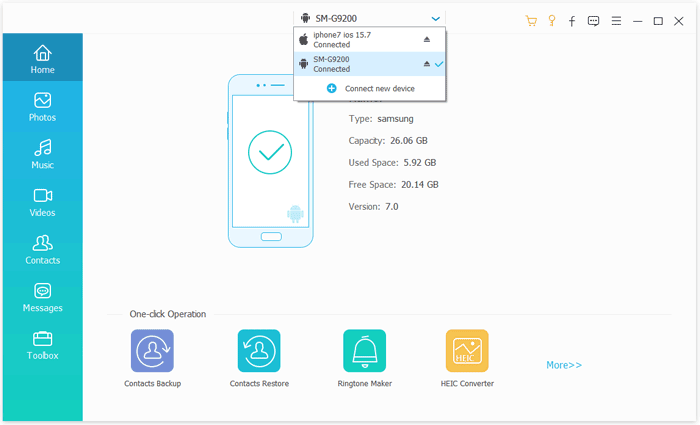
01Download, install, and open Phone Transfer on your computer. Connect your Huawei phone and iPhone to the computer with USB cables.
02The program will automatically recognize both devices and display their information on the interface. Make sure your Huawei device is set as the source phone, and your iPhone is selected as the destination device. If needed, click the drop-down menu to switch the device positions.
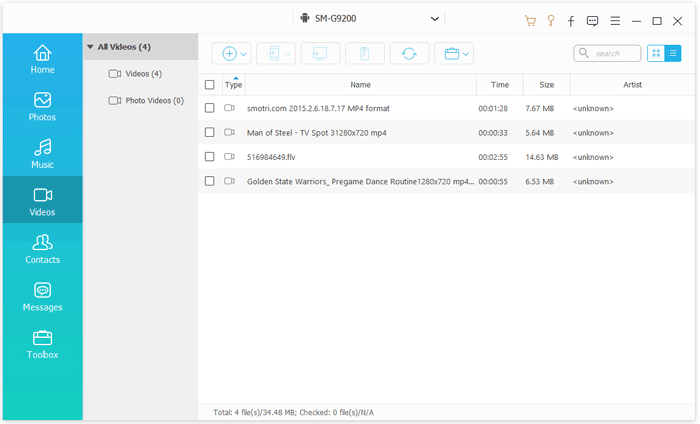
03Select the "Videos" category from the available data types. Preview and choose the videos you want to transfer, then click "Export to Device". The selected videos will be transferred from your Huawei phone to your iPhone quickly while keeping the original quality.
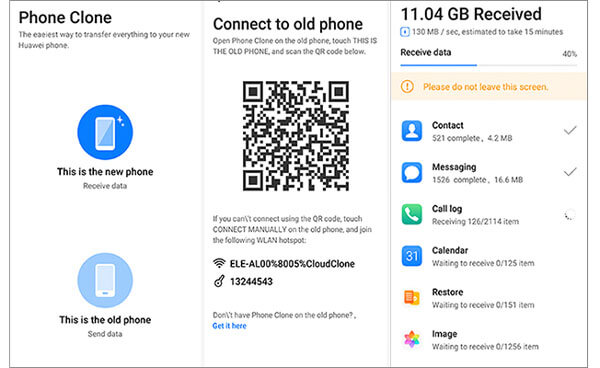
Huawei Phone Clone is an official migration tool designed to help users transfer personal data when switching devices. It uses a wireless connection between two phones, allowing users to move files without cables or a computer. For users who want to transfer Huawei videos to iPhone quickly, Phone Clone can be a convenient option.
However, because the iPhone has stricter system restrictions, some data types may not transfer perfectly between Android and iOS devices.
Here is how to transfer Huawei videos to iPhone with Huawei Phone Clone:
Step 1. Install the Phone Clone app on both your Huawei phone and iPhone.
Step 2. Open Phone Clone on your Huawei phone and select "This is the old device".
Step 3. Launch Phone Clone on your iPhone and choose "This is the new device".
Step 4. Use your Huawei phone to scan the QR code displayed on your iPhone to establish a wireless connection.
Step 5. Once connected, select "Videos" from the data list.
Step 6. Tap "Start Migration" and wait for the video transfer process to complete.
Step 7. Open the Photos app on your iPhone to check whether the videos have been successfully saved.
Move to iOS is Apple's official Android-to-iPhone migration application. It is mainly designed for users who have just purchased a new iPhone and want to transfer data from an Android device during the initial setup process.
If you are setting up a new iPhone and want to transfer Huawei videos to iPhone, Move to iOS provides a simple and secure way to migrate your files. However, this method is not suitable for users who have already completed iPhone setup unless they erase the device and restart the migration process.
Here is how to move videos from Huawei to iPhone via Move to iOS:
Step 1. Install the Move to iOS app on your Huawei phone and turn on your new iPhone to start the setup process.
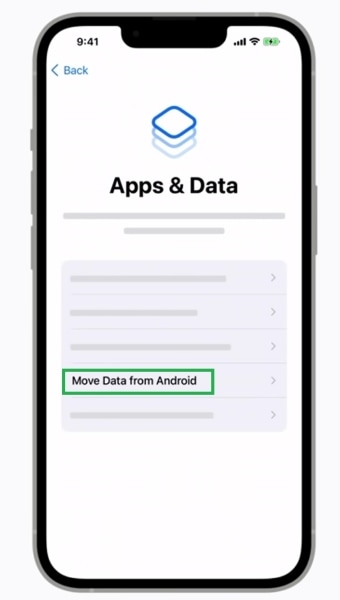
Step 2. On the iPhone "Apps & Data" screen, select "Move Data from Android" and open Move to iOS on your Huawei device.
Step 3. Enter the security code shown on your iPhone to connect both devices.
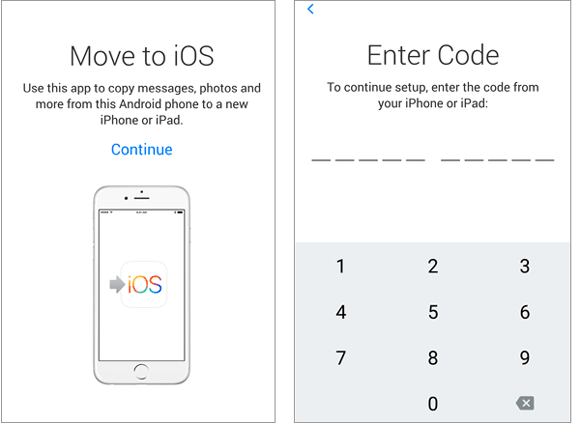
Step 4. Once connected, select the videos and other data you want to transfer from Huawei to iPhone.
Step 5. Tap "Continue" and wait for the transfer process to complete. Keep both devices connected during the migration.
Step 6. Finish setting up your iPhone and open the Photos app to check whether the transferred videos are available.
Cloud storage services provide another way to transfer Huawei videos to iPhone. Google Drive allows you to upload videos from your Huawei phone and download them later on your iPhone using the same Google account.
This method works well if you do not have access to a computer or only need to transfer a small number of videos. However, because videos usually take up a lot of storage space, the upload and download process may become slow when dealing with large files.
Here is how to download videos from Huawei to iPhone with Google Drive:
Step 1. Open the Google Drive app on your Huawei phone and sign in with your Google account.
Step 2. Tap the "+" button, choose the "Upload" option, and select the videos you want to transfer.
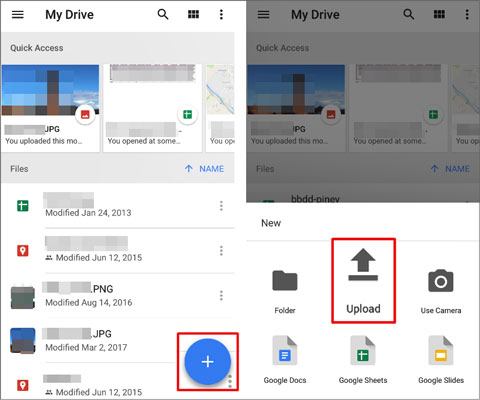
Step 3. Wait for the selected videos to finish uploading to Google Drive.
Step 4. Install Google Drive on your iPhone and sign in with the same Google account.
Step 5. Find the uploaded videos in Google Drive and download them to your iPhone.
Step 6. Open the Photos app on your iPhone to check whether the videos have been successfully saved.
Send Anywhere is a cross-platform file transfer tool that allows users to quickly send videos between different devices. It transfers files through a temporary connection key and does not require account registration. If you only need to transfer a small number of videos from Huawei to iPhone, Send Anywhere is a convenient option.
Here is how to share videos from Huawei to iPhone via Send Anywhere:
Step 1. Install the Send Anywhere app on both your Huawei phone and iPhone.
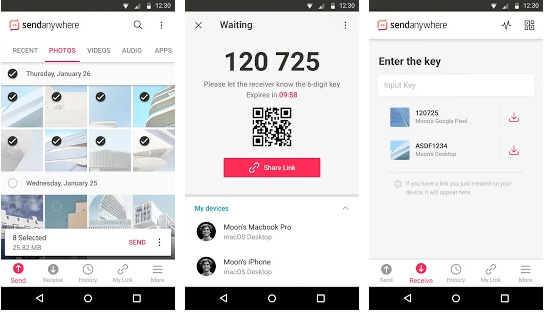
Step 2. Open Send Anywhere on your Huawei phone, select the videos you want to transfer, and tap the "Send" button.
Step 3. The app will generate a temporary 6-digit key. Keep the key ready for the next step.
Step 4. Open Send Anywhere on your iPhone and choose the "Receive" option.
Step 5. Enter the 6-digit key displayed on your Huawei phone to establish the connection.
Step 6. Wait for the transfer process to complete, then open the Photos app on your iPhone to check the received videos.
There are several ways to transfer Huawei videos to iPhone, and the best method depends on your needs. If you want to transfer a large number of videos quickly while keeping the original quality, Phone Transfer is the most recommended solution.
It allows direct Huawei-to-iPhone video transfer without relying on cloud storage or internet speed. With support for multiple file types and batch transfer, it provides a faster and more reliable way to move your important videos between devices.
Related Articles:
How to Transfer Music from Huawei to iPhone: 3 Easy Ways
How to Transfer Photos from Huawei to iPhone Easily? 5 Quick Ways
6 Ways to Send Videos from Android to iPhone You Can't Miss
A Full Guide to Huawei Data Transfer: 7 Useful Huawei Transfer Tools







 Free Download for PC
  Free Download for Mac


