TL;DR: This guide introduces 6 practical ways to transfer photos from Huawei to iPhone, including one-click software transfer, Apple's official Move to iOS tool, USB cable via computer, cloud syncing with Google Photos, and wireless transfer using SHAREit.
Among them, Phone Transfer is the fastest and easiest option for full, lossless batch transfer, while Move to iOS is best for new iPhone setup. USB transfer offers stability for large photo libraries, Google Photos enables cloud-based syncing, and SHAREit provides a quick wireless alternative for smaller transfers.
If you are switching from Huawei to iPhone, one of the most important tasks is learning how to transfer photos from Huawei to iPhone without losing quality or data. Since Huawei runs on Android and iPhone use iOS, direct transfer is not always straightforward.
In this guide, you will learn multiple effective methods to transfer photos from a Huawei to an iPhone. Continue reading and choose the method that best suits you.
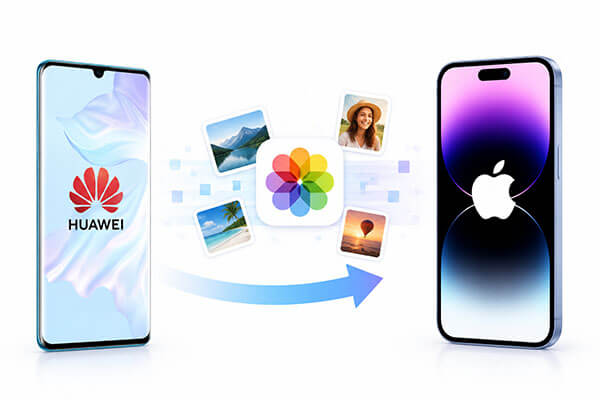
The easiest way to transfer photos from a Huawei to an iPhone is by using a professional phone data transfer tool like Phone Transfer. It is designed to move data directly between Android and iOS devices without complicated setup.
This method is ideal for users who want a fast, stable, and lossless transfer. Unlike cloud-based methods, it does not require internet upload, and it supports batch transfer of thousands of photos while keeping original quality.
Key features of Phone Transfer:
Here is how to transfer photos from Huawei to iPhone after setup using Phone Transfer:
01Download, install, and launch Phone Transfer on your computer. Connect both your Huawei phone and iPhone using USB cables.
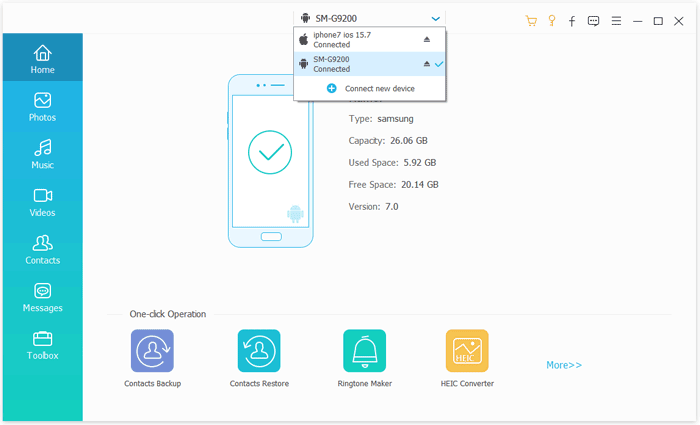
02Once detected, the software will display both devices. Make sure your Huawei device is set as the source. If not, switch it using the drop-down menu.
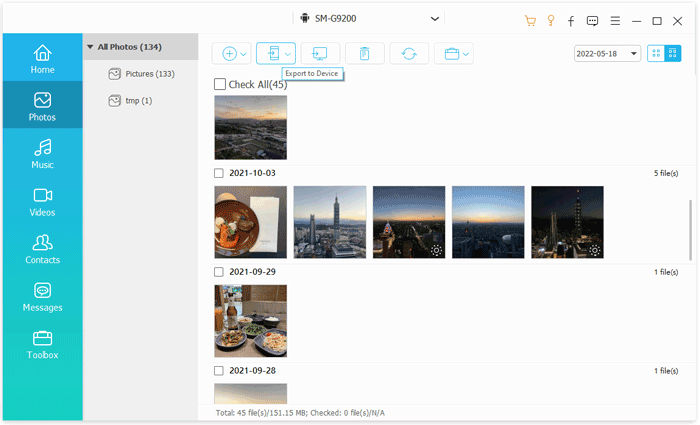
03Check the "Photos" option. Select the photos you want to transfer, then click "Export to Device". The selected photos will be quickly transferred to your iPhone.
Move to iOS is an official Apple transfer tool designed to help users move data from Android devices to an iPhone during the initial setup process. It supports transferring photos, videos, contacts, and more. Its main advantage is that it is secure and reliable, using a direct Wi-Fi connection for data transfer without needing a computer.
However, it is important to note that this method can only be used during the iPhone's initial setup. If the device has already been activated, it must be erased before using Move to iOS.
Here is how to transfer all photos from Huawei to iPhone via Move to iOS:
Step 1. On your Huawei phone, download and install Move to iOS from the Google Play Store.
Step 2. Turn on your new iPhone and start the setup process until you reach the "Apps & Data" screen.
Step 3. Tap "Move Data from Android" on the iPhone.
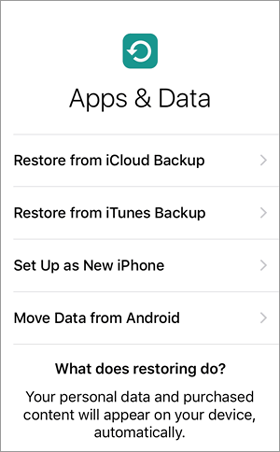
Step 4. Open the Move to iOS app on your Huawei device, agree to the terms, and continue.
Step 5. On your iPhone, a code will appear. Enter this code on your Huawei phone.
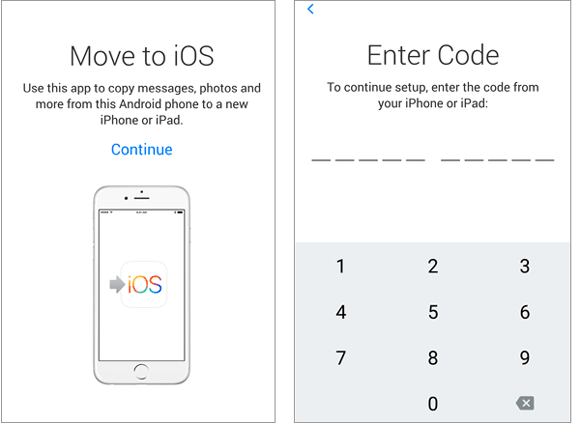
Step 6. The two devices will connect via a private Wi-Fi connection.
Step 7. On the Huawei phone, select "Photos" (you can also choose videos and other data if needed).
Step 8. Tap "Next" and wait for the transfer to complete. Keep both devices close and connected to power.
Note: If your iPhone is already set up, you must erase it first (Settings → General → Transfer or Reset iPhone → Erase All Content and Settings) before using Move to iOS.
Transferring photos from Huawei to iPhone manually via a USB cable and computer is one of the most traditional yet stable methods. Although the steps are relatively more complex, the advantage is that the process is fully controllable and does not rely on any third-party software or network connection. This method is suitable for users who have a large number of photos or an unstable internet connection.
Here is how to transfer photos from a Huawei to an iPhone using a cable:
Step 1. Connect your Huawei phone to your computer using a USB cable. Unlock the phone and select File Transfer (MTP) mode if prompted.
Step 2. Open File Explorer and locate your Huawei device.
Step 3. Go to the "DCIM" or "Pictures" folder and copy the photos you want to transfer to your computer.
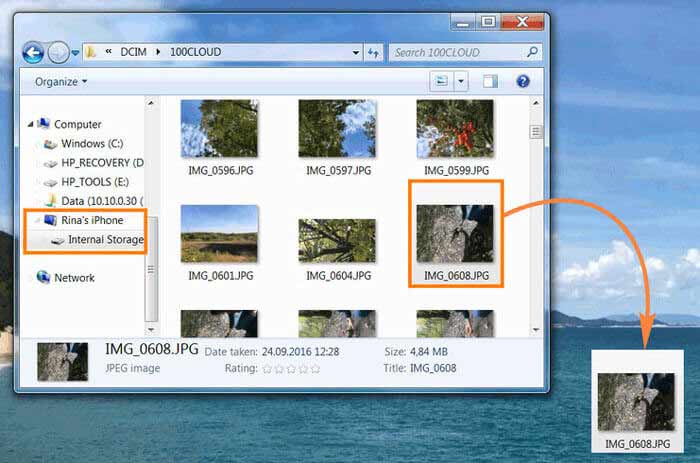
Step 4. Disconnect the Huawei phone and connect your iPhone to the computer using a USB cable.
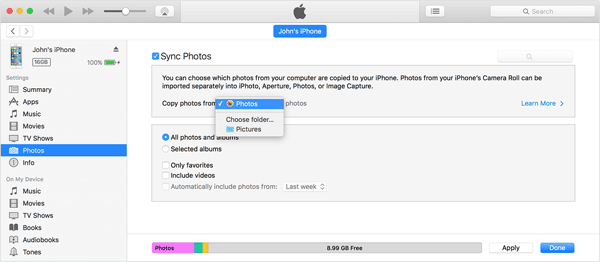
Step 5. Open iTunes (Windows or older macOS) or Finder (macOS Catalina and later).
Step 6. Click your iPhone device and go to the "Photos" section.
Step 7. Enable "Sync Photos", then select the folder where you saved the Huawei photos on your computer.
Step 8. Click "Apply" / "Sync" to start transferring the photos to your iPhone.
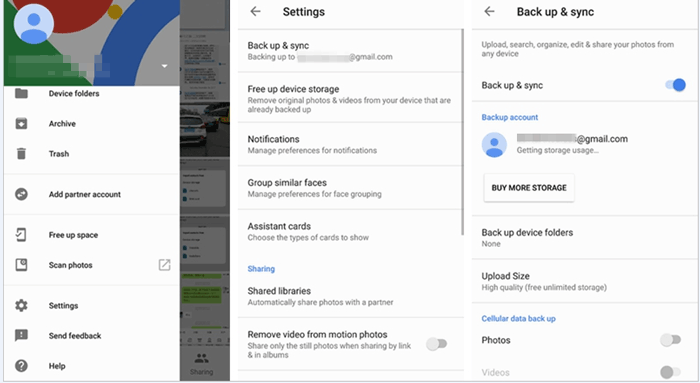
Google Photos is a cloud-based cross-platform syncing solution designed for users who want automatic backup and long-term photo management. Its core idea is to first upload photos from a Huawei device to the cloud, then sign in to the same account on an iPhone to sync them.
This method does not require a data cable and is not restricted by operating systems, but it depends on an internet connection and available storage space.
Here is how to transfer photos from a Huawei phone to an iPhone wirelessly with Google Photos:
Step 1. On your Huawei phone, install and open Google Photos.
Step 2. Sign in with your Google account and turn on "Back up & sync" in the app settings.
Step 3. Wait for your photos to upload to the cloud (this may take time depending on the number of photos and your internet speed).
Step 4. On your iPhone, install Google Photos from the App Store.
Step 5. Sign in with the same Google account.
Step 6. Open the app, and you will see all your uploaded photos automatically synced.
Step 7. If you want to save photos to your iPhone, select photos → tap "Share" → "Save to device".
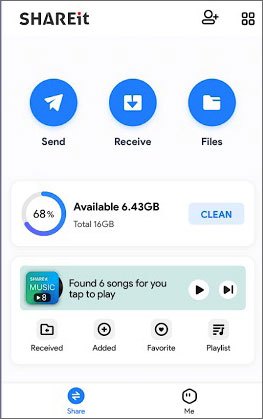
Another wireless solution to transfer photos from Huawei to iPhone is SHAREit. It uses a local hotspot connection to transfer files without internet. It is suitable for temporarily transferring a small to moderate number of photos. This method is fast and simple but may include ads and occasional connection instability.
Here is how to transfer photos from Huawei to iPhone using SHAREit:
Step 1. Install SHAREit on both your Huawei phone and iPhone from their app stores.
Step 2. Open SHAREit on both devices and grant the required permissions (photos, storage, and location if prompted).
Step 3. On your Huawei phone, tap "Send" and select the photos you want to transfer, then tap "Next / Send".
Step 4. On your iPhone, tap "Receive" in the SHAREit app. The Huawei phone will search for nearby devices and detect the iPhone.
Step 5. Tap the iPhone icon to establish a connection (usually via hotspot or Wi-Fi Direct). Wait for the transfer to complete.
Q1. Can you send photos from a Huawei to an iPhone via Bluetooth?
No. iPhone does not support direct file transfer from Android via Bluetooth. iPhone's Bluetooth is limited and does not support standard file sharing with Android devices like Huawei. Apple restricts Bluetooth file transfer to its own ecosystem (such as AirDrop between Apple devices).
Q2. Can Huawei AirDrop to an iPhone?
No, Huawei cannot use AirDrop to send files to an iPhone. AirDrop is an Apple-exclusive feature and only works between Apple devices, such as iPhone, iPad, and Mac. Huawei phones (and other Android devices) are not compatible with AirDrop.
Q3. Will photo quality be reduced during transfer?
Most methods like Phone Transfer, USB, and Move to iOS preserve original quality. However, some third-party apps may compress images.
Overall, there are multiple ways to transfer photos from Huawei to iPhone, depending on your needs and setup. If you want the simplest and most efficient option, Phone Transfer stands out as the best choice because it supports one-click, lossless, and batch photo transfer without relying on cloud storage or complicated steps. For users who prefer official solutions, Move to iOS is reliable during initial iPhone setup, while Google Photos works well for cloud-based syncing. USB cable transfer offers maximum stability for large libraries, and SHAREit provides a quick wireless alternative.
Related Articles:
How to Transfer Files from Android to iPhone [Top 7 Ways]
How to Transfer Photos from Android to iPhone Wirelessly
A Full Guide to Huawei Data Transfer: 7 Useful Huawei Transfer Tools
Full Guide to Transfer Contacts from Huawei to iPhone [2026]







 Free Download for PC
  Free Download for Mac


