TL;DR:
Aiseesoft Phone Mirror is a screen mirroring tool that allows users to mirror Android and iPhone screens to a computer via wireless or USB. It supports screen recording, screenshots, and basic phone control features. However, some users may find its pricing relatively high and its remote control functions limited. This review covers its key features, pricing, user experience, and an alternative solution for smoother phone mirroring.
Screen mirroring has become increasingly useful for users who want to display mobile content on a larger screen, record tutorials, play mobile games on a PC, or manage phone activities more conveniently. With various screen mirroring tools available, choosing a reliable solution with a stable connection and useful features can be challenging.
Aiseesoft Phone Mirror is one of the popular programs designed to mirror Android and iOS devices to Windows computers. It supports wireless and USB connections, allowing users to view their phone screens in real time. But is it worth using? In this Aiseesoft Phone Mirror review, we will explore its features, pricing, advantages, disadvantages, and a powerful alternative to help you make a better choice.
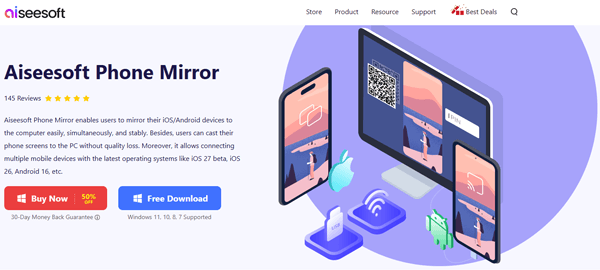
Aiseesoft Phone Mirror is a screen mirroring tool that allows users to display Android and iPhone screens on a computer. It is designed for various scenarios, including presentations, gaming, online meetings, and screen recording, helping users view and share mobile content on a larger display more conveniently. Featuring a clean interface and a straightforward setup process, Aiseesoft Phone Mirror is easy to use even for beginners.
Aiseesoft Phone Mirror provides several useful features for users who need to mirror mobile devices to a computer.
* Support Android and iOS Screen Mirroring
The program supports both Android phones and iPhones with the latest operating systems like iOS 27 beta, iOS 26, Android 16, etc., allowing users to mirror mobile screens to Windows PCs.
* Multiple Connection Methods
Aiseesoft Phone Mirror offers different connection methods depending on the device you use.
* Real-Time Screen Display
Aiseesoft Phone Mirror can display phone screens on a computer with low latency, making it suitable for watching videos, viewing photos, or demonstrating mobile apps.
* Screen Recording and Screenshot
Users can capture phone activities directly from the computer. This feature can be helpful for creating tutorials, recording gameplay, or saving important mobile content.
* Basic Phone Control
For supported Android devices, users can control some phone operations from the computer, including managing applications and interacting with the mirrored screen.
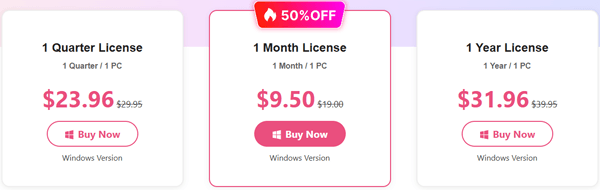
Aiseesoft Phone Mirror offers a free trial version with limited functions. To unlock all features, users need to purchase a paid license.
The pricing mainly includes:
User feedback is an important reference when evaluating a screen mirroring tool. Based on users' experiences, Aiseesoft Phone Mirror is generally appreciated for its simple setup process, clear interface, and flexible connection options. Many users find it convenient for displaying their smartphone screens on a computer, whether for presentations, video playback, app demonstrations, or daily use. However, some users also mention that wireless mirroring performance may vary depending on network conditions.
Here are some common user opinions about Aiseesoft Phone Mirror:
"The setup process is simple and straightforward. I was able to mirror my phone screen to my computer without spending much time configuring settings."
"The wireless mirroring feature is convenient, but I noticed occasional lag when my network connection was not strong enough."
"The image quality is good, and it works well for recording tutorials and demonstrating mobile apps on a larger screen."
"The interface is clean and easy to understand, making it suitable even for users who are not familiar with screen mirroring software."
Using Aiseesoft Phone Mirror to display your mobile screen on a computer is relatively simple. The exact connection method depends on whether you are using an Android device or an iPhone.
Step 1. Download and Install Aiseesoft Phone Mirror
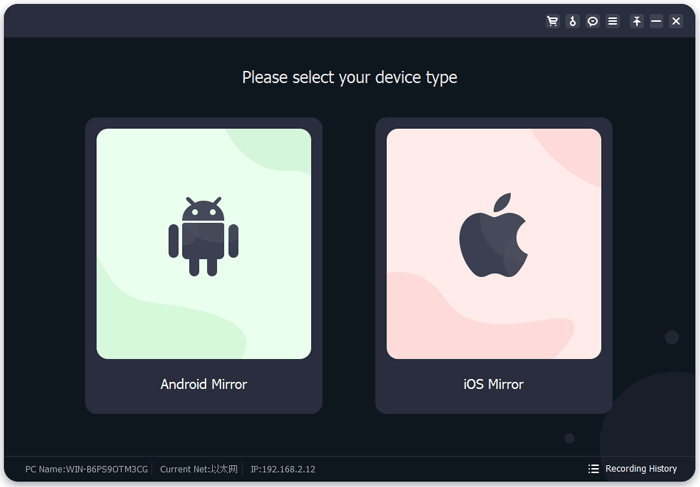
Download and install Aiseesoft Phone Mirror on your Windows computer. Launch the program and choose the corresponding device type, including "Android Mirror" or "iOS Mirror".
Step 2. Connect Your Phone to the Computer
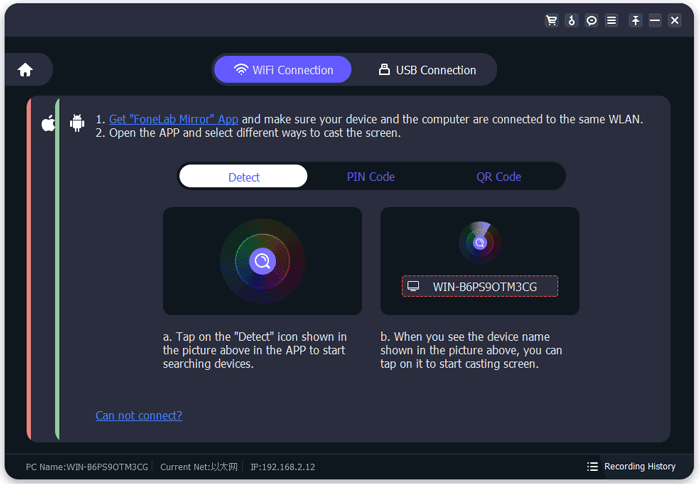
Step 3. Start Mirroring Your Phone Screen
Once the connection is completed, your phone screen will appear on the computer in real time. You can adjust the display settings, take screenshots, or record your phone activities directly from the program.
With these simple steps, you can easily mirror your Android or iPhone screen to a PC using Aiseesoft Phone Mirror.
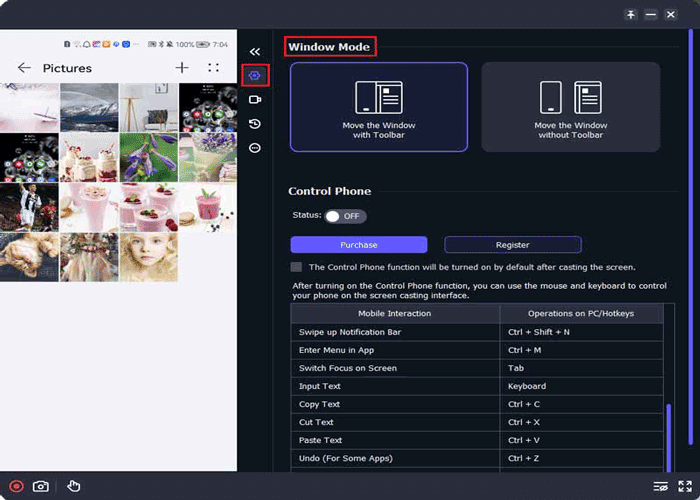
After testing its features and considering user feedback, Aiseesoft Phone Mirror has both advantages and limitations.
Pros
Cons
Although Aiseesoft Phone Mirror provides a convenient way to mirror Android and iPhone screens to a computer, some users may need more than simple screen display. If you want to interact with your phone directly from a computer, such as controlling apps, managing files, or playing mobile games with a keyboard and mouse, Screen Mirror can be a powerful alternative.
Screen Mirror is a screen mirroring tool that allows users to display and control their mobile devices from a computer. It supports Android and iOS devices and provides flexible connection options, making it suitable for users who need a smoother and more interactive mirroring experience.
Key features of Screen Mirror
How to use Screen Mirror to mirror your phone to a computer?
01Download and install Screen Mirror on your computer, then launch the program and select your mobile device type, either "Android" or "iOS".
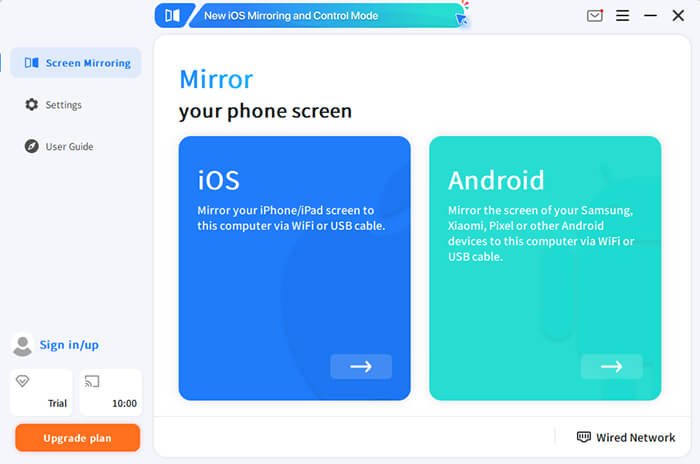
02Follow the instructions displayed on the screen to connect your phone. You can choose a Wi-Fi connection or a USB connection based on your needs.
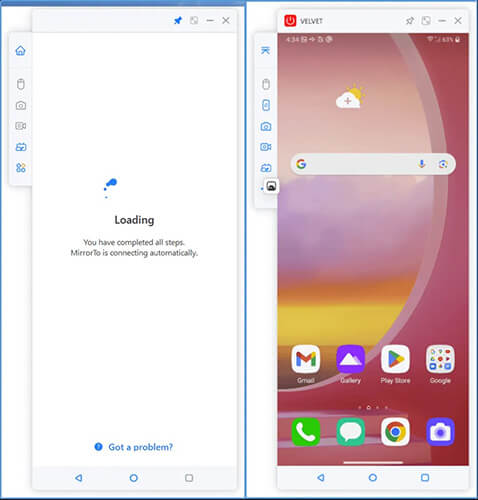
03After the connection is completed, your phone screen will be displayed on your computer. You can view and control your mobile device directly through your PC.
1. Can Aiseesoft Phone Mirror display multiple iPhones at the same time?
Aiseesoft Phone Mirror mainly focuses on mirroring one mobile device at a time. If you need to display multiple iPhone screens simultaneously, you may need a professional multi-device mirroring solution.
2. Does Aiseesoft Phone Mirror support Bluetooth connection for Android devices?
No. Aiseesoft Phone Mirror does not use Bluetooth for Android screen mirroring. Android devices need to connect through Wi-Fi or USB to mirror the screen.
3. Is it safe to use Aiseesoft Phone Mirror?
Yes. Aiseesoft Phone Mirror is generally safe to use when downloaded from the official website. It does not require unnecessary permissions beyond those needed for screen mirroring and device connection.
Aiseesoft Phone Mirror is a practical screen mirroring tool for displaying Android and iPhone screens on a Windows computer. It supports both wireless and USB connections and provides useful features like screen recording, screenshots, and display adjustments, making it suitable for presentations, tutorials, and everyday screen sharing.
However, users who need advanced phone control features may find it limited. If you want to control your phone with a mouse and keyboard, record high-quality screen activities, or manage mobile content more efficiently, Screen Mirror can be a suitable alternative. Overall, Aiseesoft Phone Mirror is a good choice for basic screen mirroring needs.
Related Articles:
Aiseesoft FoneEraser Review: Is It the Best iPhone Data Eraser?
Aiseesoft WhatsSync Review: Is It a Reliable WhatsApp Transfer Tool?
How to Remotely Control Android Phone from Computer, Android & iPhone
Best Screen Mirroring App for Android to PC: Top 13 Picks in 2026




 Free Download for PC
  Free Download for Mac


