TL;DR:
Having trouble connecting through AnyDesk? This article covers:
AnyDesk has long been a go-to tool for remote desktop access, favored for its speed and simplicity in personal and professional settings, but it can be extremely frustrating when it suddenly stops working. Many users encounter the "AnyDesk not connecting" problem, where the app cannot reach the AnyDesk network or fails to connect to a remote device. Whether you need to access a work computer, help a friend, or mirror your phone screen, a connection failure can completely block your workflow.
In this guide, you'll learn why AnyDesk is not connecting, how to fix it step by step, and what you can use if AnyDesk remains unstable.
Before diving into fixes, it's helpful to understand the root causes of AnyDesk connection issues. Knowing the "why" can help you target the right solution and avoid unnecessary steps. Here are the most common reasons:
Now that you know the common causes, let's walk through the step-by-step fixes. We recommend starting with the simplest solutions (like checking the server status or device ID) before moving to more complex ones (like updating or reinstalling the software).
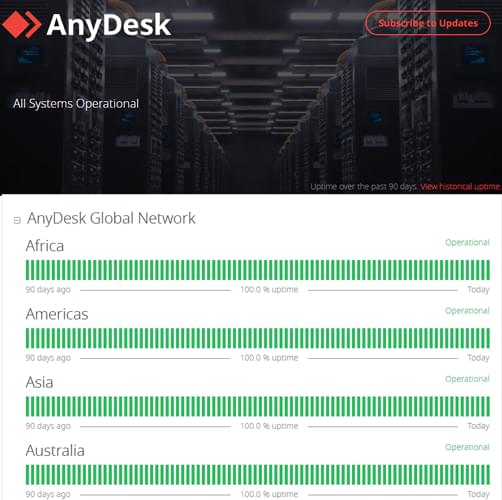
The first thing you should do when AnyDesk won't connect is rule out server-side issues. If AnyDesk's servers are down, there's nothing you can do on your end to fix it. Here's how to check:
Step 1. Go to https://status.anydesk.com to get real-time updates on server availability.
Step 2. Follow AnyDesk on Twitter (X) or Facebook for any announcements about outages or ongoing maintenance.
Step 3. If the status page is showing everything is normal, check platforms like Reddit or DownDetector to see if other users are experiencing the same problem. However, these are unofficial sources, so always prioritize the official channels first.
If the servers are down, you'll need to wait for AnyDesk to resolve the issue. If everything looks fine, proceed to the next fix.
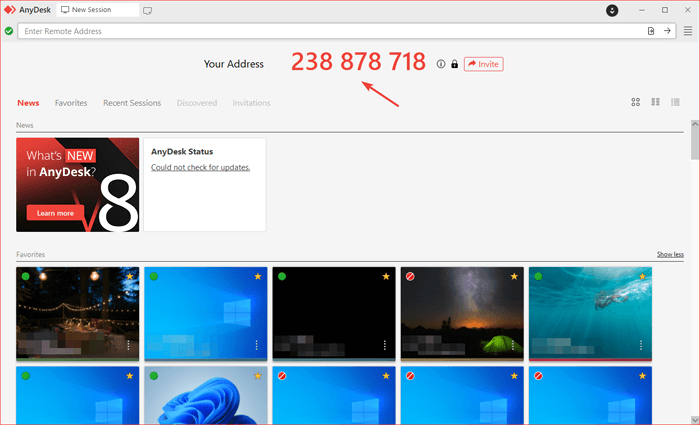
A common connection issue is entering an incorrect AnyDesk ID. If the AnyDesk ID of the remote device is entered incorrectly, the connection won't be established. First, ask the remote user to open AnyDesk and retrieve their unique 9-digit ID displayed on the device. Make sure the ID you enter exactly matches the one provided, paying close attention to characters that may look similar, such as 0 and O, or 1 and l.
If the remote device has been restarted or AnyDesk has been reinstalled, the ID may have changed, so always double-check that you have the latest ID before attempting to connect. If you're using the "Bookmark" feature in AnyDesk, make sure to delete the old ID and enter the most up-to-date one.
Both your local device and the remote device need a stable internet connection to use AnyDesk. Here's how to test and fix connection issues:
Step 1. Test your local internet
Open a web browser (Chrome, Firefox, etc.) and visit a website like Google.com. If the site doesn't load, your internet is the problem.
Step 2. Fix local internet issues
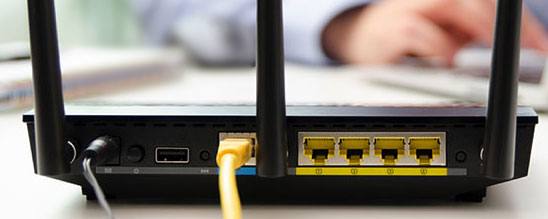
Step 3. Confirm the remote device's internet
Ask the remote user to test their internet by visiting a website. If their connection is unstable, have them follow the same steps (restart router, switch to wired, etc.).
VPNs can interfere with AnyDesk's connection by rerouting traffic or blocking the necessary ports. If you're using a VPN, try disabling it temporarily to see if that fixes the issue:
Step 1. Locate your VPN client (e.g., NordVPN, ExpressVPN, Windows Built-in VPN) on your device.
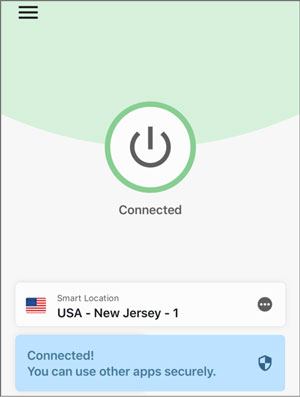
Step 2. Click "Disconnect" or "Turn Off" to disable the VPN.
Step 3. Once the VPN is disabled, try connecting to AnyDesk again.
If the connection is successful after disabling the VPN, you can choose not to use the VPN to connect to AnyDesk, or enable the Split Tunneling feature in the VPN settings. This will allow AnyDesk's traffic to bypass the VPN and function properly. Most high-end VPNs, such as NordVPN and ExpressVPN, offer this feature, which can be found and enabled in the VPN client settings.
Firewalls are one of the most common culprits behind AnyDesk connection issues. You'll need to ensure that AnyDesk is allowed through both your Windows Firewall and any third-party antivirus firewalls. Here's how to allow AnyDesk through Windows Firewall:
Step 1. Press the "Windows" key + "R", type "control firewall.cpl", and press "Enter" to open Windows firewall.
Step 2. On the left sidebar, click "Allow an app or feature through Windows Defender Firewall".
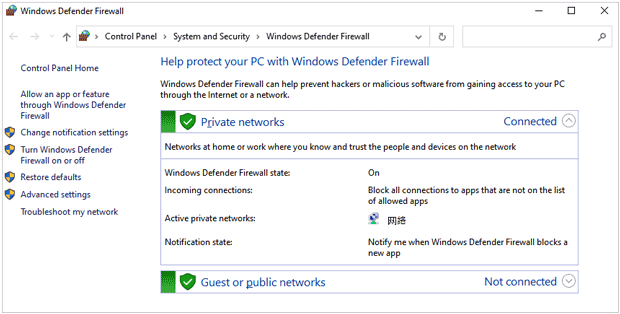
Step 3. Click "Change settings" (you may need administrator privileges).
Step 4. If it's listed, check both "Private" and "Public" boxes. If it's not listed, click "Allow another app..". and browse to the AnyDesk installation folder (usually C:\Program Files\AnyDesk\AnyDesk.exe) to add it.
Step 5. Click "OK" to apply the changes.
If you use a third-party antivirus firewall (e.g., Avast, McAfee, Bitdefender), look for an "Exceptions" or "Trusted Apps" section and add AnyDesk. If adding it to the exceptions doesn't work, you can temporarily disable the firewall to test (but remember to re-enable it afterward).
Also, ensure the remote device has performed the same steps on their firewall.
If AnyDesk is not connecting, it could be due to a temporary issue with the software. In this case, try closing and restarting AnyDesk. First, right-click on the AnyDesk icon in the system tray (Windows) or menu bar (Mac), and select "Quit" to exit the app. Wait for 10 to 15 seconds to ensure AnyDesk has fully closed. Then, reopen AnyDesk and attempt to connect again. If the issue persists after restarting AnyDesk, try restarting your computer to clear the system memory and cache, which may help resolve any underlying system problems.
Outdated or corrupted installations of AnyDesk are a common cause of connection issues. Here's how to update or reinstall the app:
Progress 1. Update AnyDesk
Step 1. Open AnyDesk and click on the "Settings" icon (gear icon) in the top-right corner.
Step 2. Select "About AnyDesk" from the left sidebar.
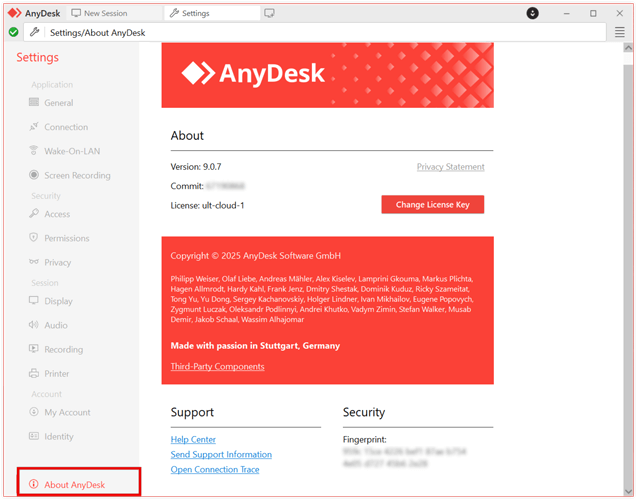
Step 3. Click "Check for Updates". If an update is available, follow the prompts to install it.
Step 4. Restart AnyDesk after the update and try connecting again.
Progress 2. Reinstall AnyDesk (if updating doesn't work)
Step 1. Uninstall AnyDesk from your system:
Step 2. Delete residual files (Windows only): Open "Run" (Windows key + R) and type %ProgramFiles%\AnyDesk, then delete the folder. Repeat for %ProgramData%\AnyDesk and %AppData%\AnyDesk.
Step 3. Restart your device to clear any remaining temporary files.
Step 4. Download the latest version from the official AnyDesk website and install it. Then, try connecting again.
If you've tried all the fixes above and AnyDesk still won't connect, it may be time to switch to a more reliable alternative. Phone Mirror is a powerful remote access and screen mirroring tool that offers stable connections, easy setup, and compatibility with both Windows, Mac, iOS, and Android devices. It's an excellent choice for those who need seamless remote control without the frequent connection issues of AnyDesk.
Why choose Phone Mirror?
Here, we will show you how to access your Android phone via your computer with Phone Mirror:
01Start by downloading and installing Phone Mirror on your computer.
02Once installed, open the application and select "Android" from the main interface.
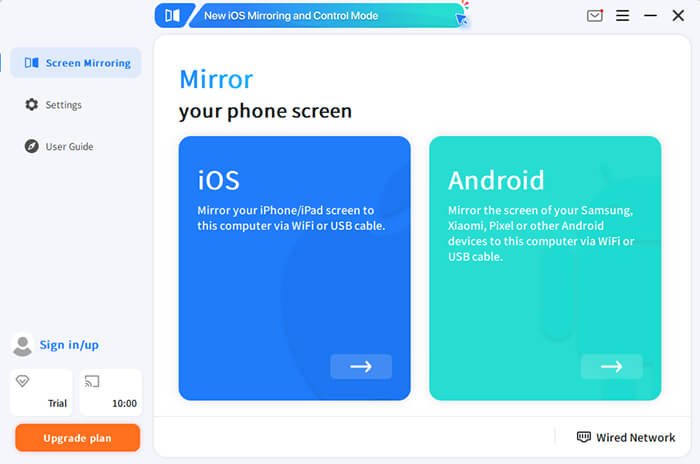
03Follow the on-screen instructions to connect your Android device to your computer. You can choose between a USB cable or Wi-Fi, based on your preference.
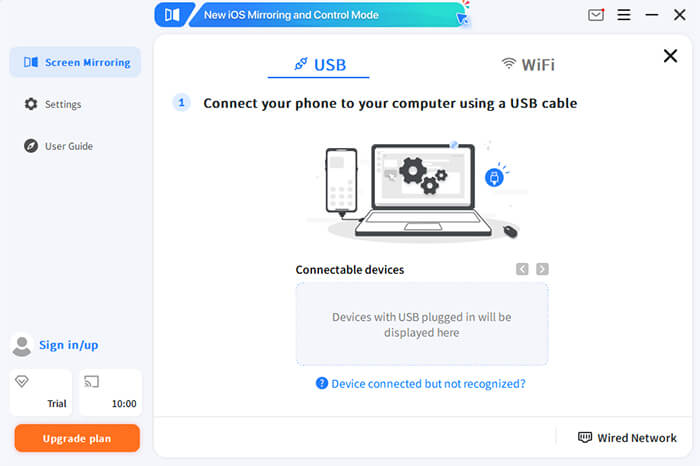
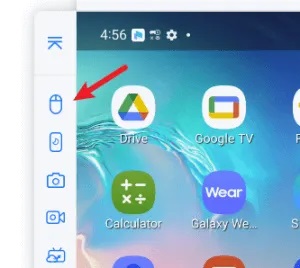
04Once connected, your Android device's screen will be displayed on your computer. To enable full control, click on the "Mouse" icon in the sidebar. This will allow you to control your Android phone using your computer's keyboard and mouse.
When AnyDesk is not connecting, it is usually caused by server issues, incorrect device IDs, VPNs, firewalls, or unstable internet connections. By following the fixes above, you can solve most connection problems quickly.
However, if AnyDesk continues to fail, switching to a more stable and modern solution like Phone Mirror is the easiest way to keep your screen sharing and remote control running smoothly without constant interruptions.
Related Articles:
How to Remotely Control Android Phone from Computer, Android & iPhone
5 Ways to Cast Android to Windows 10/11 [Step-by-Step Guide]
Best Screen Mirroring App for Android to PC: Top 13 Picks in 2026




 Free Download for PC
  Free Download for Mac


