TL;DR:
iMobie AnyMiro is a screen mirroring tool designed to deliver high-resolution, low-latency performance for users who need to mirror mobile devices to a computer. This article introduces its main features, pricing plans, usage steps, and limitations, and also compares it with a practical alternative to help you decide whether it fits your screen mirroring needs.
In the era of live streaming and cross-device collaboration, a reliable screen mirroring tool is no longer a luxury but a necessity, especially for gamers, content creators, and educators who demand high-definition, low-latency performance. iMobie AnyMiro has emerged as a standout option in this space, promising seamless cross-device mirroring with impressive clarity and stability.
This in-depth AnyMiro review will break down everything you need to know about AnyMiro: its core features, pricing plans, step-by-step usage guide, limitations, and viable alternatives. By the end, you'll have a clear answer to whether it's the right tool for your needs.
iMobie AnyMiro is a versatile screen mirroring tool that enables users to display the content from their mobile devices onto a computer screen. Whether for gaming, creative work, or streaming, AnyMiro ensures a high-quality, lag-free screen mirroring experience. The application supports mirroring phones to your computer, making it a useful tool for anyone looking to share or showcase mobile content in real-time.
AnyMiro guarantees up to 10 hours of uninterrupted screen mirroring with smooth performance, making it ideal for mobile gamers and live streamers. It ensures lag-free gaming or streaming, so you won't miss a single moment.
Enjoy screen mirroring in stunning clarity, supporting up to 4K resolution. The app promises vibrant colors and crisp detail that mirror your mobile device's screen in its original form.
You can broadcast your screen in high-quality resolution to popular streaming platforms like Twitch, YouTube, Facebook, or custom RTMP servers. It delivers flawless audio and video streaming, making it perfect for content creators.
AnyMiro lets you instantly capture images or record videos while mirroring your mobile screen. This is perfect for creating tutorials, guides, or simply preserving memorable moments.
Enhance your presentations or live streams with the ability to annotate your screen in real-time. Add text, shapes, and highlights for better engagement during live sessions or recordings.
The app supports various connection methods for different user preferences, ensuring seamless connectivity whether you are using USB or Wi-Fi.
The free version of AnyMiro comes with daily screen mirroring time restrictions and watermarks on the mirrored screen. It offers limited functionality, especially for users who need uninterrupted usage.
While AnyMiro works seamlessly on Windows, Mac users may need to manually grant system permissions, making the setup process slightly more complex compared to Windows users.
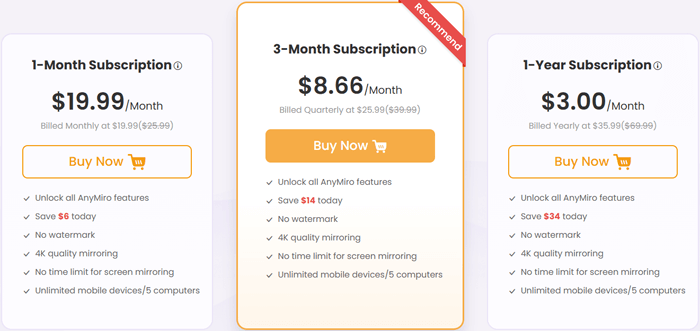
AnyMiro offers a free trial version that allows up to 40 minutes of screen mirroring per day, with a resolution of up to 1080P. However, the free version includes watermarks, which can be removed with a subscription.
Here are the subscription plans for AnyMiro:
All paid plans unlock all features, including unlimited screen mirroring without watermarks, and the ability to mirror to multiple devices (up to 5 computers and mobile devices).
AnyMiro offers a variety of features, such as mirroring iPhones/iPads to computers, mirroring Android phones/tablets to computers, and managing screen mirroring. Here, we will guide you through the process of mirroring your Android phone/tablet to a computer.
Step 1. Visit the official iMobie AnyMiro website, download the appropriate version for your Windows or Mac computer, and follow the on-screen instructions to install. Ensure your internet connection is stable during installation to avoid file corruption.
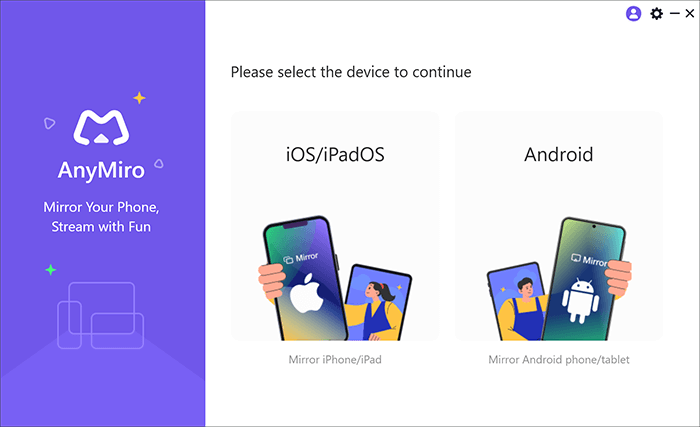
Step 2. Open AnyMiro on your computer. You'll see options for "Android" and "iOS/iPadOS"; click "Android" to proceed with your mobile device.
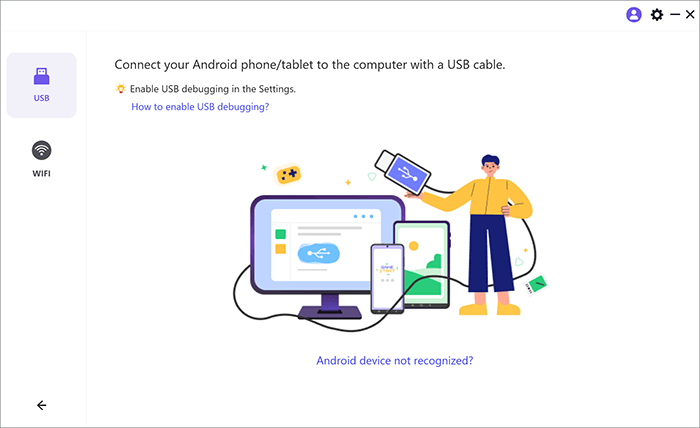
Step 3. Choose your connection method:
USB connection (Recommended for stability): If you choose USB, you will need to enable USB debugging on your Android device and select MTP mode for proper connection.
Wi-Fi connection (For convenience): Ensure both your computer and Android device are on the same Wi-Fi network. AnyMiro offers three Wi-Fi options:
Step 4. Once connected, your Android screen will appear on your computer. Use the toolbar at the bottom of the AnyMiro window to take screenshots (camera icon), start recording (video icon), or enable annotation (pen icon). You can also adjust resolution settings (up to 4K) in the app's preferences.
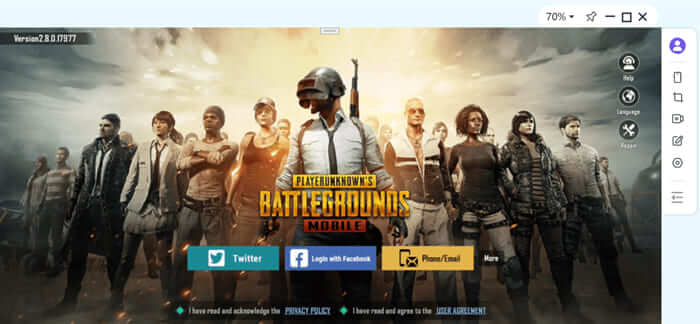
If you're looking for an alternative to AnyMiro, Phone Mirror is another excellent tool for screen mirroring. This software allows you to mirror and control your Android or iOS devices directly from your computer, offering seamless streaming and full control over your mobile content. Phone Mirror allows you to not only mirror your device's screen to a computer but also fully control your iPhone, iPad, or Android device. You can perform actions like typing, clicking, swiping, and scrolling directly from your computer. Let's take a closer look at the key features and how to use Phone Mirror.
Key features of Phone Mirror
How to access your Android phone via computer with Phone Mirror?
01Download and install Phone Mirror on your computer. Once installed, launch the application and select "Android" from the interface.
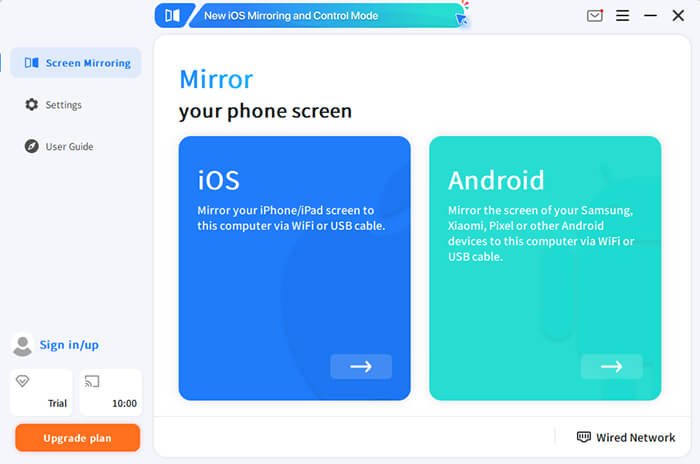
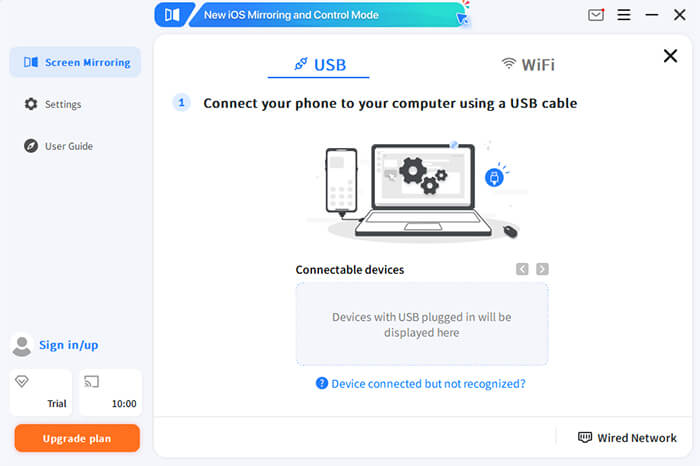
02Follow the on-screen prompts to connect your Android device to the computer. You can connect via USB cable or Wi-Fi, depending on your preference.
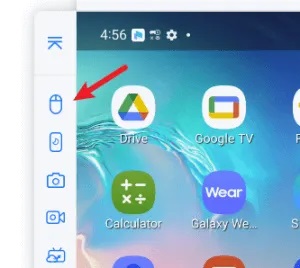
03Once the connection is established, your Android device's screen will appear on your computer. To enable full control of your device, click the "Mouse" icon in the sidebar. You can now control your phone using your computer's keyboard and mouse.
In conclusion, AnyMiro offers an excellent solution for screen mirroring, providing high-quality, lag-free performance with features like 4K resolution, live streaming to platforms like Twitch and YouTube, and real-time annotations. While its free version has limitations, the paid plans unlock all features for those who need a seamless experience without watermarks.
For those looking for an alternative, Phone Mirror is a strong contender, offering similar features such as full device control, mobile gaming optimization, and easy file transfers. Whether you choose AnyMiro or Phone Mirror, both provide reliable and feature-packed tools for all your screen mirroring needs.
Related Articles:
How to Make Screen Mirroring Full Screen in 5 Proven Ways [Android/iPhone]
Top 7 Ways to Mirror iPhone to iPad Easily [Latest Tutorial]
How to Do Screen Mirroring Samsung to PC or TV? Easily Solved




 Free Download for PC
  Free Download for Mac


