TL;DR:
AnyViewer is a remote desktop tool that allows users to access computers, transfer files, and provide remote support. This review covers its main features, pricing plans, setup process, pros and cons, and introduces Phone Mirror as an alternative for users who need more flexible mobile screen mirroring and control features.
Remote desktop software has become an essential tool for remote work, technical support, and accessing files from different locations. Among various remote access solutions, AnyViewer has attracted attention for its simple setup, free version, and convenient remote control features. However, many users still want to know whether it is safe, reliable, and worth using before installing it.
This AnyViewer review covers its key features, pricing options, setup process, advantages, and limitations. We will also introduce a powerful alternative for users who need more flexible screen control and device management features.
AnyViewer is a remote desktop software developed by AOMEI Technology that allows users to access and control computers from another device. It is commonly used for remote work, technical support, file access, and managing computers from different locations.
With a simple setup process and an easy-to-use interface, AnyViewer enables users to establish remote connections without complicated network configurations. It supports Windows computers as well as mobile devices, making remote access more convenient for personal and business users.
AnyViewer allows users to remotely view and control another computer as if they were sitting in front of it. This feature is useful for accessing files, running programs, or providing remote assistance.
With the built-in file transfer feature, users can quickly move files between connected devices without relying on external storage or third-party cloud services. It is helpful for sharing documents and transferring work files remotely.
AnyViewer makes it easier to troubleshoot computer problems by allowing users to connect to another device and provide assistance remotely. This is especially useful for IT support or helping family members solve technical issues.
AnyViewer supports remote connections between computers and mobile devices. Users can access their Android or iOS devices from PCs, providing more flexibility when they are away from their computers.
Security is an important consideration for remote access tools. AnyViewer uses encryption and permission controls to help protect remote sessions. However, users should still only accept connections from trusted devices and keep their account information secure.
Yes, AnyViewer offers a free version that allows users to access basic remote desktop features without a subscription. It is suitable for personal users who only need occasional remote access, such as connecting to a home computer or providing simple technical support.
For users who need more advanced features, AnyViewer provides three paid plans: Single Users, Team, and Enterprise. These plans offer additional benefits, including support for more devices, enhanced file transfer performance, higher image quality, privacy mode, and team management features.
The Single Users plan is designed for individual users, while the Team and Enterprise plans are mainly aimed at businesses that need to manage multiple users and devices. You can check the pricing details and feature differences in the table below.
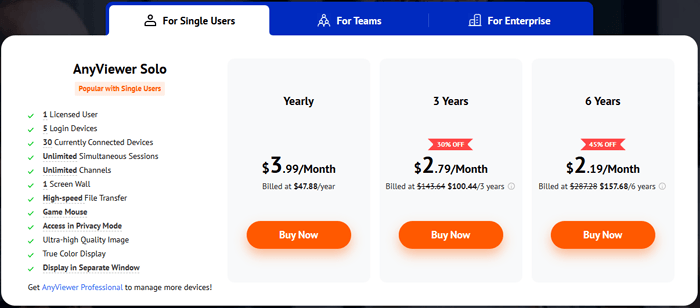
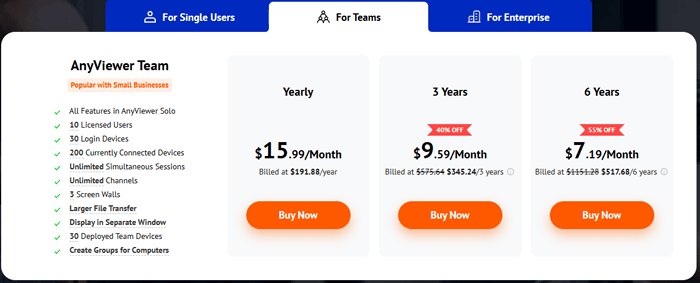
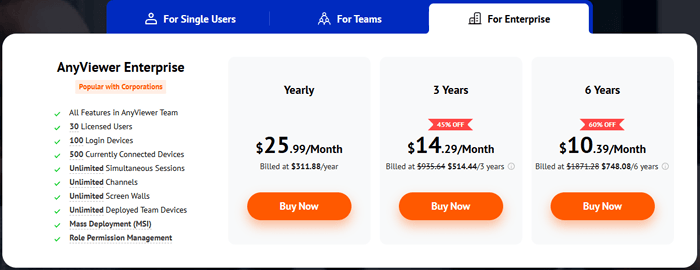
Overall, the free version is enough for basic remote access needs, but users who require frequent connections, advanced features, or business management tools may need to choose a paid plan.
AnyViewer is designed to make remote connections simple. After installing the app on both devices and signing in with the same account, users can connect their devices through a QR code or device list. The exact steps may vary depending on whether you are using remote desktop access or screen mirroring.
Below is how to mirror an iOS or Android device to a computer with AnyViewer.
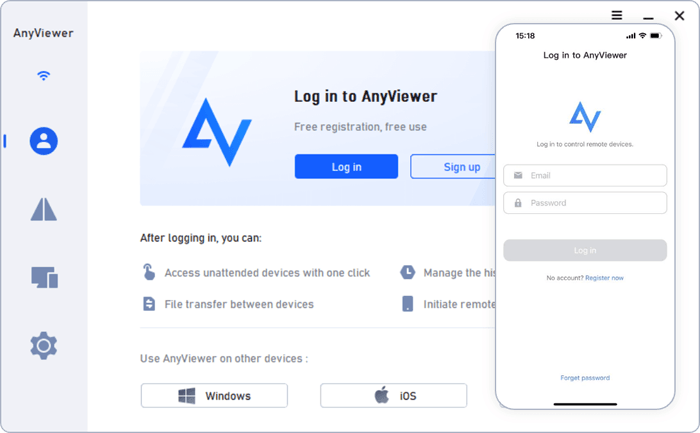
Step 1. Install AnyViewer on Both Devices
Download and install AnyViewer on your Windows computer and your iOS or Android device. Then, create an account and sign in with the same account on both devices.
Step 2. Generate a Screen Mirroring QR Code
Open AnyViewer on your computer, go to the "Device" tab, select the local device, and choose "Mobile screen mirroring". A QR code will appear on the computer screen.
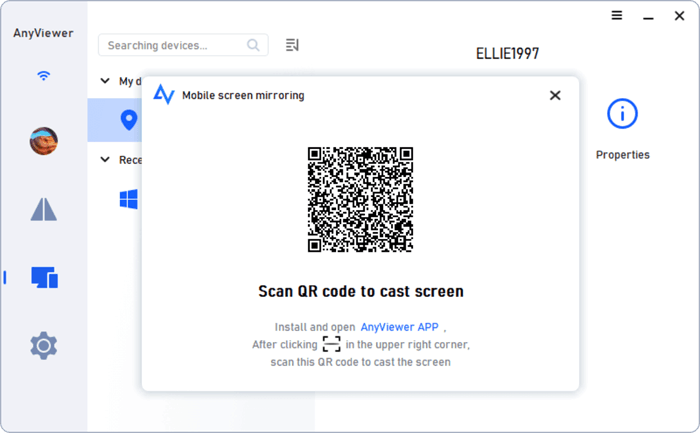
Step 3. Scan the QR Code with Your Phone
Launch AnyViewer on your mobile device, open the "Start" tab, tap the "scan" icon, and scan the QR code displayed on your computer.
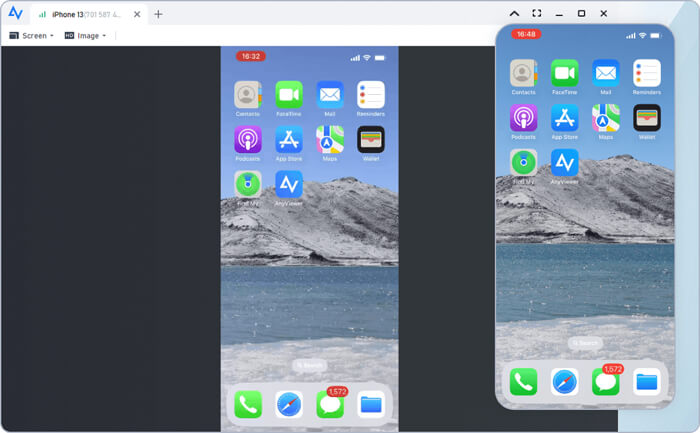
Step 4. Start Mirroring Your Phone Screen
Once connected successfully, your phone screen will be mirrored to your computer. You can then view mobile content on a larger screen, such as streaming videos, displaying files, or playing mobile games.
Like any remote desktop software, AnyViewer has both advantages and limitations. Understanding these points can help determine whether it fits your needs.
AnyViewer provides a simple interface that is suitable even for users with limited technical knowledge. The setup process is straightforward compared with some traditional remote access solutions.
The availability of a free plan makes AnyViewer accessible for personal users who only need basic remote access features.
Users can transfer files between connected devices, making it useful for both personal and work-related scenarios.
With mobile support, users can access remote computers from different devices when needed.
Although the free version covers basic functions, some advanced capabilities are only available in paid plans.
Compared with established tools like TeamViewer and AnyDesk, AnyViewer has a smaller user base and less brand recognition.
Users looking for more advanced phone screen control or mobile management features may need a different solution.
While AnyViewer is a good choice for traditional remote desktop access, users who need more flexible screen control between mobile devices and computers may prefer a dedicated screen mirroring solution.
Phone Mirror is designed for screen mirroring and device control, allowing users to display and manage mobile screens on a computer. Compared with AnyViewer, Phone Mirror focuses more on mobile device interaction, making it suitable for users who want to control Android or iPhone devices from a PC.
Why choose Phone Mirror?
How to use AnyViewer alternative to mirror your phone to your computer?
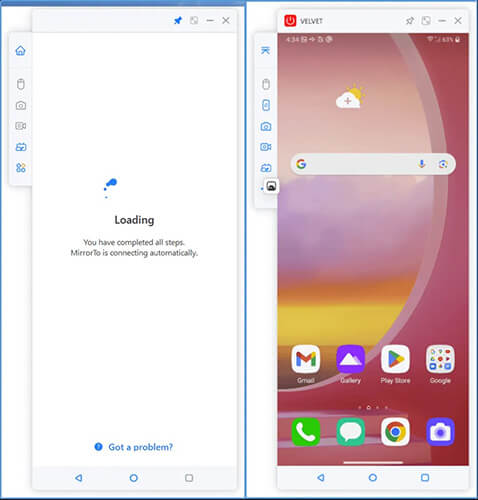
01Download and install Phone Mirror on your computer, then open the program and select your mobile device type, either "Android" or "iOS".
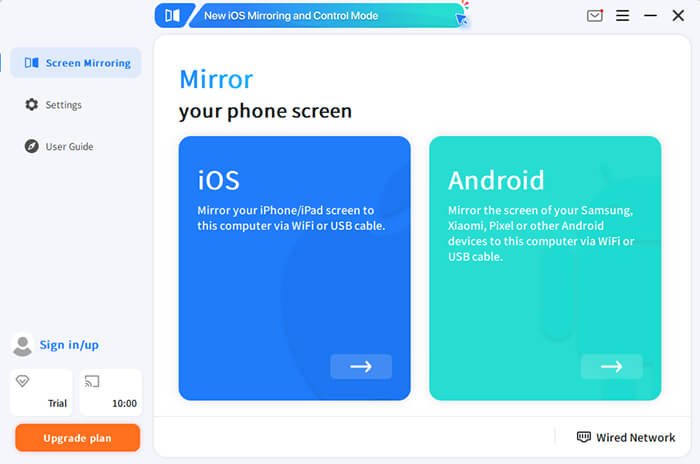
02Follow the on-screen instructions to connect your phone. You can choose a Wi-Fi connection or USB connection depending on your preference.
03Once the connection is established, your phone screen will appear on your computer. You can then view and control your mobile device using your PC.
AnyViewer is a convenient remote desktop solution that offers essential features such as remote access, file transfer, screen mirroring, and cross-device connections. With a free version and flexible paid plans, it can meet the needs of both personal users and businesses looking for a simple way to manage devices remotely.
However, the best remote access tool depends on what you need most. If you mainly want to connect to and control computers remotely, AnyViewer is a practical choice. But if your goal is to mirror and control a smartphone from a PC with more flexibility, Phone Mirror provides a more suitable solution for mobile device management.
Related Articles:
5 Simple Options to Access PC Files from Android Phone [Tested]
Best Screen Mirroring App for Android to PC: Top 13 Picks in 2026
How to Make Screen Mirroring Full Screen in 5 Proven Ways [Android/iPhone]




 Free Download for PC
  Free Download for Mac


