TL;DR:
No Wi-Fi? No problem. You can still mirror your Android screen to a larger display with the right connection method. In this guide, you will learn:
Screen mirroring an Android phone to a TV allows you to enjoy mobile content on a larger screen, whether you want to watch videos, play games, view photos, or share a presentation. However, many people think that a stable Wi-Fi connection is necessary for this process. When there is no available Wi-Fi network, it may seem impossible to connect an Android phone to a TV.
Fortunately, you can still mirror Android to TV without Wi-Fi using several alternative methods. Depending on your phone model and TV compatibility, you can connect through an HDMI adapter, use wireless technologies like Miracast, try Chromecast Guest Mode, or create a connection with a mobile hotspot. This guide will explain how each method works and help you choose the right solution for your situation.
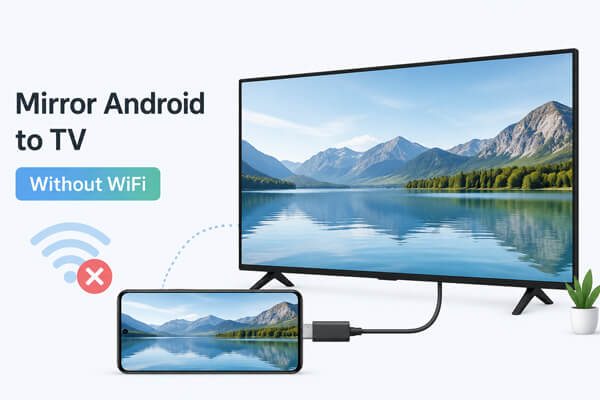
Yes, you can mirror Android to TV without Wi-Fi. Although many screen mirroring methods rely on a wireless network, you can still connect your Android phone to a TV using alternatives like an HDMI cable, Miracast, Chromecast Guest Mode, or a mobile hotspot. The best method depends on your device compatibility and whether you prefer a wired or wireless connection.
There are several ways to mirror an Android phone to a TV without using a traditional Wi-Fi network. Some methods provide a direct wired connection for better stability, while others use wireless technologies that allow devices to communicate without a router. Below are the most common methods and the steps to set them up.
Using an HDMI connection is one of the most reliable ways to mirror Android to TV without Wi-Fi. Since the connection is made through a cable, it does not depend on internet access or wireless networks. Most modern Android phones require a USB-C to HDMI adapter, while some older devices may support MHL adapters.
What you need:
Steps to mirror Android to TV via HDMI:
Step 1. Connect the USB-C adapter to your Android phone.
Step 2. Connect the HDMI cable between the adapter and your TV.
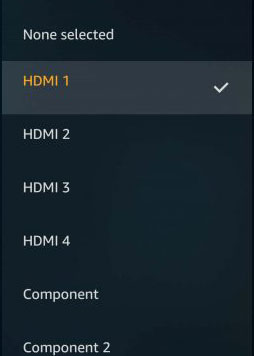
Step 3. Change your TV input source to the corresponding HDMI port. Your Android screen should appear on the TV automatically.
Pros:
Cons:
Miracast is a wireless screen mirroring technology that allows Android devices to connect directly to compatible TVs without relying on a Wi-Fi router. It uses Wi-Fi Direct to establish a connection between devices, making it a convenient option when you do not have access to a wireless network.
Steps to use Miracast to mirror Android to TV without Wi-Fi:
Step 1. Turn on "Screen Mirroring", "Wireless Display", or a similar feature on your TV.
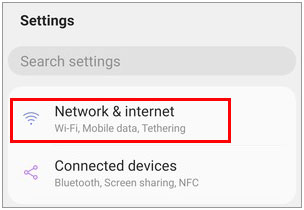
Step 2. Open "Settings" on your Android phone.
Step 3. Tap "Connected devices" > "Cast" or search for "Wireless Display" in settings.
Step 4. Select your TV from the available devices.
Step 5. Confirm the connection on your TV.
Pros:
Cons:
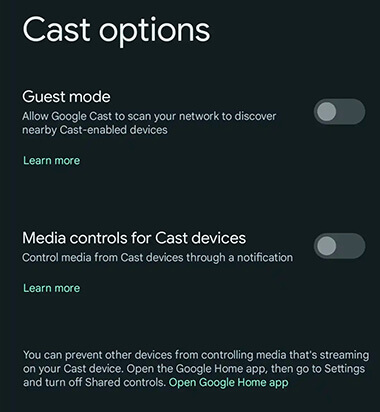
Chromecast is a popular device for casting Android screens to TVs. Normally, Chromecast requires both devices to connect to the same Wi-Fi network. However, some Chromecast models support Guest Mode, which allows nearby Android devices to cast without joining the same network.
Steps to use Chromecast Guest Mode:
Step 1. Enable Guest Mode in the Google Home app.
Step 2. Open a Chromecast-supported app on your Android phone.
Step 3. Tap the "Cast" icon.
Step 4. Select the available Chromecast device.
Step 5. Follow the on-screen instructions to start casting.
Pros:
Cons:
If you do not have a home Wi-Fi network, you can use your Android phone as a mobile hotspot. This creates a local wireless network that allows your phone and TV to communicate.
This method is useful when you have a smart TV but no router nearby.
Steps to mirror Android to TV using a mobile hotspot:
Step 1. Turn on the mobile hotspot on your Android phone.
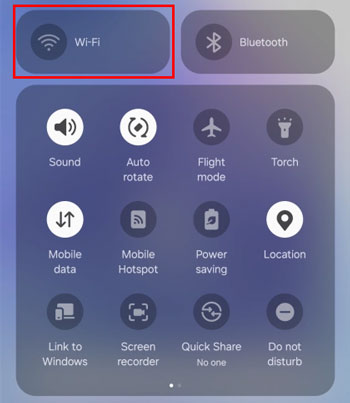
Step 2. Connect your TV to the phone's hotspot.
Step 3. Enable screen casting or mirroring on your phone.
Step 4. Select your TV and start mirroring.
Pros:
Cons:
Besides mirroring Android to a TV, you may also want to display your phone screen on a computer for a larger workspace. Whether you want to play mobile games, manage apps, reply to messages, or share your phone screen during meetings, a screen mirroring tool can make the process easier.
Phone Mirror is a screen mirroring solution that allows you to display and control your Android device from a computer. Compared with traditional casting methods, it provides additional control features, allowing you to interact with your phone directly from a larger screen.
Key features of Phone Mirror:
How to mirror your Android to your computer with Phone Mirror?
01Download and install Phone Mirror on your computer, then launch the program.
02Select "Android" as your device type.
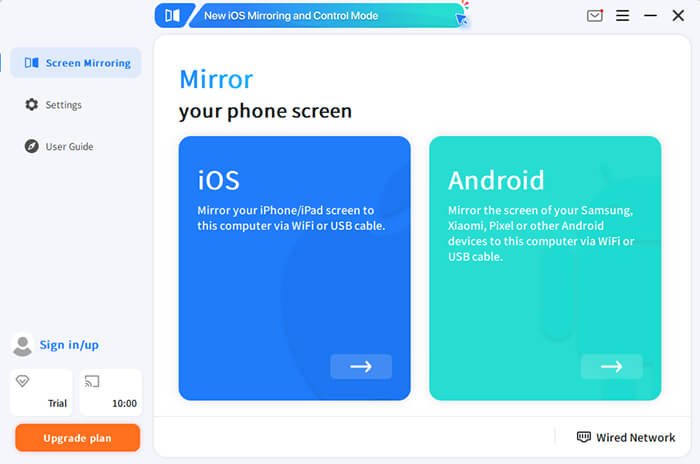
03Choose a connection method: USB connection or Wi-Fi connection.
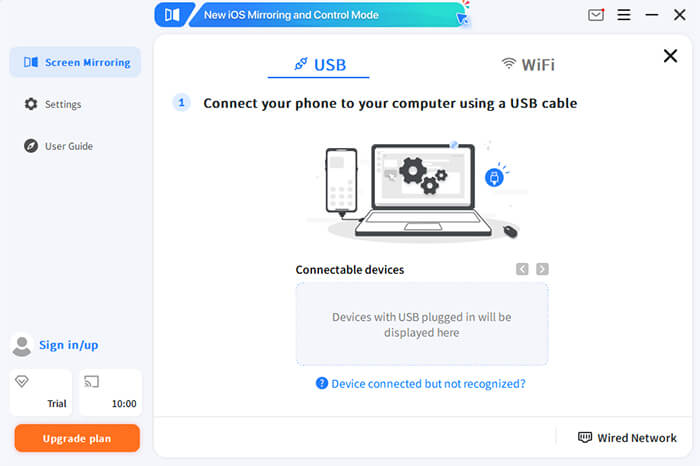
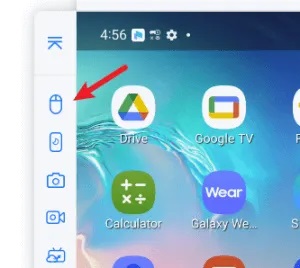
04Follow the on-screen instructions to complete the connection. Once connected, your Android screen will be displayed on your PC.
Wi-Fi is not the only way to mirror an Android phone to a TV. Whether you prefer a stable wired connection with an HDMI adapter or a wireless solution like Miracast, there are several ways to display your Android screen on a larger screen without relying on a traditional Wi-Fi network. The right method depends on your device compatibility and the connection options available.
If you also want to mirror and control your Android phone on a computer, a dedicated screen mirroring tool like Phone Mirror can provide more flexible features beyond basic casting. It allows you to view your phone screen on a PC and offers additional functions for managing your mobile experience on a larger display.
Related Articles:
How to Do Screen Mirroring Samsung to PC or TV? Easily Solved
5 Ways to Cast Android to Windows 10/11 [Step-by-Step Guide]
How to Make Screen Mirroring Full Screen in 5 Proven Ways [Android/iPhone]
Why Is Screen Mirroring Not Working? Repair It with Easy Methods




 Free Download for PC
  Free Download for Mac


