TL;DR:
Want to view your tablet content on a larger screen? Find out how to mirror Android tablets and iPads to a PC with screen mirroring software, USB connections, Miracast, and AirPlay, then choose the right method based on your needs for sharing, control, and performance.
"Some friends wanted to watch along as I use my tablet for digital art, and I thought that it must be easy to do so, surely just plug in the usb and use the tablet as an image source on OBS or something...well it's not that easy apparently. I could not find one really conclusive answer to this online, so I'm asking here. How do I mirror my tablet screen to my PC?"
- From Reddit
A tablet is portable and convenient, but its smaller screen may not always be suitable for gaming, presentations, online meetings, or multitasking. Mirroring your tablet screen to a PC allows you to enjoy content on a larger display, share your screen more easily, and improve your overall viewing experience.
Whether you are using an Android tablet or an iPad, there are different ways to connect it to a computer. In this guide, we will explain how to mirror a tablet screen to a PC and introduce several practical solutions for different usage scenarios.
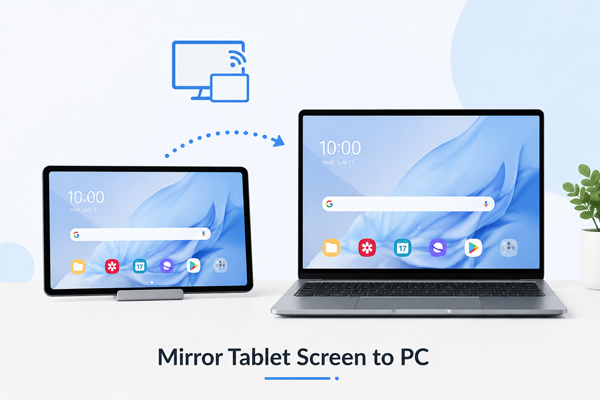
Yes, you can mirror a tablet screen to a PC in most cases. Both Android tablets and iPads support screen sharing with a computer, allowing you to view your tablet's content on a larger display. However, the available options and experience may vary depending on your tablet model, operating system, and computer compatibility. Some methods only allow screen viewing, while others may also support features such as device control, recording, or file management.
Before mirroring your tablet, make sure your devices meet the requirements, such as a compatible connection method, proper permissions, and a stable network connection if you are using a wireless option.
There are several ways to mirror a tablet screen to a PC, depending on whether you prefer a simple solution, a wired connection, or a built-in wireless feature. Below are four commonly used methods for Android tablets and iPads.
Using a professional screen mirroring tool is one of the easiest ways to mirror a tablet screen to a PC. Phone Mirror is a professional screen mirroring tool that allows you to mirror iPhone, iPad, and Android devices to a computer. It supports both USB and Wi-Fi connections and provides additional features beyond basic screen casting, such as device control, screen recording, file transfer, and live streaming.
With Phone Mirror, you can control compatible devices using your computer's keyboard and mouse, making it useful for mobile gaming, presentations, remote work, and content creation.
Key features of Phone Mirror:
Steps to mirror tablet screen to PC using Phone Mirror:
01Download and install Phone Mirror on your computer.
02Launch the program and select your device type from the main interface.
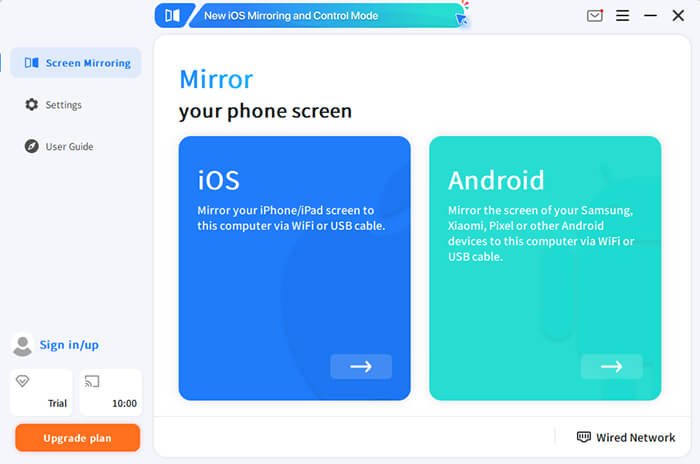
03Connect your tablet to the computer using a USB cable or Wi-Fi connection. Follow the on-screen instructions to complete the connection.
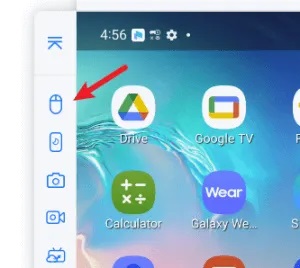
04Once connected, your tablet screen will be displayed on your PC. You can click the "Mouse" icon in the sidebar to enable keyboard and mouse control.
Scrcpy is a free and open-source tool designed for Android devices. It allows users to display and control an Android tablet screen on a PC through a USB connection or wireless ADB connection. Unlike many third-party applications, Scrcpy does not require installing an app on the tablet. However, users need to enable USB debugging and complete some technical setup before using it.
Pros:
Cons:
Steps to mirror Android tablet to PC with Scrcpy:
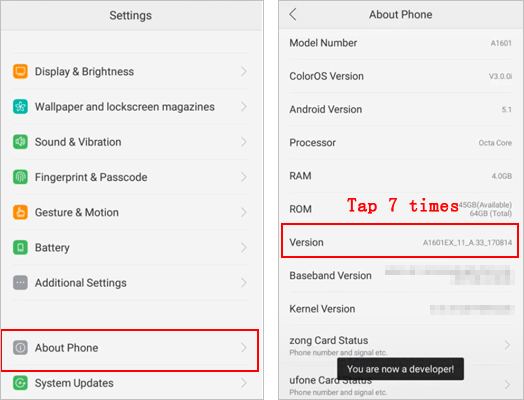
Step 1. Open "Settings" > "About Tablet", tap "Build Number" several times to enable "Developer Options", then turn on USB Debugging from the Developer Options menu.
Step 2. Download and set up Scrcpy on your computer, then launch the program to prepare for the connection.
Step 3. Connect your tablet to the PC with a USB cable, then allow USB debugging permission when prompted on your tablet.
Step 4. Run Scrcpy on your computer, and your Android tablet screen will appear in a new window. You can then control your device using your keyboard and mouse.
Miracast is a wireless display technology that allows compatible Android tablets to connect to supported Windows PCs without using third-party software. It is a convenient option for users who want to mirror their tablet screen without cables. However, both the tablet and PC must support Miracast, and the connection quality may depend on device compatibility and network conditions.
Pros:
Cons:
Steps to mirror Android tablet to PC using Miracast:
Step 1. Enable Wireless Display on your Windows PC. Go to "Settings" > "Apps" > "Optional Features", install Wireless Display if needed, and then enable Projecting to this PC under "Settings" > "System".
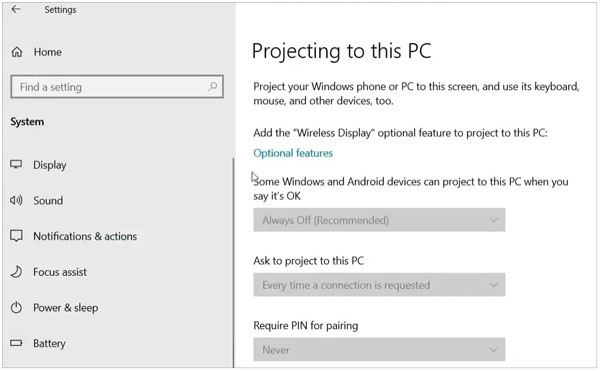
Step 2. Open the screen mirroring feature on your Android tablet. Find "Cast", "Screen Mirroring", or "Wireless Display" in your tablet settings.
Step 3. Select your PC from the available devices. Tap your computer name and accept the connection request on your PC.
AirPlay is Apple's built-in wireless technology for sharing content from an iPad. Since Windows PCs do not include native AirPlay support, you need an AirPlay receiver application installed on your computer. This method is mainly designed for viewing and sharing iPad content rather than controlling the device from a PC.
Pros:
Cons:
Steps to mirror iPad screen to PC using AirPlay:
Step 1. Download and install an AirPlay receiver application on your Windows computer to enable AirPlay screen mirroring.
Step 2. Connect your iPad and PC to the same Wi-Fi network to establish an AirPlay connection.
Step 3. Open "Control Center" on your iPad, then tap "Screen Mirroring".
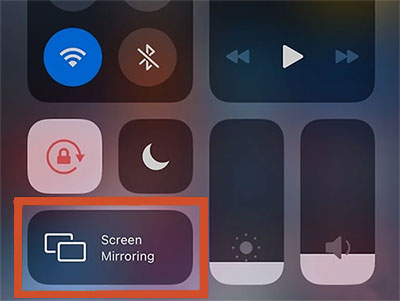
Step 4. Select your computer from the available AirPlay receivers, and your iPad screen will be displayed on the PC.
Mirroring a tablet screen to a PC is a useful way to enjoy a larger display, share content, and improve productivity. The best choice depends on your device type and what features you need, such as wireless connection, low latency, or remote control.
For users who want a simple and feature-rich experience, Phone Mirror provides an all-in-one solution with screen mirroring, device control, recording, streaming, and file transfer. Other options like Scrcpy, Miracast, and AirPlay can also work well for users with specific requirements.
Related Articles:
Top 5 Ways to Mirror Android Screen to PC in 2026
How to Do Screen Mirroring Samsung to PC or TV? Easily Solved
Easily Screen Mirroring Xiaomi to PC - Full Guide [Updated]
How to Mirror iPhone to PC Without Software? Updated in 2026




 Free Download for PC
  Free Download for Mac


