With the growing popularity of social apps, more and more users are looking for ways on how to clone WhatsApp, whether it's to use the same WhatsApp account across multiple devices or to run two separate WhatsApp accounts (for example, one for work and one for personal life).
While WhatsApp doesn't officially support "cloning" an account, there are several features and tools that can help you achieve a similar effect. In this article, we'll guide you on how to clone WhatsApp using legal and safe methods, so you can use it seamlessly across multiple devices and applications.
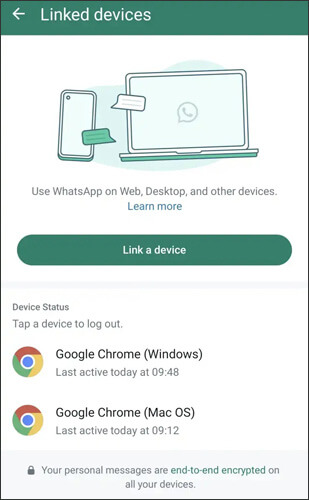
WhatsApp's official Linked Devices feature allows you to use the same WhatsApp account on multiple devices (up to 4 devices) without logging out of your primary phone. This method is ideal if you want to access your existing WhatsApp chats on a secondary phone, tablet, or desktop, and it requires no third-party tools, just the official WhatsApp app.
Step 1. Ensure both devices are connected to the internet, and the secondary device has the latest version of WhatsApp installed (but not registered with any number).
Step 2. Open WhatsApp. For Android users, tap the three dots in the top-right corner and select "Linked Devices"; for iPhone users, tap "Settings" in the bottom-right corner and choose "Linked Devices".
Step 3. Tap "Link a Device" (Android) or "Link Device" (iPhone). You may need to authenticate using your fingerprint, PIN, or Face ID/Touch ID to proceed. Then, grant the camera permission to scan the QR code.
Step 4. On your secondary device, open WhatsApp and skip the phone number verification step. Tap the "More" icon in the top-right corner and select "Link as Companion Device".
Step 5. Use your secondary device's camera to scan the QR code displayed on your primary device. Once scanned, your secondary device will start syncing your recent chat history, and you'll have full access to your WhatsApp account, including messages, calls, and media.
Your primary phone doesn't need to stay connected after the initial setup, but you must log in to WhatsApp on your primary device every 14 days to keep the linked devices active. Also, live location sharing does not work on companion devices, and each linked device will download chat media separately, so ensure there's enough storage space.
WhatsApp Business is an official version of WhatsApp designed specifically for small businesses and merchants. With WhatsApp Business, you can use two separate WhatsApp accounts on the same device, one for personal use and the other for business purposes. Compared to the regular WhatsApp, WhatsApp Business offers additional features like automated replies, label management, and quick replies, making it particularly suitable for users who need to manage both work and personal life simultaneously.
Steps to use WhatsApp Business to clone WhatsApp:
Step 1. Go to the Google Play Store or the App Store and download the WhatsApp Business app.
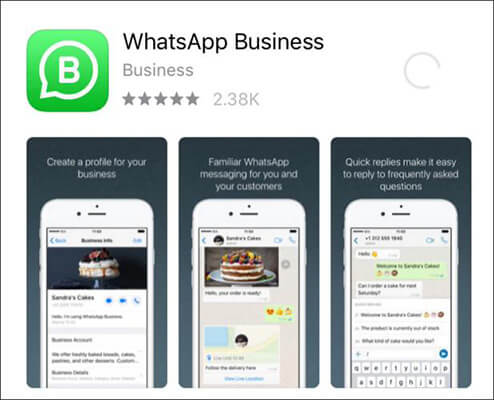
Step 2. Open WhatsApp Business and register with a different phone number. You'll need a phone number that isn't already associated with WhatsApp.
Step 3. Once registered, go to the settings and create your business profile. You can set up details such as your business name, description, working hours, and location to help customers learn more about your business.
Step 4. After setting up your profile, you can begin using WhatsApp Business. With this app, you can send and receive messages, manage customer conversations, and take advantage of extra features like automated messages, quick replies, and label management.
Most modern Android smartphones come with a built-in Dual Apps (or similar) feature that allows you to clone WhatsApp and other apps, eliminating the need for third-party tools. This feature is available on popular brands like Samsung, Xiaomi, OPPO, Huawei, and Vivo, though the name may vary by brand (e.g., Dual Messenger for Samsung, Dual Apps for Xiaomi, Clone Apps for OPPO, App Twin for Huawei).
Steps to clone WhatsApp using built-in dual apps:
Step 1. First, make sure you have the regular WhatsApp app installed and registered with your primary phone number. You'll also need a second active phone number for the cloned account.
Step 2. Open your Android device's Settings and navigate to the Dual Apps section based on your brand:
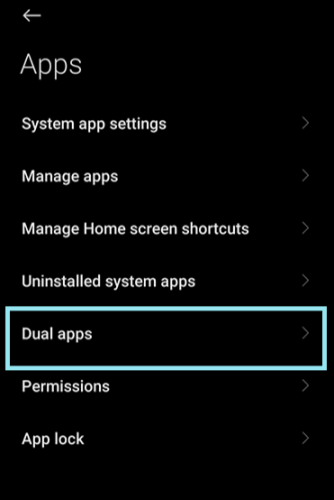
Step 3. In the Dual Apps menu, find WhatsApp from the list of available apps and toggle the switch to enable cloning. Some devices may allow you to rename the cloned app for easier identification (e.g., "WhatsApp Work").
Step 4. Wait for the cloning process to complete. A new WhatsApp icon (often with a small marker to distinguish it from the original) will appear on your home screen or app drawer.
Step 5. Open the cloned WhatsApp app, enter your second phone number, and complete the verification process (via SMS or phone call). Once verified, you can use both the original and cloned WhatsApp accounts simultaneously on your Android device.
You can also use other third-party apps, such as Parallel Space. Parallel Space allows users to run multiple instances of the same app on the same device. By using Parallel Space, you can clone WhatsApp and use two accounts simultaneously on one device. However, keep in mind that third-party apps may include ads, and it's important to be cautious about privacy and security when using them.
How to clone WhatsApp using Parallel Space:
Step 1. Download and install Parallel Space from Google Play. There is also a lightweight version of Parallel Space available for iOS, which supports multi-account functionality for some social apps (but not all). You can search for it in the App Store and give it a try.

Step 2. Open the app and tap "Add App".
Step 3. Select WhatsApp, then tap "Add to Space".
Step 4. Start setting up and log in to your second WhatsApp account. You can now run both accounts simultaneously without any conflicts.
If you've followed the previous methods for cloning WhatsApp, you may also need to transfer your existing WhatsApp data, such as messages, photos, videos, and attachments, between your devices. This can be particularly important when switching phones or using multiple accounts. Thankfully, there's a reliable tool called WhatsApp Transfer that allows you to do just that. It simplifies the process of transferring WhatsApp data between different devices, without requiring you to reset your phone or deal with complicated steps.
Key features of WhatsApp Transfer:
How to transfer WhatsApp Messages between two phones?
01First, download and install WhatsApp Transfer on your computer. Open the program and select the "WhatsApp" option.
02Connect both your iPhone and Android devices to the computer using USB cables. On your iPhone, tap "Trust this Computer" when prompted; on Android, enable USB Debugging.
03Confirm the source device and the target device. If necessary, click the "Flip" button to swap the devices.
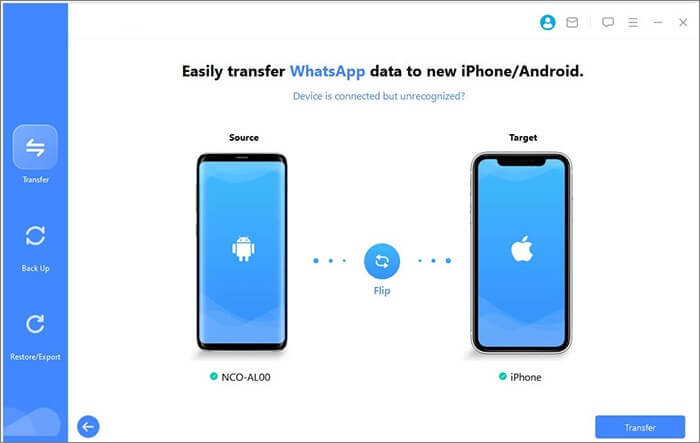
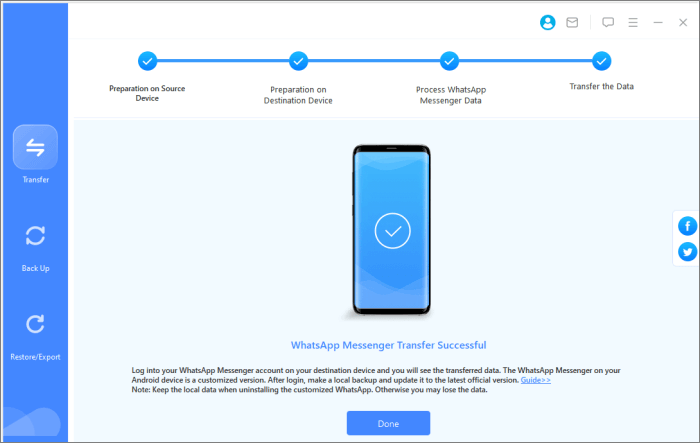
04Click "Transfer" and wait as the software securely moves your WhatsApp data. Once the transfer is complete, all your messages, media, and other WhatsApp data will be available on the target device.
In this article, we've introduced several legal and safe methods for cloning WhatsApp, whether through WhatsApp's native multi-device feature, WhatsApp Business, or by using Android's Dual Apps and Parallel Space. Each method offers unique advantages, catering to different user needs.
If you're looking for an efficient way to transfer WhatsApp data, WhatsApp Transfer is an excellent choice. It helps you easily migrate WhatsApp data across devices while ensuring the security of your data.
Choose the method that best suits your needs, and make using WhatsApp more flexible to help you manage both work and personal life more effectively.
Related Articles:
How to Use Two WhatsApp Accounts on One iPhone (4 Proven Ways)
WhatsApp Transfer Software: A Comprehensive Guide to Top Tools
How to Transfer WhatsApp from iPhone to Huawei with 4 Methods







 Free Download for PC
  Free Download for Mac


