TL;DR:
To send long videos in WhatsApp without quality loss or upload issues, choose the method that best matches your needs.
"While WhatsApp does not allow more than 2:50 second video officially and it trims it automatically if it's long, I see some people sending me 8 min 10 min long videos. Once I received a 15 min long video. How do they do that? How do I send long video in WhatsApp?"
- From Reddit
Wondering how to send a long video in WhatsApp without running into file size limits or blurry playback? You're not alone. While WhatsApp makes it easy to share photos and videos, large video files can be challenging to send because of upload restrictions and automatic compression. As a result, your video may fail to upload, take a long time to send, or lose its original quality after it's delivered.
Luckily, sending large videos on WhatsApp is easier than you might think. From sending videos as documents to sharing cloud links or compressing large files, there are several practical ways to get the job done. This guide will show you how to send a long video in WhatsApp step by step, so you can choose the method that works best for your situation.
Before sending a long video on WhatsApp, it's helpful to know a few basic requirements.
1. What's the WhatsApp Maximum Video Size You Can Send?
WhatsApp currently lets you send videos of up to 2 GB in individual and group chats. However, videos shared as regular media are typically compressed, which may reduce their quality. If you want to preserve the original resolution, you can send the video as a document instead; we'll show you how later in this guide.
2. What Video Formats Does WhatsApp Support?
WhatsApp supports most popular video formats, including MP4, MOV, AVI, 3GP, and MKV. Among them, MP4 (H.264 video and AAC audio) is the recommended format because it offers the best compatibility across Android, iPhone, and WhatsApp Web. If your video isn't supported, converting it to MP4 usually resolves the issue.
Now that you know WhatsApp's basic video requirements, let's look at the best ways to send long videos successfully. Depending on your needs, you can preserve the original quality, bypass file size restrictions, or reduce the file size for faster sharing.
If your priority is to preserve the video's original quality, sending it as a document is the best option. Unlike sending a video from your gallery as media, this method avoids WhatsApp's automatic compression, so the recipient receives the file in its original quality.
Follow these steps to send a long video as a document:
Step 1. Open WhatsApp and go to the chat where you want to send the video.
Step 2. Tap the "Attach (paperclip)" icon and select "Document".
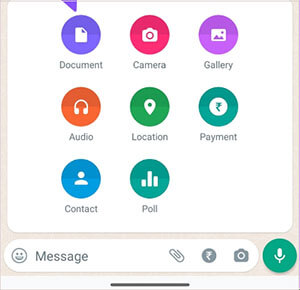
Step 3. Tap "Select from Gallery" under the Document tab.
Step 4. Choose the video you want to send, then tap the "Send" button.
Pros
Cons
Note: The menu names and layout may vary slightly depending on your device and WhatsApp version, but the process is generally the same.
If your video is too large to send directly or you don't want to upload it through WhatsApp, uploading it to a cloud storage service is a simple alternative.
Popular cloud storage services include:
After uploading the video, simply generate a shareable link and send it through WhatsApp. The recipient can then download or stream the video directly from the cloud.
How to share a video using a cloud link:
Step 1. Upload the video to your preferred cloud storage service.
Step 2. Create a shareable link and adjust the sharing permissions if necessary.
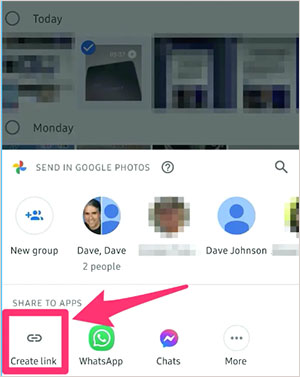
Step 3. Copy the link.
Step 4. Paste the link into your WhatsApp chat and send it.
Pros
Cons
If you prefer to send your video directly through WhatsApp, compressing it beforehand can help reduce its file size while maintaining acceptable quality.
You can compress videos using:
How to compress a video before sending:
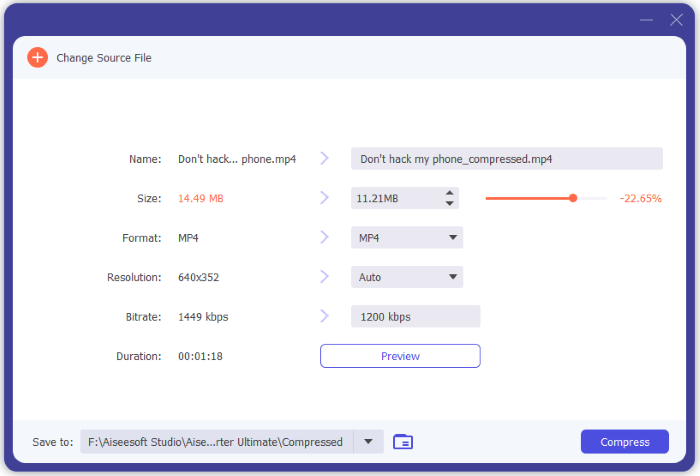
Step 1. Open your preferred video compression tool.
Step 2. Import the video you want to send.
Step 3. Lower the resolution, bitrate, or quality settings as needed.
Step 4. Save the compressed video.
Step 5. Open WhatsApp and send the new file.
Pros
Cons
1. What's the longest video I can send over WhatsApp?
WhatsApp doesn't set a fixed limit on video duration. Instead, it limits the file size. As long as your video is within WhatsApp's maximum supported file size, you can send it regardless of how many minutes or hours it is. For example, a one-hour video recorded at 720p may be small enough to send, while a 20-minute 4K video could exceed the size limit.
2. Does WhatsApp reduce video quality?
Yes. When you send a video as regular media, WhatsApp automatically compresses it to save bandwidth and storage space. If you want to preserve the original quality, send the video as a document instead.
3. Why can't I send a long video on WhatsApp?
If WhatsApp won't send your video, it's usually due to one of these reasons:
If you frequently receive or send large videos on WhatsApp, it's a good idea to back them up regularly. This not only frees up storage space on your phone but also protects your important videos from accidental deletion, device damage, or data loss.
For Android users, Coolmuster Android WhatsApp Recovery is your top choice. It's an easy-to-use tool that lets you back up WhatsApp data from your Android device to a computer. You can save your WhatsApp videos, photos, chats, voice messages, and other attachments in just a few clicks, making it much easier to manage your files or restore them when needed. You can also preview your WhatsApp data before exporting, so you only save the files you need.
How to back up WhatsApp videos to your computer?
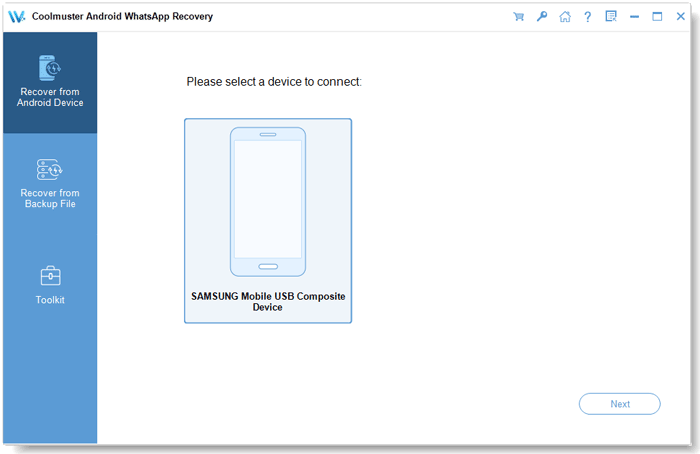
01Install and open Android WhatsApp Recovery on your computer. Use a USB cable to connect your Android phone and wait for the program to recognize the device.
02When your phone appears in the software, select it and click "Next". The program will then start analyzing your device and preparing your WhatsApp data for scanning.
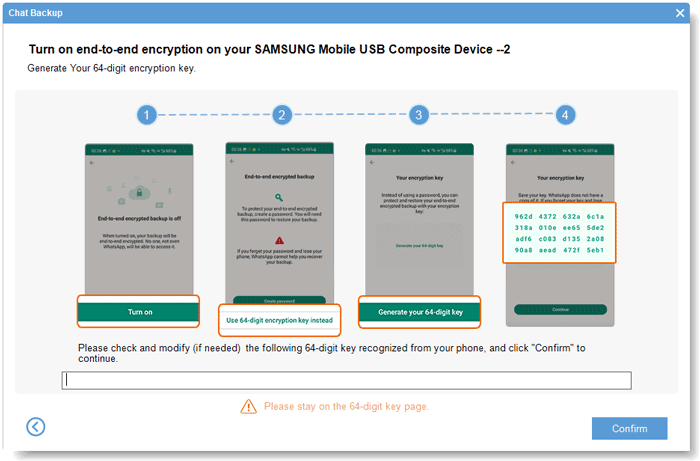
03To continue, you'll need to turn on end-to-end encrypted chat backup on your Android device. Just follow the prompts shown in the software. Once the encryption key is obtained and filled in automatically, click "Confirm" to proceed.
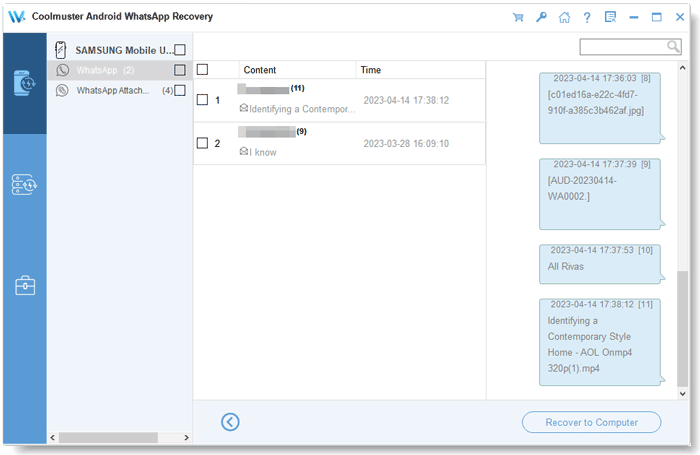
04After the scan finishes, you'll be able to browse your WhatsApp data on the computer. Select the videos you'd like to save (or choose other WhatsApp files as needed), then click "Recover to Computer" to export them.
Prefer a visual walkthrough? Watch the video tutorial below to see the entire backup process step by step.
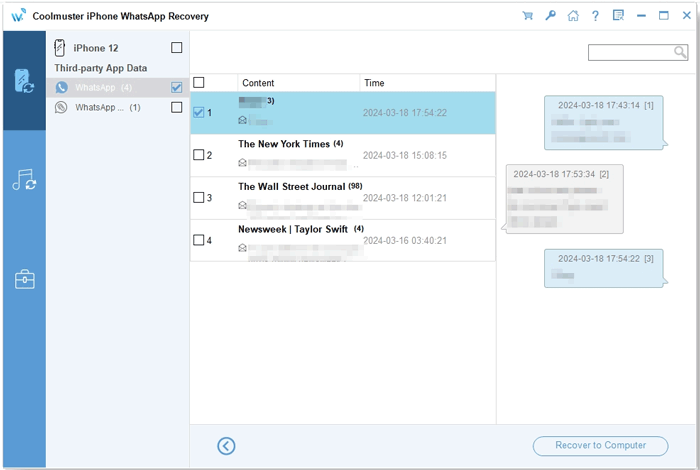
If you're using an iPhone, you can use Coolmuster iPhone WhatsApp Recovery to back up your WhatsApp videos, chats, photos, and other attachments to your computer. It offers a similarly straightforward backup experience and is a good option for keeping your WhatsApp data safe before upgrading or resetting your device.
Sending long videos on WhatsApp is easier once you know the right approach. If maintaining the original quality is your top priority, sending the video as a document is usually the best option. For files that are too large to send directly, uploading them to a cloud storage service and sharing the link is a reliable alternative. If you simply need to reduce the file size, compressing the video before sending can also do the trick.
Besides sharing videos, it's equally important to keep your WhatsApp media safe. Backing up your WhatsApp videos to a computer is a simple way to prevent accidental data loss. If you're looking for an easy backup solution, Coolmuster Android WhatsApp Recovery is a reliable choice for Android users, while Coolmuster iPhone WhatsApp Recovery offers a convenient way for iPhone users to back up their iOS WhatsApp data.
Related Articles:
How to Send Long Videos on Android? Solved in 8 Amazing Ways
How to Send High-Quality Videos from Android to iPhone [Data Transfer Tips]
How to Compress Video for WhatsApp [Online & Computer & Phone Apps]






 Free Download for PC


