TL;DR:
Using Google Voice number for WhatsApp is possible in many cases, but it is not officially guaranteed and may sometimes face verification issues due to VoIP restrictions. This guide explains whether Google Voice works with WhatsApp, how to set it up step by step, why verification may fail, and how to fix common problems. You will also learn how to back up your WhatsApp data to a computer to keep your chats safe and secure.
"I am wanting to get a Google Voice number specifically to be able to use it for my WhatsApp number as I do not wish to give out my phone number every time I ask someone to contact me on WhatsApp. Is this possible? Can you use Google Voice numbers with WhatsApp? Can you change your current number you have on WhatsApp to a new Google Voice number?"
- From Reddit
Using Google Voice number for WhatsApp has become a popular choice among users who want to keep their personal phone numbers private or create an additional WhatsApp account. Since Google Voice provides a virtual phone number that can receive calls and text messages, many people wonder whether it can be used to complete WhatsApp verification.
In this guide, you'll learn whether Google Voice works with WhatsApp, how to set it up step by step, what to do if verification fails, and how to protect your WhatsApp data with a reliable backup solution.
Yes, in many situations, you can use a Google Voice number for WhatsApp.
WhatsApp allows users to verify accounts using many VoIP (Voice over Internet Protocol) numbers, and Google Voice numbers often work for initial SMS or voice-call verification. This means you may be able to create a new WhatsApp account without using your primary mobile number.
However, there are several limitations to keep in mind:
Because WhatsApp continuously updates its anti-spam and account verification systems, a Google Voice number that works today may not necessarily work in the future. Therefore, using a standard mobile number remains the most reliable option.
Follow these simple steps to set up WhatsApp using a Google Voice number. The process is similar on both Android and iOS devices, but the success rate may vary depending on verification results.
Step 1. Prepare your Google Voice number
Make sure your Google Voice number is active and properly set up. You must have access to your Google account and be able to receive messages or calls through the Google Voice app or web version.
Step 2. Install WhatsApp
Download WhatsApp from the Google Play Store or App Store. If WhatsApp is already installed, you can reinstall or update it to ensure a clean setup.
Step 3. Enter your Google Voice number
Open WhatsApp and enter your Google Voice number with the correct country code (+1 for US numbers). Double-check the number before continuing.
Step 4. Verify your number
WhatsApp will send a 6-digit verification code via SMS. If you don't receive it, wait a few minutes and try the "Call Me" option to receive the code via voice call.
Step 5. Complete setup
Once verified, set up your profile name and preferences. You can now start using WhatsApp with your Google Voice number.
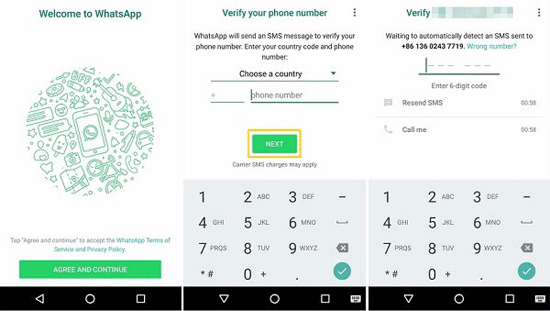
Although many users successfully verify WhatsApp using Google Voice, the process does not always work. Here are the most common reasons.
Reason 1. WhatsApp Detects the Number as a VoIP Number
Google Voice numbers are virtual numbers rather than traditional mobile numbers. WhatsApp may identify them as VoIP numbers and reject them during verification.
Reason 2. The Number Was Previously Used on WhatsApp
If another person previously used the Google Voice number for WhatsApp, the verification process may become more complicated or fail altogether.
Reason 3. SMS Messages Are Not Delivered
Sometimes Google Voice experiences delays in receiving text messages. In other cases, WhatsApp may not send the verification code to the number at all.
Reason 4. Temporary Verification Restrictions
Repeated verification attempts within a short period can trigger temporary restrictions. WhatsApp may ask you to wait before trying again.
Reason 5. Regional Limitations
Google Voice is officially available only in certain countries. If you're accessing WhatsApp from a region with additional restrictions, verification may become more difficult.
How to Improve Your Chances of Success?
1. Can I use a Google Voice number for WhatsApp Business?
Yes, you may be able to use a Google Voice number for WhatsApp Business if the number successfully passes WhatsApp's verification process. However, because Google Voice is a VoIP service, reliability can vary, and some business-related features may not work as consistently as they do with a traditional mobile number.
2. Is Google Voice safe for WhatsApp verification?
Generally, yes. Google Voice is a legitimate service provided by Google. However, since the number is virtual, account recovery and long-term reliability may not be as dependable as using your personal mobile number.
3. Why is WhatsApp not sending a verification code to my Google Voice number?
This usually happens because WhatsApp has flagged the number as a VoIP number, SMS delivery has been delayed, or the number has already been associated with another WhatsApp account. Trying voice-call verification may help.
4. Will my Google Voice WhatsApp account get banned easily?
Using a Google Voice number for WhatsApp does not automatically lead to a ban if you use it normally. However, compared to a regular SIM card number, VoIP numbers may carry a slightly higher risk of verification issues or account limitations. To stay safe, avoid unusual behaviors such as sending spam messages, frequently changing devices, or switching IP addresses too often. In most cases, normal personal use should not cause any problems.
Whether you're using a Google Voice number or a regular phone number, backing up your WhatsApp data is essential. If you lose access to your number or encounter account verification problems, having a local backup can help protect important chats, photos, videos, and documents.
For Android users, Coolmuster Android WhatsApp Recovery provides a simple way to back up WhatsApp data to a computer. The software allows you to save WhatsApp messages and attachments securely, helping you avoid data loss caused by device damage, accidental deletion, or account issues.
If you use an iPhone, you can try Coolmuster iPhone WhatsApp Recovery to back up and recover WhatsApp data from iOS devices.
Key features of Android WhatsApp Recovery
How to back up Android WhatsApp to a computer?
01First, install and launch the WhatsApp message recovery software on your computer.
02Then, connect your Android phone to the computer using a USB cable, select your mobile device, and click "Next".
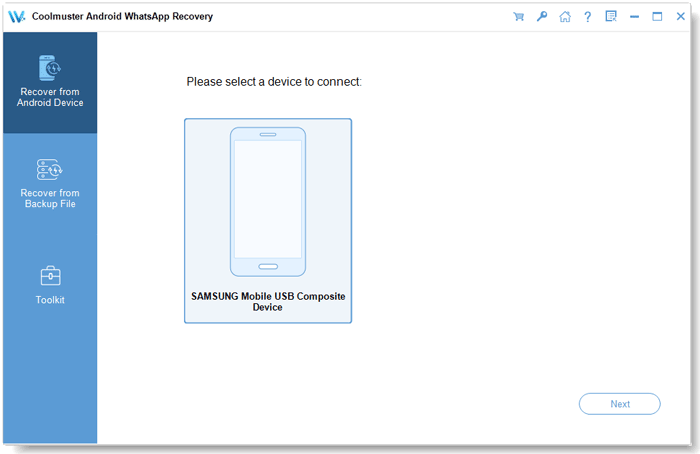
03Once the connection is successfully established, the software will begin scanning your WhatsApp data automatically.
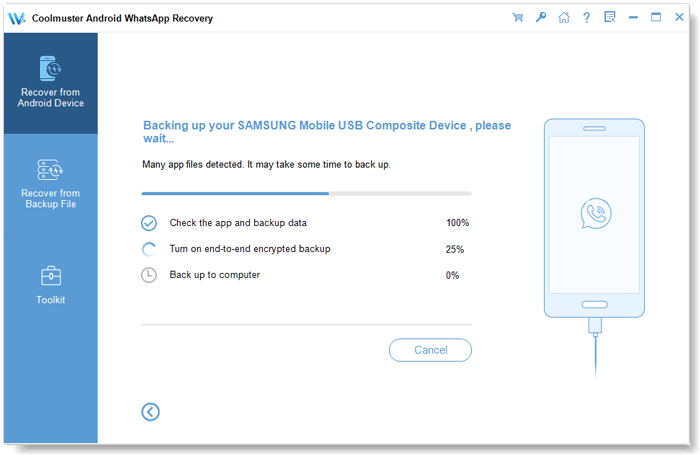
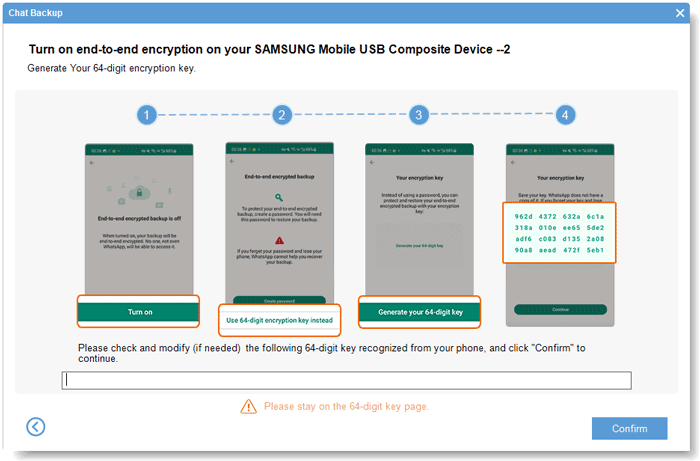
04At this stage, you will be prompted to enable end-to-end encryption on your phone. Follow the on-screen instructions carefully. After obtaining the encryption key, the WhatsApp recovery tool will automatically detect and fill it into the required field. Then, click "Confirm" to continue.
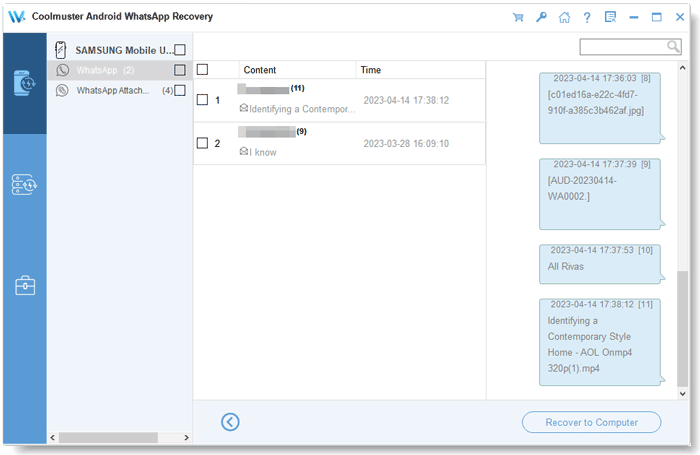
05When the scanning process is complete, all your WhatsApp data will be organized and displayed under "WhatsApp" and "WhatsApp Attachments". Select the items you want to back up, then click "Recover to Computer" to save your WhatsApp data locally.
If you prefer a more visual walkthrough, you can also refer to the video tutorial below for a step-by-step demonstration.
Using a Google Voice number for WhatsApp is possible in many situations, and it can be a convenient way to protect your privacy or manage an additional account. However, because Google Voice numbers are classified as VoIP numbers, verification success is not guaranteed, and certain WhatsApp features may not work as reliably as they do with a traditional mobile number.
If you decide to use Google Voice with WhatsApp, make sure to keep your account secure and regularly back up your chats. A dedicated backup tool such as Coolmuster Android WhatsApp Recovery can help ensure that your important conversations remain safe, even if you lose access to your WhatsApp account or phone number in the future.
Related Articles:
How to Add WhatsApp Contacts on Android with 4 Methods
[Stepwise Guide] How to Manage WhatsApp Account on Android Devices?
How to Recover Audio Files from WhatsApp on Android & iPhone
WhatsApp Transfer Software: A Comprehensive Guide to Top Tools






 Free Download for PC


