TL;DR:
Need to remove an Android lock screen but don't know which tool to choose? This guide reviews five Android lock screen removal tools and covers:
To protect personal data, photos, messages, and other private information from unauthorized access, most people set a screen lock on their Android phones. However, the lock screen can become a problem when you forget a complicated PIN, password, or pattern, or when you purchase a second-hand Android phone that is still locked by the previous owner.
Fortunately, Android lock screen removal tools can help you regain access when you cannot unlock your device normally. In this guide, we review five popular tools based on their features, ease of use, limitations, and unlocking processes. You can also follow the step-by-step instructions to see how each tool works before choosing one for your device.
Forgot your Android PIN, password, or pattern? Android Unlock provides a straightforward way to remove various types of screen locks without requiring complicated manual commands. It is designed for users who want a dedicated desktop solution rather than spending time searching for device-specific recovery methods.
What makes it particularly interesting is that it provides different unlocking modes for different situations. For selected Samsung devices, users can choose a data-preserving method, while the standard removal mode is available for a broader range of supported devices. It also supports newer Android versions, including Android 17, giving users with recently updated phones another option to consider.
Key Features
Cons
How to Remove Android Lock Screen with Android Unlock?
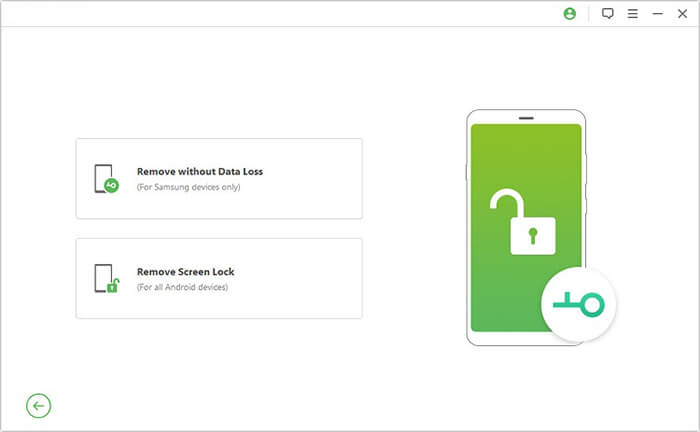
01Install and launch Android Unlock on your computer. From the main interface, select "Remove Screen Lock". If you have an eligible Samsung device and want to preserve your data, choose "Remove without Data Loss" instead.
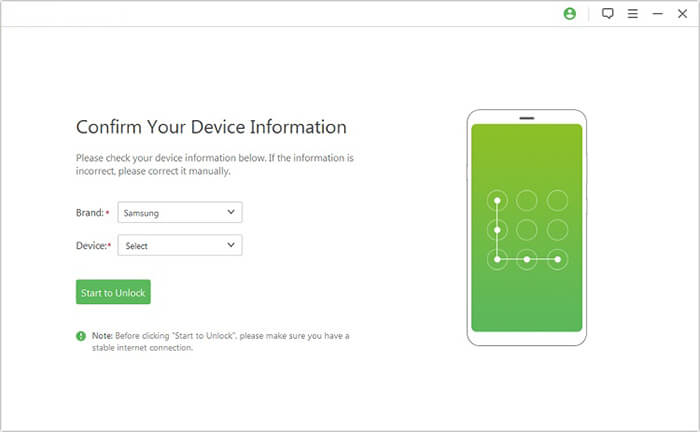
02Connect the locked Android phone to the computer with a USB cable and select the correct brand and model as prompted. Check the information carefully before continuing to make sure it matches your phone.
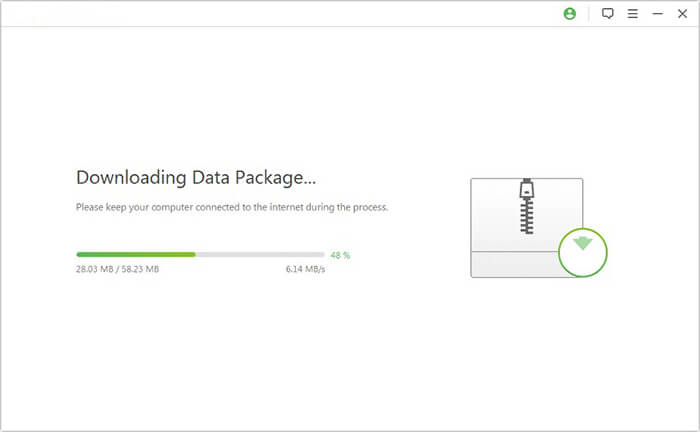
03Android Unlock will download the corresponding package needed for the unlocking process. Wait for the download to finish before proceeding.
04Follow the instructions shown on the screen to put your Android phone into Download Mode. Once the device is ready, click "Start to Unlock".
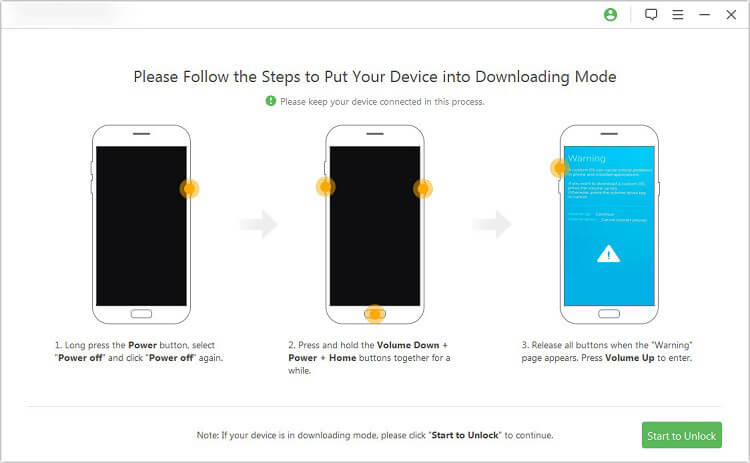
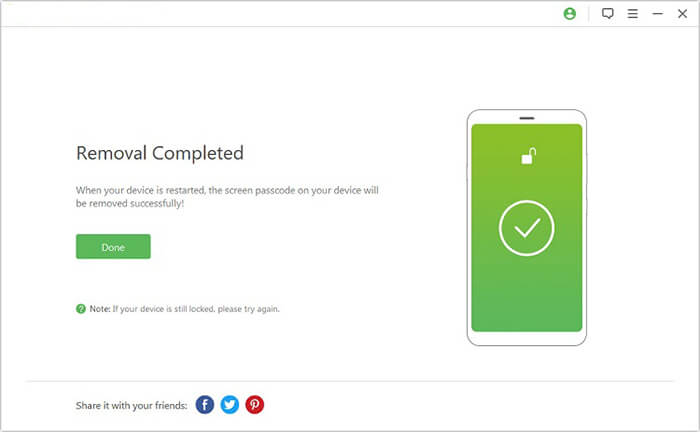
05Keep the phone connected while Android Unlock removes the screen lock. After the process finishes, restart the device and configure a new screen lock.
When a forgotten screen lock prevents access to an Android phone, having a guided unlocking workflow can be more convenient than manually navigating recovery menus. Dr.Fone - Screen Unlock (Android) takes this approach by providing a dedicated interface for removing common Android screen locks.
The tool supports Android 5.0 through Android 16 and works with various major Android brands. Besides screen-lock removal, it also includes an FRP unlocking feature for supported devices. Its overall design makes it a reasonable choice for users who prefer a more structured desktop unlocking process.
Key Features
Cons
How to Remove Android Lock Screen with Dr.Fone?
Step 1. Install and launch Dr.Fone on your computer, then connect your locked phone via a USB cable. Here, we show you how to unlock Samsung as an example.
Step 2. Open Screen Unlock from the main interface, then select "Android" > "Unlock Android Screen".
Step 3. Select "Samsung" as the device brand, then choose "Remove without Data Loss" if your device supports this option.
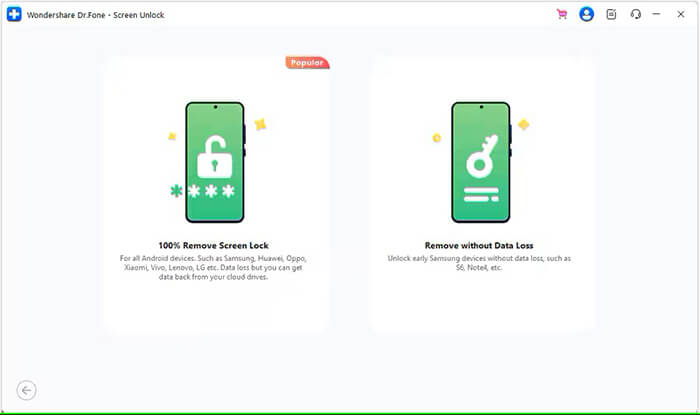
Step 4. Select the correct device name and model, check "I agree to the warning and I'm ready to proceed" to proceed, and click "Next".
Step 5. When prompted, enter "000000" and click "Confirm" to proceed.
Step 6. Follow the on-screen instructions to put your Samsung phone into Download Mode. Dr.Fone will then begin the unlocking process automatically.
Step 7. Wait for the process to finish. Once the screen lock has been removed, restart the device and complete the setup if required.
For older Android phones, compatibility can be more important than support for the latest operating system. EaseUS MobiUnlock for Android stands out in this comparison because its screen-lock removal function covers Android 2.0 through Android 13.0, making it particularly relevant to users with older devices.
Its focus on older Android versions makes it a practical option for users whose phones may not be compatible with newer lock-screen removal tools. However, those using Android 14 or later will need to consider other options in this comparison.
Key Features
Cons
How to Use EaseUS MobiUnlock for Android?
Step 1. Launch EaseUS MobiUnlock for Android and connect the locked phone to your computer using a USB cable.
Step 2. Choose the screen-lock removal function and proceed with the unlocking workflow.
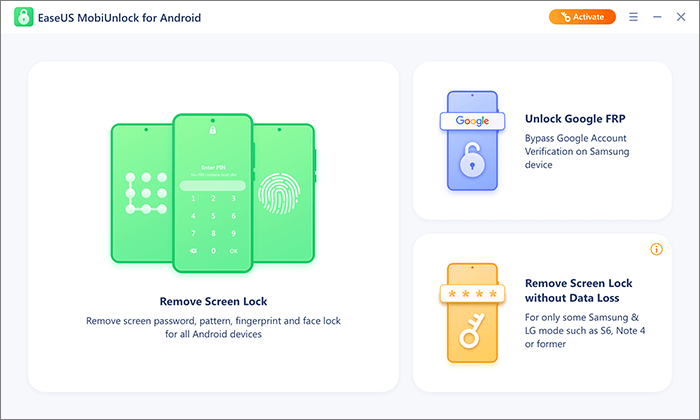
Step 3. Select the correct brand and model information when prompted. Verify the details before continuing.
Step 4. Follow the on-screen instructions to place the Android phone into the required mode. The instructions may vary depending on the device.
Step 5. After the device has been prepared, click Unlock. If the software displays a verification code or confirmation prompt, enter or confirm the requested information.
Step 6. EaseUS MobiUnlock will begin removing the screen lock. Keep the phone connected until the process is complete.
Removing an Android screen lock can involve different procedures depending on the manufacturer and device generation. Tenorshare 4uKey for Android focuses on simplifying this process through a guided desktop workflow.
It is particularly worth considering for users with newer Samsung devices or those looking for a tool that combines screen-lock removal with additional FRP-related functions. Its support for Android 16 also makes it a suitable option for many recent Android phones.
Key Features
Cons
How to Use Tenorshare 4uKey for Android?
Step 1. Install and launch Tenorshare 4uKey for Android on your computer, then select "Remove Screen Lock".
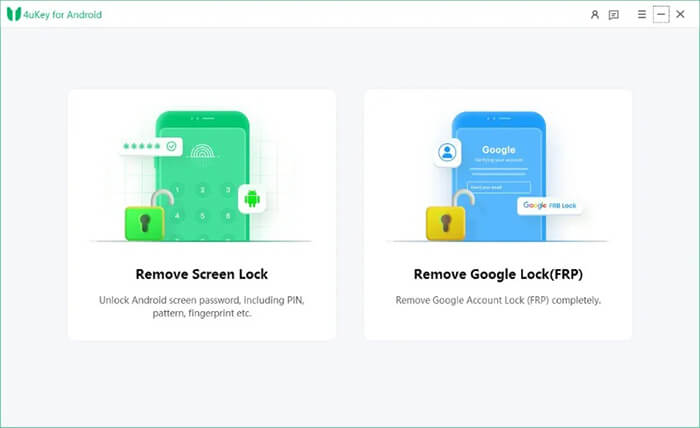
Step 2. Connect the locked Android phone to the computer with a USB cable. The software will automatically detect the device brand.
Step 3. Check whether the detected brand is correct. If not, click "Is your phone not this brand?" to select the correct brand, then click "Start".
Step 4. The next steps vary slightly depending on your device brand.
For non-Samsung devices, follow the instructions provided by 4uKey to perform a factory reset on the phone. After the required steps are completed, 4uKey will automatically begin removing the screen lock.
Samsung devices can complete the removal process directly without following the factory-reset steps above.
Step 5. Wait until the removal process finishes, then restart the device and complete the initial setup if necessary.
Users with newer Android versions may need to pay closer attention to software support when choosing a lock-screen removal tool. iToolab UnlockGo (Android) stands out in this comparison with support for Android 17, 16, 15, 14, 13, and earlier versions.
With broad device compatibility and several unlocking options, it is designed to handle different Android lock-screen and device-access scenarios. This makes it a versatile choice for users whose phones run newer Android versions or who need additional unlocking functions.
Key Features
Cons
How to Use iToolab UnlockGo (Android)?
Step 1. Install and launch UnlockGo (Android) on your computer, then select "Remove Screen Locks".
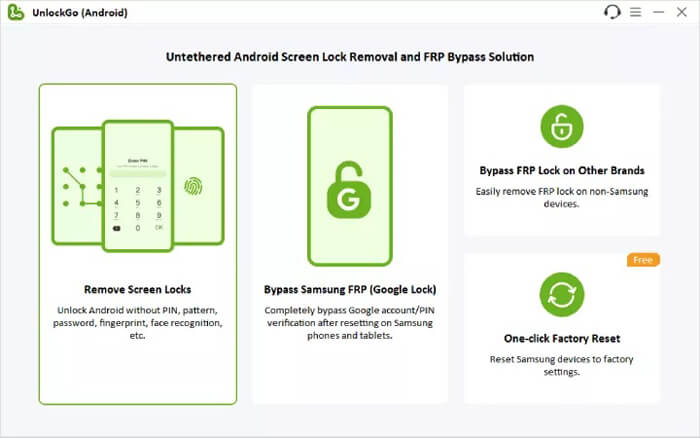
Step 2. Connect the locked Android phone to the computer using a USB cable.
Step 3. Select your phone brand and confirm the displayed device information, then click "Unlock" to continue.
Step 4. Follow the on-screen instructions or video guide to put your Android phone into Recovery Mode.
Step 5. Once the device enters Recovery Mode, follow the instructions shown in UnlockGo to begin removing the screen lock.
Step 6. Wait for the process to finish, then restart your phone. If the device automatically enters "Reboot System Now", no additional action is required.
Choosing the right Android lock screen removal tool depends on your device model, Android version, supported unlocking method, and whether you need to preserve your data. While all five tools can help remove common screen locks, their compatibility and available features differ, so it is important to check the requirements before starting the process.
Among these options, Android Unlock stands out as a well-rounded choice, offering multiple screen-lock removal methods, FRP-related features, support for newer Android versions, and a no-data-loss option for selected Samsung devices. If you are looking for a convenient desktop solution to regain access to a locked Android phone, it is worth considering.
Related Articles:
What to Do If Forgot Android PIN? [Solved with 6 Effective Ways]
How to Bypass Android Lock Screen Using Camera [Comprehensive Guide]
Top 6 Android Phone Unlocking Software in 2026 [Updated]
6 Best Android Unlock Apps and Tools in 2026: Thorough Comparison




 Free Download for PC


