TL;DR:
A fingerprint lock is a convenient way to protect your Android device, but you may lose access when your fingerprint cannot be recognized or the sensor stops working. This guide introduces several methods to bypass the fingerprint lock on Android:
Fingerprint locks provide a fast and secure way to protect personal data on Android devices. However, situations like a damaged fingerprint sensor, unrecognized fingerprints, dirty fingers, or forgotten screen lock settings can prevent you from accessing your phone normally. When this happens, knowing how to bypass a fingerprint lock on Android can help you regain access to your device.
In this guide, we will introduce several practical methods to unlock an Android phone with a fingerprint lock, including using Android unlock software, Google Find My Device, Samsung Find My Mobile, hard reset, and Safe Mode. Whether you are dealing with fingerprint recognition issues or a locked device, you can find a suitable solution to get back into your Android phone.
Have you set up a fingerprint lock for your Android device but cannot unlock it for some reason? Or do you want to unlock someone's Android phone with a fingerprint lock? Android Unlock allows you to bypass fingerprint and any other Android lock screen in a few clicks.
Key features of Android Unlock:
How to bypass the fingerprint lock in a few clicks?
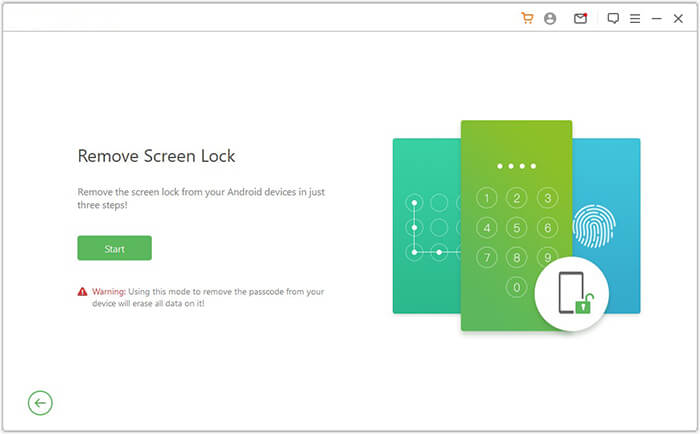
01Download and launch the Android unlocking program on your computer, then select Remove Screen Lock to proceed.
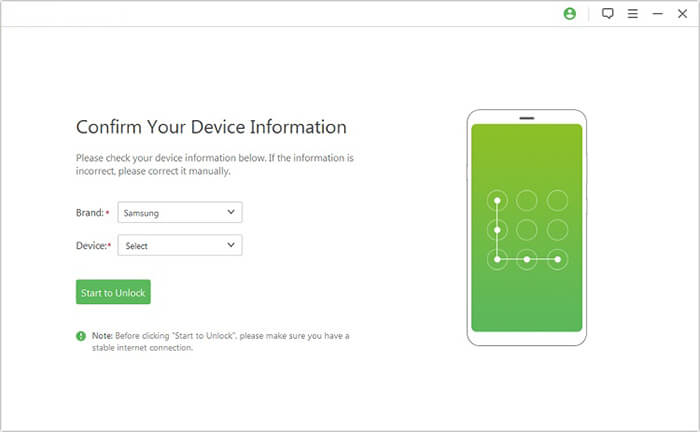
02Use a USB cable to connect your locked Android phone to the computer. The software will identify your device and show the detected information for you to check.
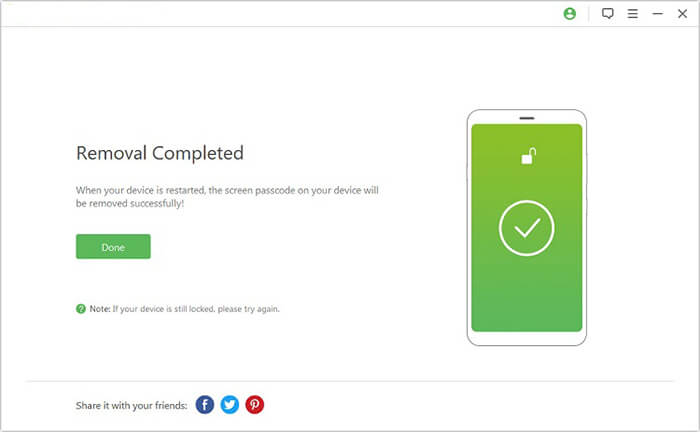
03If required, follow the provided instructions to put your device into Recovery Mode or Download Mode. After completing the preparation, click the Remove Now button to begin removing the fingerprint lock and wait patiently for the process to finish.
Suppose you have enabled the Find My Device option from Settings on your Android device before it gets locked, and remember the Google account credentials linked with your device. In that case, you can bypass the fingerprint lock by Find My Device remotely.
How do I bypass the fingerprint pattern on my Android remotely?
1. Install Find My Device on your computer or other devices from Google Play Store.
2. Launch the app and sign in with the Google account and password you use on your locked Android device.
3. Select the Android device you want to unlock and click Secure Device.
4. Enter a temporary password in the Set Password field and confirm it. Later, tap Secure Device again.
5. Access the locked phone using the temporary password and remove the fingerprint lock from Settings.
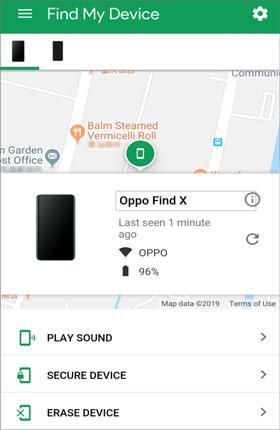
Note: The network should be enabled on the locked Android device, which runs Android 4.4 or later.
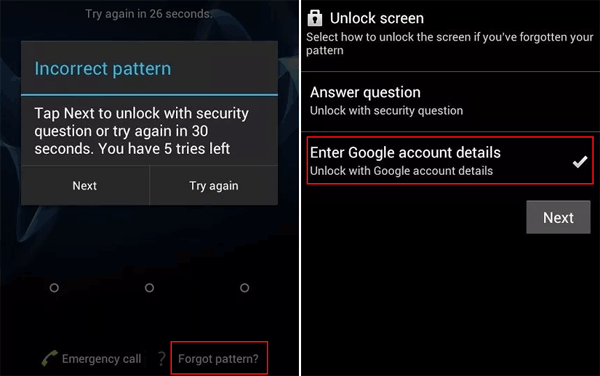
Assume you use older Android smartphones that run Android 4.4 or earlier versions. You can use the Forgot Pattern to unlock the fingerprint lock. However, it requires a network connection on your locked device, and you must sign in to your Google account before it is locked.
How to unlock fingerprint lock in Vivo?
1. Try five failed attempts to unlock your device until the Forgot Pattern appears on the screen.
2. Tap Forgot Pattern > select the Enter Google account details option > Next > type in your Google account and password > hit Sign In.
3. Your device will get unlocked. Then you can remove the fingerprint lock from Settings.
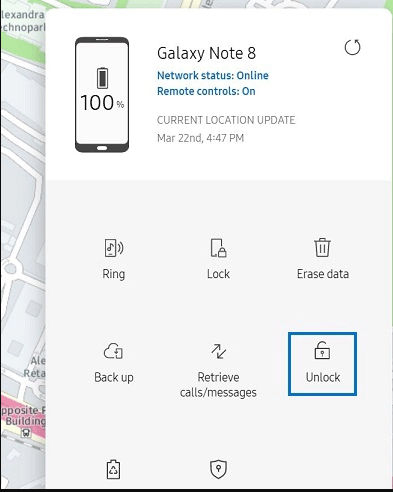
Samsung users can use the Find My Mobile feature to hack the Android phone with fingerprint locks as long as signing in your device with a Samsung account.
How do I bypass the fingerprint on Samsung?
1. Open findmymobile.samsung.com from a computer browser and log in with the Samsung account details you associated with your device.
2. Select the Samsung phone you wish to unlock and tap Unlock.
3. Hit Unlock again and enter your Samsung account.
4. Wait for your device to be unlocked.
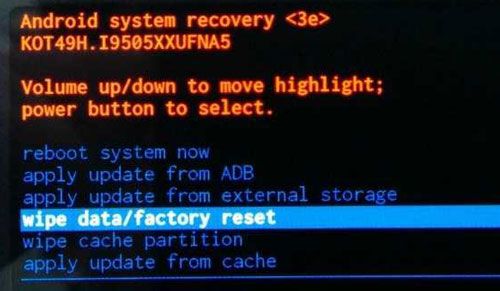
When your device cannot recognize your fingerprints and locks you out, you can also hard reset it to remove the lock screen along with the device content, like messages, videos, images, etc.
How to unlock the fingerprint lock with tape?
1. Power off your Android device.
2. Press and hold the Power + Volume buttons together until the screen goes black.
3. Use the Volume buttons to select Recovery Mode on the bootloader screen and press the Power button to confirm.
4. Move the cursor to the Wipe data/factory reset option by tapping the Volume buttons, and press the Power button to confirm the selection.
5. Select Yes - reset it now and wait for the process to finish.
6. Choose the Reboot system now option to restart your device. Once done, you can access your device without a lock screen.
It only bypasses the lock screen set by third-party apps. Here's how.
1. Press and hold the Power button and select the Power off option.
2. Hit OK when it confirms with you whether to reboot to Safe Mode.
3. Follow the on-screen prompts to get your device into Safe mode. Later, you can uninstall apps or disable fingerprint locks in Safe Mode.
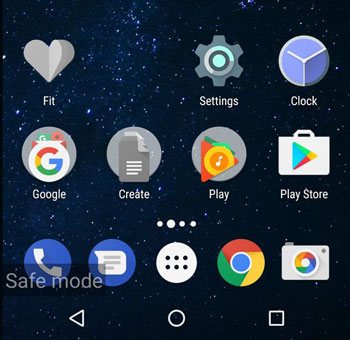
If you want to exit Safe Mode, reboot the device.
1. Can someone open my phone without my fingerprint?
Yes, someone may hack your phone without your fingerprint. Some reports said that hackers could use a fingerprint scanner to capture a target fingerprint picture and create a negative with PhotoShop. Then, they will print the image and put some wood glue on the imitated fingerprint to trick the commercial scanners.
Thus, you can back up your phone data to keep it safe in case you have to reset it remotely when lost.
2. How to set fingerprint lock on an Android device?
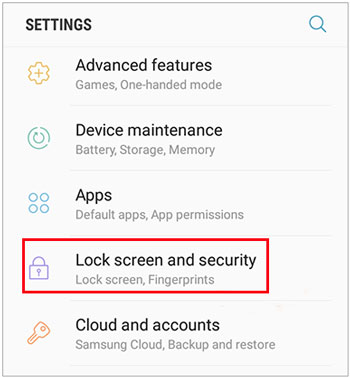
If you want to protect your Android device with fingerprint authentication, you can enable this feature through the built-in security settings or use fingerprint authentication for Google Play Store purchases. Below are two common ways to set up fingerprint recognition on your Android device.
Option 1. Enable fingerprint from Settings:
Option 2. Enable fingerprint authentication from Google Play Store (Android 6.0 and higher):
It is used to authenticate the app purchases from Google Play Store and confirm the payment.
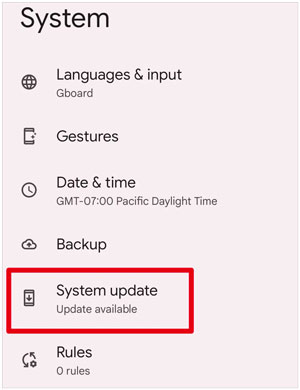
3. How to fix fingerprint not working issue?
It causes convenience when the fingerprint is not working issue on your device. You can resolve the issue with the following helpful tricks.
This guide explains how to bypass the fingerprint lock on an Android phone step by step. You can pick Android Unlock if needed. Compared with other methods, it does not require any password input process, nor does it have a system limit. Moreover, it has a much higher success rate of unlocking your Android phone than any other. Therefore, don't hesitate to give it a try.
Related Articles:
How to Unlock Android Phone with Google Account in 3 Easy Methods
How to Disable Android Lock Screen | Complete Guide to Unlock Device
Unlock Android Phone from PC: 3 Proven Methods that Work
Android Mi Theme Fingerprint Lock: Enable, Customize & Fix Issues




 Free Download for PC


