TL;DR:
Facing the "Please sign in using one of the owner's accounts" error after a reset? This guide explains the FRP lock and how to fix it.
Seeing the "Please sign in using one of the owner's accounts" message after resetting your Android phone can be frustrating, especially when you cannot remember the previously synced Google account. This issue is related to Google's Factory Reset Protection (FRP), a built-in security feature designed to prevent unauthorized access after a factory reset.
The message usually appears on Samsung, Xiaomi, Motorola, OPPO, vivo, and other Android devices after the phone has been reset without removing the original Google account. Fortunately, there are several ways to fix this issue, whether you still remember the account credentials or need to bypass the Google verification lock completely. In this guide, we will explain what this message means and show you practical methods to regain access to your Android device.
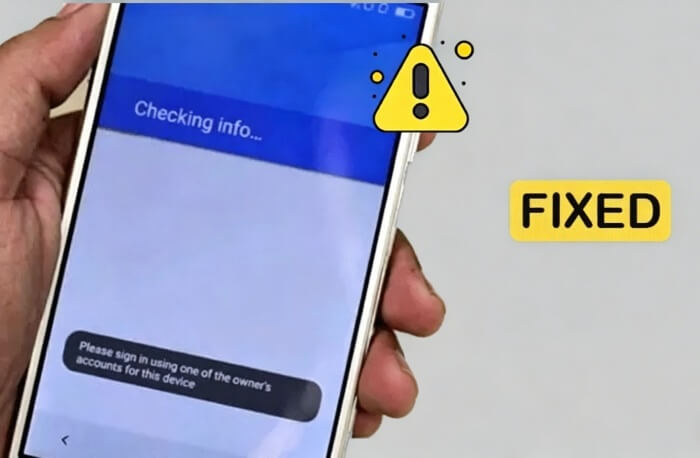
"Please sign in using one of the owner's accounts" is a Google FRP verification message that appears after an Android device is factory reset. It requires the Google account that was previously synced on the device before the reset to verify ownership and activate the phone again.
FRP, short for Factory Reset Protection, is a security feature introduced by Google on Android 5.1 and later. Its purpose is to protect lost or stolen devices from unauthorized use. Once FRP is enabled, anyone attempting to set up the device after a factory reset must enter the original Google account credentials.
This message may appear in situations such as:
Although FRP is useful for security, it can become a problem if you no longer remember the account information or purchase a used device without proper account removal.
If you still have access to the original Google account or recovery information, you can usually remove the FRP lock through official methods. Below are the most effective solutions.
The simplest and most reliable way to fix this issue is to sign in with the Google account that was previously linked to the device before the factory reset.
Here is how to do it:
Step 1. Turn on your Android phone and connect it to a stable Wi-Fi network.
Step 2. Continue through the setup process until you reach the Google verification screen that says "Please sign in using one of the owner's accounts for this device".
Step 3. Enter the email address or phone number associated with the previously synced Google account.
Step 4. Type the correct password and tap "Next".
Step 5. Once the verification is successful, the FRP lock will be removed automatically, and you can continue setting up the phone normally.
If you forgot your Google password, you can reset it through Google's account recovery page. However, after changing the password, Google may require a waiting period before allowing the device to be activated again.
Here are the detailed steps:
Step 1. On another phone or computer, visit the Google Account Recovery page.
Step 2. Enter the Google email address connected to the locked Android phone.
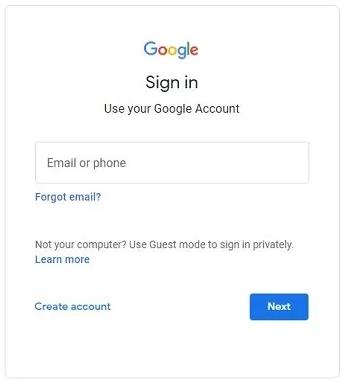
Step 3. Follow the instructions to verify your identity and create a new password.
Step 4. After resetting the password, wait at least 24 hours. In some cases, Google may require up to 72 hours before the device can be verified again.
Step 5. Once the waiting period is over, restart the Android device and sign in with the newly updated Google password.
If you cannot remember the Google account itself, you can try recovering your account information before attempting to unlock the device.
To recover your Google email address:
Step 1. Open Google's account recovery page on another device.
Step 2. Select the option that says "Forgot email?"
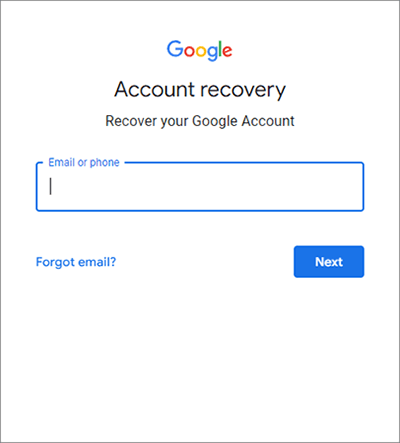
Step 3. Enter your recovery phone number or recovery email address.
Step 4. Follow the on-screen instructions to locate the Google account linked to your Android device.
To recover your password:
Step 1. Choose the "Forgot password?" option on the Google sign-in page.
Step 2. Complete the verification process using your recovery phone number, email, or security questions.
Step 3. Create a new password and wait for the required verification period if necessary.
After recovering the account, return to the locked Android phone and sign in again.
If you no longer have access to the original Google account or purchased a second-hand phone with FRP enabled, using a professional FRP bypass tool may be the easiest solution.
Android Unlocker is a popular Android unlock tool that can help remove FRP locks and bypass Google verification screens without requiring the original account credentials. It supports many Android brands, including Samsung, Xiaomi, Motorola, OPPO, vivo, Huawei, and more.
Key features of Android Unlocker:
Follow the given steps to remove Google FRP lock without a password:
01Install Android Unlocker on your computer and open the program after the installation process finishes.
02On the main screen, choose "Remove Google Lock (FRP)" and use a USB cable to connect your FRP-locked Android phone or tablet to the computer.
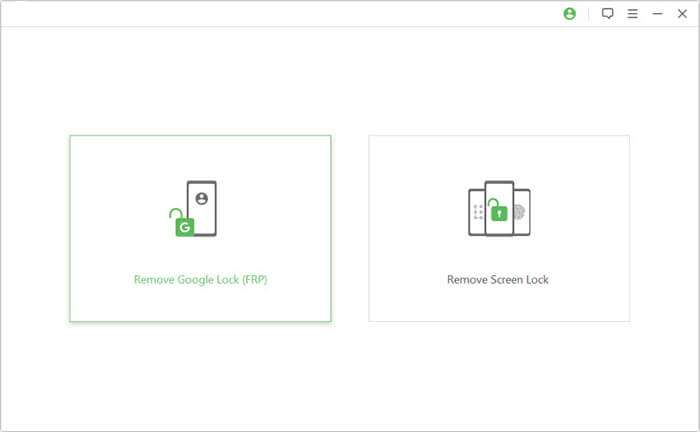
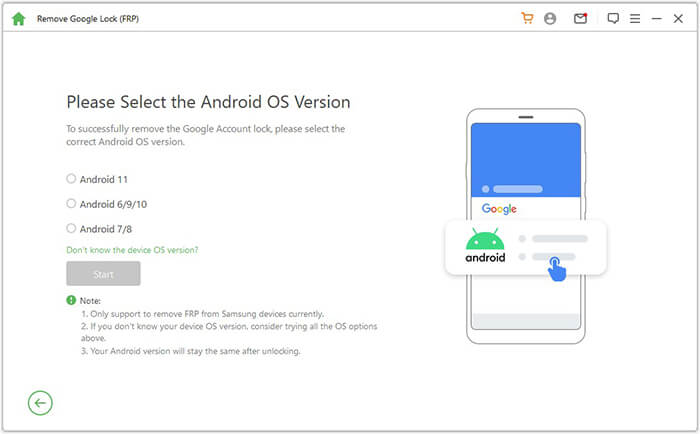
03Select the Android OS version running on your device according to the on-screen prompts. After verifying the information, click "Start" to move forward.
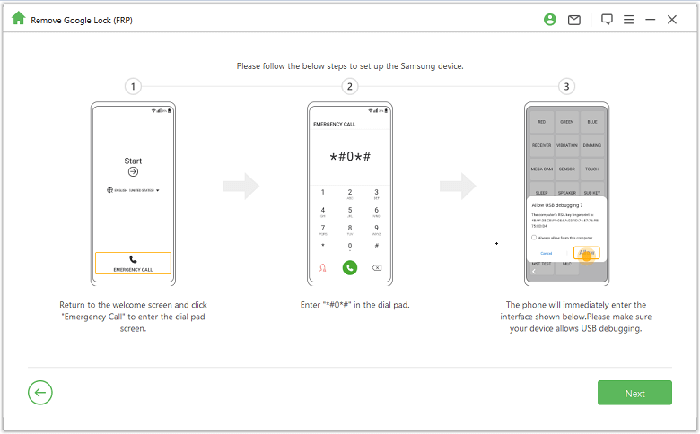
04Carefully follow the instructions displayed by the software to configure your device for the FRP removal process. The exact operations may differ depending on your phone brand and Android version.
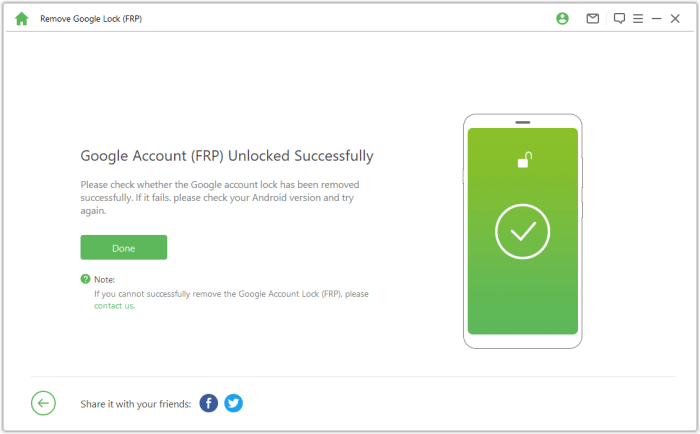
05Once everything is ready, the program will automatically start bypassing the Google FRP lock. Keep the device connected throughout the process and avoid interrupting the operation. After the removal is finished, the phone may restart automatically, indicating that the FRP lock has been successfully bypassed.
To avoid getting stuck on the FRP verification screen in the future, it is important to remove your Google account properly before performing a factory reset or selling your phone.
Here are some useful tips:
To remove a Google account from Android:
Step 1. Open the "Settings" app on your phone.
Step 2. Go to "Accounts" or "Passwords & Accounts".
Step 3. Select your Google account.
Step 4. Tap "Remove account".
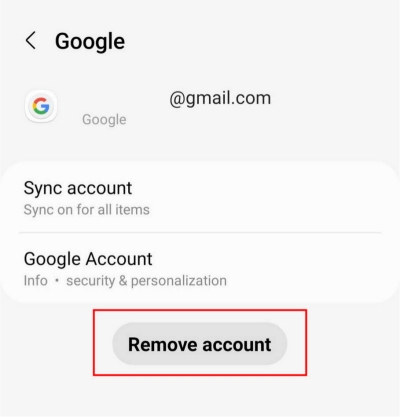
Step 5. Confirm the removal before resetting the device.
Doing this will disable FRP protection for that account and prevent activation lock issues later.
1. How long does Google FRP lock last?
Google FRP lock itself does not expire automatically. However, if you recently reset your Google password, Google may require you to wait between 24 and 72 hours before you can verify the device again.
2. Will bypassing the FRP lock erase my device data?
It depends on the unlocking method. Official Google account login will not delete any user data. For third-party tools, most ordinary Android models retain complete data after FRP bypass, while a small number of high-security Samsung devices need to clear data to complete unlocking. It is recommended to back up your Android important data in advance.
The "Please sign in using one of the owner's accounts" error is caused by Google's Factory Reset Protection feature, which is designed to protect Android devices from unauthorized access. If you still remember the original Google account, signing in or recovering the account is the safest solution.
However, if you no longer have access to the account or bought a used phone with FRP enabled, tools like Android Unlocker can help bypass the Google verification screen more efficiently without account credentials. To prevent this issue in the future, always remove your Google account before resetting or selling your Android device.
Related Articles:
How to Remove Activation Lock without Previous Owner
How to Unlock a Google Locked Phone with Effective Methods
Google FRP Bypass - A Comprehensive How-to Guide with 6 Top Picks
What to Do If Forgot Android PIN? [Solved with 6 Effective Ways]




 Free Download for PC


